
Purpose and Scope
FastReactPlan uses licence files .FRL to control system configuration and define limits such as:
- Number of users
- Planning rows
- Groups
- Planning boards
- Available functional modules and features
Additional functionality or increased limits can be purchased from Coats Digital. When a new licence is issued, the updated .FRL file must be imported into FastReactPlan to activate the changes.
Prerequisites
Before updating the licence:
- Ensure you have local administrator rights on the workstation where the licence will be applied.
- Confirm that all users have logged out of FastReactPlan.
- Save the licence file (.FRL) received from Coats Digital to a convenient location on your computer.
- Open FastReactPlan.
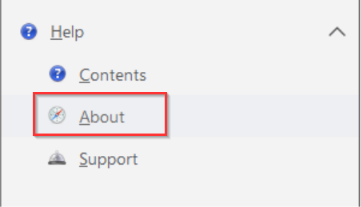
- Select Help > About.
- Click Licence Details.
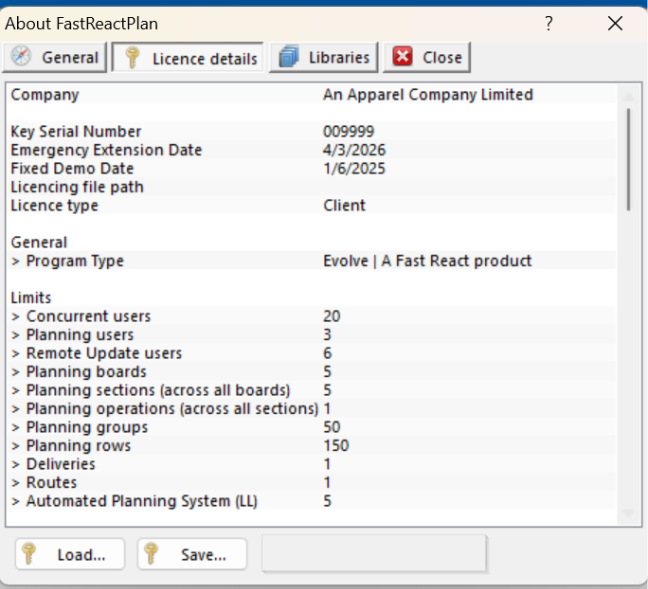
- Select Load.
- Browse to the saved .FRL licence file.
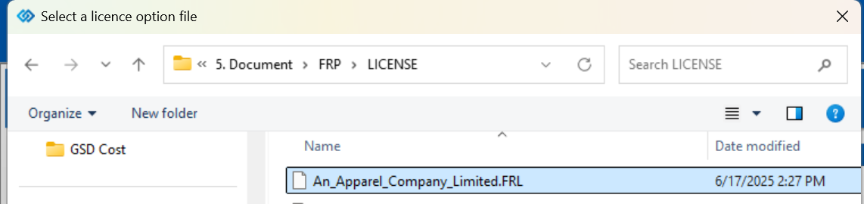
- Highlight the file and click Open.
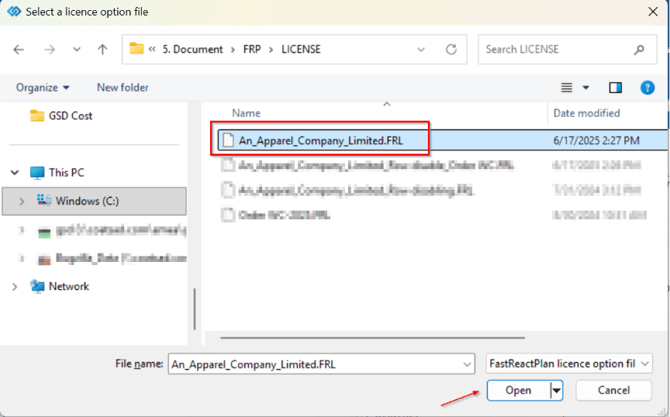
- FastReactPlan will import and apply the new licence.
- Close the Licence Details window.

- Users can now log back into FastReactPlan.
Result
The updated licence is successfully applied and any newly purchased functionality, features, or revised limits become available to users.
Important Notes
Note: Depending on the functionality enabled by the new licence, the user applying the licence may need to restart FastReactPlan or reboot their workstation before all changes take effect.
TroubleshootingIf the licence file cannot be loaded:
- Verify that the file has a .FRL extension.
- Confirm the file was supplied for the correct FastReactPlan installation.
- Ensure all users are logged out of the application.
- Verify you have sufficient permissions to update the licence.
- Contact Coats Digital Support if the issue persists.