
Article Public Number: KA-01347
Coats Digital Knowledge Article
Product: FastReactPlan
Purpose & Scope:
Brief description of Autoload by matching order property or planning row
Solution:
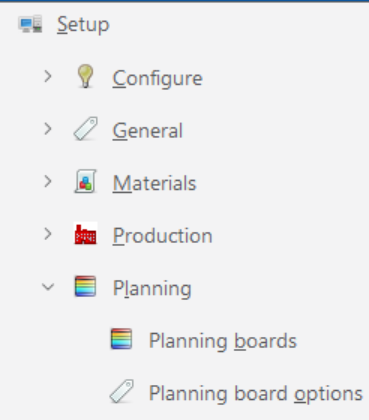
Click Setup > Planning > Planning Board options > Choose Order Property(UDF) or Autoload by planning row > Apply Autoload in LL planning board
Instructions:
There are two kinds of Autoload setting. One is Autoload by matching order property. One is Autoload by planning row.
Autoload by matching order property:
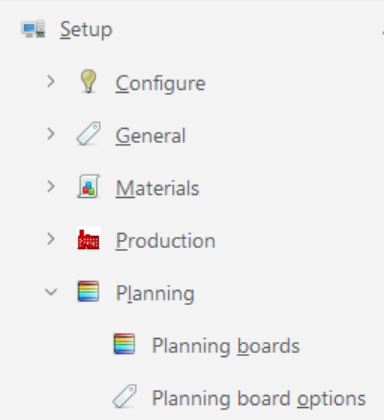
Step 1 : Click Setup > Planning > Planning Board options.
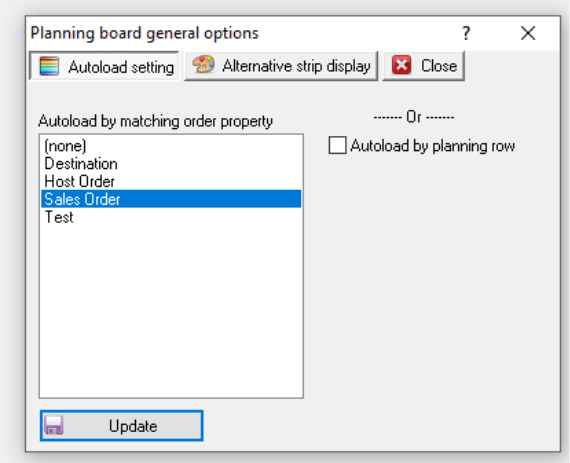
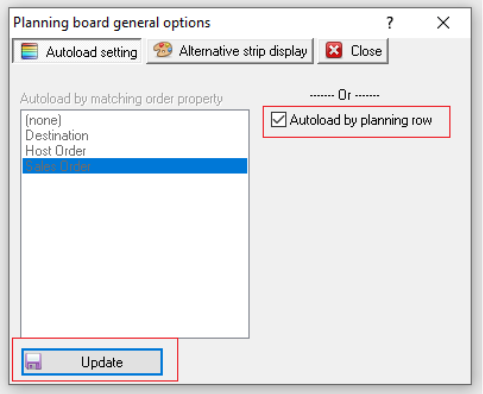
Step 2 : Choose Order property(UDF) > Take [Sales Order] as example, click to choose > Click Update to save.
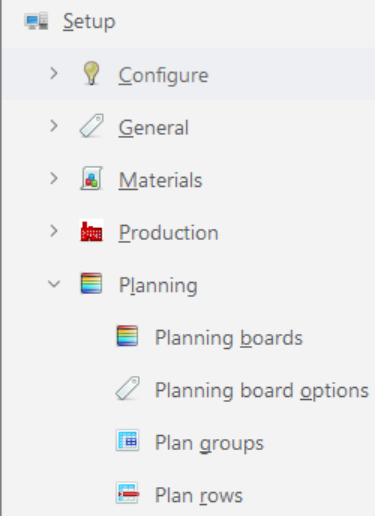
Step 3: Click Setup > Planning > Plan rows > Select planning rows > Entry info in Row property, take [TEST] as example. > Click Update.
Step 4: Open LL planning board > Right-click planning rows > Click [Sort rows] > Click [By property] to show row property.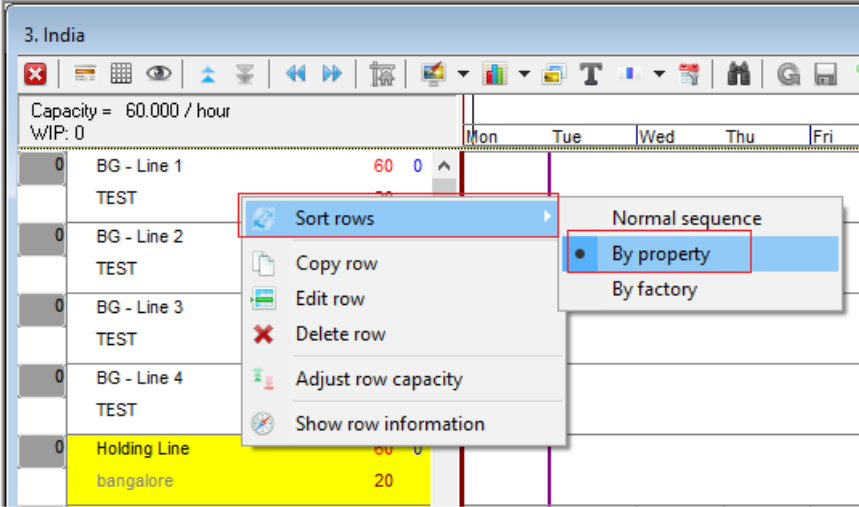
Step 5: Select all orders in Load list > Click [Auto load] > Orders which have entry info [TEST] for order UDF [Sales Order] would be planned in planning rows whose row property were [TEST] after click [Auto load] button.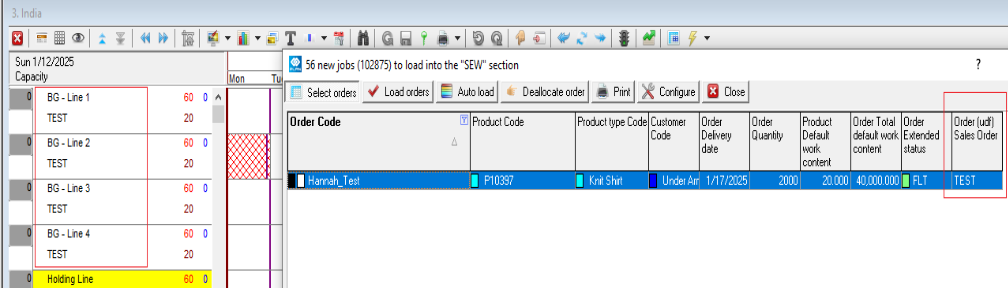
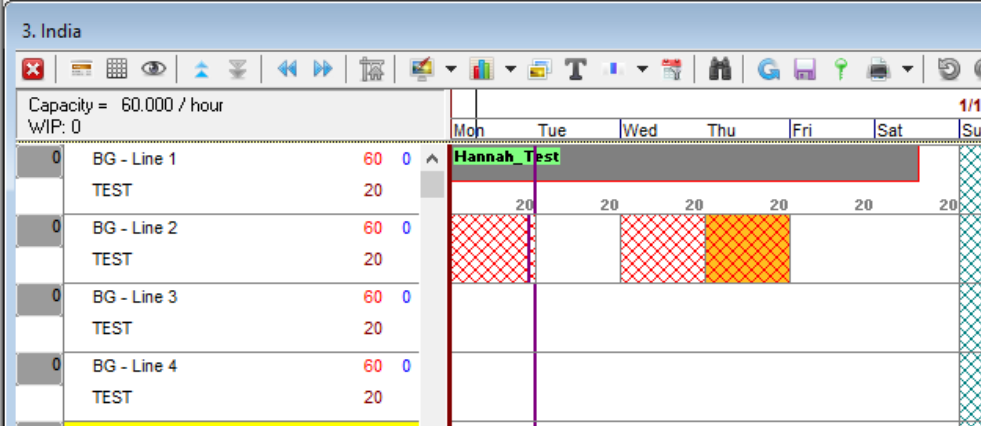
Results of Autoload:
Autoload by planning row:
Step 1: Click Setup > Planning > Planning board options > Tick [Autoload by planning row] > Click [Update].
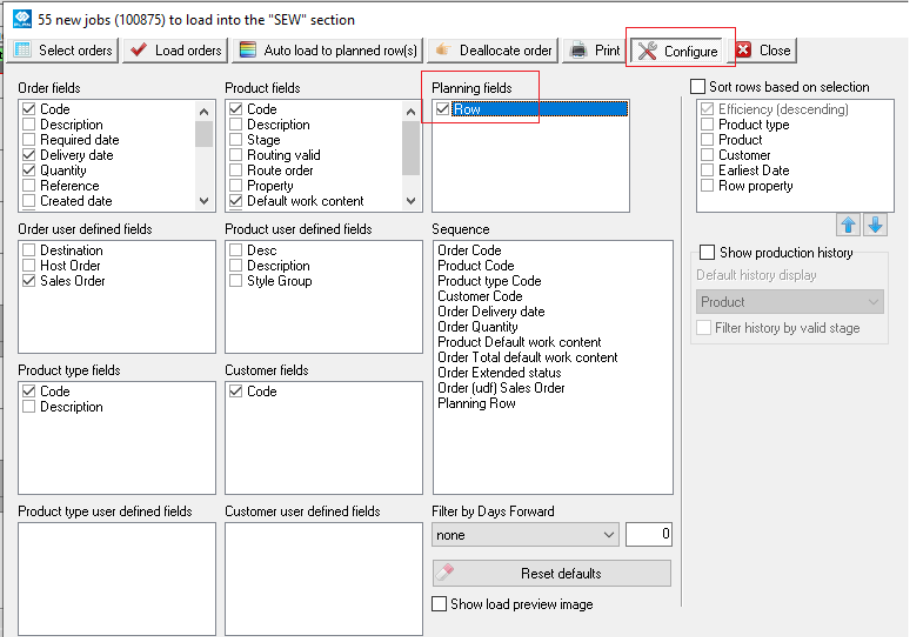
Step 2:Open LL planning board > Click Load list > Click [Configure] > Tick [Row] in Planning fields.
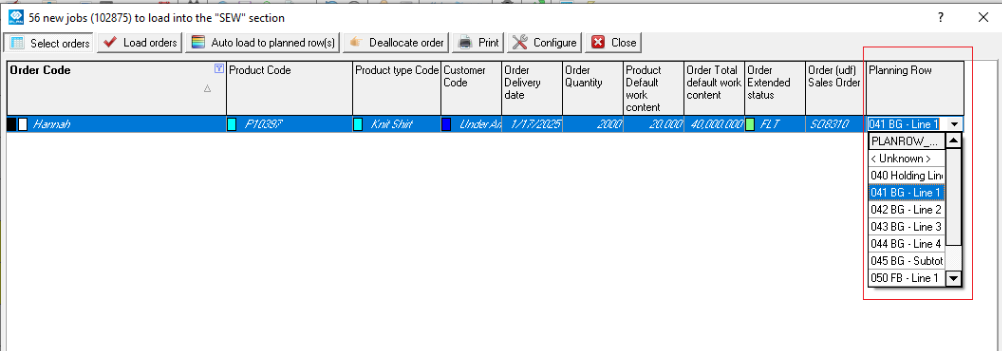
Step 3: Click tab [Select orders] > Select planning rows from tab [Planning Rows] > Click [Auto load to planned row(s)]
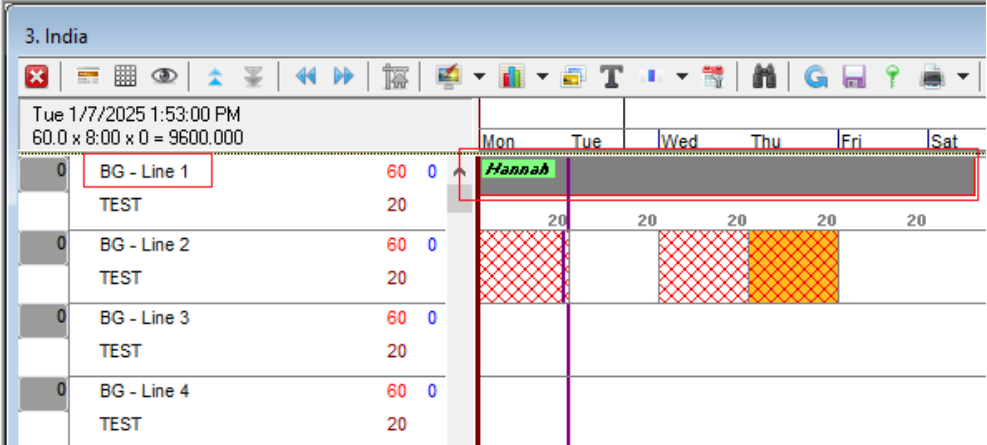
Take [041 BG-Line 1] as example > Order would be planned in the selected planning row after clicking button [Auto load to planned row(s)].
Results of Autoload:
Outcome:
Orders in Load list could be autoloaded by matching order property or selected planning rows following above instructions.
Further reading:
Links to related articles