
Article Public Number: KA-01495
Coats Digital Knowledge Article
Product: FastReactPlan
Purpose & Scope:
This article is going to take you through for how to handle the issue when trying to login FRP system with the error as "Cannot connect to database".
Solution:
There are some steps to be followed as below in detail.
Instructions:
Step 1: When trying to login FRP system and below warning pop up.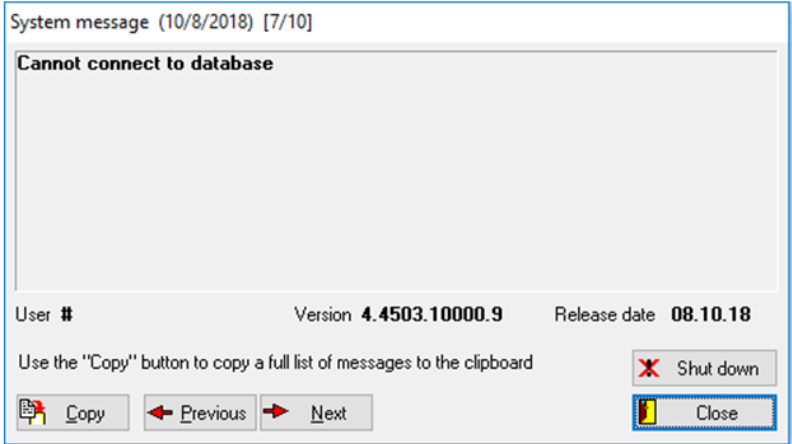
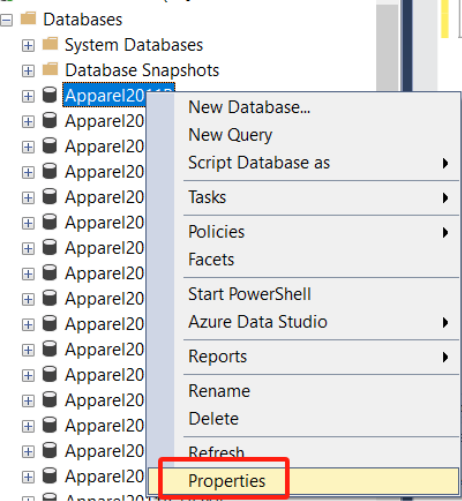
Step 2: First thing to check is if the database has set the Owner as "fastreact", to verify this, you can right click on the database and select "Properties"
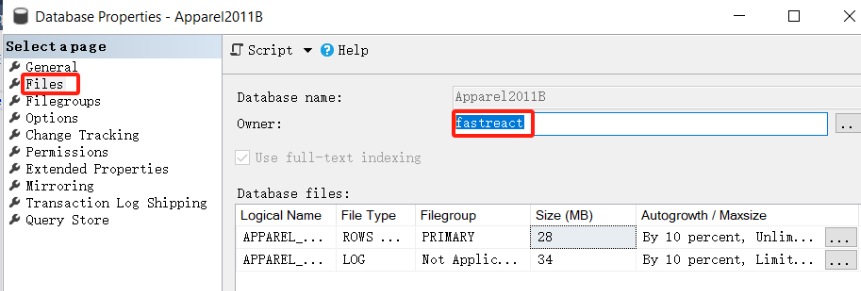
Step 3: Set the owner as fastreact as below. If "fastreact" is not available.Please follow next step to have it created.
Step 4: Go to Security, right click "Logins" and "New Login"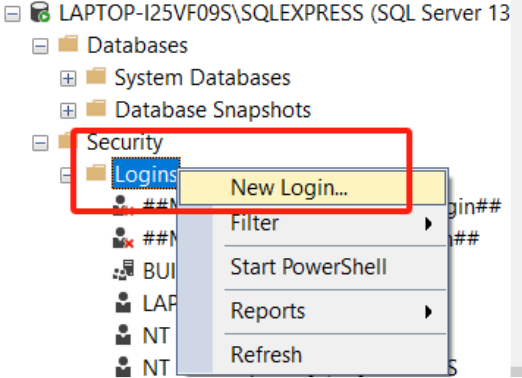
Step 5: Create owner fastreact without password as below. Once it created, go back to step 3 to set the database owner as fastreact.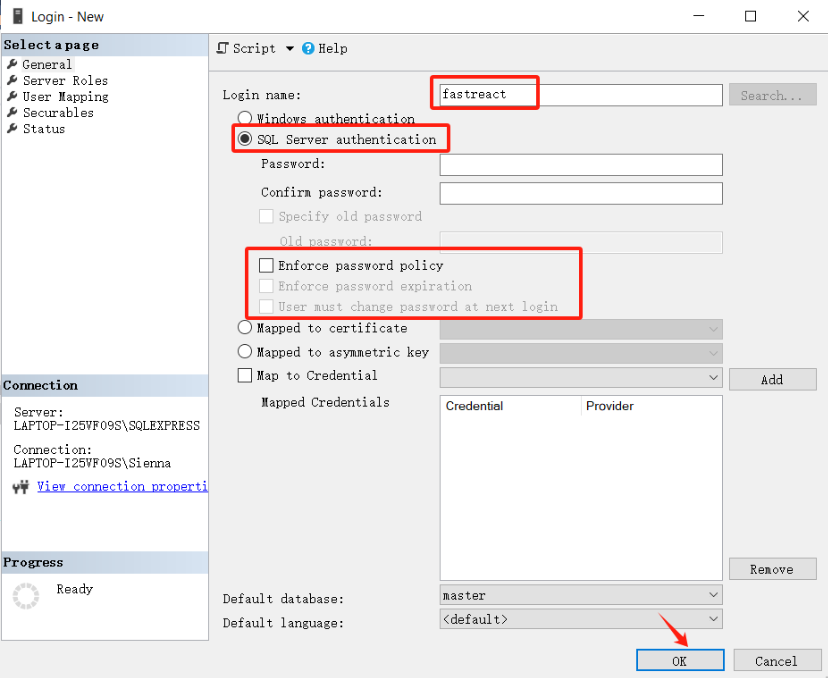
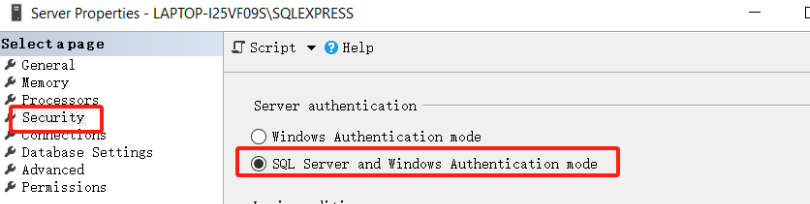
Step 6: If above steps done, but still have the error. Right click on SQL server to check its "Properties" and ensure it was set to Mixed mode.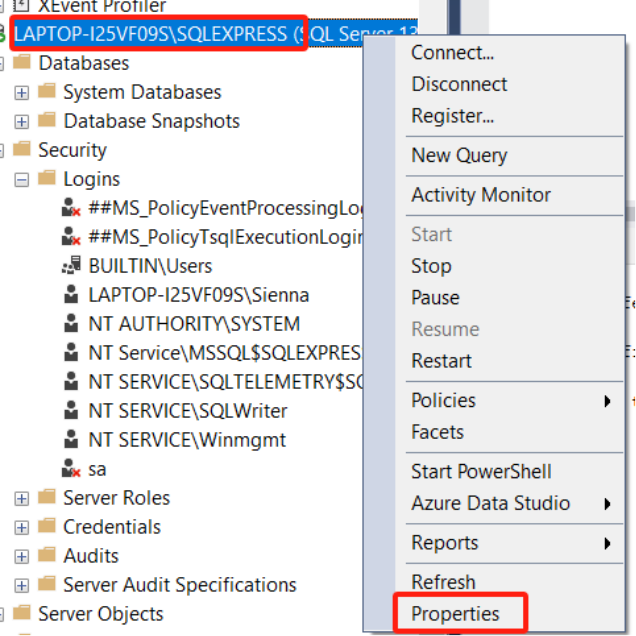
Step 7: If above done, but still error, check the SQL server Configuration Manager and ensure its Named Pipes and TCP/IP enabled and port TCP port set to 1433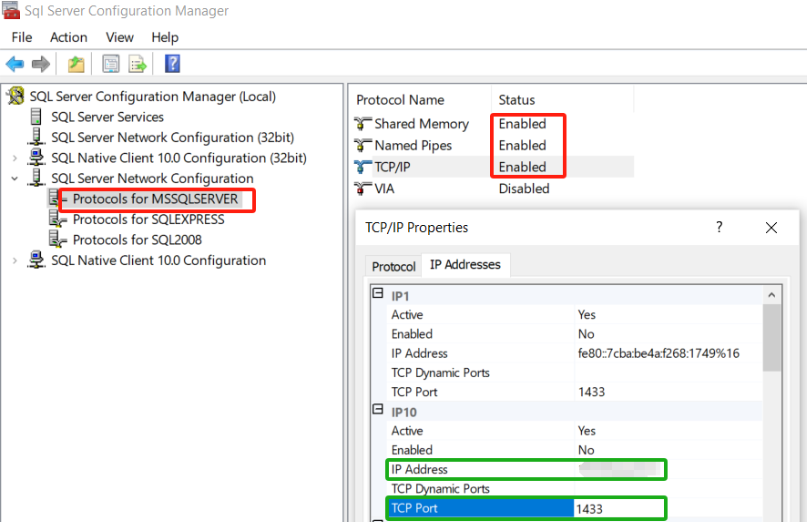
Step 8: If above done, still have the error, check the SQL server services related are enable. With all these done would help you to access FRP system on server.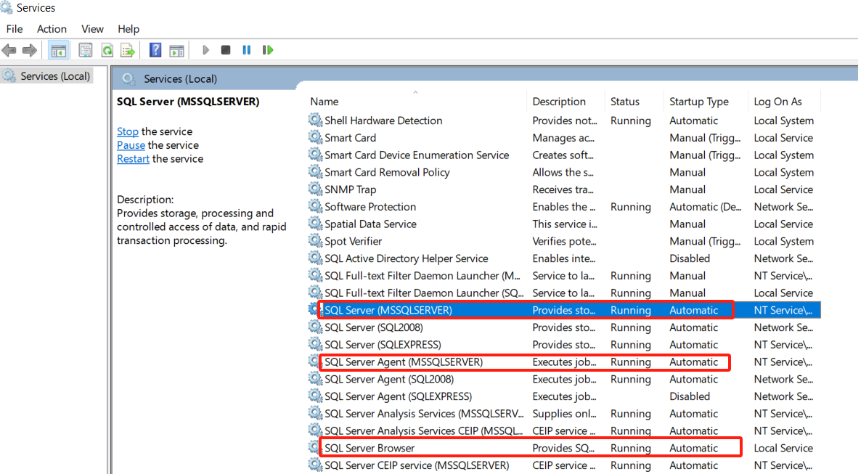
Step 9: But if your end users experienced same error on their machines.
Go to the Firewall of Windows server that SQL server located to create inbound and outbound rules, which will allow SQL server to communicate with end user’s through TCP/IP ports.
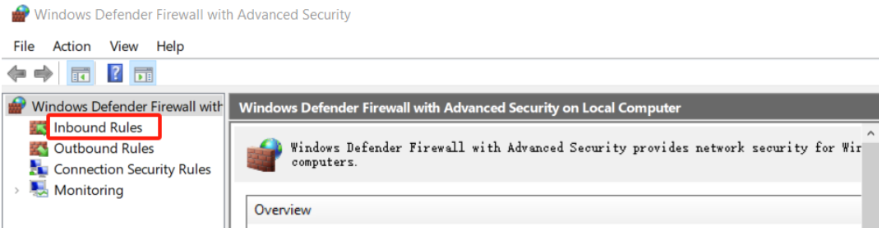
Step 10: Select "New Rule"
Step 11: Select Port, click Next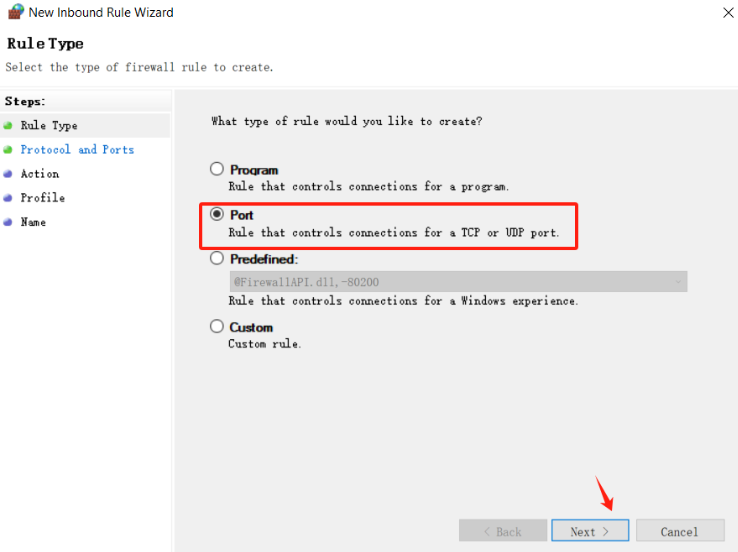
Step 12: Select TCP and port as 1433, Next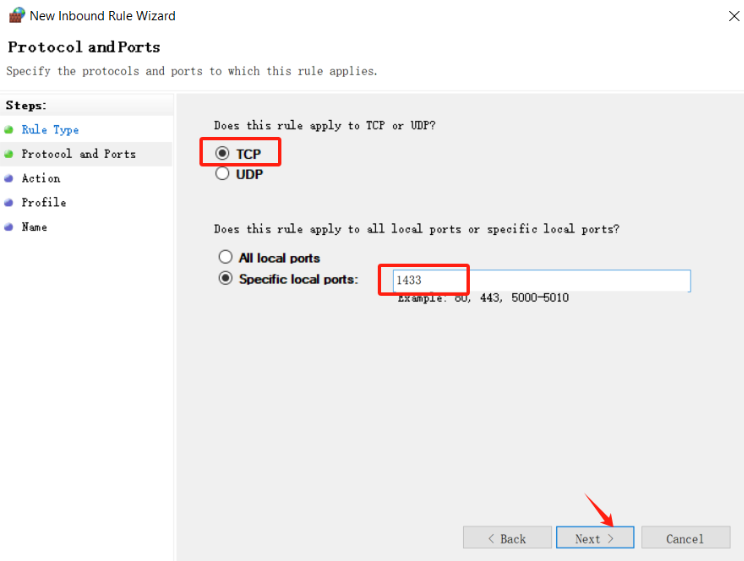
Step 13: Allow the connection and Next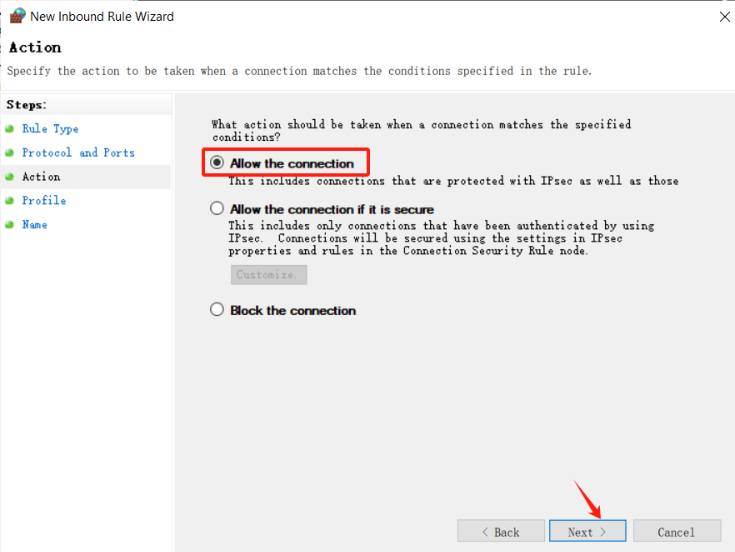
Step 14: Ensure below all ticked, and Next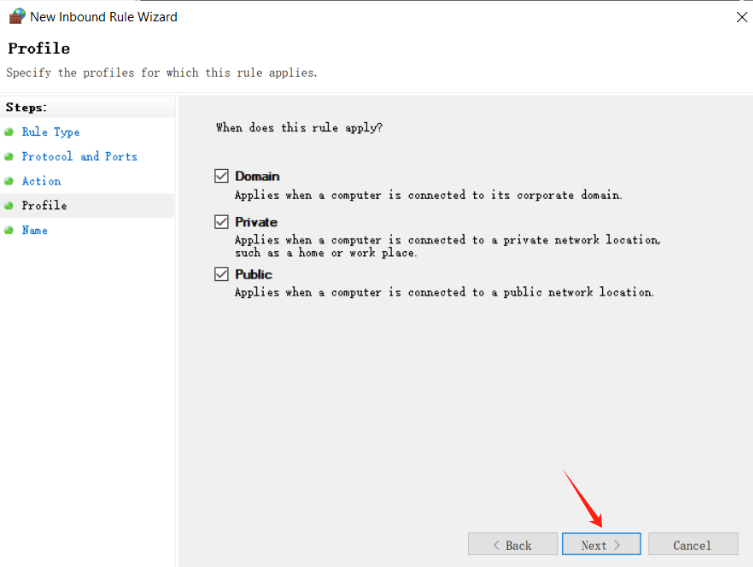
Step 15: Name it and Finish. Do the same to Outbound rules as well.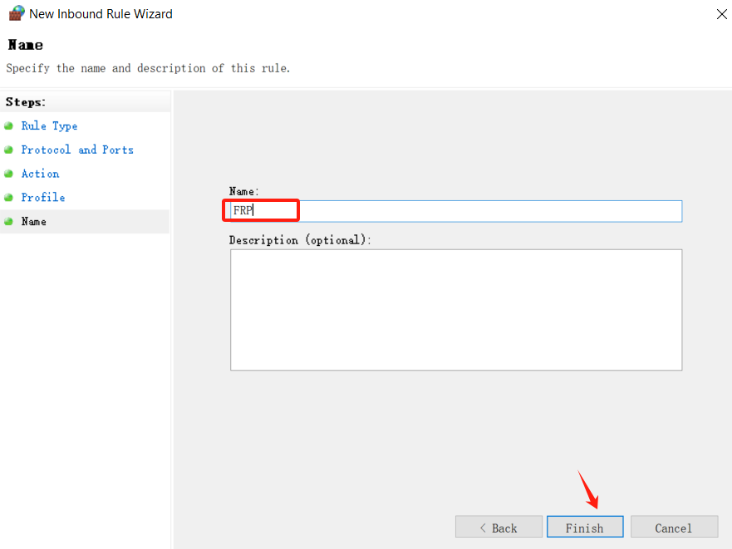
Step 16: If above done, but end user still have problem in logging in with "Cannot Connect to database", enable below set at end user machine.
Go to Start->Run->Cliconfg
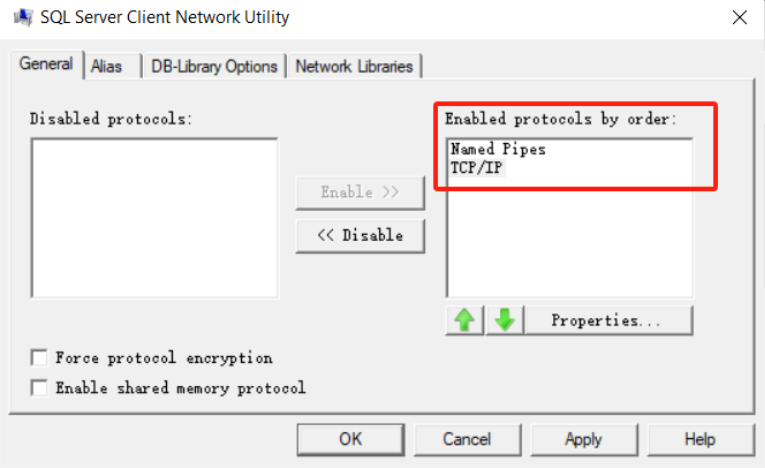
Outcome:
Following above steps, FRP should be accessed successfully from both on server and end users machines.
Further reading:
Links to related articles