
Article Public Number: KA-01059
Coats Digital Knowledge Article
Product: FastReactPlan
Purpose & Scope:
Installation and configuration of the Coats Digital Cloud Dongle.
Pre-requisites
- FRLicence 4.55 or above.
- Removal of all old License program files, if applicable.
- The Dongle number from Support.
- The Codes from Hosted Services.
FastReactPlan is currently Licence via the FRLicence software and a physical USB dongle or Licence Key. We now have the ability to Licence, and control, software access via our own Cloud infrastructure. This is done via the Hosted Services department.
New installations would be required to request a dongle number, as normal, from Support, but also at the same time inform Hosted Services that a Cloud setup is also required.
This Coats Digital Cloud dongle is available in FRLicence 4.55 and above.
Instructions:
The first part of this document will cover the installation of FRLicence at an existing client site with an old version of FRLicence already installed.
Existing Client:
For existing clients that have FRLicence installed, we need to first uninstall their version first.
Uninstall current FRLicence version
Step 1: Go to Windows Services and find the Fast React Licence Service or Coats Digital Licence Service:

From here we need to identify where the Service is running from.
Right-click on this line and select PROPERTIES. This will display the Service Property dialogue.
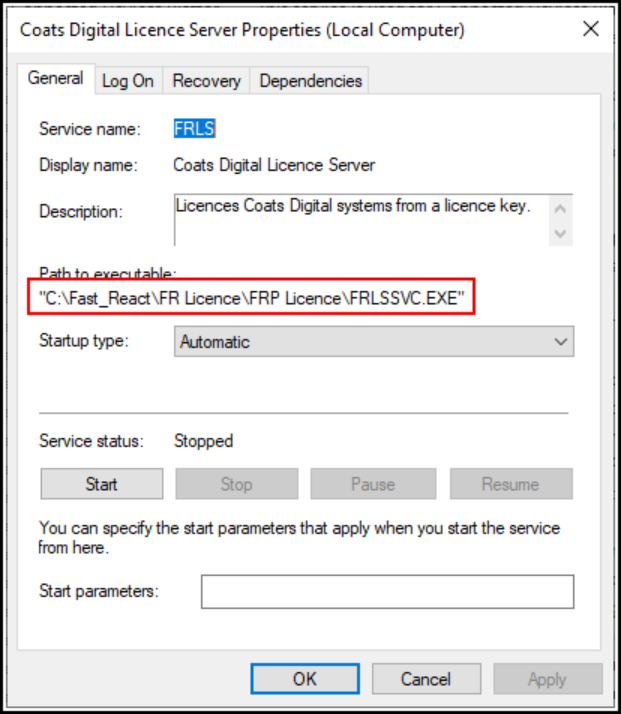
The highlighted path is where the FRLSSVC.exe program is installed, this is the program that created the Windows Service for Coats Digital Licence Service (or, Fast React Licence Service, if you are running a really old version).
Browse to this location.
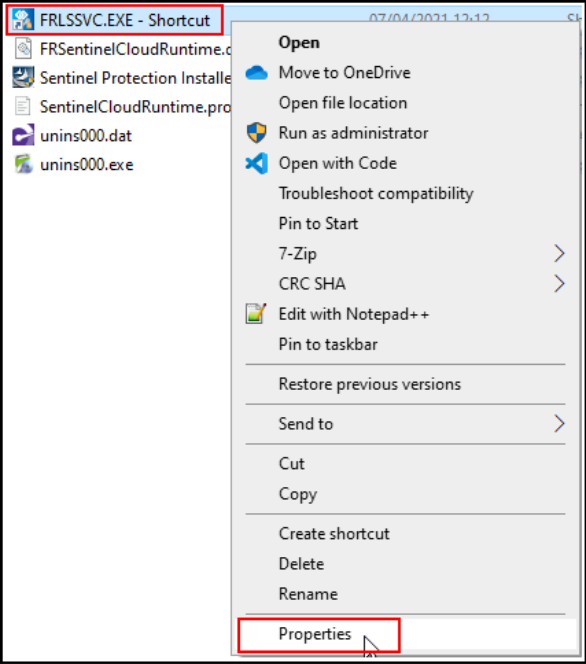
Step 2: In the location that you have just browsed to there will be a program called FRLSSVC.exe, if there isn’t one already, create a shortcut in the same folder to this program.
Now, right-click and select PROPERTIES
In the TARGET field on the shortcut properties, enter, “ -uninstall”, (without the quotes):
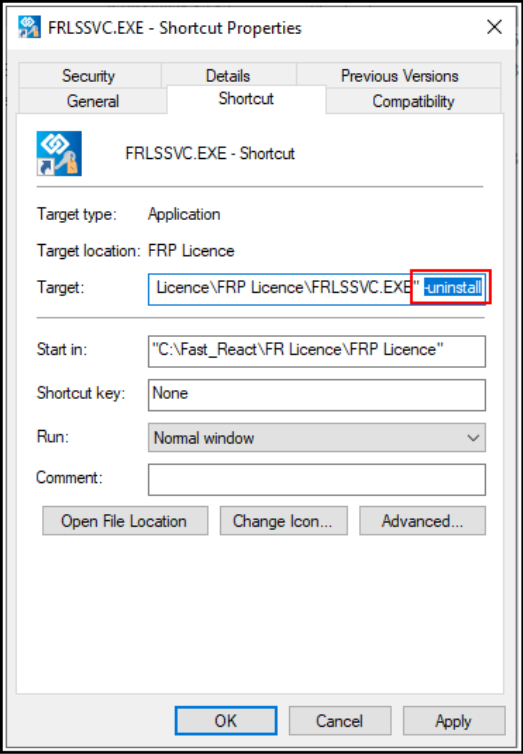
Click APPLY and OK to save this.
Step 3: Right-click on the shortcut and select RUN AS ADMINISTRATOR:
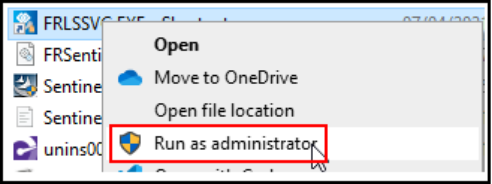
This will uninstall the existing FRLicence service, follow the on-screen instructions and click OK when asked:
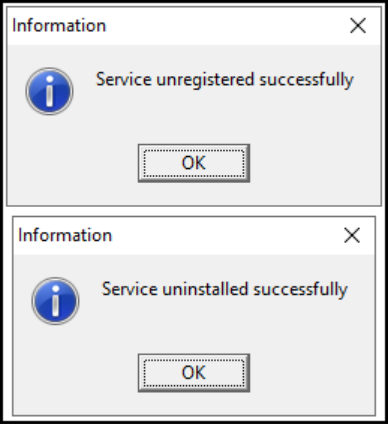
The Windows Service for Coats Digital Licence Service (or, Fast React Licence Service, if you are running a really old version) has now been uninstalled. You can check this on the Windows Services screen, you may have to refresh the screen to see the change.
Step 4: Manually delete all the Licence folders and programs from the system, ready to install the new version.
New Installation of FRLicence
You should now have the dongle number, (from Support) and the Cloud Codes, (from Hosted Services), that you requested previously. You are now ready for the installation of the new Licence software.
Ensure that the FRLicence version that you are installing is 4.55 or above. If it is then you are good to go! The installation of the new FRLicence program is no different from previously. If it does not install automatically then browse to the FRLicence folder and find the FRLINST.exe program and create a shortcut and right-click to go to PROPERTIES:
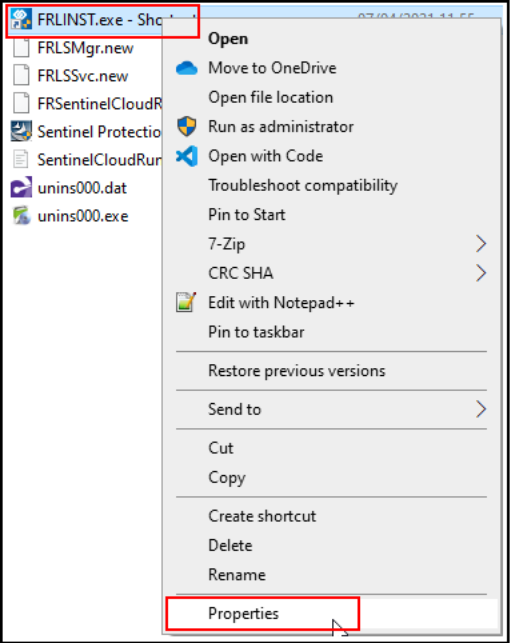
Add “ -i” to the end of the Target field, (without the quotes):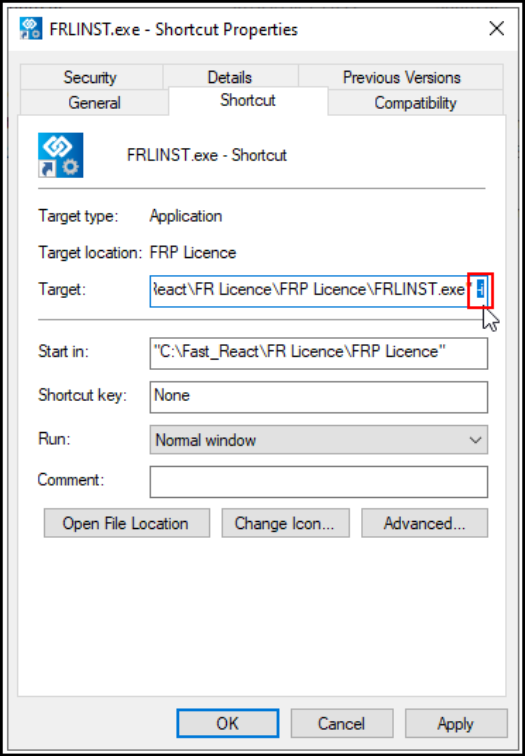
Right-click on the shortcut and run this as administrator. This will start the installation process
Select “NO”, when asked if you want to start the service. 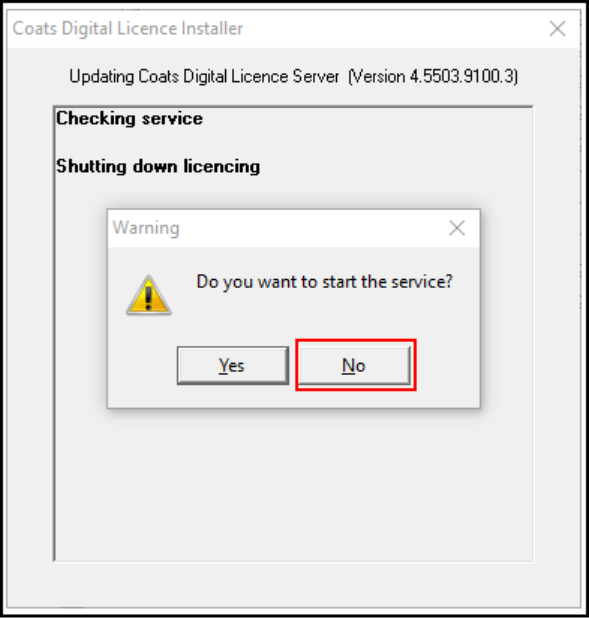
Ensure that the highlights entry is installed, as this is the new Coats Digital Cloud controller: 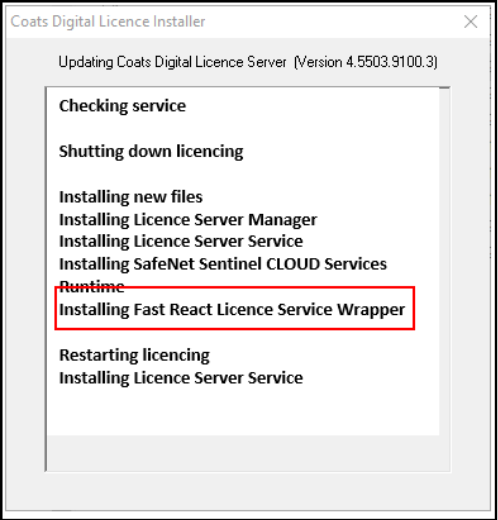
The Coats Digital Licence Service is now installed but as yet not running. You now need to configure the FRSMGR program.
Browse back to the folder FRLicence where all the Licence applications are installed and find the FRLSMGR.exe program. Double click this to start it. It will now appear as an icon in the bottom left of your Desktop, (near the time and date icon). You may need to click on the UP arrow to see it. Locate this Coats Digital icon and right-click on it and select Configure Licence Service:
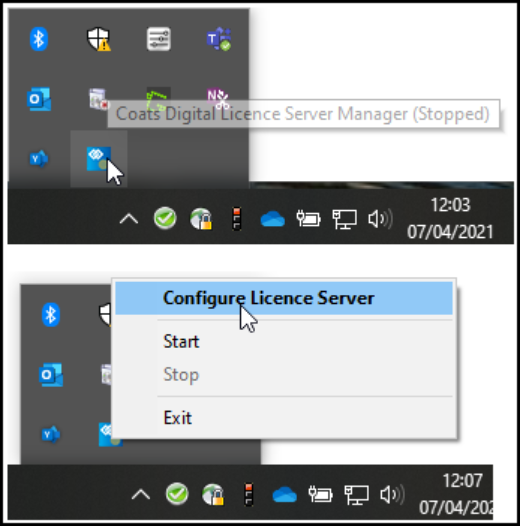
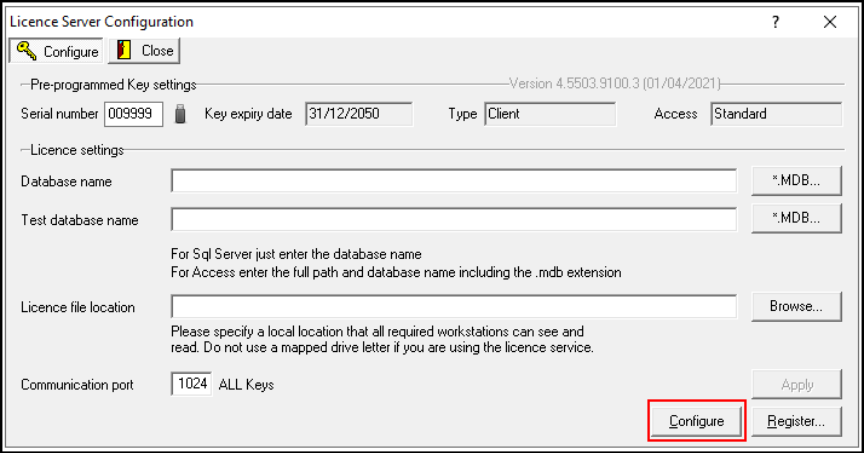
Configure the FRLS Manager as per normal, but this time before saving click on the CONFIGURE button:
This will pop up a screen where you can copy and paste the codes sent to you by Hosted Services:
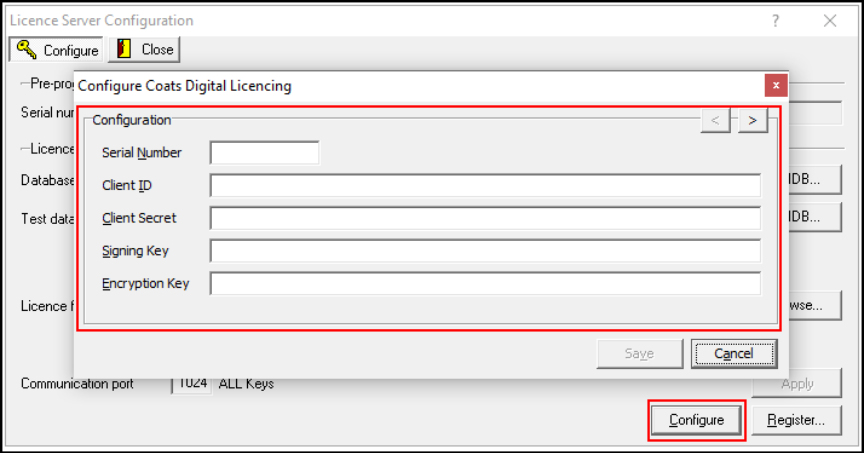
Multiple Cloud dongles can be setup using the forward arrow at the top right in this screen.
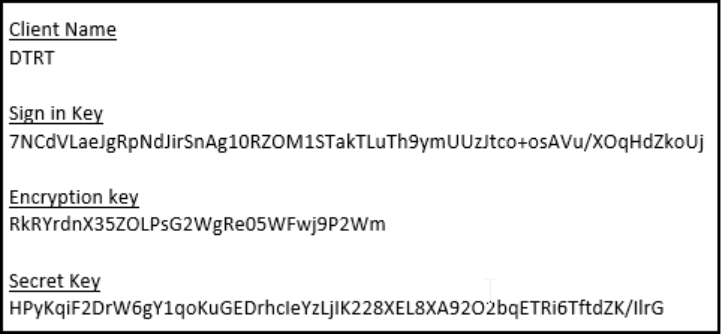
Example Codes from Hosted Services:
The below is a set of example codes that Hosted Services will send to you to copy and paste into the above screen:
Outcome:
And …. that’s it!
Simply start the Coats Digital Licence Service and Exit the FR Manager, ensuring the Service is left running.
FRLicence will work as normal, the FR_Lic.dat file will be created in the designated folder and this will be used to licence the FRP application.
The Cloud dongle should now be working. Check with Hosted Services Dept to ensure that they can now see and register the Client Cloud Dongle.