
Article Public Number: KA-01221
Coats Digital Knowledge Article
Product: FastReactPlan
Purpose & Scope:
A guide explaining how to set up Defined Text on the Critical Path Board within FastReact.
Solution:
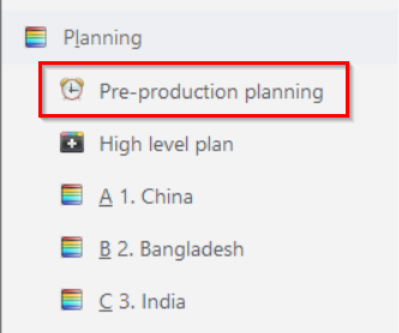
Go to ”Planning” > “Pre Production Planning” > Click button ''Define Text Lines''
Instructions:
Step 1: Go to Planning > Pre Production Planning:
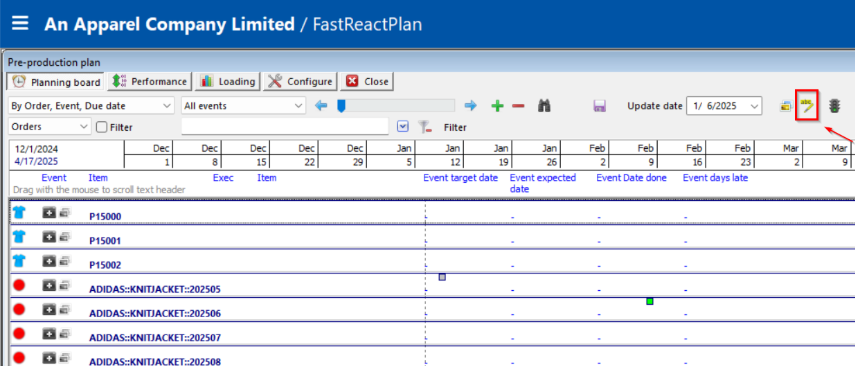
Step 2: Click button [Define text lines] in the tool bar:
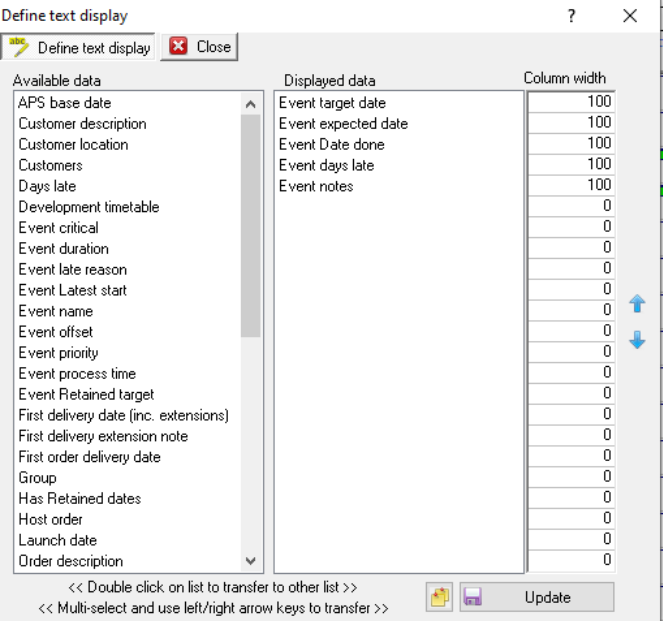
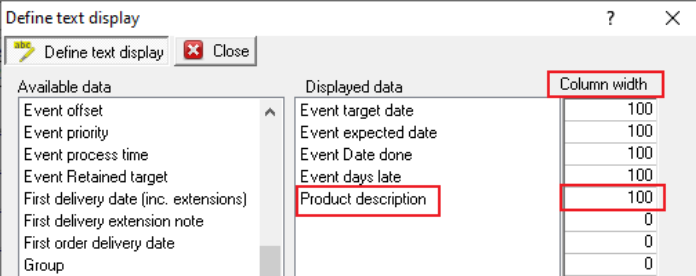
Step 3: [Define text display] window would be showed as below:
Step 4: Find the “Product Description” from the Available data list > double click on it to add it to the Displayed data list > Click UPDATE to add the data to the Critical Path Board;
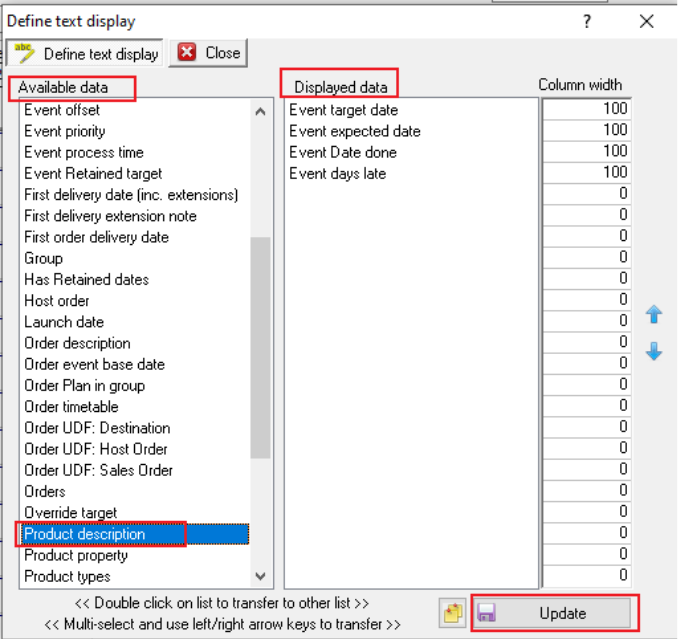
Notice: If Product description is not fully visible, this can be adjusted. Go back to the Define Text dialog and change the Column Width and click [Update] button to save the change;
Step 5: Now the full Product Description is visible: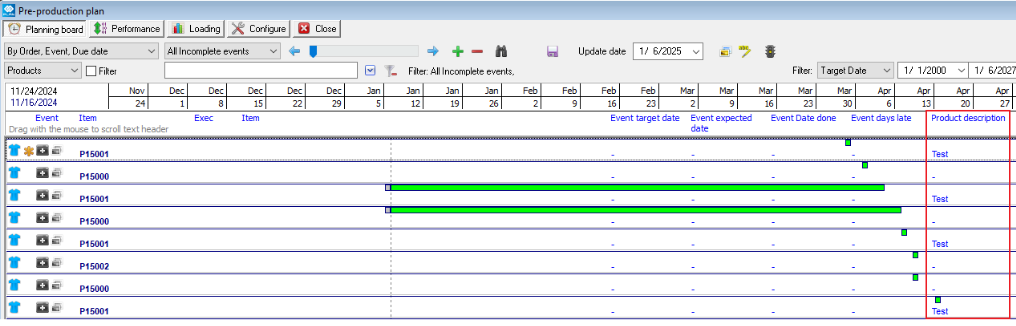
Step 6: To search for the Product Description, click on the search button;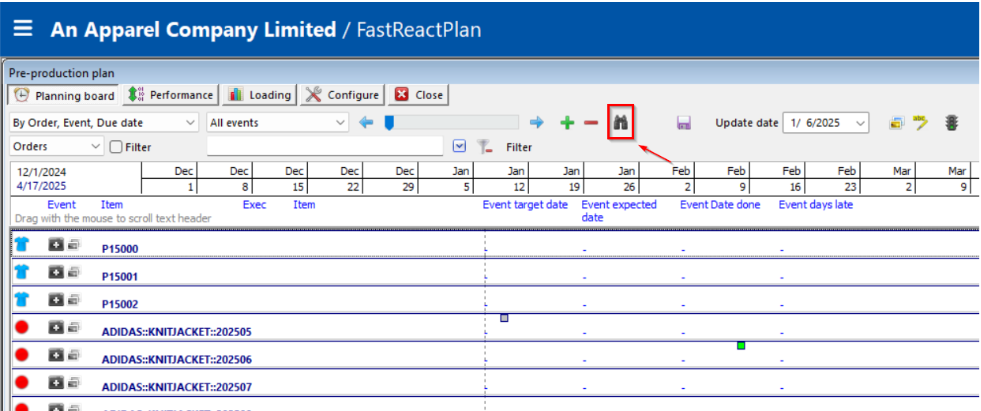
Step 7: Enter the Product Description and click Find to find all Planning Orders with this Product Description: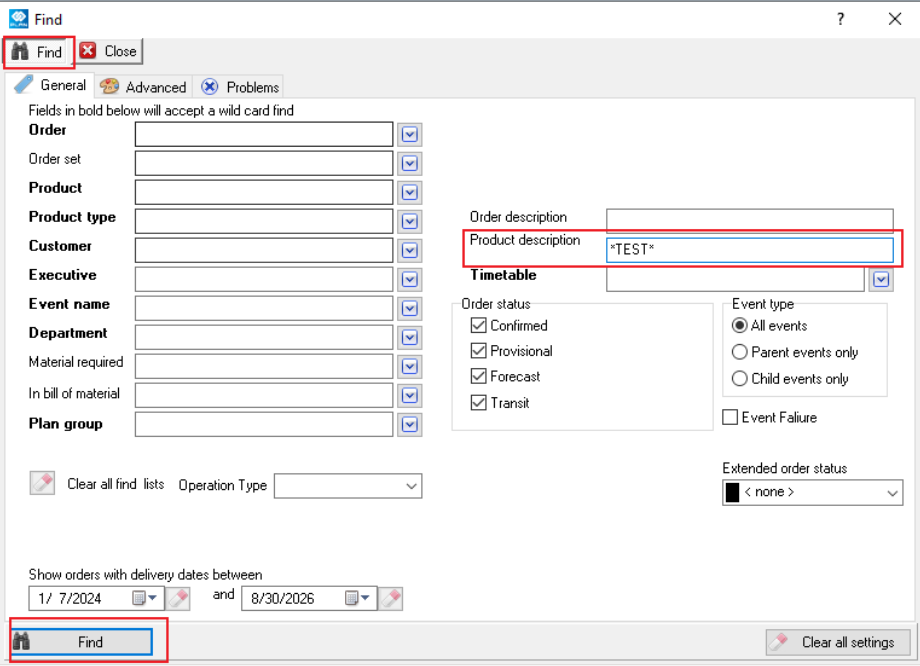
Notice: The use of the [*] in the Product Description. This is a wild card marked which basically tells FastReact to return ALL Orders that contain the Product Description 'TEST' ;
Step 8: The following screenshot shows the result of this [Find]: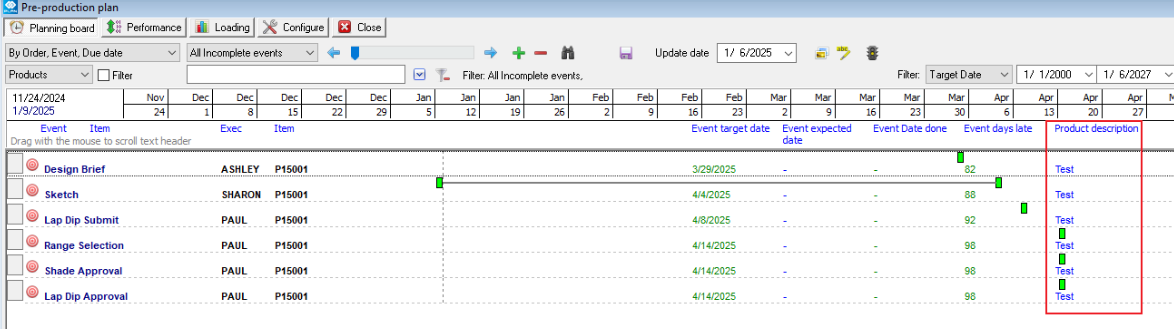
Outcome:
Defined text lines in Pre-production Plan(Critical Path Board) could be showed after following above instructions.
Further reading:
Links to related articles