
Article Public Number: KA-01548
Coats Digital Knowledge Article
Product: FastReactPlan
Purpose & Scope:
This article outlines the steps required to enforce complex passwords for user accounts and enable the option for users to change their password upon next login. This is a recommended security practice to enhance account protection and reduce the risk of unauthorized access.
Instructions:
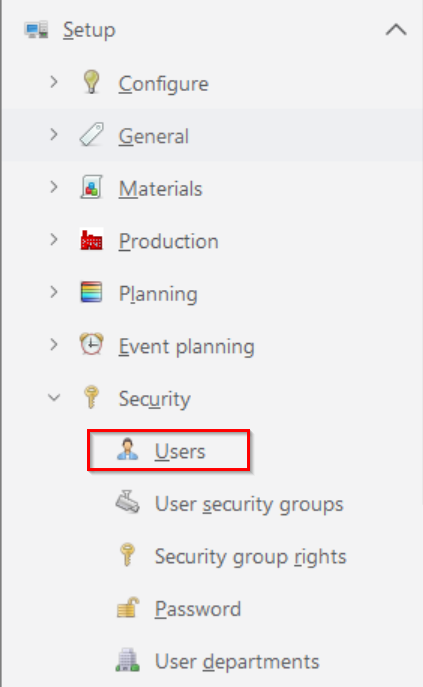
Step 1: Go to: Setup → Security → Users
Step 2: Go to tab Password
In the user setup screen, enable the checkbox for “Password Required” as highlighted in the system interface.
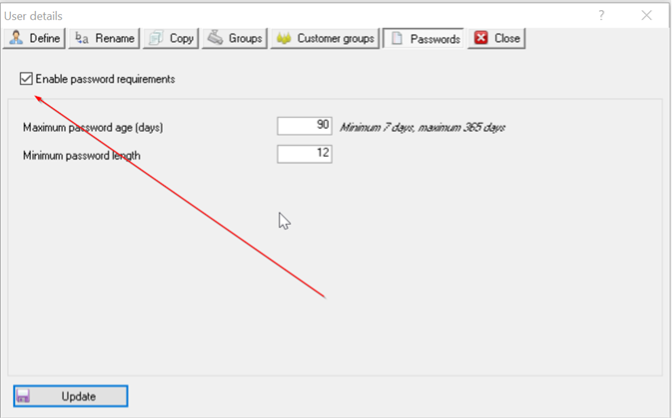
⚠️ This ensures that all users must have a password assigned to their account.
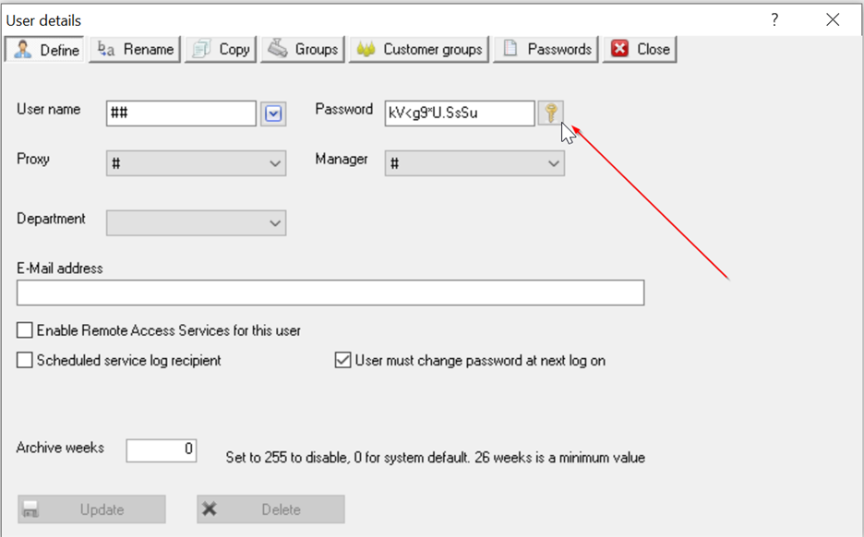
Step 3: Go to tab Define
Use the built-in password generator to assign a complex password to each user. This helps maintain a high standard of password strength.
Step 4: Force Password Change on Next Login
Select the option “User must change password at next log on”
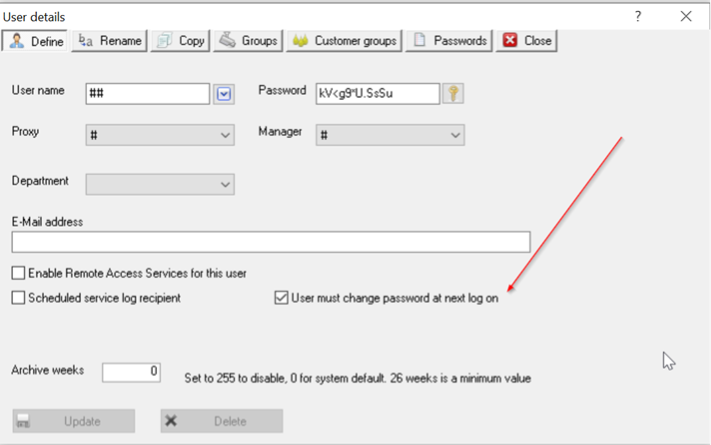
✅ This step forces users to create a new complex password the next time they log in, ensuring adherence to password policies.
Step 5: Save the Changes
After updating the settings, click Save to apply the changes to the user account.
Outcome:
Users will be prompted to set a new, complex password at their next login.
This policy helps maintain security compliance and prevents the use of weak or default passwords.
Further reading:
Links to related articles