
Article Public Number: KA-01496
Coats Digital Knowledge Article
Product: FastReactPlan
Purpose & Scope:
This article will take you through how to set a report that auto export to specified path/folder.
Solution:
Select the path/folder that you want to export for the report within report dialog and select the activity as "Export" within Activity scheduler.
Instructions:
Step 1: Go to the report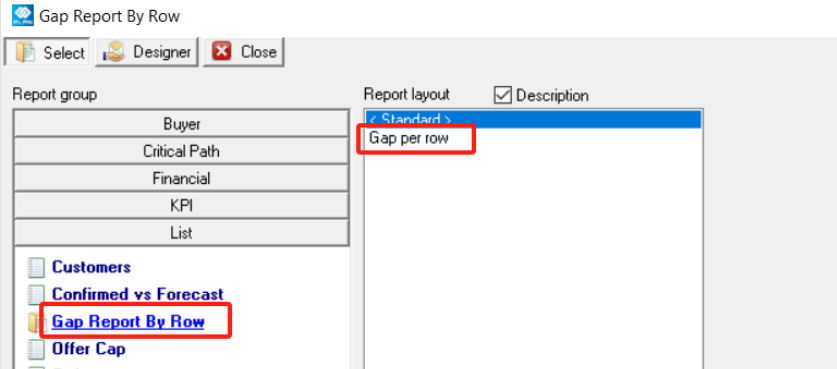
Step 2: Go to the "Configure" tab
1. Tick the option "Auto run on time schedule"
2. Key in the report name that you would like it to show in the export path
3. Press

4. Select the path you want the report exporting to
5. Press "Update" to Save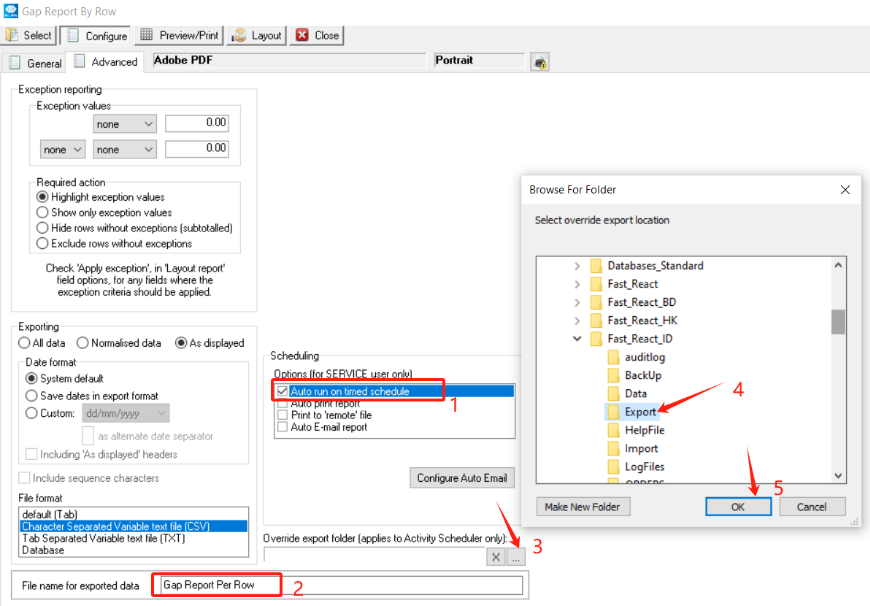
Step 3: After above step done, press "Preview/Print", which meant "Save" for above settings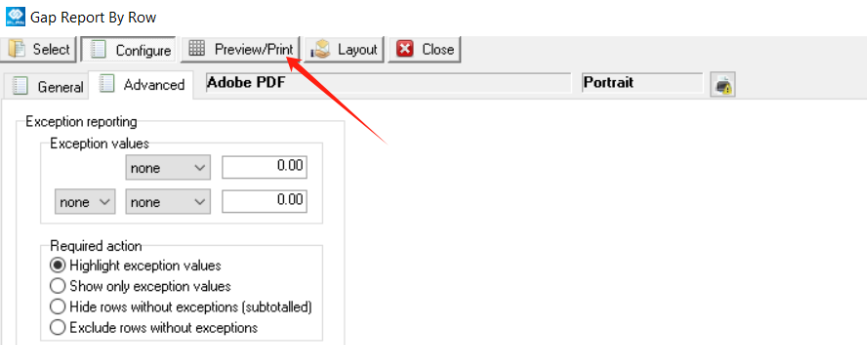
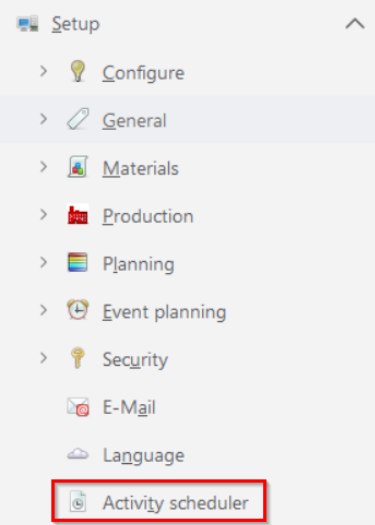
Step 4: Go to "Activity Scheduler"
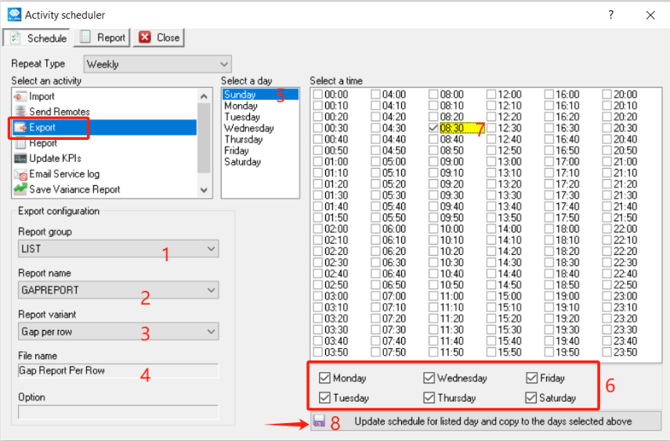
Step 5: Select "Export" activity as below
- Select the report group that the report belongs to
- Select the report name
- Here show you the report variance that you would like to export
- It show you the name that you key in above step 2
- If you want this report to be exported every day, select Sunday
- Select from Mon to Sat
- Select the time you want the report to export daily
- Press the "Update..."
PS: If you don't know what's the name for the report, please follow below to check.
Go to the report, select it, and press "Ctrl+Shift+D"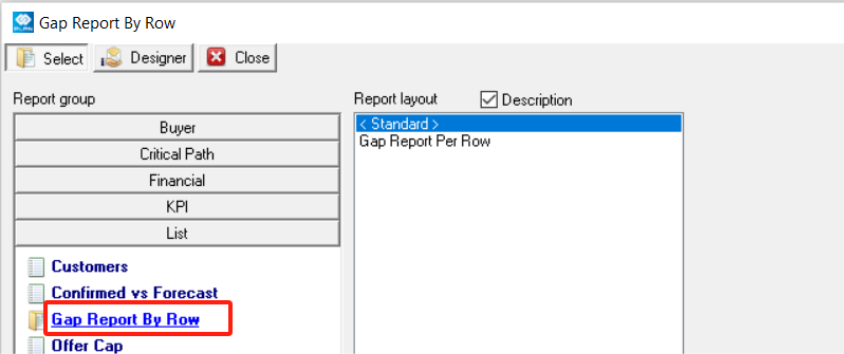
It will take you to a screenshot below, you will now seeing the report name as below
Outcome:
Following above, you will have the report that exported to the path that you expected and set in step 2.
Further reading:
Links to related articles