Article Public Number: KA-01490
Coats Digital Knowledge Article
Product: FastReactPlan
Purpose & Scope:
A guide explaining how to set up the FR Service user schedule within Windows.
1. Windows Scheduler for “Service” User
A special FastReact user called “service” is used to automatically run all of the automated functions within FastReact such as import / export of data at pre-defined times or intervals and automatic emailing of reports.
Typically the “service” user is logged onto FastReact from the main server or another networked PC that is “always on” to ensure that the automated FastReact functions are always running.
It is sometimes desirable to have the “service” user to log off from and log on to FastReact at set times.
For example it may be desirable to log off the service user before overnight file backups take place and then log the service user back on again after the backup has finished. Alternatively having service log on via a schedule ensures that even after a server re-boot the service user gets logged back on and starts to run the automated functions again without any user intervention.
Windows “Scheduled Tasks” function can be used to start and stop FastReact for the “service” user.
The following screen grabs are for Windows 7, other versions of Windows may differ slightly.
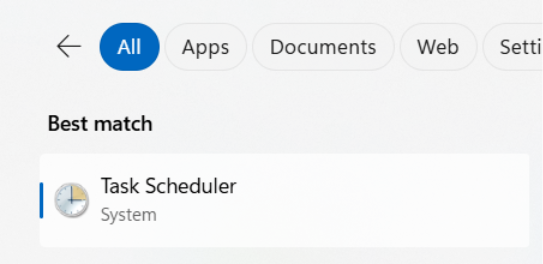
Go to Start > type “Task Scheduler”:
This will open the “Task Scheduler”: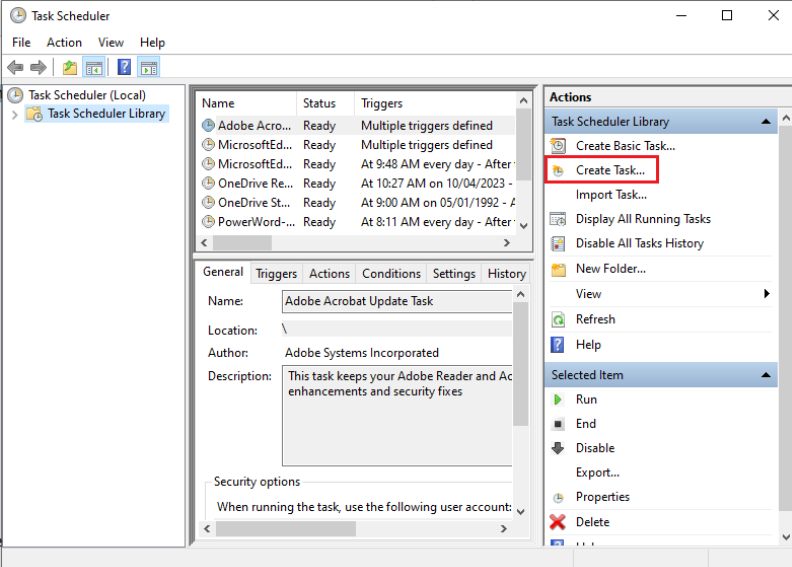
Select “Create Task” and the following window will appear showing 5 tabs which we will go though in steps:
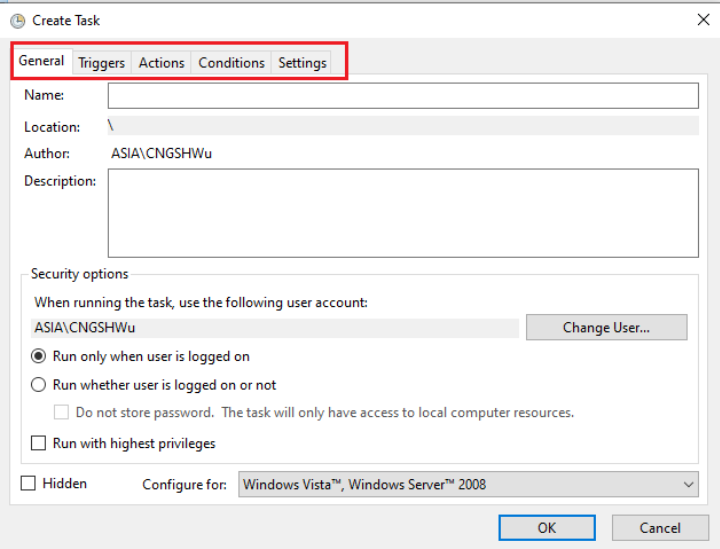
1.1. General
Of note: Ensure name and description are sensible descriptions.
Ensure “Security” set to run whether user is logged on or not.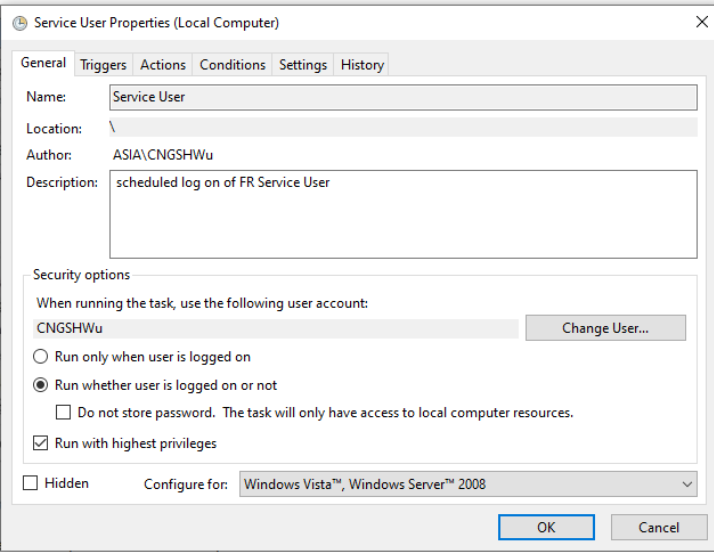
1.2. Triggers
Select “New” and set an applicable trigger: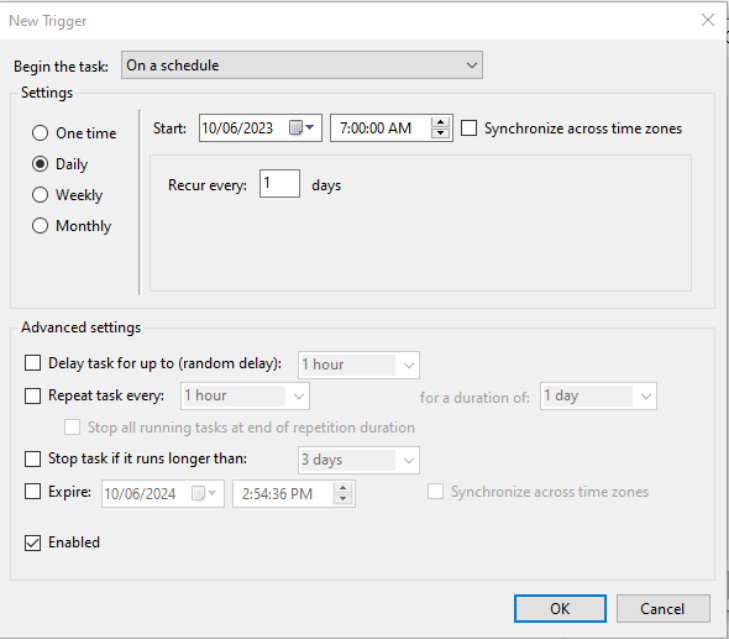
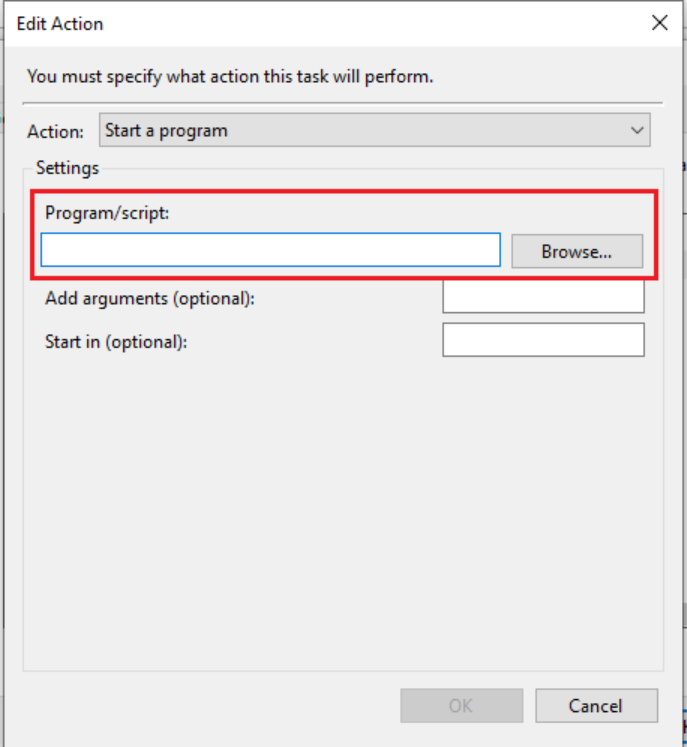
1.3. Actions
Select “New”: Click the “Browse” button and go to the path where the standard FR5 shortcut is located.
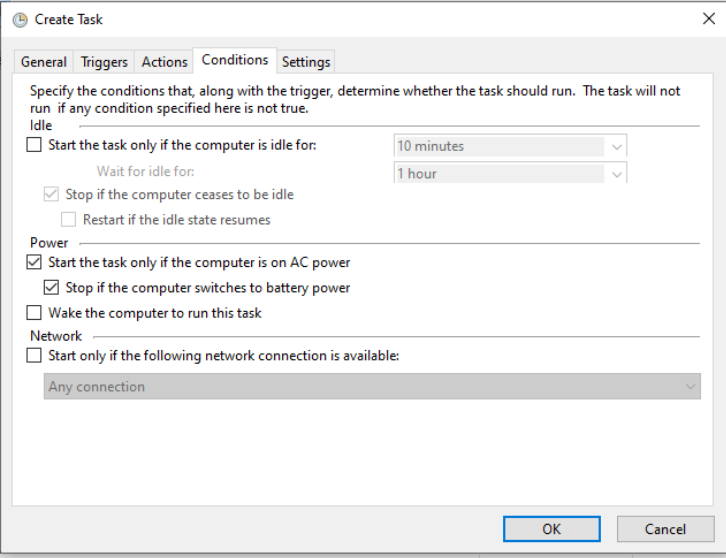
1.4. Conditions
Click on the Conditions tab and the following window will appear: Choose any applicable conditions and click ‘OK’.
1.5. Settings
Choose any applicable settings and click OK: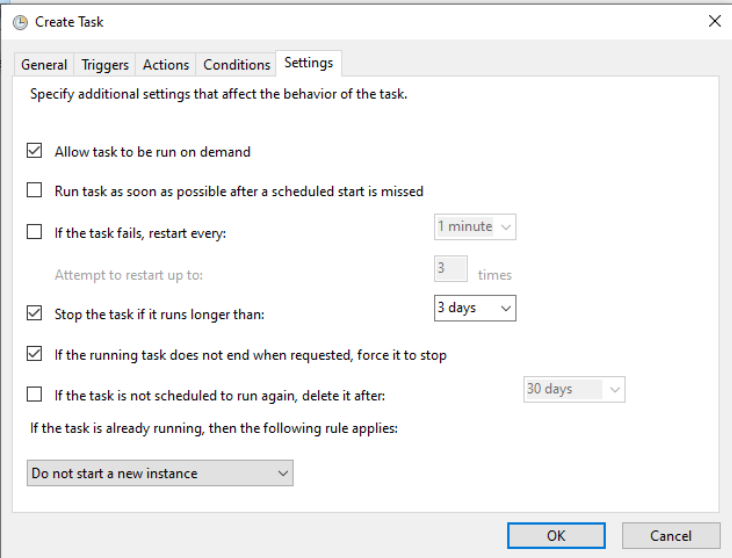
Once you click OK on the ‘Settings’ Tab a window will appear asking to confirm your password to ensure that task is created correctly.
1.6. Shortcut
The final thing that needs to be done is to add the username and password for the Service User to the shortcut.
This then ensures that when the task is run, Service user is logged on automatically without having to enter the password each time.
To do this, go to the path as described in section 1.3 and right click on the FR5 icon > Properties.
The following screen will open:
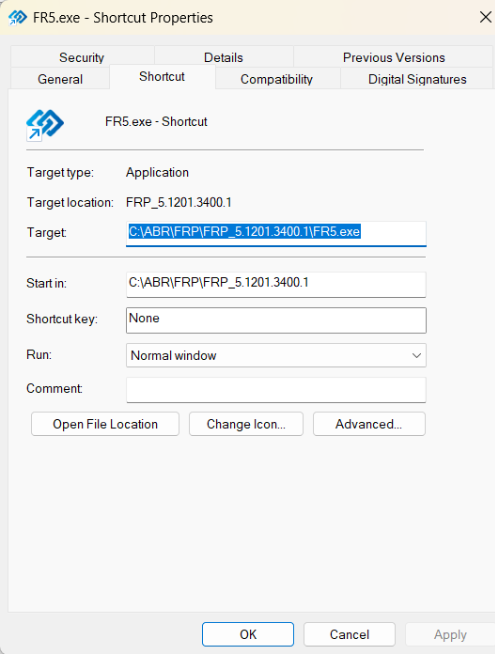
In the highlighted window, ensure that you add the details at the end of the shortcut path of:
Un:service pw:password
This should then have the Service User scheduled to log on at a specific time each day thereby ensuring that the automatic log off of the service user issue is negated.
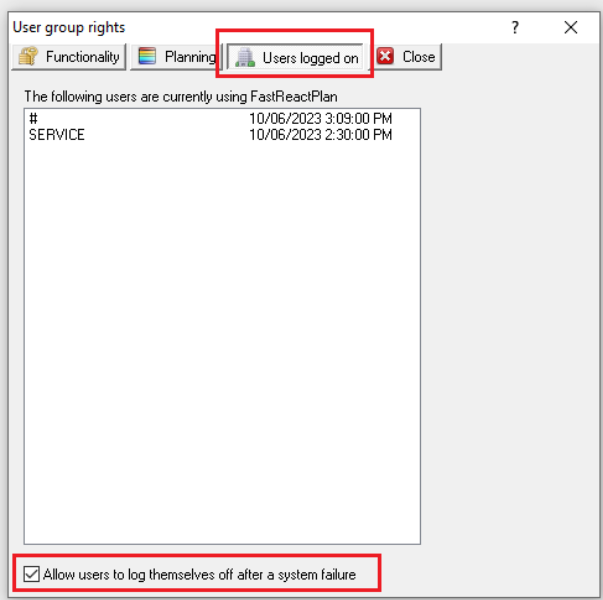
Important: Below option must be enabled in FR setup:
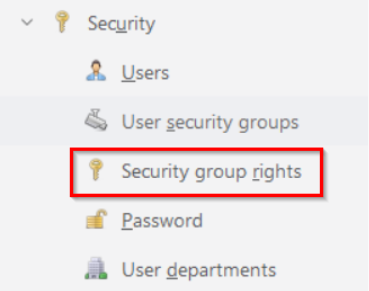
Open Setup> Security > Security group rights > Click Tab [Users logged on] > Tick option [Allow User to log themselves off after a system failure]