
Article Public Number: KA-01531
Coats Digital Knowledge Article
Product: FastReactPlan
This SOP provides an overview of the Report Copy functionality in FastReactPlan. This functionality allows the User to copy an existing report in the FastReactPlan system.
Copy
There are 2 ways in which to copy a FastReactPlan report, depending upon what it is that the User is trying to accomplish.
- Create a Variant of an existing report
- Create a brand new copy of an existing report
Create a Variant
This option is used to create a variant of an existing report. A Variant will use the same data on from the Report Configure screen. Changing anything on the Report Configure screen will affact the main (standard) report as well as all the variants.
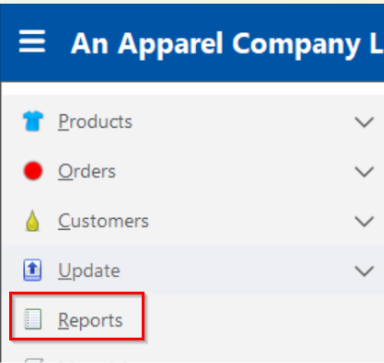
Go the Reports menu option:
Locate the Report that will have the Variant: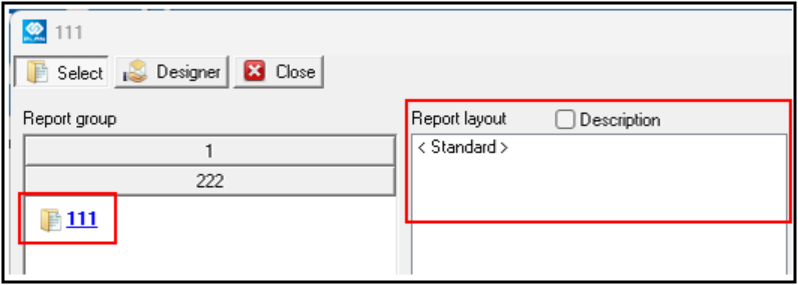
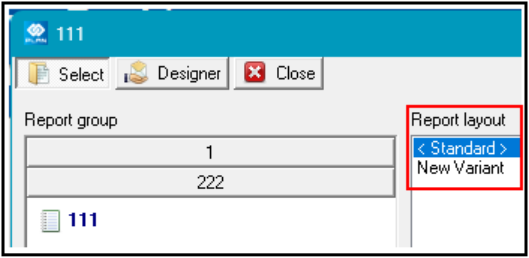
The Report Layout section will list all the different Variants for this report.
Select, < Standard >, to open the main Report Configure screen: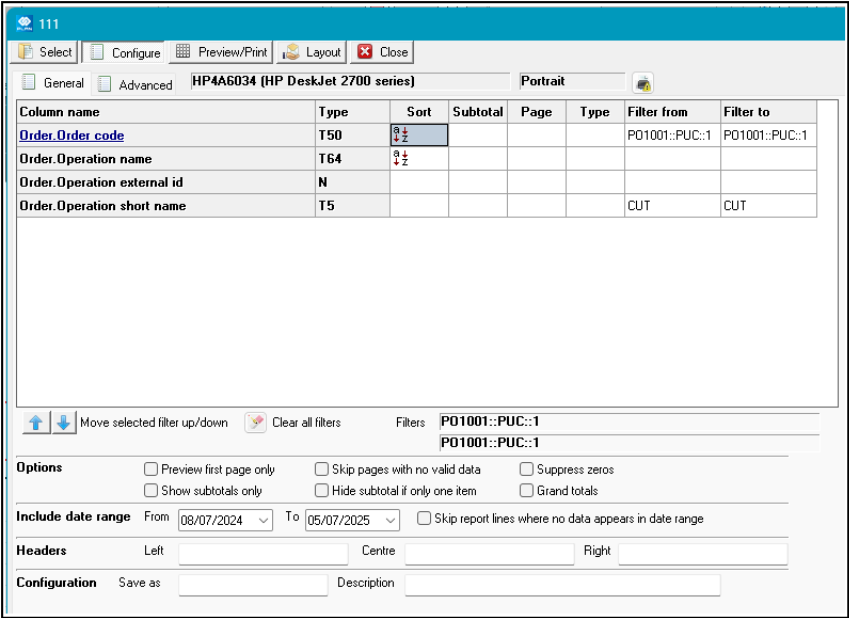
The User can now change the filters, date ranges, Column sequence and even the physical Report Layout , i.e. using the above example, in the Layout Order.Operation short name is not needed, this field can be removed from the Layout, (the output or running the report).
There are a few caveats to this functionality
- Adding or removing any data fields, visible under the Column name header, will affect the Main report and all the Variants.
- Changing the Reporting Loop will affect the Main report and all the Variants.
- The User can add or remove any data fields, visible under the Column name header, and not affect the report that it was Exported from.
- Changing the Reporting Loop and not affect the original report that was Exported, or any of its Variants.
- Export all reports - select this option to export all the reports in the in the FastReactPlan system. If its not enabled, then only the highlighted report files will be exported.
- Export all layout variats - select this option to export all the report varients available in the FastReactPlan system. If it is not enabled then only the main variant will be exported.
- Export to - this is the selected location that the report setup files will be exported to.
- Import all reports - select this option to import all the reports in the folder. If its not enabled, then only the highlighted report files will be imported.
- Import all layout variations - select this option to import all the report varients available in the import location. If it is not enabled then only the main variant will be imported.
- Overwrite existing reports - this option will force any existing reports with the same name to b over written. If it is not enabled, and a report with the same name already exists, then the report will not be imported.
- Import as - the report can be imported with a new name. By default it will be the name as it is in the import file location. This could be usefull if the main report already exists in the FRP system and you do not want to overwrite it.
- Locate and select the imported report.
- In the Report Groups select an existing Report Group from the drop down or type in a new Report Group name.
- Edit the Report Description
- Click the Save button.
Enter a Save as name and a Description for this new Variant:
Click the Preview/Print button to run the report, which in turn saves the configuration for this Variant:
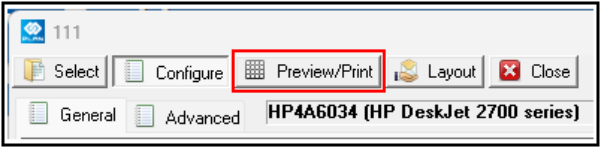
Now back on the Report Selection screen, there will be a new Variant of the report ready for the User to run:
Create a brand new "Copy"
This method will use the features of Export and Import to create a separate report, not linked to the report that the User wants to "Copy".
Note:
Technically, this Copy is not a copy. The User is just manipulating existing functionality to create a new report that can then be fully re-configured.
This has the advantage that:
Export the report
In FRP, navigate to the Reports menu option:
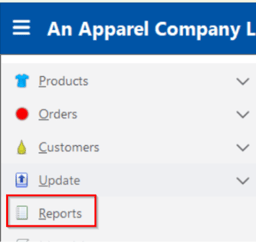
This will open the Report screen, click on the Designer button: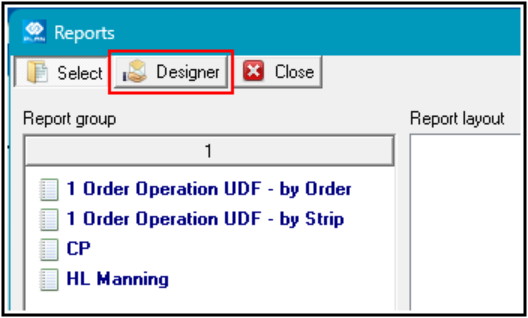
Click on the Import/Export button:
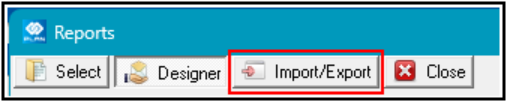
Browse to the folder where the report setup files will be saved to: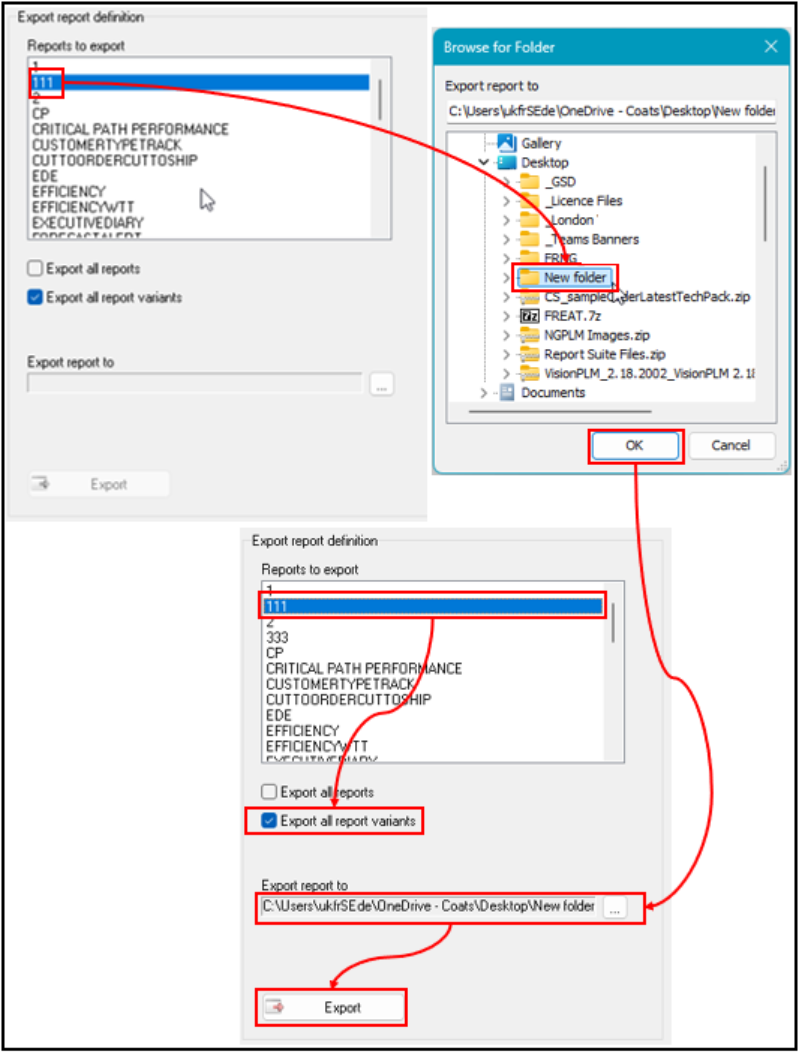 .
Click on the Export button to start exporting the selected report setup files.
Import the report
In FastReactPlan, navigate to the Reports menu option:
This will open the Report screen, click on the Designer button: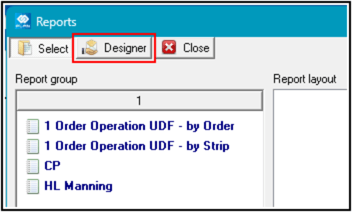
Click on the Import/Export button:
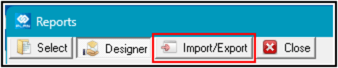
Browse to the folder where the report files were saved and import the files: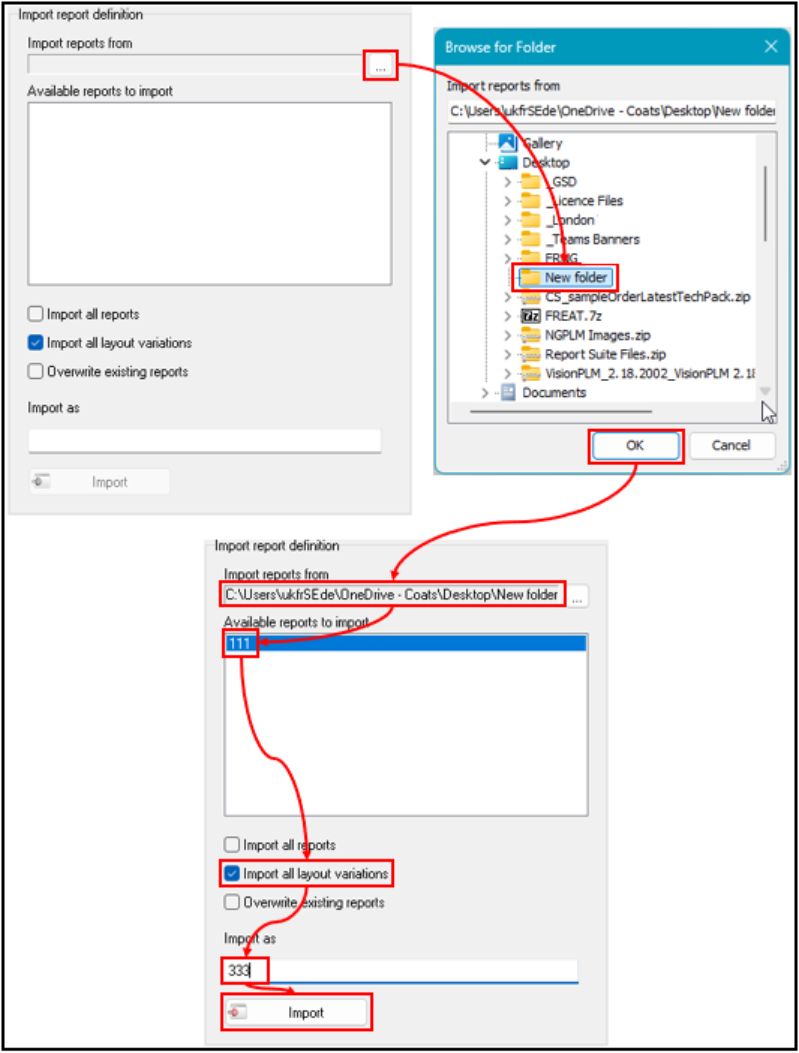
.Click on the Import button to start importing the selected report.
The Designer
The User can now move the report and change the description. Close the Import/Export screen and return to the Report Designer screen: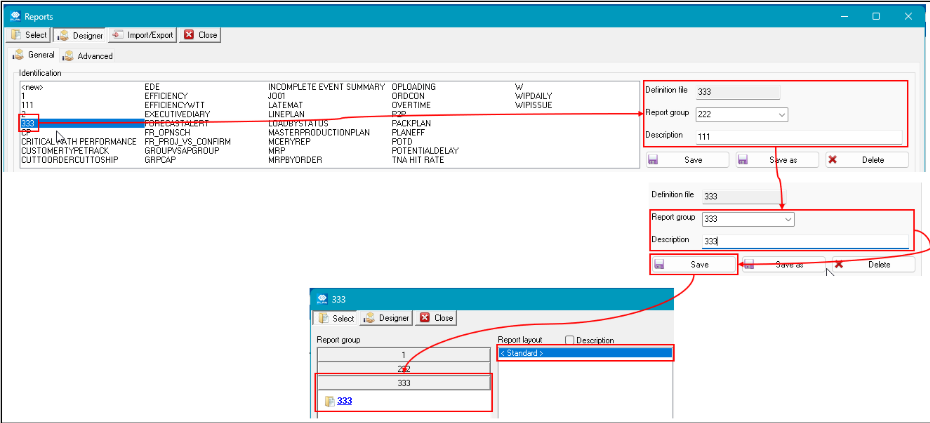
The newly imported report will now be available in FastReactPlan in the defined Report Group with the entered Report Description.