
Article Public Number: KA-01530
Coats Digital Knowledge Article
Product: FastReactPlan
How to .... Import a Report
This SOP provides an overview of the Report Import functionality in FastReactPlan. This functionality allows the User to import report setup files sent from a Coats Digital representative, or from another FRP system, to their FRP system.
Importing
You will be at least 2 files that make up the FastReactPlan report file visible in FRP:
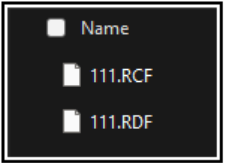
RDF - Report data file
There will only be one of these files, per report
RCF - Report configuration file
Each report may have multpile RCF files depending upon how many report variants there are of that report.
Save these files to a folder on the DeskTop.
Import the report
In FRP, navigate to the Reports menu option:
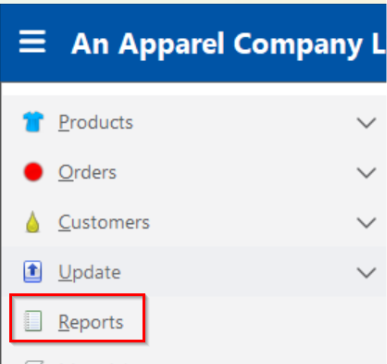
This will open the Report screen, click on the Designer button: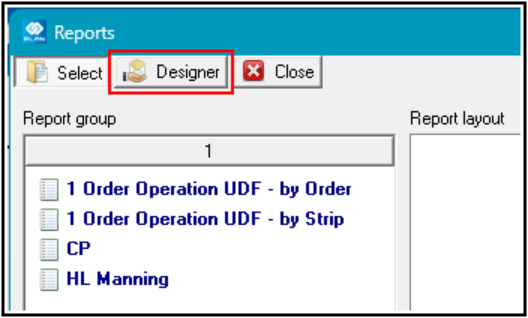
Click on the Import/Export button:
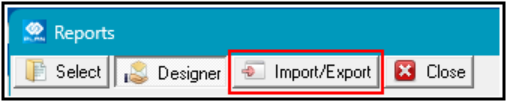
Browse to the folder where the report files were saved and import the files: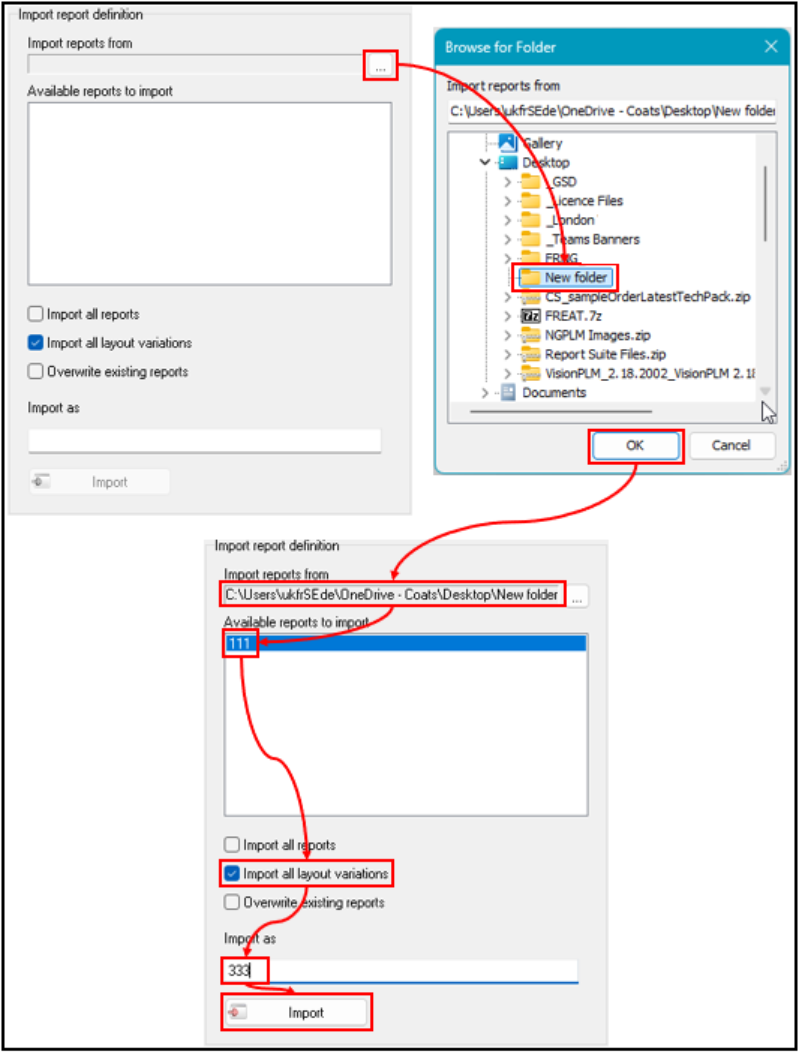
- Import all reports - select this option to import all the reports in the folder. If its not enabled, then only the highlighted report files will be imported.
- Import all layout variations - select this option to import all the report varients available in the import location. If it is not enabled then only the main variant will be imported.
- Overwrite existing reports - this option will force any existing reports with the same name to b over written. If it is not enabled, and a report with the same name already exists, then the report will not be imported.
- Import as - the report can be imported with a new name. By default it will be the name as it is in the import file location. This could be usefull if the main report already exists in the FRP system and you do not want to overwrite it.
- Locate and select the imported report.
- In the Report Groups select an existing Report Group from the drop down or type in a new Report Group name.
- Edit the Report Description
- Click the Save button.
.
Click on the Import button to start importing the selected report.
The Designer
The User can now move the report and change the description. Close the Import/Export screen and return to the Report Designer screen: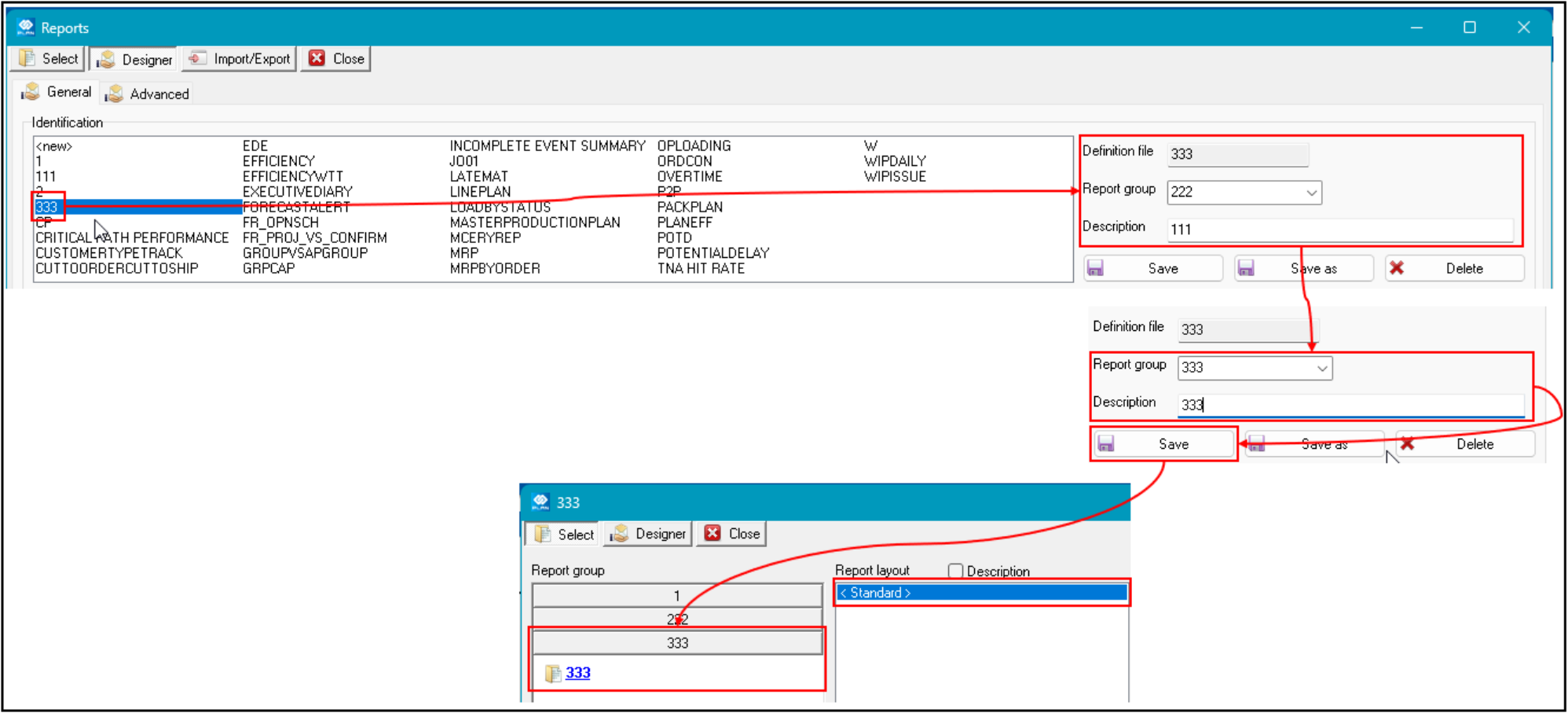
The newly imported report will now be available in FastReactPlan in the defined Report Group with the entered Report Description.