
Article Public Number: KA-01216
Coats Digital Knowledge Article
Product: FastReactPlan
Purpose & Scope:
This document aims to explain how to import SQL table into FR database directly via another database instead of interface files format as normal TXT or CSV.
Solution:
Create the Import database and set its owner to be "fastreact", defining the columns in the table for those interface data
Instructions:
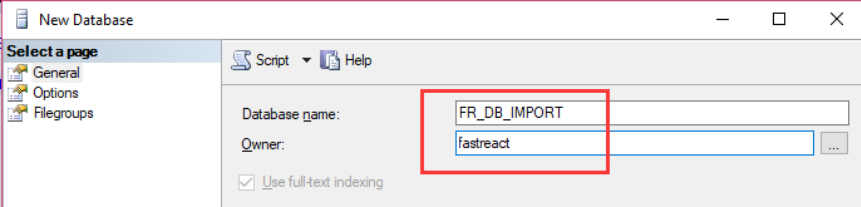
Step 1: Suppose below is the database that we would like to import data from, make its owner as “fastreact” as well.
Step 2: Right click to create a table in the database, which going to carry the data that will be imported to FR database
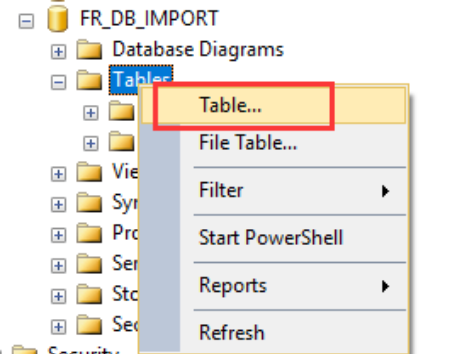
Step 3: After clicking above to create a new table, it will throw out a template to allow you to design the table as below.

Step 4: Take below for example, we would like the table to carry the information about products. Then you could define it as below with the header as how normal interface files(TXT/CSV) requested as below, click “Save” then it would ask you to give it a name. Which should be same as normal interface file name that FR accepted.
Notes: If there is ^ in the header as O^DD:1, then header name in the table should be O2DD:1, 2 stand for ^
Step 5: Then we could see the table we created above as below, right click and select to “Edit Top 200 Rows” as below
Step 6:Entering the product information as below, then close it
Step 7: Right click on the table again and select top 1000 Rows as below
Step 8: It will then show you what you have entered just now.
Step 9: And within the FR Import data dialog, we will need to select the Import format below as “SQL table”, and fill in the SQL server name and the database name which you would like FR to import data from as below for example.
N.B. with :: between the SQL server name and database name as below illustration within the screenshot.
Step 10: Then go to click the import data as normal, you will then see the products table has been imported well as below.
Step 11: Tracking in FR, you will see the product within the table was there as below.
Step 12: Within the database, we could see the table that have been processed with the “_” as prefix and the timestamp as well as normal interface files import as below
Step 13: Further, you could also find there is TXT/CSV file which convert automatically from the table during the import process within the import path.
Outcome:
Following above steps, and we can import SQL table into FR database directly via another database