
Article Public Number: KA-01255
Coats Digital Knowledge ArticleProduct: FastReactPlan
Purpose & Scope:
A guide to show users how to re-install or update FR license step by step
Solution:
Uninstalled it from license server and installed again.
Instructions:
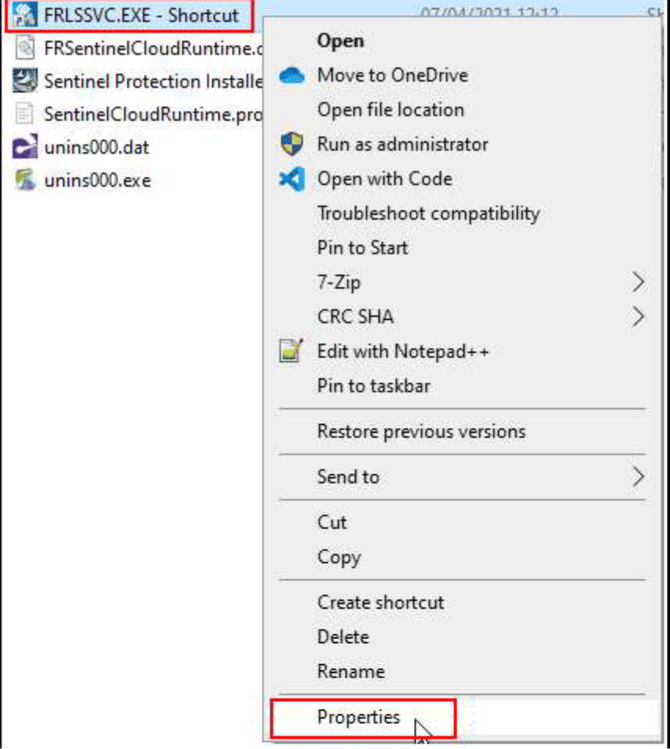
Step 1: Go to the FR License Program folder, and then create a shortcut for FRLSSVC.exe
Step 2 : right click and select the Properties
Step 3 :In the TARGET field on the shortcut properties, enter, “ /uninstall”, (without the quotes)
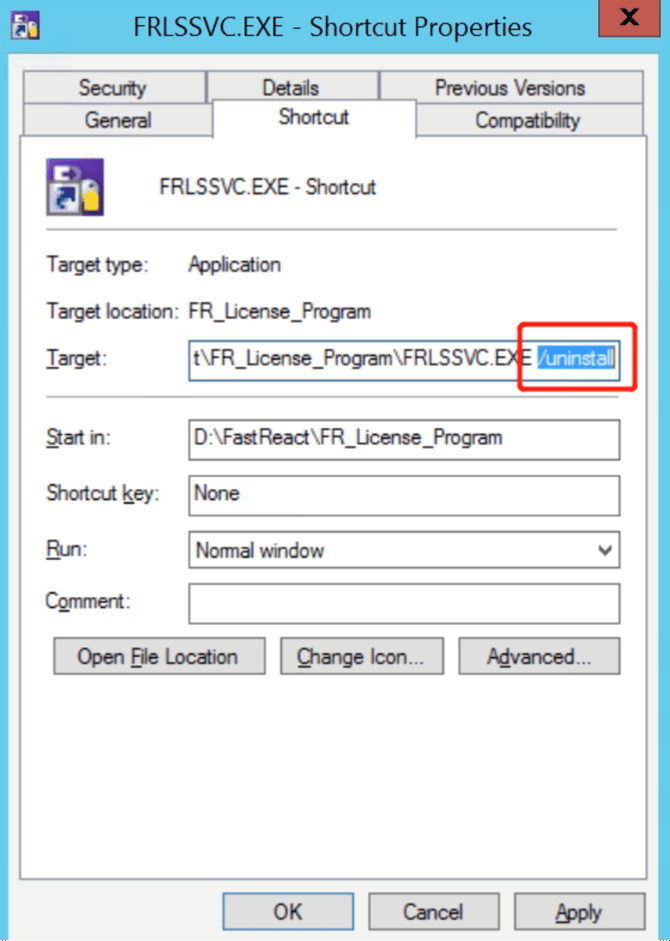
Step 4 :Click APPLY and OK to save this. Right click on the shortcut and select RUN AS ADMINISTRATOR.
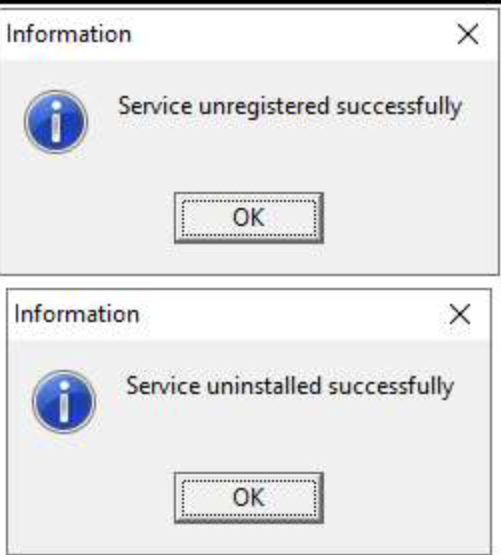
This will uninstall the existing FRLicence service, follow the on screen instructions and click
OK when asked:
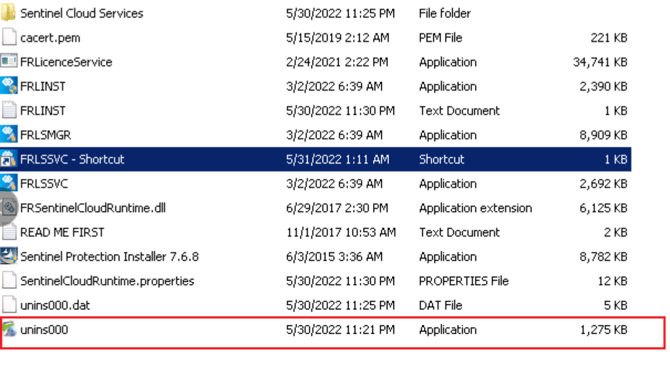
step 5: After service uninstalled, we right click the unis000 and select run as administrator to continue uninstalling license program
Step 6: After then Manually delete all the license files located in the folder, ready to install a brand new license program.
Step 7: Now we can right click the New version or original license version and select run as administrator to re-install or update the license
Step 8: After finishing the license program, we only have to tick two below option in screenshot
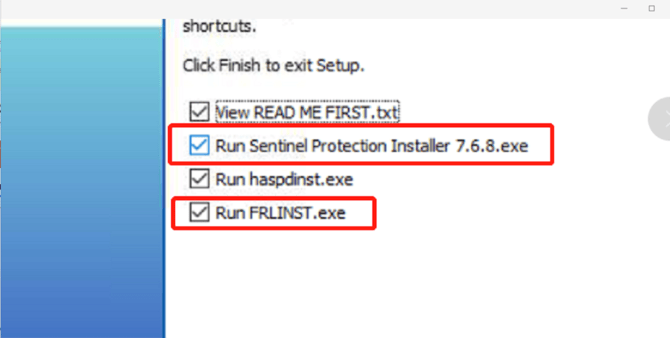
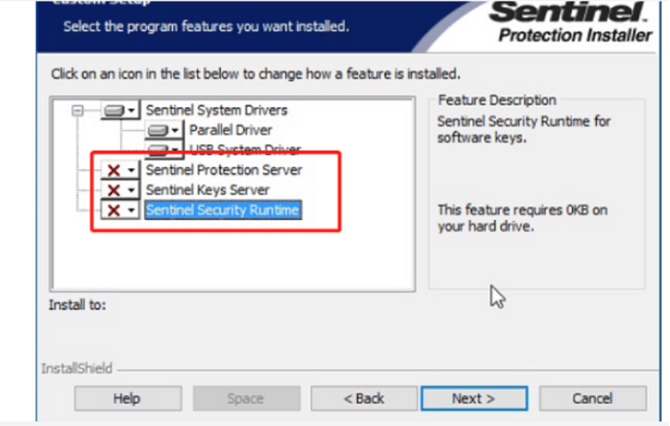
Step 9: and then it will start to install sentinel protection ,and then we also need to modify the configuration for sentinel as follows:
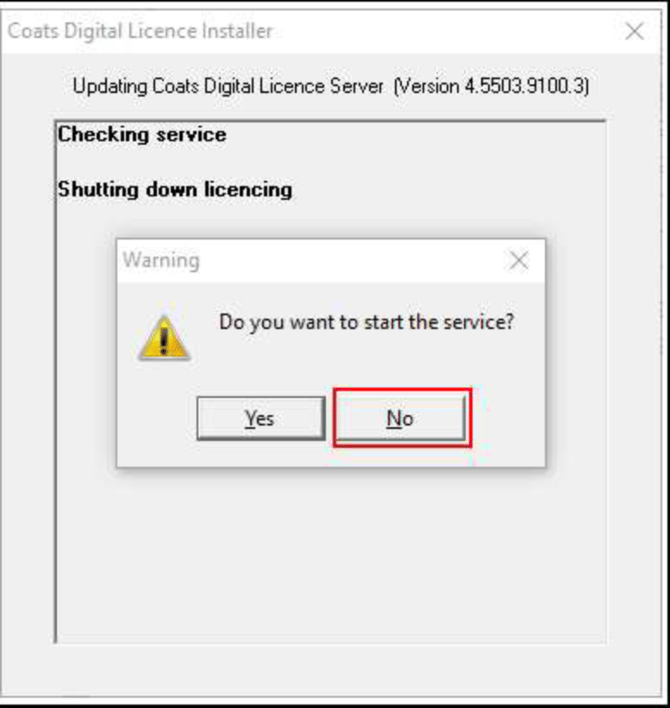
Step 10: after finishing install sentinel protection, updating coats digital licence server dialog pop up, we need to click "No" below
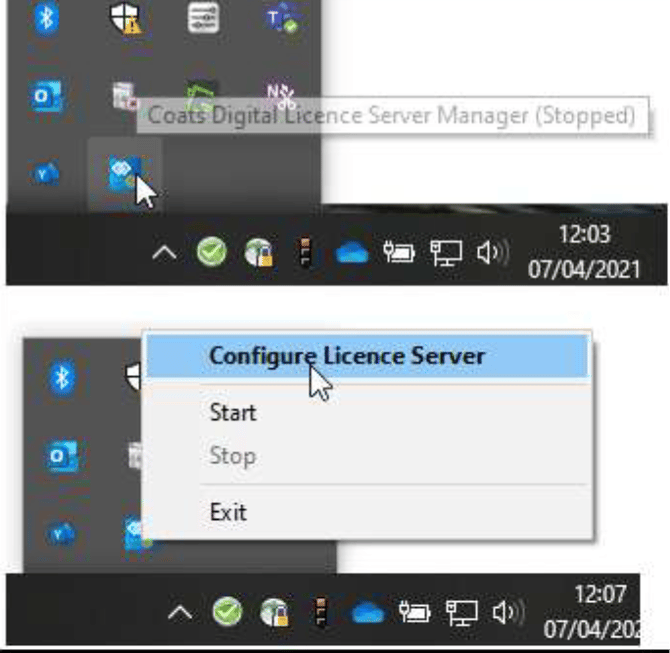
step 11: The Coats Digital Licence Service in now installed but as yet not running. You now need to configure the FRSMGR program. Browse back to the folder FRLicence where all the Licence applications are installed and find the FRLSMGR.exe program. Double click this to start it. It will now appear as an icon in the bottom left of your Desktop,(near the time and date icon). You may need to click on the UP arrow to see it.
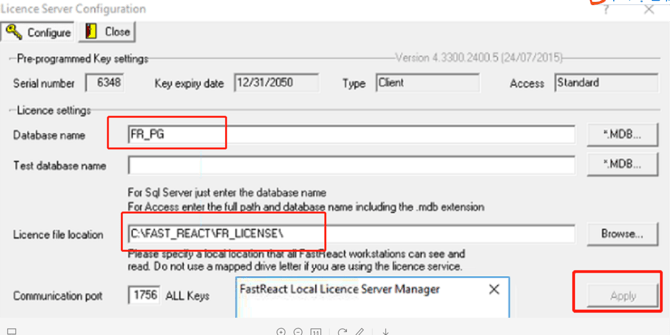
Locate this Coats Digital icon and right click on it and select Configure Licence Server:
Configure:
Step 12 : Fill in the database name and set the path for Fr_Lic.dat file, click Apply
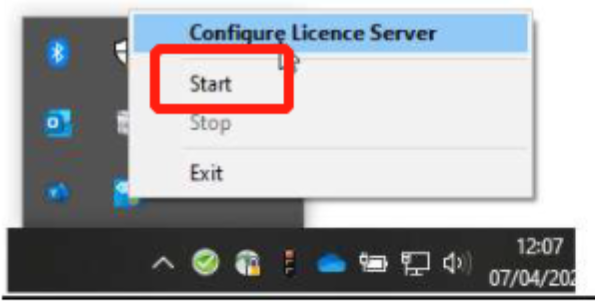
Step 13 : In the last, right click the FRLSMGR.exe program icon ,and select the start button to generate the fr_lic.dat file.
FRLicence will work as normal, the FR_Lic.dat file will be created in the designated folder and this will be used to licence the FRP application.
Outcome:
License program have been uninstalled and installed again to run fine.
Further reading:
Links to related articles