
Article Public Number: KA-01038
Coats Digital Knowledge Article
Product: FastReactPlan
Purpose & Scope:
This guide will show you how to rename your Low-Level Planning board to a different name if you want to change the name of a plan/s. Below are steps on how to rename a plan.
Solution:
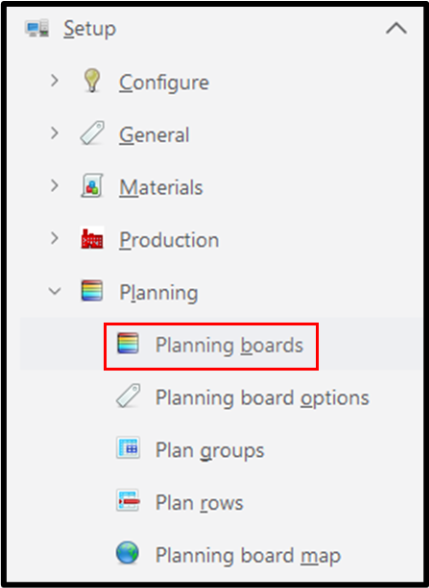
Navigate to SETUP > PLANNING > PLANNING BOARDS to rename the planning boards
Instructions:
First, go to SETUP > PLANNING > PLANNING BOARDS.
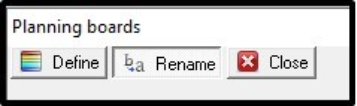
Click on the RENAME tab.
You'll see a list of your plans that you can rename. Next, select the plan that you want to rename. Enter a new name for the plan into ‘Enter a new name’.
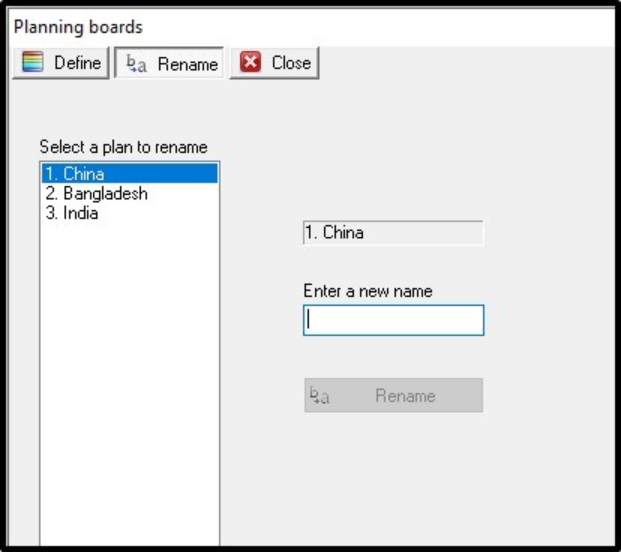
Once you've entered a new name click the RENAME button. This will change the name of the plan to the one that you entered.
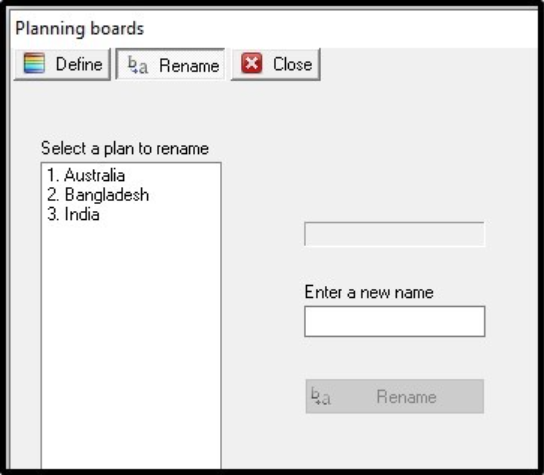
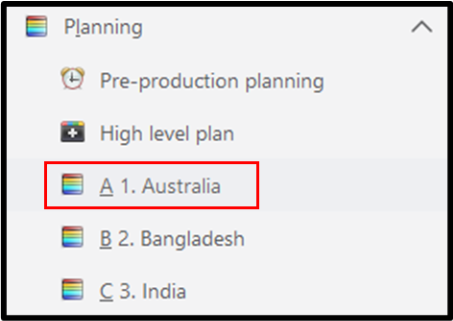
Close the window for Planning Boards and when you go back into Planning, you'll see that the name of the plan has changed.
IMPORTANT NOTE:
When renaming a plan, the number of characters you can have is fixed at 15 this includes spaces as well.