Article Public Number: KA-01176
Coats Digital Knowledge Article
Product: FastReactPlan
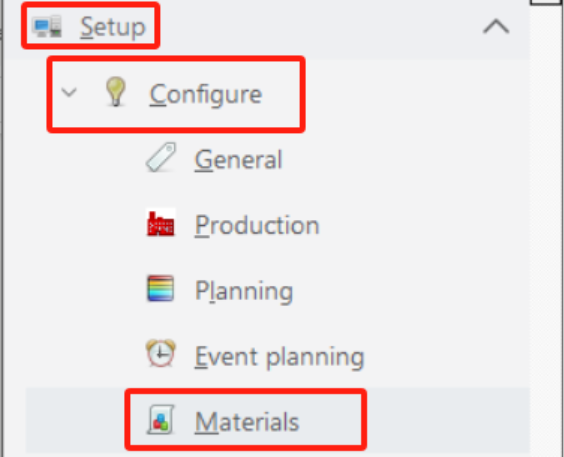
If you open FastReactPlan and go to Setup > Configure > Materials, the following window will open up:
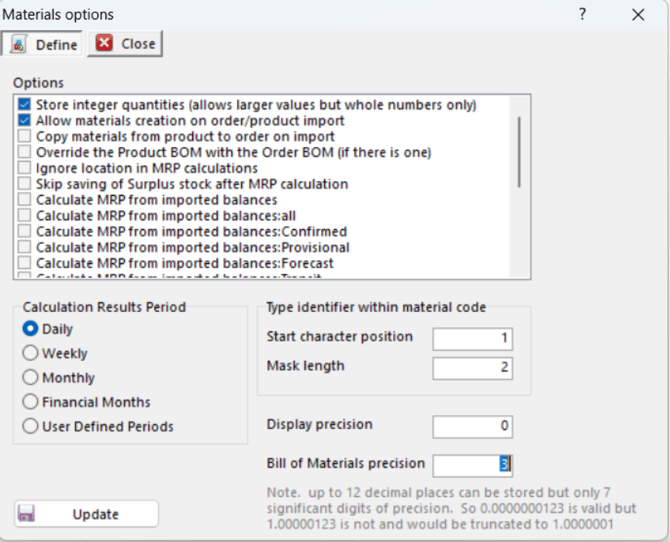
As can be seen, there are 4 main areas and each of these will be explored in turn:
OPTIONS Store integer quantities (allows larger values but whole numbers only)
When enabled FastReact will be able to store larger numeric values e.g. 3,000,000 as opposed to 100.000 in the material stock quantity and delivery schedules. Without this option enabled the maximum number that can be stored in these fields is 2,000,000.
Allow materials creation on order/product import
Enable this check box to allow materials to be created dynamically during the import of Orders/Products if they do not exist already in the FastReactPlan database. This option must be used in conjunction with the Type identifier below.
Copy materials from product to order on import
In some companies the bill of materials is held at the product level in others it may be at the order level. If this option is enabled then FastReact will copy the bill of materials from the Product to the Order.
Override the Product BoM with the Order BoM (if there is one)
Where an Order BoM exists FastReact will replace the existing Product BoM and use the Order BoM when calculating the material demand.
Ignore location in MRP calculationsWhen FastReact calculates MRP it normally takes into account the location where the material is required. When this option is enabled FastReact will ignore the material location and therefore all stocks and deliveries will be pooled together.
Skip saving of surplus stock after MRP calculations
When enabled this option will not save the surplus stock.
Calculate MRP from Imported balances
Normally FastReact will calculate the material requirements of an Order according to the bill of materials and the order quantity. Other ERP/MIS systems may perform the same task already within your Company. When this option is enabled FastReact will simply import the outstanding material requirements provided by this supplying software.For example: - When planning sewing orders, Order A and Order B both require 100 units of fabric. However, Order A has already been cut and so the fabric requirements are actually zero while Order B has not yet been cut and so the requirement is for the full amount. The supplying software would pass zero on Order A and the full amount on Order B.
Calculate MRP from Imported balances:all
As above but using the Order Status to refine the MRP calculation.
Calculate MRP from Imported balances:Confirmed
As above but using the Order Status "Confirmed" to only apply the MRP calculation to Orders with this Order Status.
Calculate MRP from Imported balances:Provisional
As above but using the Order Status "Provisional" to only apply the MRP calculation to Orders with this Order Status.
Calculate MRP from Imported balances:SpeculativeA
s above but using the Order Status "Speculative" to only apply the MRP calculation to Orders with this Order Status.
Calculate MRP from Imported balances:Transit
As above but using the Order Status "Transit" to only apply the MRP calculation to Orders with this Order Status.
Ignore sizes in MRP calculations
This option will ignore sizes when FastReactPlan calculates MRP.
Allow negative stocks
Normally FastReact will not allow you to have negative stock positions. With this option enabled you can have negative stock positions. This is used in cases where companies allocate materials to orders without actually having the stock available but they know the stock is due shortly.
Import negative deliveries as returns to reduce the quantity in stock
With this option checked any negative material quantities which were imported, will be deducted from the stock of that particular material. This has the effect of reducing stock and effectively returning stock to the supplier.
Handle material contracts and call offs
This is a facility in FastReact that allows you to manage material contracts. You will be able to define when a material is available against a bulk material contract. With this option checked a new material status is available. This status is called 'Call Off' and will be seen on the material query dialogs after a material calculation is run.
Calculate lead times from "Today". Defaults to start of current week
All lead times will be calculated from 'today’s' date.
Fail whole order unless all materials satisfied
If this option is enabled FastReact will check if there are sufficient materials to fully complete an order. If an order cannot be satisfied for all materials then any materials allocated to that order would be placed back into stock and made available for other orders. This only has relevance to materials calculations, either manually or through APS.
Minimise mixing of alternate materials
If this option is enabled FastReact will minimise the mixing of alternate materials.
Report materials with no demand at a location
Normally FastReact will not report any material stocks if there is no demand at the specified location. With this option enabled the material stocks will be reported.
Report materials stock/deliveries with demand by order
This option will allow the ability to report the demand of stock and/or deliveries by order.
Expedite shortfalls
Normally FastReact will allocate materials to requirements at the point in time when the requirements occur. However, this could have the effect of satisfying a requirement with a future delivery leaving earlier requirements still outstanding with FastReact suggesting that a new purchase would be necessary. With this option enabled requirements are satisfied in date order with future deliveries being allocated to the earliest requirement. See below for examples.
CALCULATION RESULTS PERIOD
Select the period that is required for reviewing the materials calculations. The options are:
- Daily
- Weekly
- Monthly
- Financial months
- User defined periods
- TYPE IDENTIFIER WITHIN MATERIAL CODE
When importing Orders and Products you can define a bill of materials. If FastReactPlan encounters a material that it does not recognise it can either raise an error and skip the Order/Product, or it can create the missing material on the fly. To enable the dynamic creation of materials it is necessary to define certain default values to be used for unknown materials that may appear in the import files. To do this a dummy or base material must first be defined. Unknown materials will then inherit the default settings from the dummy/base material. To relate unknown materials to a base material, a set of matching characters must first be defined. The start position and number of characters to match the base material are set here. - Start character position
- Define the position of the first character within the material code to compare it to the base material.
- Mask Length
- Define the number of characters within the material code to compare to the base material (including the first character).For example.A base material called 'FB' would first be created with the required values. If the 'Start character position' was set to 3 and the 'Mask length' was set to 2 then any material code with the format: 'xxFBxxxxxx' would inherit the properties of the base material 'FB'. Display precision
- FastReactPlan displays and accepts entries for Material stocks and deliveries in whole numbers by default. However, if more precision is needed then a number can be entered here to represent decimal places here.
- Bill of Materials precisionFastReactPlan displays and accepts entries for BoMs in whole numbers by default. However, if more precision is needed then a number can be entered here to represent decimal places here.
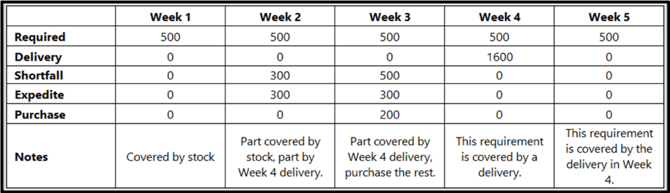
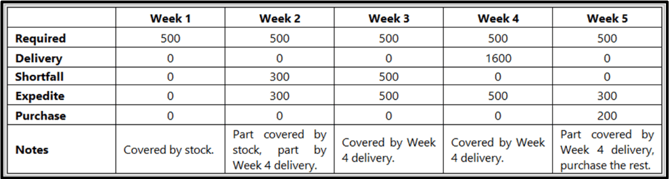
- EXPEDITE EXAMPLEBoth examples below assume an opening stock of 700 of the material, 1600 on and a total requirement of 2500. This will result in a purchase figure of 200 to satisfy the total requirement
- NORMAL APPROACHIn this example, the requirement in Week 4 and Week 5 are satisfied by the delivery in Week 4. The remainder of this delivery (600) is expedited to cover the shortfalls in Week 2 and Week 3.
- EXPEDITE APPROACHIn this example, the delivery expected in Week 4 is used to cover earlier requirements first and then used to satisfy the requirement in Week 4. This results in the purchase being much later and only used to satisfy the final week’s requirement.
- Update
- This button will update any changes made to the option within the dialog. PLANNING Warn if demand/supply mismatched by %
This is the percentage difference that will cause the warning to appear. - History days to show
This is the number of historical (days in the past) days to show the demand/supply. - Edit Masks
This button will bring up the Masks dialog where Material Masks can be defined. Masks used to control supply capacity - This is a list of the defined Masks from the Edit Masks dialog.
- Options
This is a list of the options that can be applied to each Mask.