
Article Public Number: KA-01220
Coats Digital Knowledge Article
Product: FastReactPlan
Purpose & Scope:
A guidance explanation on Material Reservation in FastReactPlan
What Material Reservation IS:
Material Reservation is the function allow the material reserve to the specific order/orders. It is also used to calculate those special materials reserve to which order/orders and the balance quantity.
What Material Reservation DOES:
In addition to normal MRP calculation, Material Reservation provide more details information on how many specific orders consumed the materials, which is more visibility/realistic to see those special materials status and provide the FULL picture and completion of FULL MRP module.
What Material Reservation MEANS:
- Provide the clear information for those reserved materials in FR system.
- Full picture of material status in FR system
- Generate the material reservation reports to reflect the reservation status
- Help planners create more accurate planning
License Enable requirement:
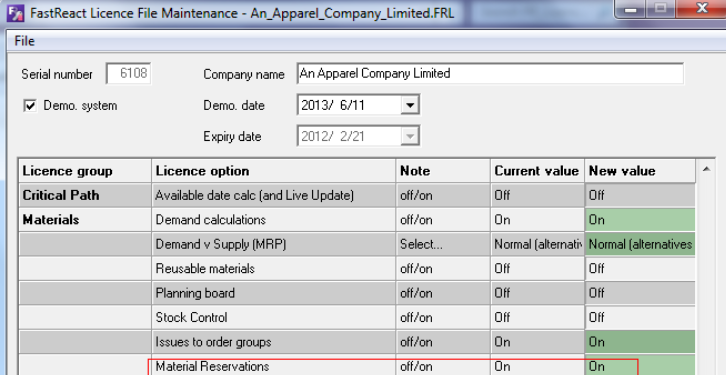
In order to use this Material Reservation function, we must enable the option “Material Reservations” in the FR license file as below:
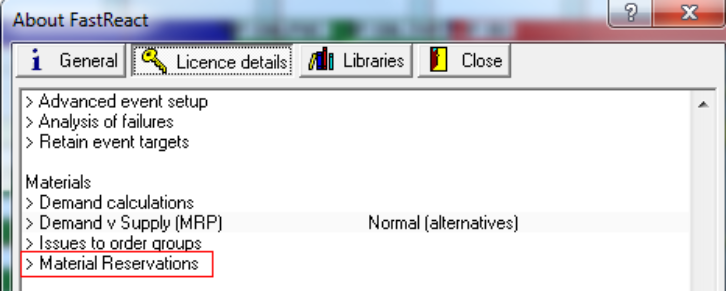
And then Load this License file to your FR system, you will see the below option was enabled in your FR system, which means you can use the “Material Reservations” function now:
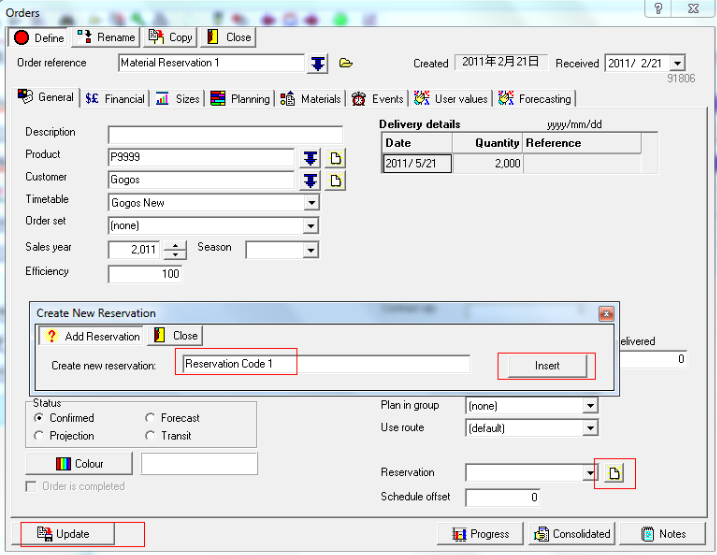
Create reservation code: To do so, you are able to find this in 3 ways: 1) Order Details; 2) Material Stock; 3) Material Delivery.
Please see the below details for reference:
Order Details:
Material Stock:
Material Delivery: 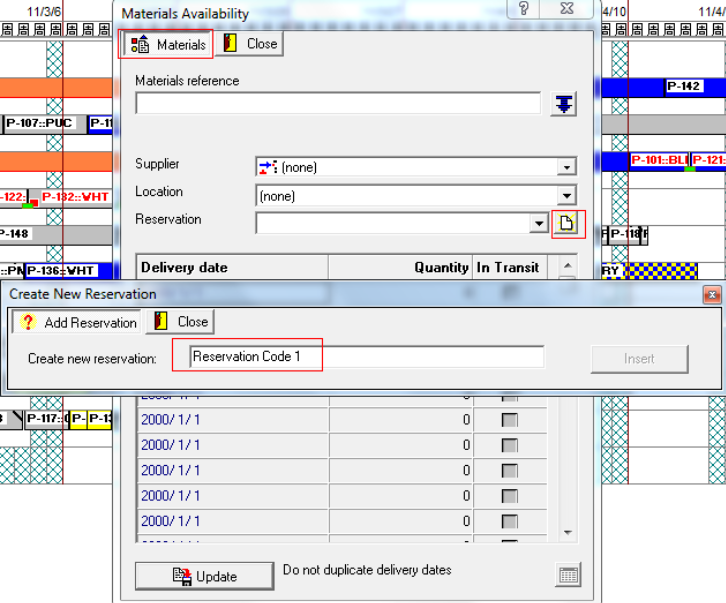
Apparel Demo database demo script:
1. Created one order named “Material Reservation 1” and planned this order into the “China” planning board as below: 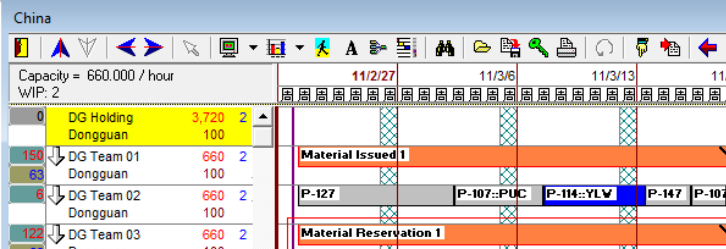
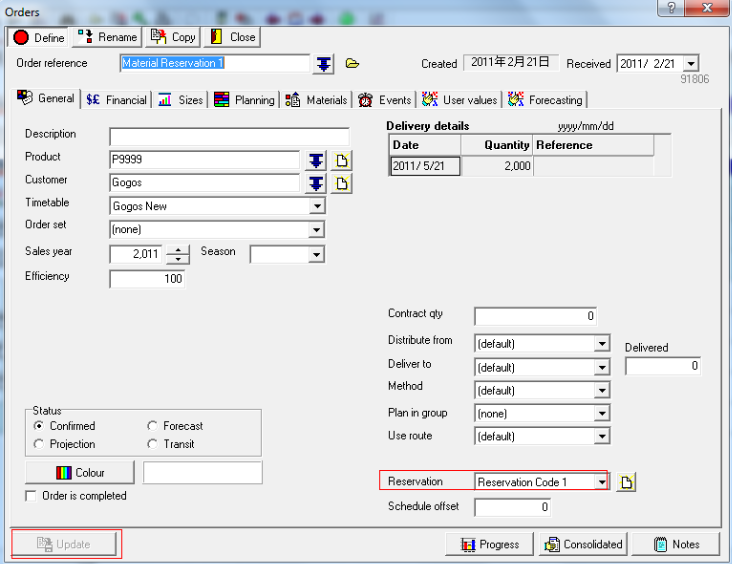
2. Created one material named “Test1”, 
3. Assigned the material “Test1” to order “Material Reservation 1” as below:
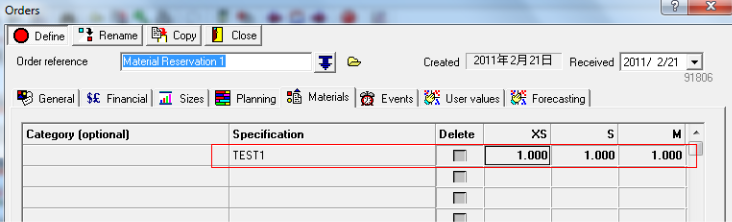
4. Next step, Materials can be reserved from the Material Stock menu(Materials Menu> Materials Stocks), The following window will appear:
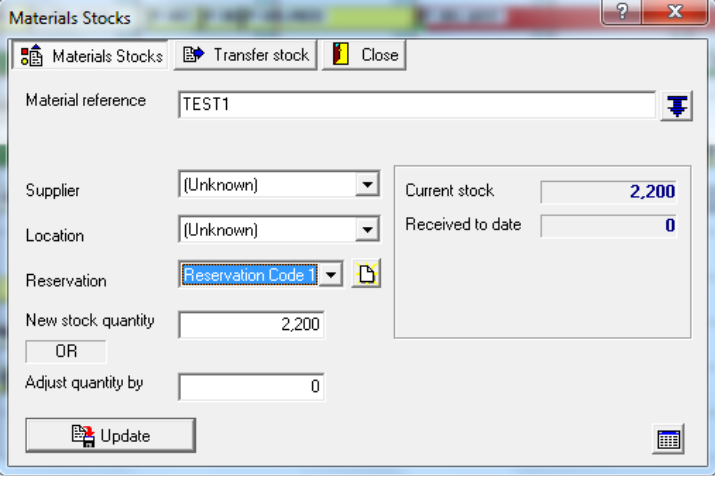
Select the material name at Material Reference which you need to reserve for order, then select Reservation code and type its quantity, and then finally select the” Update” button.
Or, you could reserve the material from Delivery Expected (Materials > Deliveries Expected): 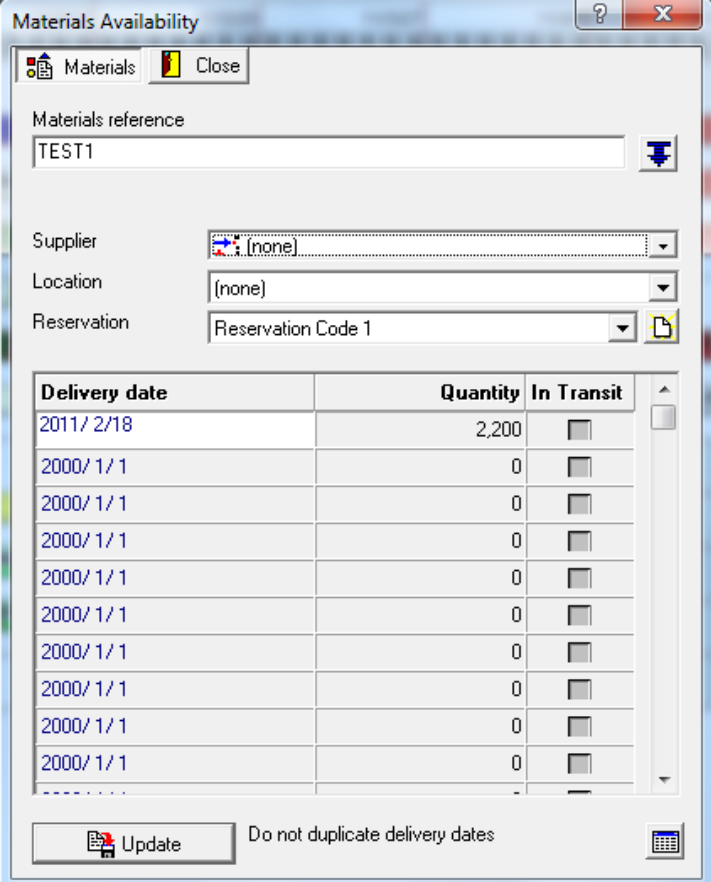
Same like the previous setup above select the material name from Material Reference to reserve for order then select Reservation code. Only this time, but also the delivery expected date and material quantity for reserve. And remember to click the “Update” button.
5. Right-click the order and go to the “Material details”, to check the material details:
Or you can check the “Query materials”:
The following screenshot describes material Fabric “Test1” has reserved by “Reservation code 1”.
6. Sample reports generated from the system, the reports was under the report group as below:
7. If the material “Test1” stock was reserved 2000 to order “Material Reservation 1”, you can see the stock remains only 200:
That means you still have 200 in the stock and not yet reserved.
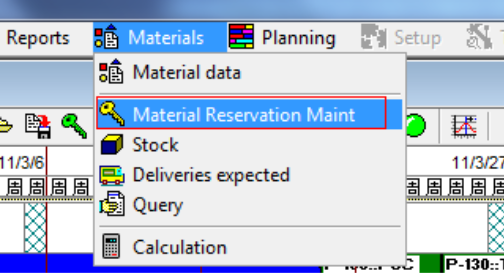
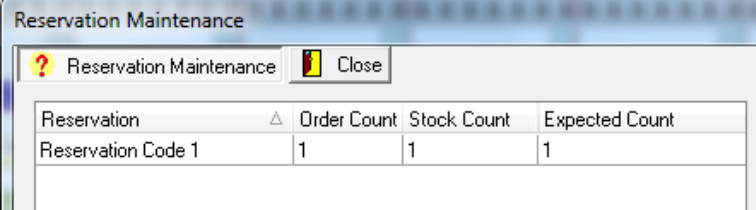
8. You also can go to Materials > Material Reservation Maint to check the reservation maintenance:
Notes: If one Material is reserved for multiple orders, it is the same logic as above, you just need to assign the same “Reservation code” on the orders, and select the same “Reservation code” for the Material Stock/Material delivery also.
Further reading:
Links to related articles