
Article Public Number: KA-01218
Coats Digital Knowledge Article
Product: FastReactPlan
Purpose & Scope:
A guide explaining on Materials Query functions within FastReactPlan.
Instructions::
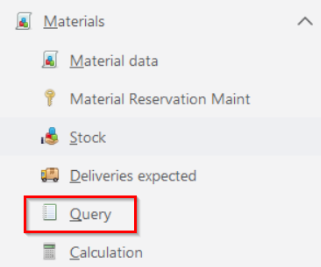
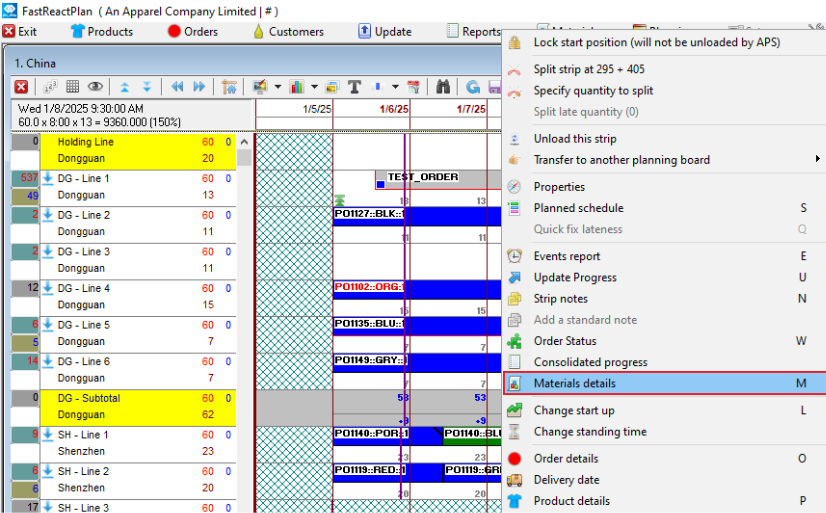
Step 1: Materials Query could be open from Materials menus or from within a planning board by selecting the Materials status option on the right click strip pop up menu.
When opened from the main menu the dialog will offer a choice of materials in the drop down list. When opened from the planning board the dialog will contain material details of the selected order.
Open from Materials menus [Material > Query]:
Open from LL Planning board right-clicked option by selecting the orders which you want to check:
Step 2: Query an order
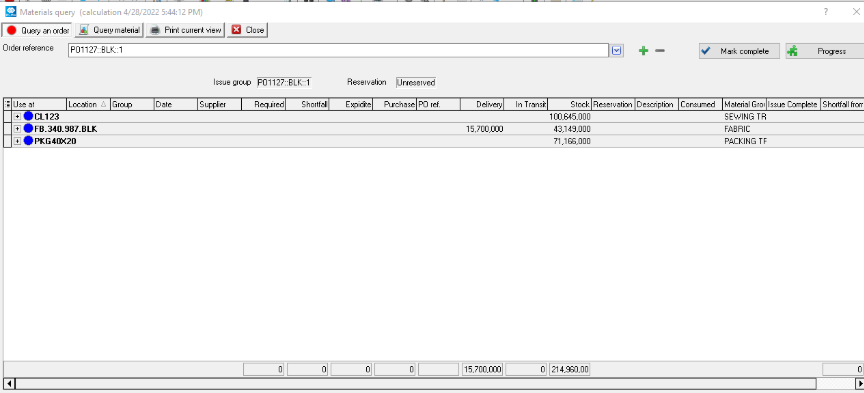
This tab shows the materials used and their status for a specific order. In addition to the common data described below you can also see the progress of the order though its various operations by clicking the Progress button. This can be useful where materials consumption is linked to an operation other than the one which appears on the planning board. In this situation the materials requirements may be less than might be expected (or even zero) if the full order quantity has passed through that operation.
The text in red underneath this button shows the quantity of the order still to plan. This is a very simplistic value and is there just to act as a reminder that the materials requirement may need some interpretation as FastReact can only calculate demand for the planned part of an order.
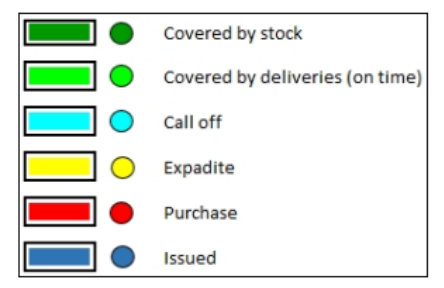
The coloured circles which will be seen on the Query an order and Query materials dialogs are configured on the Planning Board options dialog during the set up of the FastReact system:
Order reference
This is the selected order for which the query was initiated. The order can be changed by selecting the drop down menu button and selecting a new order.
Expand / Contract materials view
Progress

When selected a dialog will appear detailing the operation progress for the selected order.
Issue group
This field will show the Material Issue group that the Order has been assigned to. This field can only be imported.
Reservation
This is the reservation code for the Orders/Materials in the dialog. This is only available if Order Level Reservations is enabled on the License.
Non-Productive (max)
This is the maximum quantity that can be made on this order given the current material status. This is only available in the Pooled MRP calculation.
MRP result
The Expanded view lists the following information:
Use at
This shows the planning section at which the materials are consumed.
Location
This is the location of the materials warehouse attached to the group in which the order is planned.
Group
This is the group on which the order is planned.
Date
The date on which the materials are to be consumed.
Note: This could be earlier if the materials are linked to an operation that takes place before the planned operation. You can change the display period (daily, weekly, etc.) in Main menu - Setup- Configure - Materials.
Supplier
This data is only made available if your material supply has been linked to a supplier. In certain situations FastReact is unable to display a supplier and this column will be blank.
Required
This shows the quantity of each material that is required on the specified date. You can changes the degree of precision of these values in the Materials configuration
Shortfall
Where materials cannot be satisfied either from stock, of from a delivery before or on the requirement date then FastReact will consider that there is a shortfall and hence a risk that the order cannot be made at the planned date.
Call off
These materials will be coming from a delivery which is within a specified time period. This option needs to be turned on. It can be turned on via the Call Offs option under the Material setup. This field is also used in conjunction with the Available From column on the Material Deliveries dialog.
Expedite
This column shows those materials that are available to satisfy shortfalls but are expected to be received later than the date that they are required. This gives the option of contacting the supplier to see if the delivery of those materials could be brought forward. FastReact has alternative methods of calculating the expedite schedule. See Main menu - Setup - Configure - Materials for a more detailed description of this.
Purchase
Any shortfalls not satisfied by expedited materials will need to be purchased. This final column shows the quantity and when these purchased materials need to be made available.
With the list of materials expanded, a double click on a material will show a list of all orders that are using that material.
Delivery
This column shows those material quantity that is required to be purchased by the user to satisfy the demand for that Order.
In Transit
The Expected Delivery has been marked as In Transit.
Reservation
This column shows the reserved quantity from either the Stock or Expected Delivery.
Description
This column shows the Material description.
Consumed
This column shows the consumption point for the material.
Material group
This column shows the material group that the material belongs to.
Step 3: Query material
Material reference
This is the selected material for which the query was initiated. The material can be changed by selecting the drop down menu button and selecting a new material.
Expand / Contract materials view
With the list of dates for which the material is required expanded a double click on an order will show all materials required for that order. The contents of the detail list are described below.
In addition FastReact also displays stock and on order values.
Stock
This shows how much of this material is in stock, at all locations, after the requirements have been satisfied. It could be that there is still a positive stock holding, but there could also be shortfalls. This situation could apply if the stock were at one location and the requirement at another location. In this case stock needs to be moved to where it is needed.
On order
This shows how much material is still on future deliveries even after all expedite calculations have been done. Again the deliveries are for a specified location and it may be that this is different to the location at which the demand appears.
Planned
This shows how much material is planned.
Material requirement details
Order
This shows a list of all the orders which need the material entered in the Material Reference.
Order Reservation
This shows the order reservation name against the material.
Product
This shows the Product to which the Order is for.
Section
This column shows the section to which the order belongs.
Location
This is the location of the materials.
Group
This is the group on which the order is planned.
Supplier
This data is only made available if your material supply has been linked to a supplier. In certain situations FastReact is unable to display a supplier and this column will be blank.
Required
This shows the quantity of each material that is required on the specified date. You can changes the degree of precision of these values in the Materials configuration
Shortfall
Where materials cannot be satisfied either from stock, of from a delivery before or on the requirement date then FastReact will consider that there is a shortfall and hence a risk that the order cannot be made at the planned date.
Call off
These materials will be coming from a delivery which is within a specified time period. This option needs to be turned on. It can be turned on via the Call Offs option under the Material setup. This field is also used in conjunction with the Available From column on the Material Deliveries dialog.
Expedite
This column shows those materials that are available to satisfy shortfalls but are expected to be received later than the date that they are required. This gives the option of contacting the supplier to see if the delivery of those materials could be brought forward. FastReact has alternative methods of calculating the expedite schedule. See Main menu - Setup - Configure - Materials for a more detailed description of this.
Purchase
Any shortfalls not satisfied by expedited materials will need to be purchased. This final column shows the quantity and when these purchased materials need to be made available.
Issued
This column shows the quantity of Material that has been Issued to the Order via the Grouping Code on the Orders/Ordupdat import file.
PO ref.
This column shows the material purchase order reference as defined on the Deliveries dialog.
Delivery
This column shows those material quantity that is required to be purchased by the user to satisfy the demand for that Order.
In Transit
The Expected Delivery has been marked as In Transit.
Reservation
This column shows the reserved quantity from either the Stock or Expected Delivery.
Order status
This column shows the Order status as defined on the Order dialog.
Further reading:
Links to related articles