Article Public Number: KA-01309
Coats Digital Knowledge Article
Product: FastReactPlan
FastReactPlan can be configured to represent and plan several stages in the process of converting raw materials (at a given location) into finished goods (at another location). Each stage in the process may be in-house or subcontracted. FastReactPlan refers to the various operations in a process as 'Planned' or 'Unplanned' and each operation of the process that requires planning must belong to a Section. A plan may have many Sections. Orders flow through each Section sequentially, although Sections can be skipped according to the operations required on any individual Product. Orders in each Section can be planned independently of other Sections but the start and finish time of order in each Section is linked. Visual warnings of 'too early' or 'too late' are given for each Section, relative to adjacent Sections.
Note:
- Not all Operations need to be 'planned'.
- Each key, planned Operation must belong to its own Section.
- There must be at least one Section.
- Several Operations can belong to a Section.
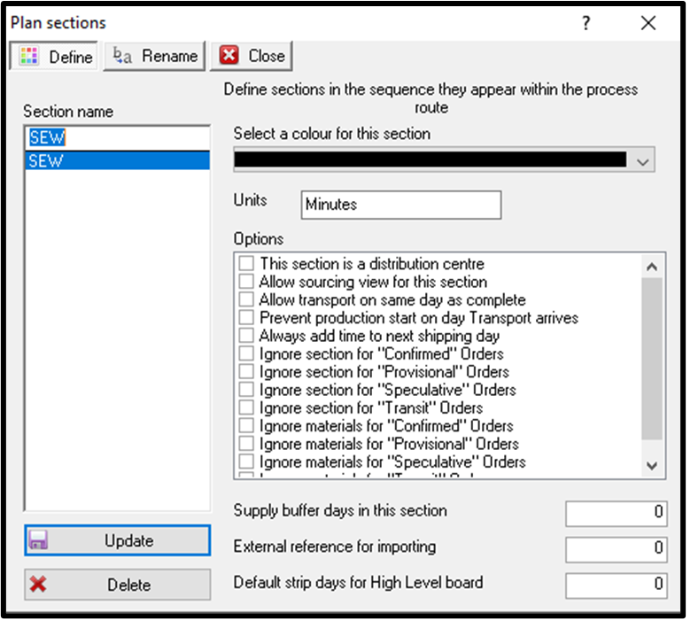
To get to Plan Sections you'll need to go to Setup > General > Plan Sections and the following window will appear:
Define Section name
Enter the name of a new section or select an existing one from the list. Sections will be sorted alphabetically so it is important to name each Section carefully to ensure it is placed in the same sequence as your process. The easiest way to do this is to start each Section with a sequence number. It is good practice to leave a gap of 10 between each Section to allow insertions at a later date if necessary. Existing Sections are shown underneath the text box.
Select a colour for this section Each Section can be given a colour to help easily identify the Section on the screen. This is more appropriate for High Level Planning boards as Sections are very obvious on a Low Level planning board. Using strong primary colours will help make different Sections stand out clearly on the planning boards.
Units Each section can be given a label that describes the type of units that are produced in that section. For example, Dyeing = Kilos, Sewing = Pieces, Knitting = Meters.
Options
This section is a distribution centre Select this check box if you want the section to represent a distribution centre. Sections set as Distribution Centres will not be displayed on planning boards.
Allow sourcing view for this section This will allow this section to show the Sourcing view.
Allow transport on same day as complete
The default rule in FastReactPlan is that goods cannot be transported on the same day that production is completed. For example, transport may leave at 10:00 am. but production may not be complete until 2:00 p.m. This rule can be overridden by selecting this check box. Goods will then be transported on the same day that production in that section is completed.
Prevent production start on the day transport arrives When this option is enabled an extra day will be inserted in the calculation of availability in the receiving section. Planning earlier than this will result in a 'planning too early' warning.
Always add time to next shipping day When this option is enabled FastReact will always accumulate production until the next shipping date even if the transport time is zero. Normally all transport will be ignored unless there is a transport duration defined.
This section operates with batches Select this check box if you want the section to operate in batch.For example, dyeing. Once set the section cannot be unset. Sections that have already been inserted cannot be retrospectively set to use batches.
Apply order batch factor to this section When enabled FastReactPlan will increase or decrease the strip on the planning board according to the value set on the order in the field labelled "Batch factor %".
Prevent batched splitting across breaks When selected, any batch that FastReactPlan calculate cannot complete in a full working day will be moved to the next working day.For example, The working day finishes at 17:00 batch 1 is planned for completion at 15:00 batch 2 takes 3 hrs to produce FastReactPlan will move this batch to the next day as you only have 2 hours left of the current working day.
Allow overlap with previous process Usually, FastReactPlan will identify intersection problems where work in one section is planned to start before the full completion of the order in a previous section. This option allows more flexibility in that the supply and consumption schedules in each section can be allowed to overlap allowing one section to start work before the completion of the previous section. FastReactPlan will, however, check to ensure that the rate of supply is adequate to support the consumption rate in the later section.
Ignore section for "Confirmed" orders When this option is enabled orders that are Confirmed will not be created for this section, irrespective of Product work content.
Ignore section for "Provisional" orders When this option is enabled orders that are Provisional will not be created in this section, irrespective of Product work content.
Ignore section for "Speculative" orders When this option is enabled orders that are Speculative will not be created in this section, irrespective of Product work content.
Ignore section for "Transit" orders When this option is enabled orders that are Transit will not be created in this section, irrespective of Product work content. Ignore materials for "Confirmed" orders When this option is enabled material for Confirmed orders will not be calculated.
Ignore material for "Provisional" orders When this option is enabled material for Provisional orders will not be calculated.
Ignore materials for "Speculative" orders When this option is enabled material for Speculative orders will not be calculated.
Ignore materials for "Transit" orders When this option is enabled material for Transit orders will not be calculated.
Ignore this section for APS When APS is enabled, and this option is checked then the selected section will be ignored when FastReactPlan plans orders using the APS module.
Supply buffer days in this section This option is used in conjunction with the "Allow overlap with previous process". Enter in this field the number of days of WiP that are required between the two processes.For example, Sewing has a supply buffer of 5 days, if Cutting is not planned to produce at least 5 days' worth of stock for sewing then the strip in sewing will show a WiP problem.
External reference for importing Enter in this field a unique number as the section reference, this number will then be used in various import files.
Default strip days for High Level Board Enter here, the number of days for new strips that will be loaded into this section on the high level planning board. This overrides the figure entered under the Setup>Configure>Planning High Level tab "Default initial strip length (days)".
Insert / Update This button will either insert a new section or update an existing one.
Delete This button will delete the selected section.
Rename A section can be renamed at any time.
Select a section to rename This is a list of all the sections that have been created within the FastReactPlan system.
Enter a new name Once the section that has to be renamed has been selected, the new section name can be entered here.
Rename This button will rename the section.