
Article Public Number: KA-01278
Coats Digital Knowledge ArticleProduct: FastReactPlan
Purpose & Scope:
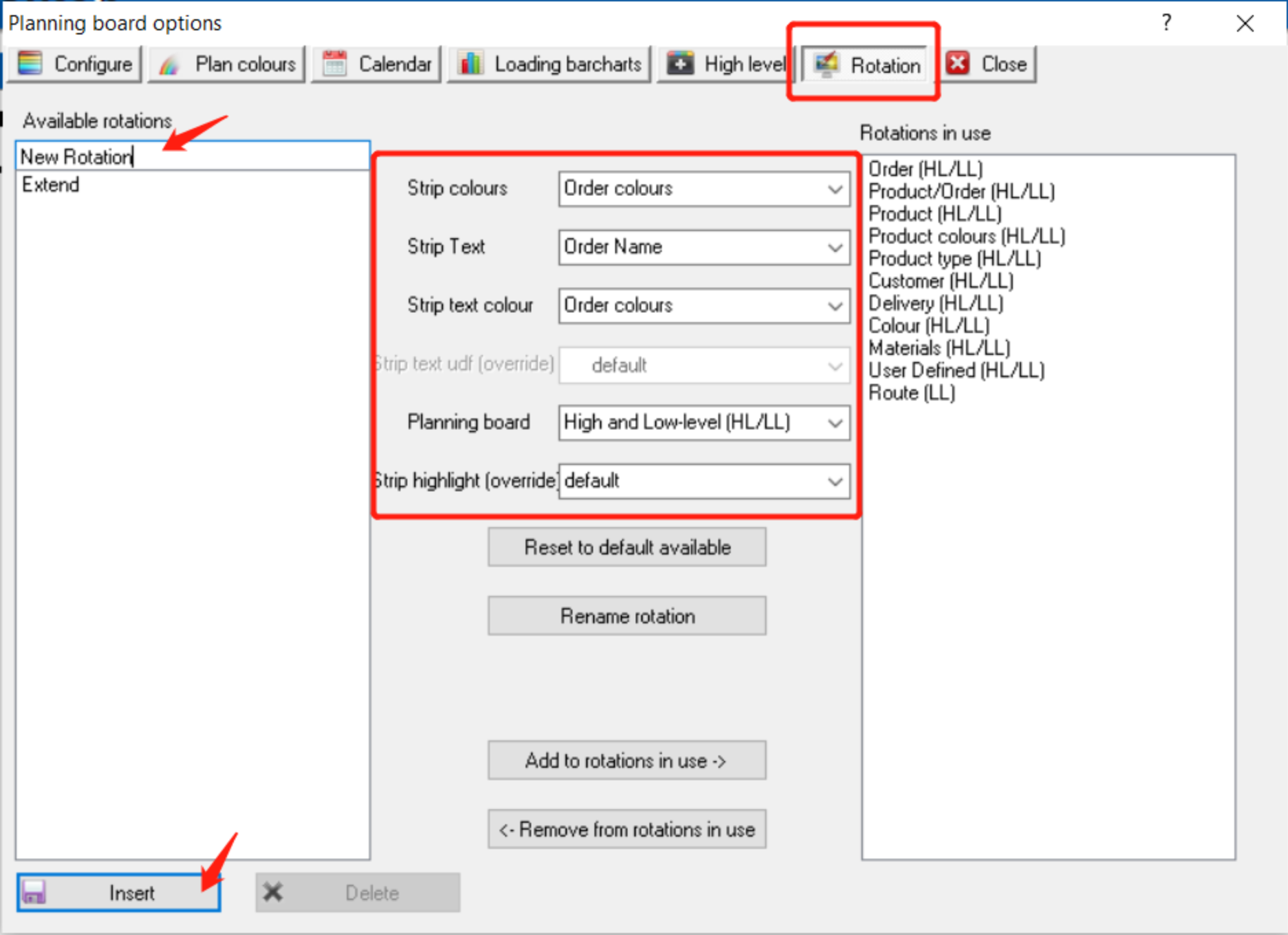
New custom rotations can be added by typing their name into the left hand text entry, selecting the colour scheme and the text scheme the pressing insert to add to available rotations
Solution:
Go to Setup--Configure--Planning--Rotation to setup or pick an existing rotation to the in-used list at the right hand side.
Instructions:
Step 1 : Go to Setup--Configure--Planning--Rotation, dialog as below will throw out, giving the name to the rotation you created, select the info in the RED frame below, click the "Insert"
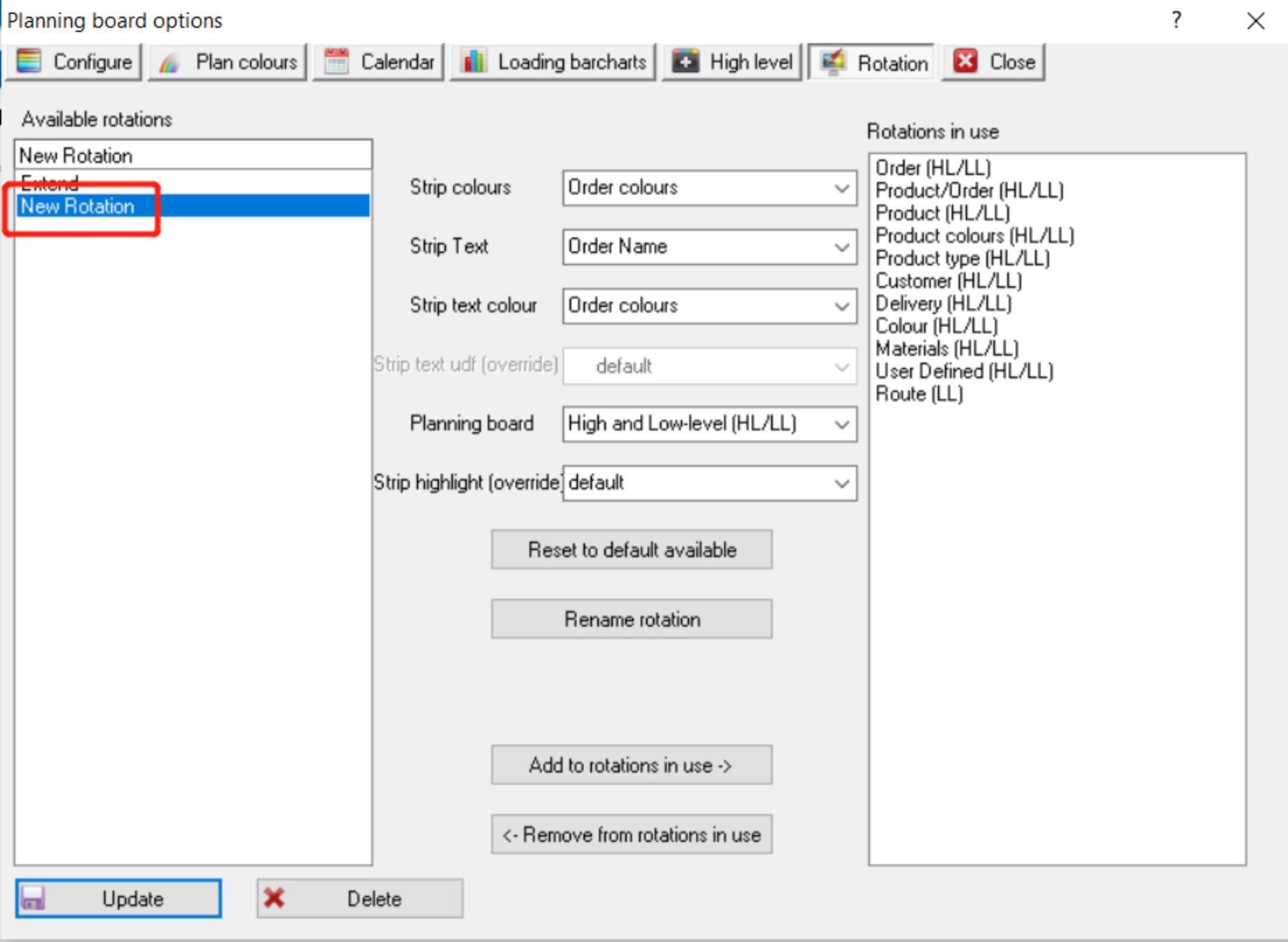
Step 2 : Once Insert above, the new adding rotation will appear as below at the left-hand.
Step 3
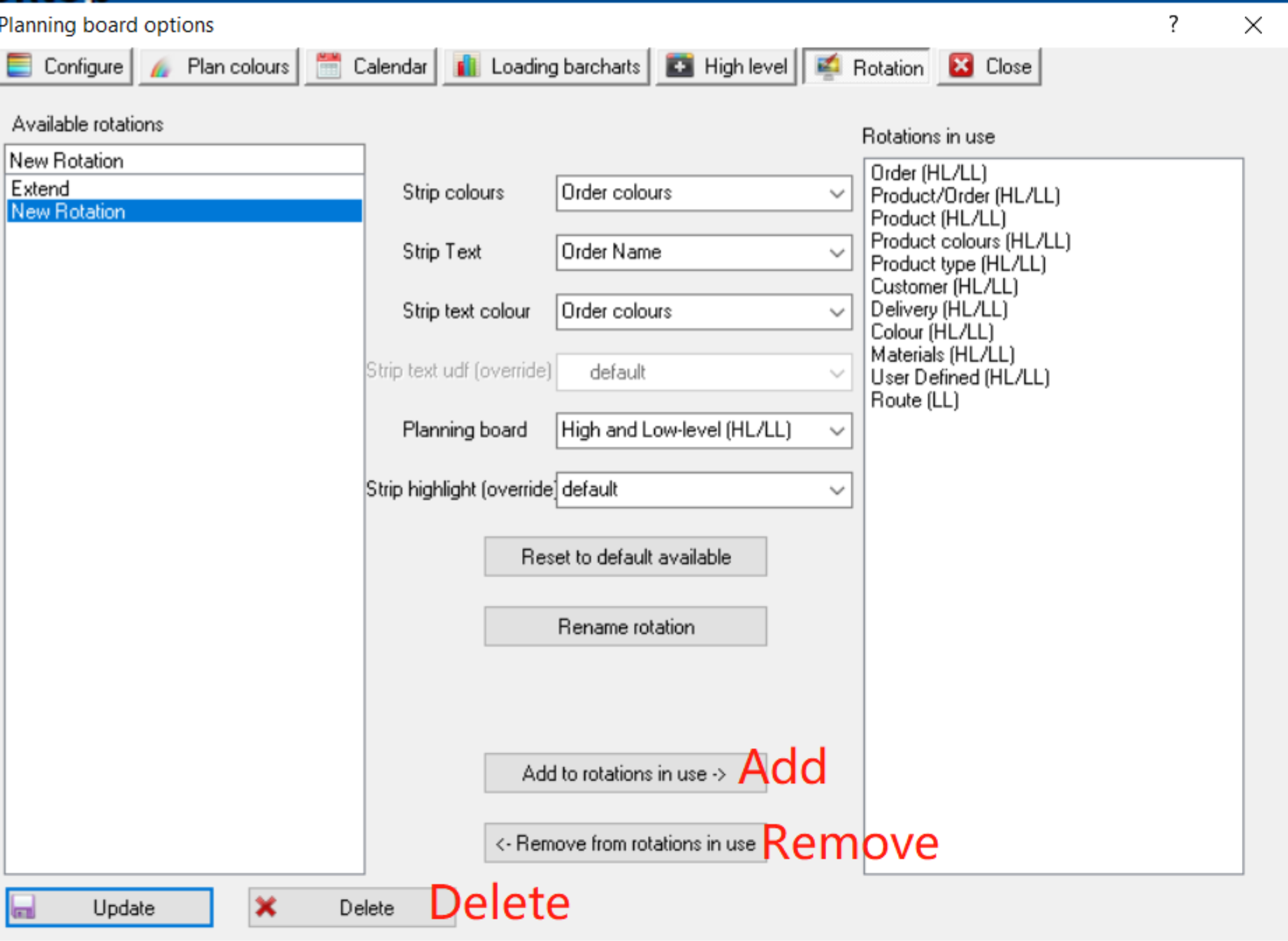
a. Add: To add to the rotations in use, select a rotation from left-hand list and press 'Add to rotations in use →' this rotation should now appear in the right-hand list.
b. Remove: To remove a rotation from the rotations-in-use select a rotation from the right-hand list and press '← Remove from rotations in use', this rotation should now appear in the left hand list.
c. Delete: To delete a rotation completely, select a rotation from available or in-use and press 'Delete'.
Step 4: Once it has been added to the "Rotation in use" to the right-hand side above, it will available on planning board as below
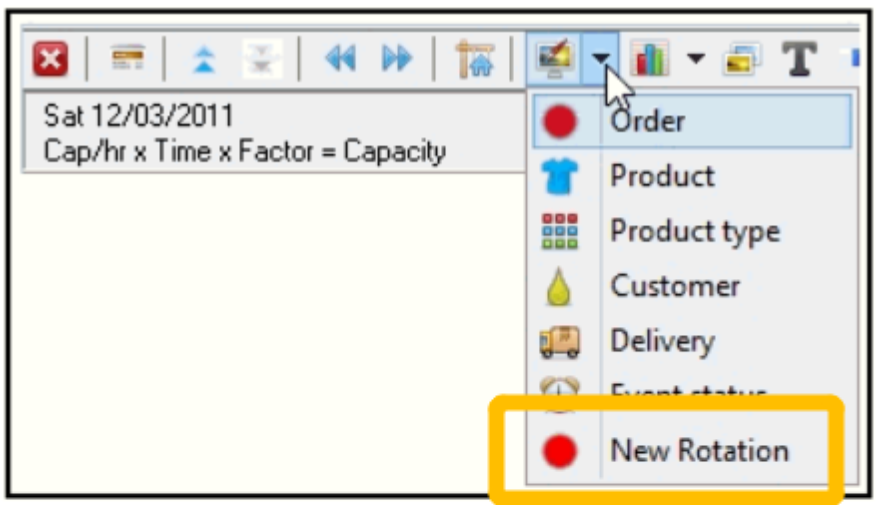
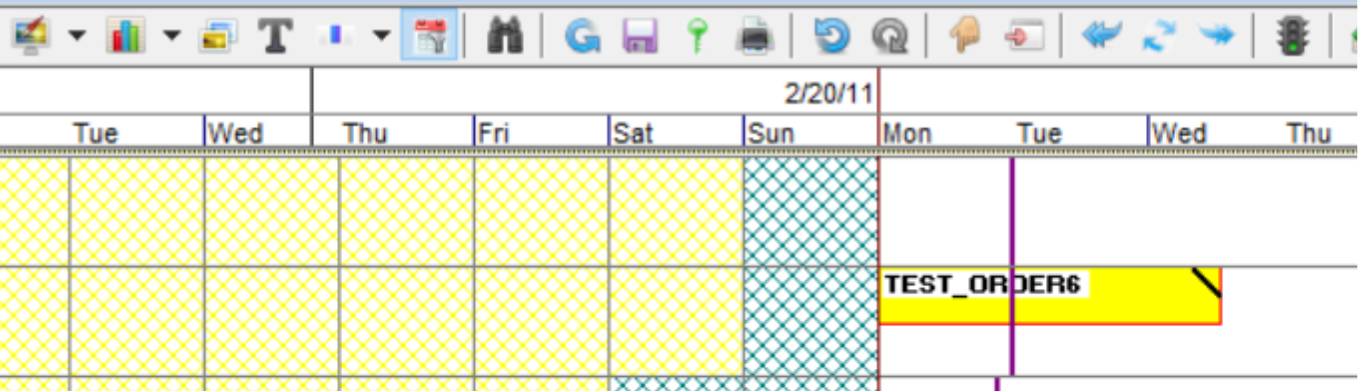
Step 5: And strip colour will display as how it has been defined in the rotation.
Outcome:
Once the rotation that created has been applied to be in used, it will be available in the list and allow planner to select and make it show as how it has been defined as expected.
Further reading:
Links to related articles