
Article Public Number: KA-01075
Coats Digital Knowledge Article
Sorting of Low-Level Strips
Product: FastReactPlan
Sorting of Low-Level Strips
The Low-Level planning board has the ability to sort strips in either a pre-defined manner or a user-defined manner. This functionality is standard in all FastReactPlan systems and is controlled via the Sort icon on the Low-Level Planning Board Menu.

This button will allow the Planner an individual Row or the whole Plan via set or defined criteria.
Sort Strips
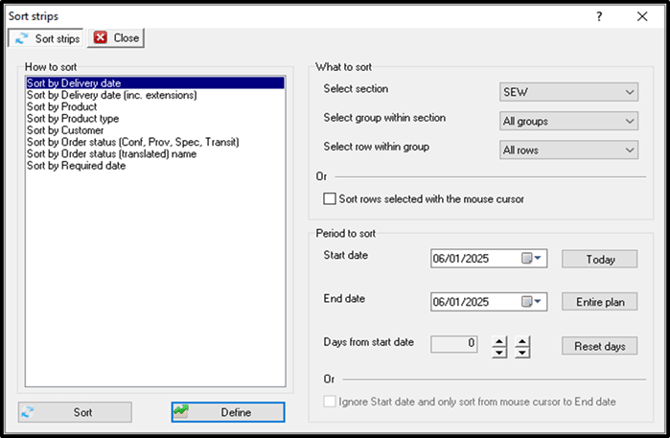
The Sort Strips dialogue already has some pre-defined sorts setup:
How to sort
The first section of the Sort Strips dialogue is the How to sort. These are a selection of pre-defined system sorts that are available to the Planner:
- Delivery Date
- Delivery Date (inc. extensions)
- Product
- Product Type
- Customer
- Order Status (Conf, Prov, Spec, Transit)
- Order Status (translated) Name
- Required Date
What to sort
The next section of the Sort Strips dialogue is the What to sort criteria:
- Select section - Select the section that you wish to perform the Sort on.
- Select group within section - Within the above Section, Which Groups do you want to sort on.
- Select row within section - Within the above group, which rows do you want to sort on.
OR
- Sort rows selected with the mouse cursor - The planner can multi-select rows to perform the sort on.
Period to sort
The final section of the sort strips dialogue is the period to sort criteria:
- Start Date - The date you wish to start the sort on. The today button will set this date to "today's date".
- End date - The date you wish to end the sort on. The entire plan button will set this date to the date at the end of the plan.
- Days form start date - Alternatively, you can set the number of days forward from the start date.
OR
- Ignore start date and only sort from mouse cursor to end date - This option is only available when the Sort rows selected with the mouse cursor option, in the above, is enabled.
Selecting one of these pre-defined options will, upon clicking on the Sort button, sort the strips based upon the How to sort, What to sort and Period to sort criteria.
There is however another method of sorting and this is to use the Define button.
Define sort
The Define sort allows the planner to define their own sorting criteria based upon Optimise loading factors:
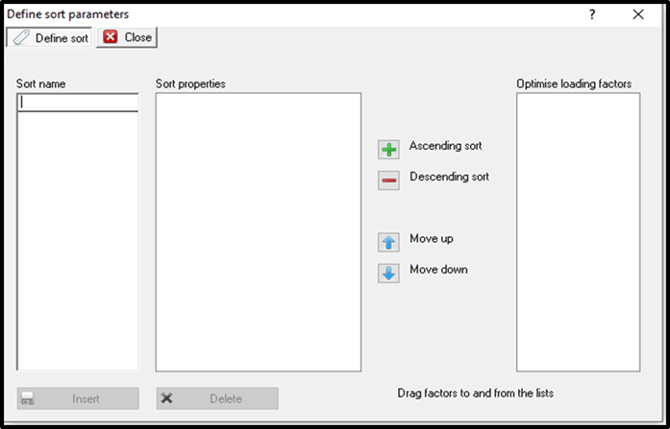
In order to use this you must first configure Optimise Loading Factors under Setup - Production - Optimise Loading Factors. Then you will need to apply these to the Orders, on the Optimise tab.
Enter a new sort name in the Sort name field and then simply drag the Optimise Loading Factors into the Sort Properties box:
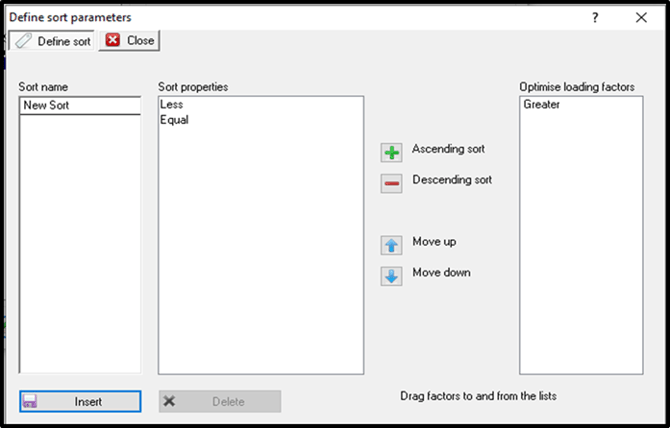
Once you are finished click the Insert button. Your new sort is now available for selection:
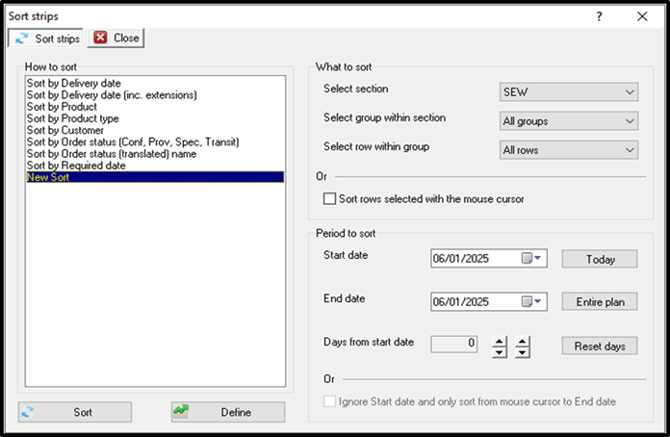
Note: Don't forget to set What to sort and Period to sort when selecting your How to sort.