
Article Public Number: KA-01223
Coats Digital Knowledge Article
Product: FastReactPlan
Purpose & Scope:
FastReactPlan has an optional Activity scheduler that allows certain functions to be run automatically according to a schedule that you define.
To turn on the Activity scheduler see the Main Menu - Setup - General option on the Defaults page. Once this has been enabled FastReactPlan will pick up the existing schedules and put them into the new schedule. This will be done the first time you re-start FastReactPlan with the Activity Scheduler enabled.
Configuration
The Activity Scheduler can be configured to do a variety of functions from standard Importing to Collaboration. These activities can be set to happen at a variety of times over a specified period.
The activity repeat type
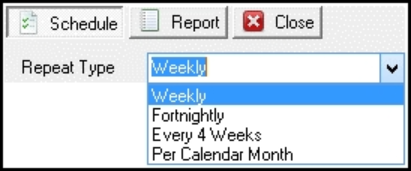
The Repeat Type selection tells the FastReactPlan system how often to repeat the selected activity. The user can choose to run the activity weekly:
- Fortnightly;
- Every 4 weeks or;
- per calendar month.
By default, this is always set to “weekly”:
The activity to run
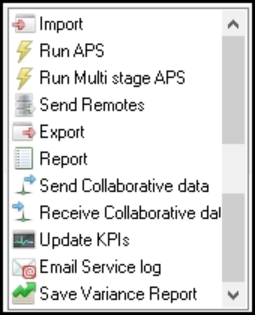
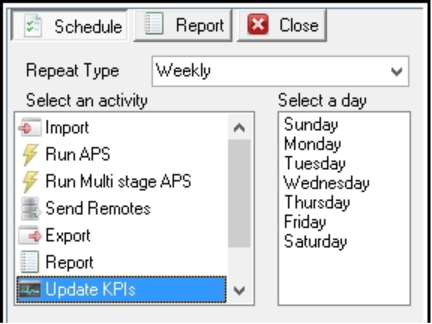
The image below shows the Activities available to the Activity Scheduler. All these activities can be set to be automatically run via the Activity Service user.
Import
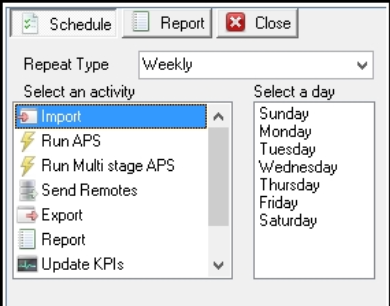
Selecting this option will allow FastReactPlan to pick up the import files, in the designated import folder, and automatically import them. Apart from selecting when and how often these files will be imported, there is no other configuration required on the Activity Scheduler:
Run APS
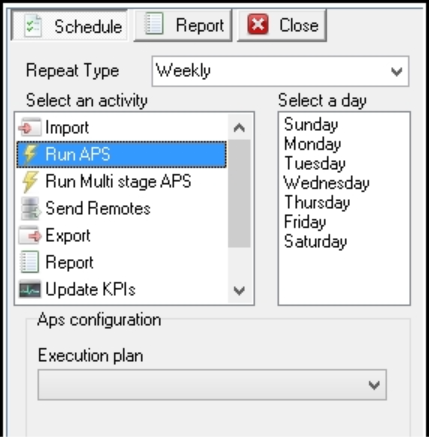
Selecting this option will allow FastReactPlan to run the selected APS Run. The APS that will be run can be selected via the Execution plan drop-down list. This is a list of APS runs that have already been set up and configured in FastReactPlan:
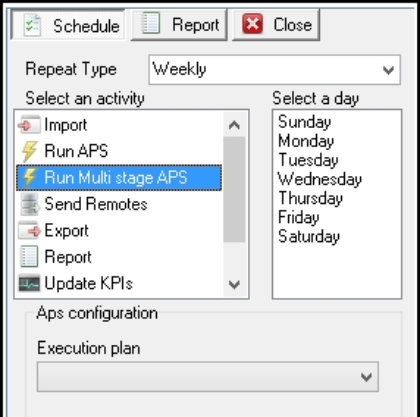
Run Multi-stage APS
Selecting this option will allow FastReactPlan to run the select Multi-stage APS Run. The Multi-stage APS that will be run can be selected via the Execution plan drop-down list. This is a list of Multistage APS runs that have already been set up and configured in FastReactPlan:
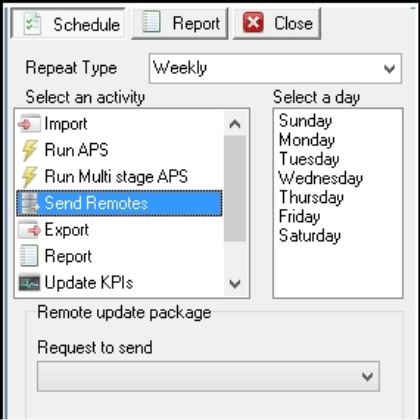
Send Remotes
Selecting this option will allow FastReactPlan to automatically email a predefined Remote Package. The Remote Package that will be sent can be selected from the Request to Send drop-down list. This list will be a list of predefined Remotes that are available in FastReactPlan.
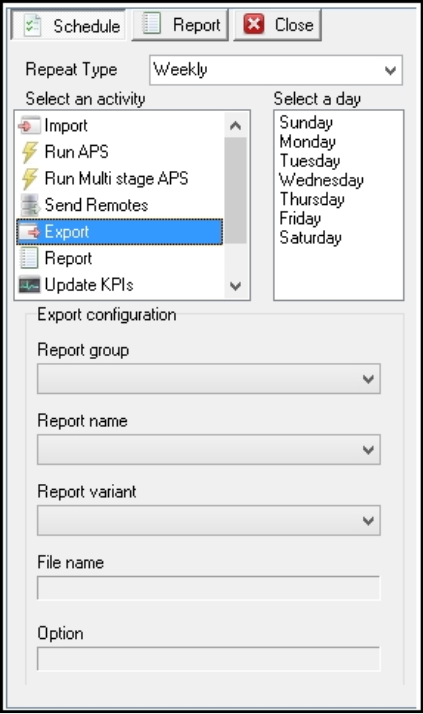
Export
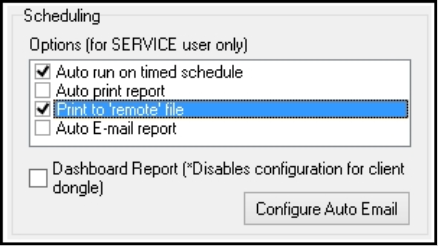
Selecting this option will allow FastReactPlan to automatically Export a selected and configured report to a folder or database table ready to be accessed by a third party application, ie the business's ERP system. Each Report that will be Exported must be designated as a “Scheduled Report”. This is done on the Advanced setup of the actual report, see below:
Reports
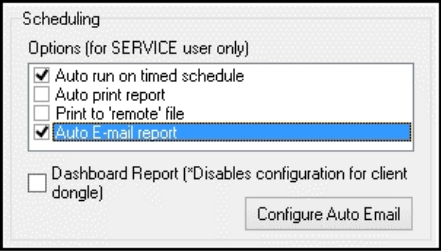
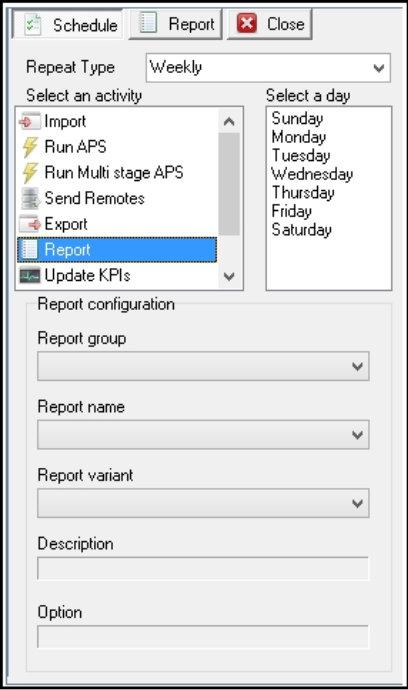
Similar to Exporting, selecting this option will allow FastReactPlan to automatically Email a selected and configured report to any user that is setup with FastReactPlan. Each Report that will be Emailed must be designated as a “Scheduled Report”. This is done on the Advanced setup of the actual report, see below:
Send Collaborative data
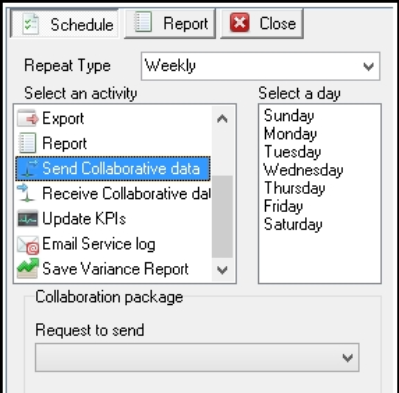
Selecting this option will allow FastReactPlan to automatically send out the defined and selected Collaboration Package. This allows FastReactPlan to send unattended Collaborative Packages.
Receive Collaborative data
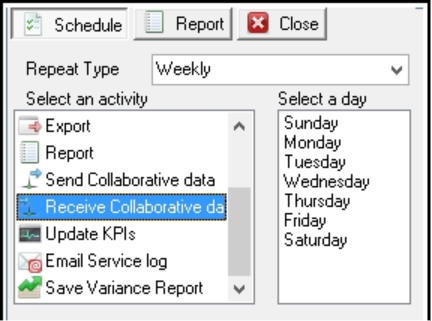
Selecting this option will allow FastReactPlan to automatically receive in any Collaboration Packages. This allows FastReactPlan to receive any unattended Collaborative Packages.
Update KPis
Selecting this option will allow FastReactPlan to recalculate the KPi data and update the Pro Active Dashboard, PAD.
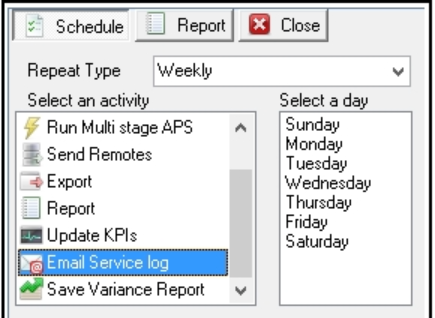
Email Service log
Selecting this option will allow FastReactPlan to email the Service log to a selected FastReactPlan user. This is a check box on against the user.
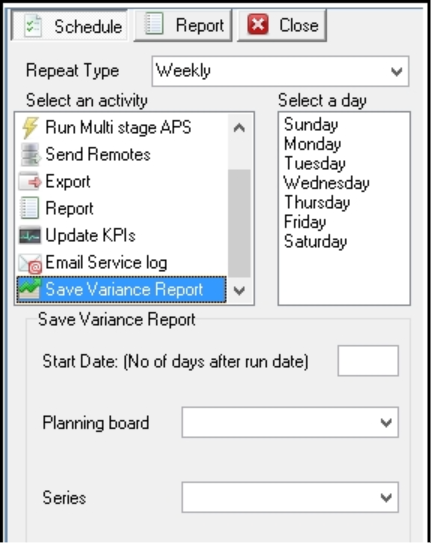
Save Variance Report
This option is a special type of Report functionality. Selecting this option will save the selected Planning board against a particular Series, without user intervention. This will allow the Variance reports to be run manually at a later time.
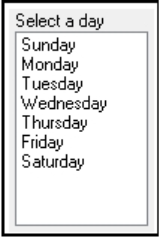
Select a day
After selecting an activity, see above, the user must then select a day on which that activity will run. Only one day can be selected per Scheduled job.
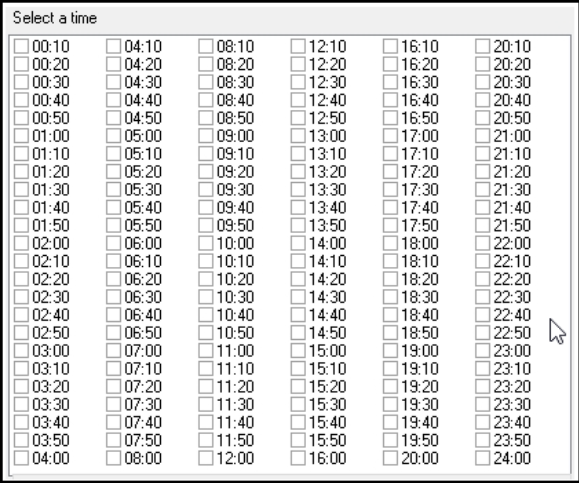
Select a time
The next task is to select the time at which the Scheduled Activity will be run. Multiple times can be selected here.
Select if the activity is to be run weekly
These options are used in conjunction with the “Select day” and “Select time” settings. These options tell FastReactPlan to run the Scheduled Activity weekly on the selected day.

Example Configuration
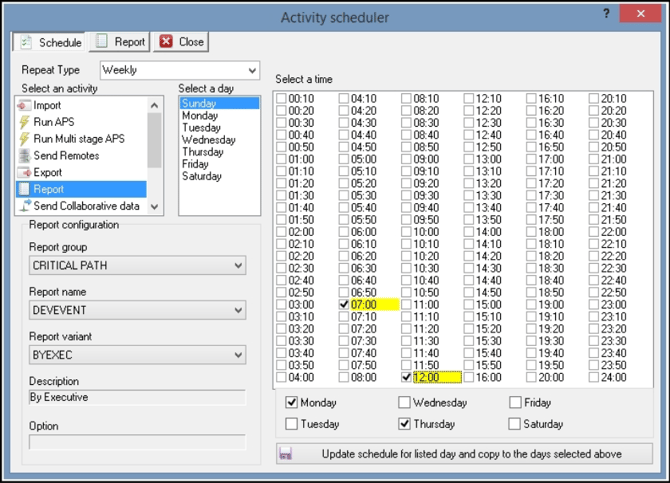
Using the example configuration above, the Scheduled Activity is for:
- A Report to be eMailed
- It has to be done weekly
- Starting on Sunday
The report configuration tells FastReactPlan which report and variant to email:
- In the report group “CRITICAL PATH”
- The report name is “DEVEVENT”
- The variant to run is “BYEXEC”
- And it has a description of “By Executive”
When has this report to be eMailed?:
- Timed to run at 7 am and 12 pm
- Running every Sunday, Monday and Thursday
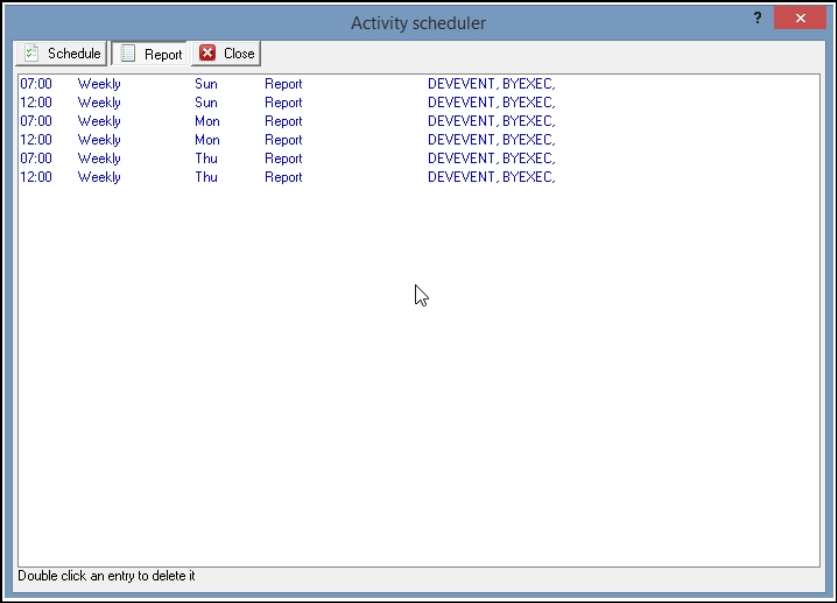
Clicking on the REPORT button will show the user details of the Scheduled Activity:
Further reading:
Links to related articles