
Article Public Number: KA-01535
Coats Digital Knowledge Article
Product: GSDCost
Purpose & Scope:
This document is going to take you through for the steps how to new create one user for GSDCost system.
Solution:
Firstly to create the user in Organization and then login GSDCost to assign the security group for the user.
Instructions:
Step 1 : Add users to your Organization
Before users can access GSDCOST, they must first be added to your organization:
Visit the Organization Portal: Go to https://organisation.coats-digital.com/
Administrator Setup:
- GSDCOST training managers will add the first Administrators to your organization.
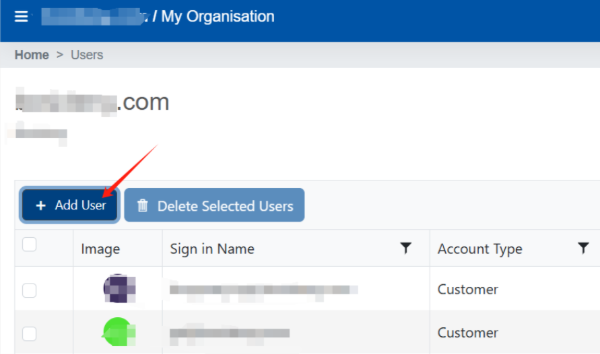
- These Administrators can then add additional users as needed via clicking the "Add User"
Fill in the needed information in below form, and make it "Active", and Role assign as "User" below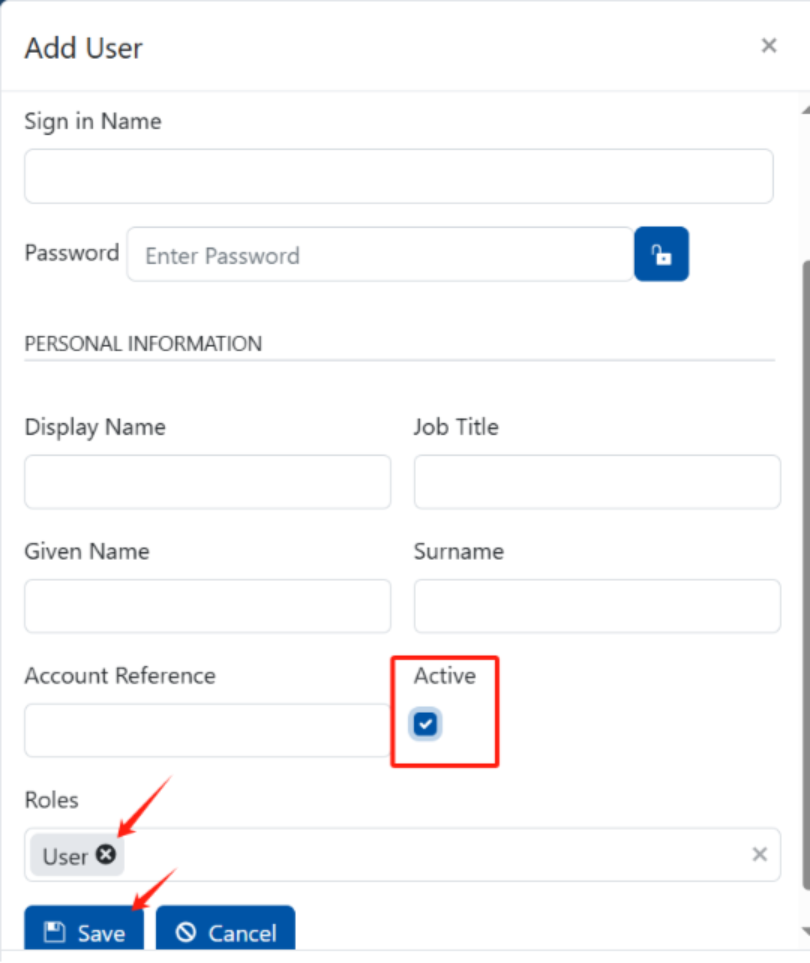
Step 2 : Logging in GSDCost
Once users are added to the organization, they must try logging in the first time with the giving information above, then their name can be displayed in GSDCost user list and allowed Admin to assign the security group.
Visit https://gsdcost.coats-digital.com/and log in with your credentials.
If you encounter a warning message, don't worry! This just means the GSDCOST users need to assign licenses and roles.
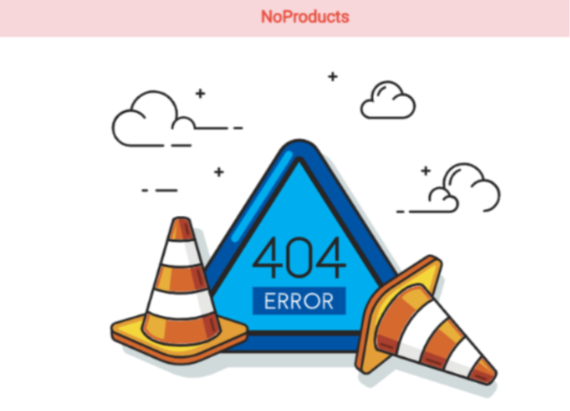
Step 3 : Assign License and Roles.
After logging in, GSDCOST Admin user will help with the following:
Assign Team for the user from "Administration - User" below, making "Approved" column for the user as "Yes"
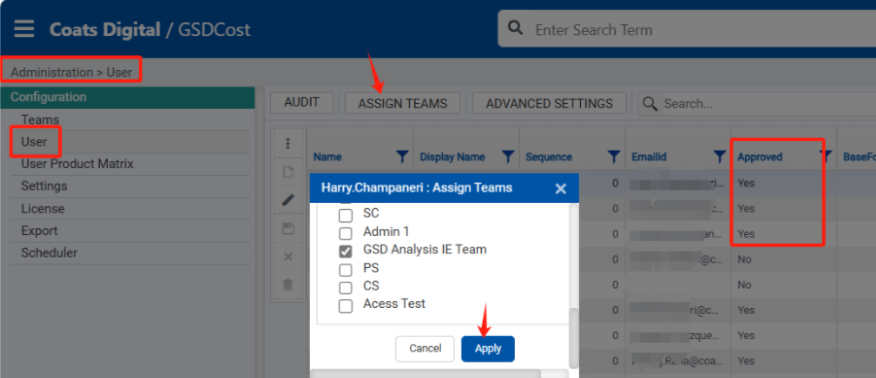
And Go to "User Product Matrix" and giving "Full" access and "Style Builder" for it if the user need to create analysis in GSDCost.
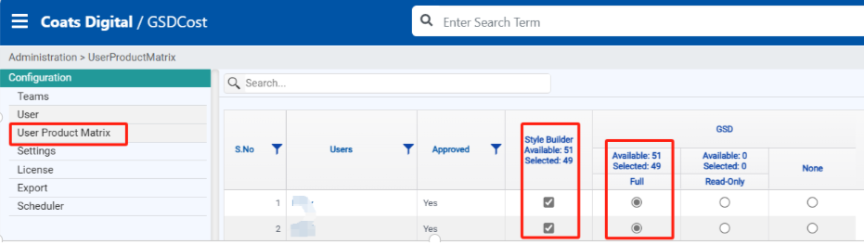
Then now can inform the new user to login GSDCost again and system will work as expected for them.
Outcome:
Follow above to have new user created for GSDCost. Any further query, please reach out to GSD support team.
Further reading:
Links to related articles