
Article Public Number: KA-01432
Coats Digital Knowledge Article
Product: GSDV4
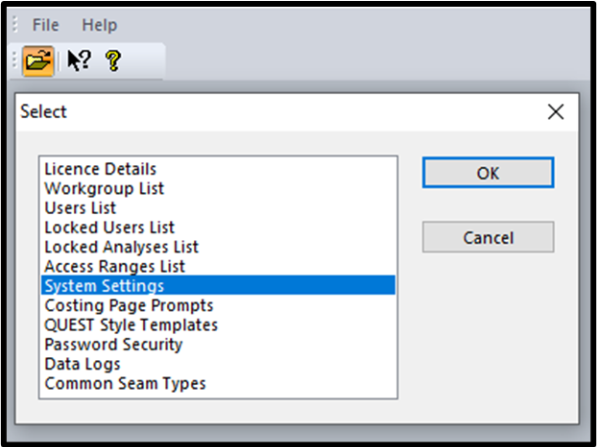
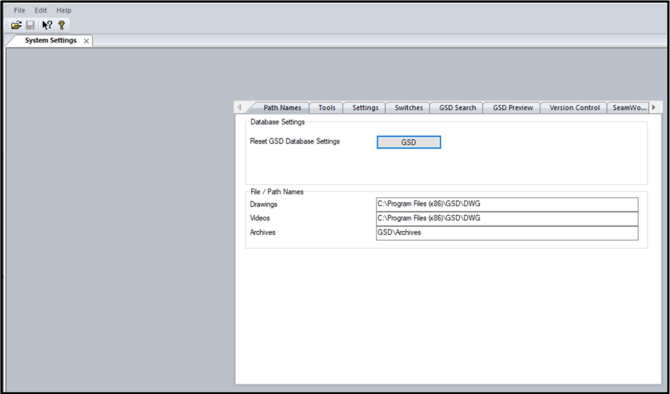
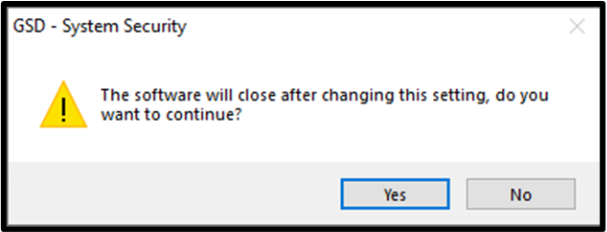
To change databases in GSD you'll need to log in to GSD System Security as SUPERVISOR. Click on Open > System Settings. This opens up System Security and you'll want to have the Path Names tab selected. There'll be a section called Database Settings and within this section, you'll see Reset GSD Database Settings and a button that says GSD. Click on the GSD button which will open a pop-up message. Click on Yes. This will open another pop-up that'll give you two options of connecting either a Microsoft Access Database or a SQL Server Database. Microsoft Access is the easiest to connect to as it'll open file explorer and then all you need to do is select the Microsoft Access database. With SQL Server / Oracle there are additional steps but there'll be steps below on what to do.
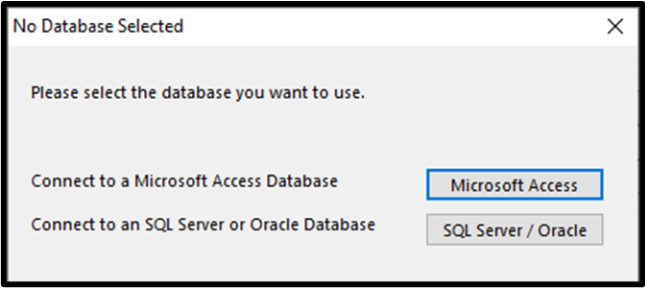
- When you click on SQL Server / Oracle you'll need to click on New... next to DSN Name.
- It'll ask you to select a driver from the list. You'll want to select SQL Server if you are using Microsoft SQL Server.
- Click Next.
- Enter the name of the database.
- Click Next.
- For this section, all you'll need to enter is the name of the server. The description can be left blank.
- Click Next.
- It'll then ask how should SQL Server verify the authenticity of the login. For this set up, the first selection is what was selected. But double-check this area so that you chose the correct authentication.
- Click Next.
- Tick the box to change the default database (first tick box).
- Select the Database from the dropdown.
- Click Next.
- And then click Finish.
- A pop-up will appear. On this pop-up click on Test Data Source and it'll test the connection.