Article Public Number: KA-01431
Coats Digital Knowledge Article
Product: GSDV4
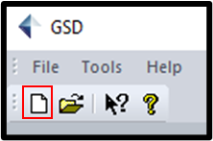
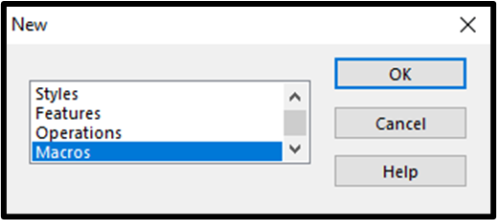
This Knowledge Article will show you how to create a basic Macro in GSD. To create a Macro in GSD you need to click on NEW and select Macros. This will open up a Macro window and you'll see six tabs.
- Version Control
- Headings / Results
- History
- Graphics / Video
- Machine
- Labour Details
You will automatically be on the Heading / Results tab and in this tab, there will be a Macro Element section. In this section, you'll need to give the Macro a name which can be entered into Title. You can also add a Description and Comments for the Macro to provide more detail on the Macro that is being created.
In the Labour Details, you can start entering details into the Code and Description columns.Also it is best practice and useful to give the code you've entered a detailed description.
Once done with Labour details if you want you can go into the Graphics / Video and/or Machine to fill in those areas but as this is a basic Macro creation we'll leave them for now. All that needs to be done now is if you are happy with what you've entered for the Macro you can either click on the save icon (floppy disk) near the top left or Ctrl + S to save the Macro you've created.
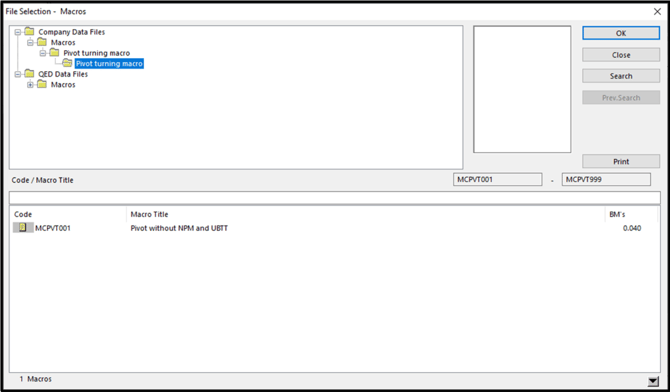
To use the Macro that you've created for use in Operations on the Labour Details tab you'll need to click on the icon called Browse Macros. (Screenshot below of the Browse Macros icon)
Which opens a popup window that will allow you to select the Macro that you've created.