
Article Public Number: KA-01270
Coats Digital Knowledge Article
Product: GSDV4
Purpose & Scope:
While you can print a single analysis from inside the Main Module, the Print Utility provides you with the ability to print multiple analyses in any order that you choose.
Solution:
We can print a selected range of analysis through print utility
Instructions:
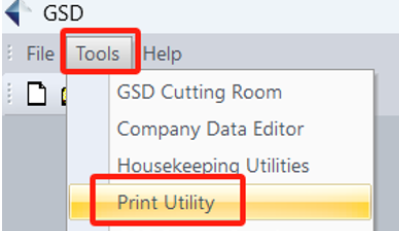
Step 1: Log into GSD, click the tools button, and then select the print utility option
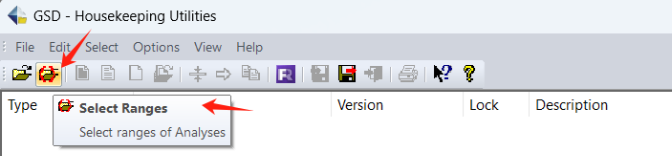
Step 2: Clicking “select ranges” icon will change the way in which the Print Utility selects and prints analyses. In this mode the first analysis selected represents the first item that will appear in the list of summaries, the next analysis selected will represent the last analysis in the list that will be printed. A summary is one line of information for each analysis selected in your list. Typically this line will contain the analysis code, description and SMV. Your system may have additional information depending on the customisation of your system.
Step 3: The selection window in this mode is slightly different from the normal selection window as it has an “Add First” button in place of the “Add” button.
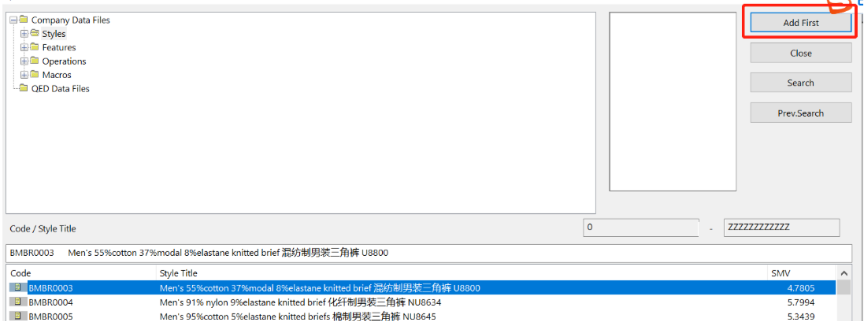
Step 4: After selecting the first analysis click “Add First” then select the last item you want to appear on your printed list, then click “Add Second”.
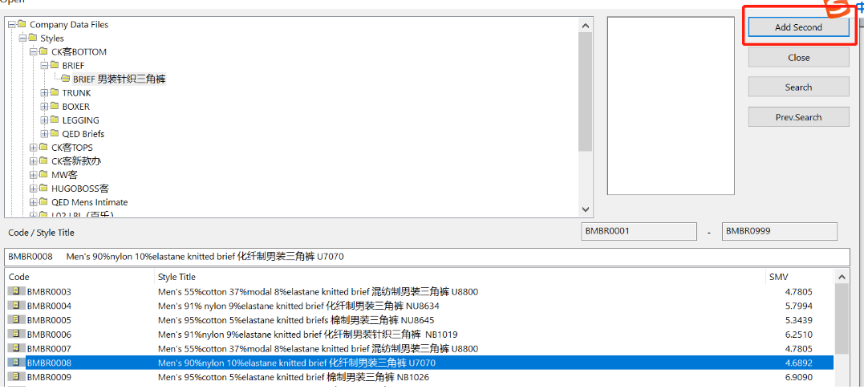
Step 5: You can select as many Ranges as you wish, but you cannot mix an individual analysis and an analysis range. After selecting ranges click the “Close” button.
Outcome:
Now select the ranges that you wish to print in the same manner as you did the individual analyses
Further reading:
Links to related articles