
Article Public Number: KA-01300
Coats Digital Knowledge Article
Product: GSDV4
Purpose & Scope:
If we would like to get access to different customers system, we can reset the GSD database setting to quick access to it
Solution:
We can reset the database setting through GSDSS
Instructions:
Step 1: Log into GSDSS with supervisor account
Step 2: File -> System settings -> OK 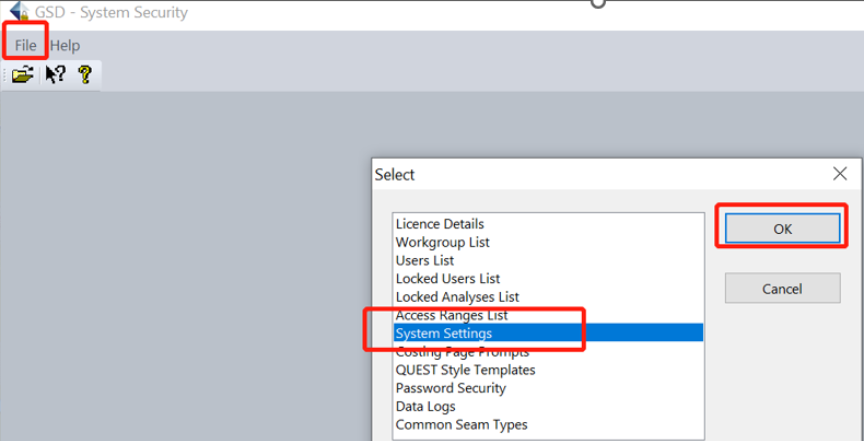
Step 3: Open “Path Names” -> GSD
Noted: Before start to reset the GSD database setting, all the users must be logged off firstly
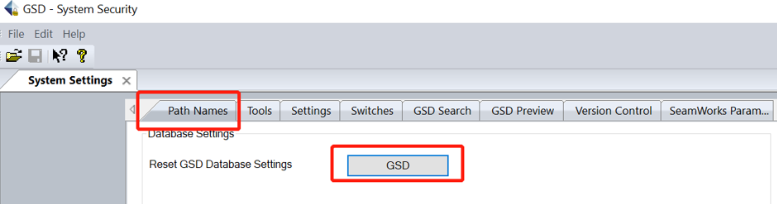
Step 4: Then we will get access to the database selection dialog, you need to select the option depending on the type of customer Database
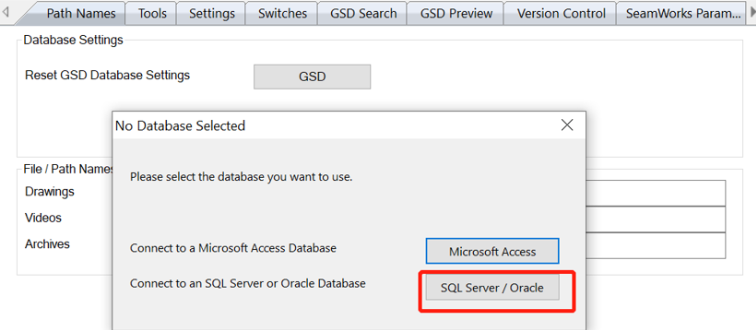
Step 5: If the ODBC connection has been established to the SQL server for database, you can directly click the specific data source name. If not, you can click the new button to create new ODBC connection
Step 6: Once you finish above the step, click “OK” button directly to finish resetting the GSD database setting and log into GSD again to enter new customer system.
Step 7: Go to “PROGRAMDATA” folder to check whether the database in GSD_DBSETTINGS.set was reset or not
Outcome:
We can reset the GSD database setting to quick access to new customer system
Further reading:
Links to related articles