
Article Public Number: KA-01546
Coats Digital Knowledge Article
Product: GSDV4
Purpose & Scope:
Below are the steps on how the Mass update can be done:
Mass Update Mass Database Update is required before performing the migration. As part of the preparation for the DIY migration, it's essential that you perform a mass update of your GSD V4 database. This process will ensure that all your styles, features, operations, and macro analyses are up-to-date, and your system is refreshed with the latest values. How to Perform the Mass Update: The mass update can be done by :
- Macro
- Feature
- Operations
- Styles
Go to Housekeeping Utilities in your GSD V4 system.
Select the Analyses / Range of Analyses you want to update.
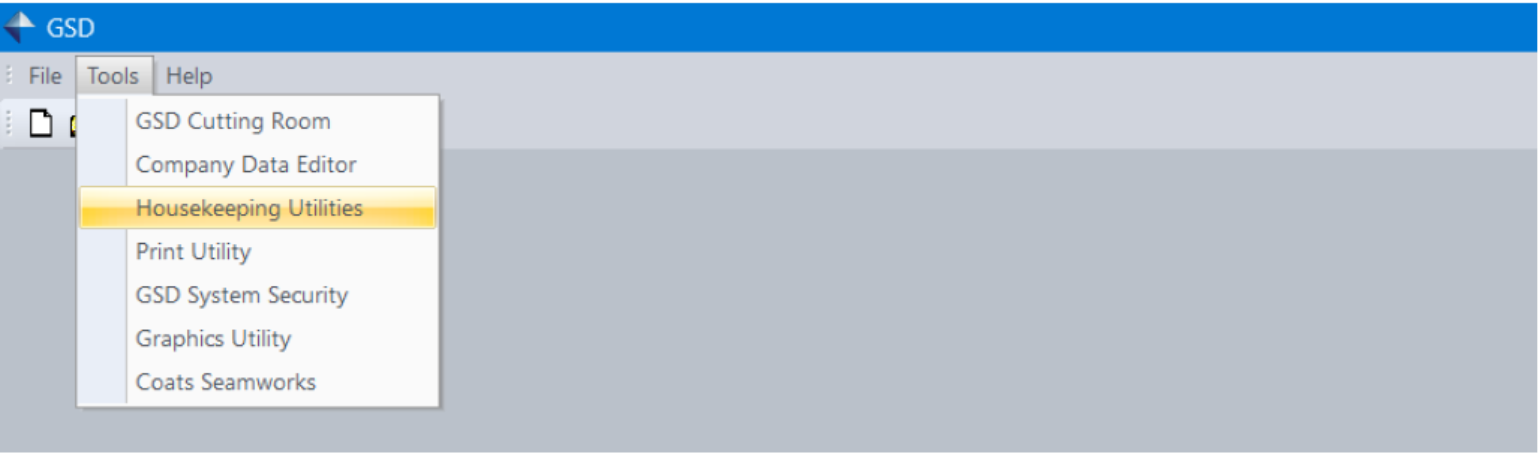
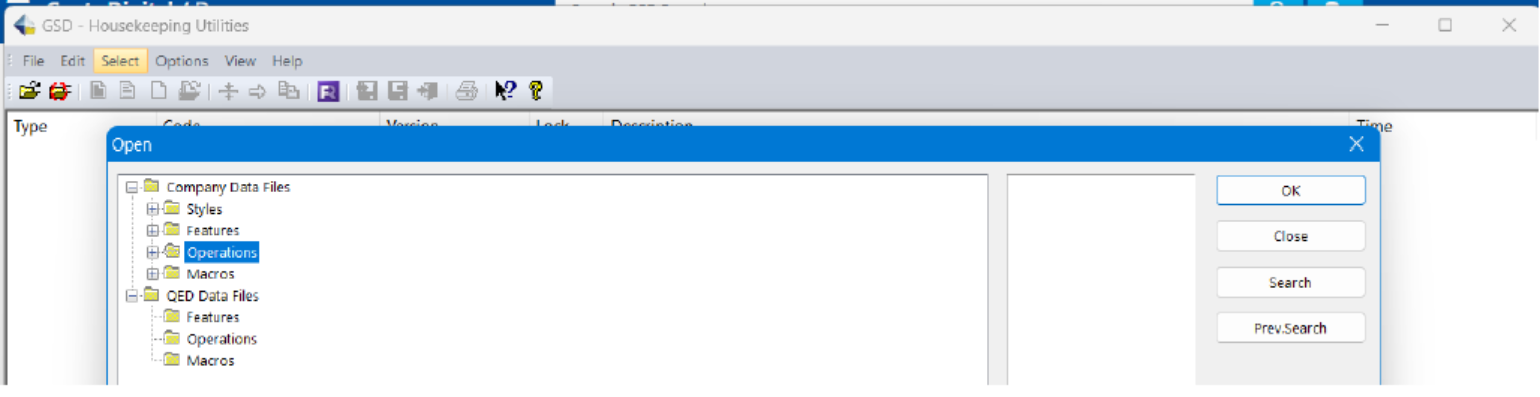
In Options, choose Mass Update.
Select All (to update the entire database) or Selection (to update only specific analyses).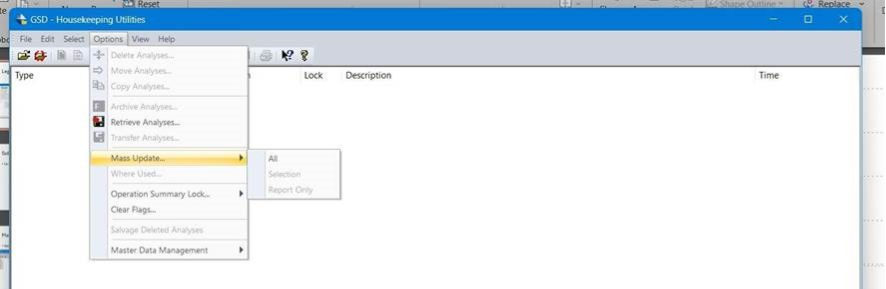
Updates all levels of data by opening the analysis and checking all lower level analyses for new values, so that calculated values match the stored values.
If no selections are made in the List box, a Mass Update of all levels of data is available under the 'Options' menu. If selections are made, 'Mass Update All' will not be available - but 'Mass Update' selections and 'Report Only' on these selections will be available.
'Report Only' does the same as the 'Mass Update' selection, but does not write any analysis changes back to disk.
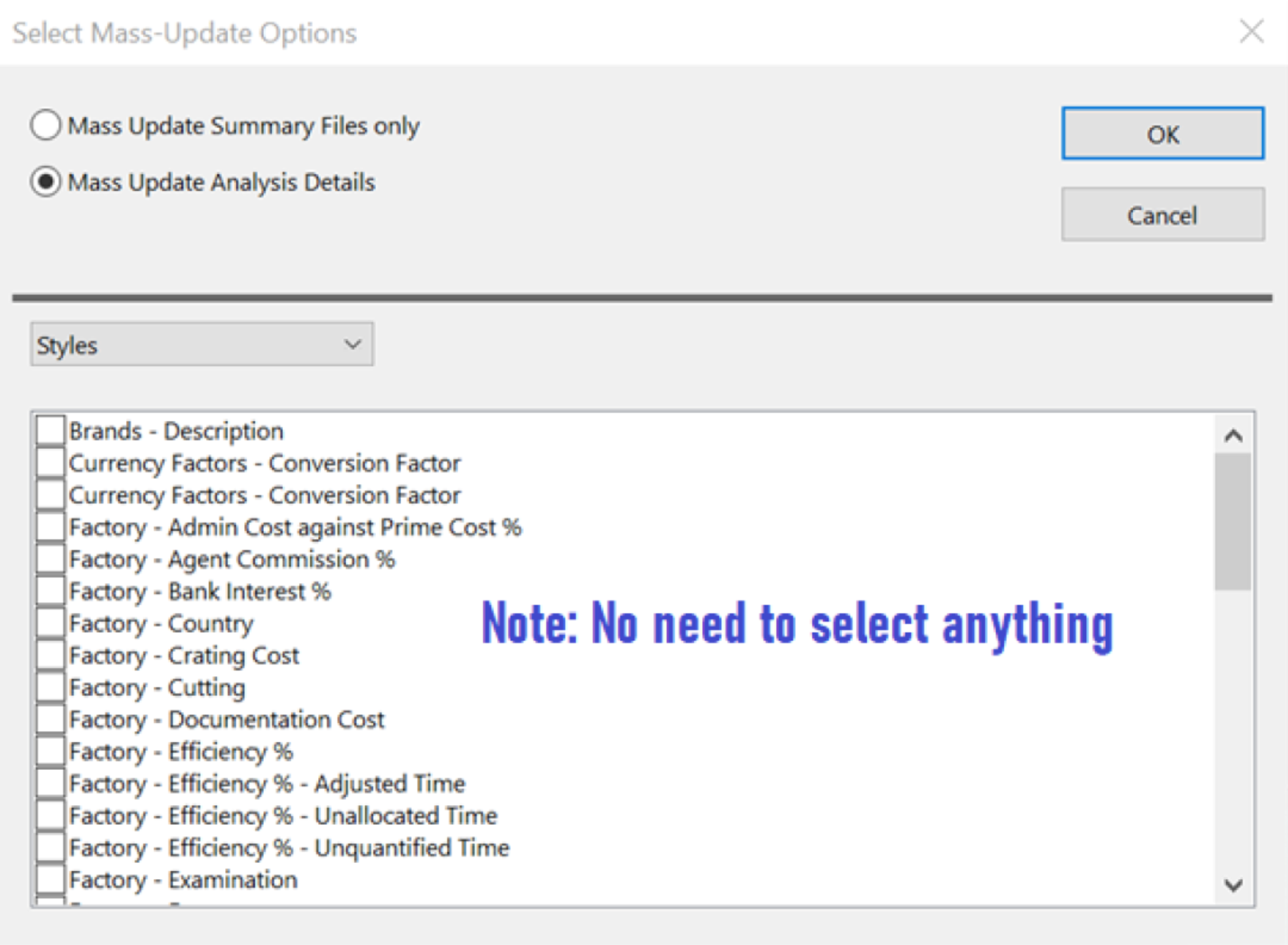
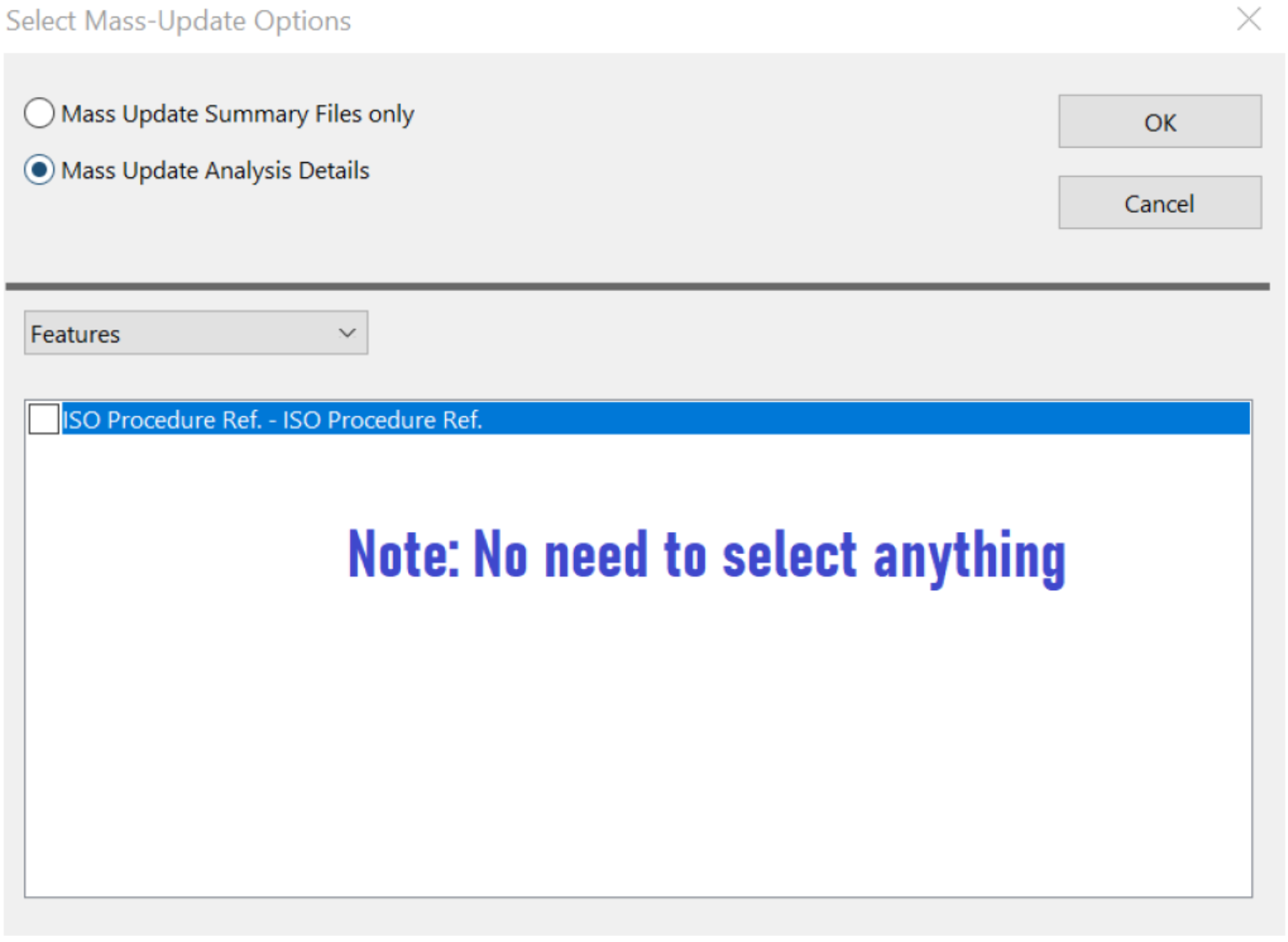
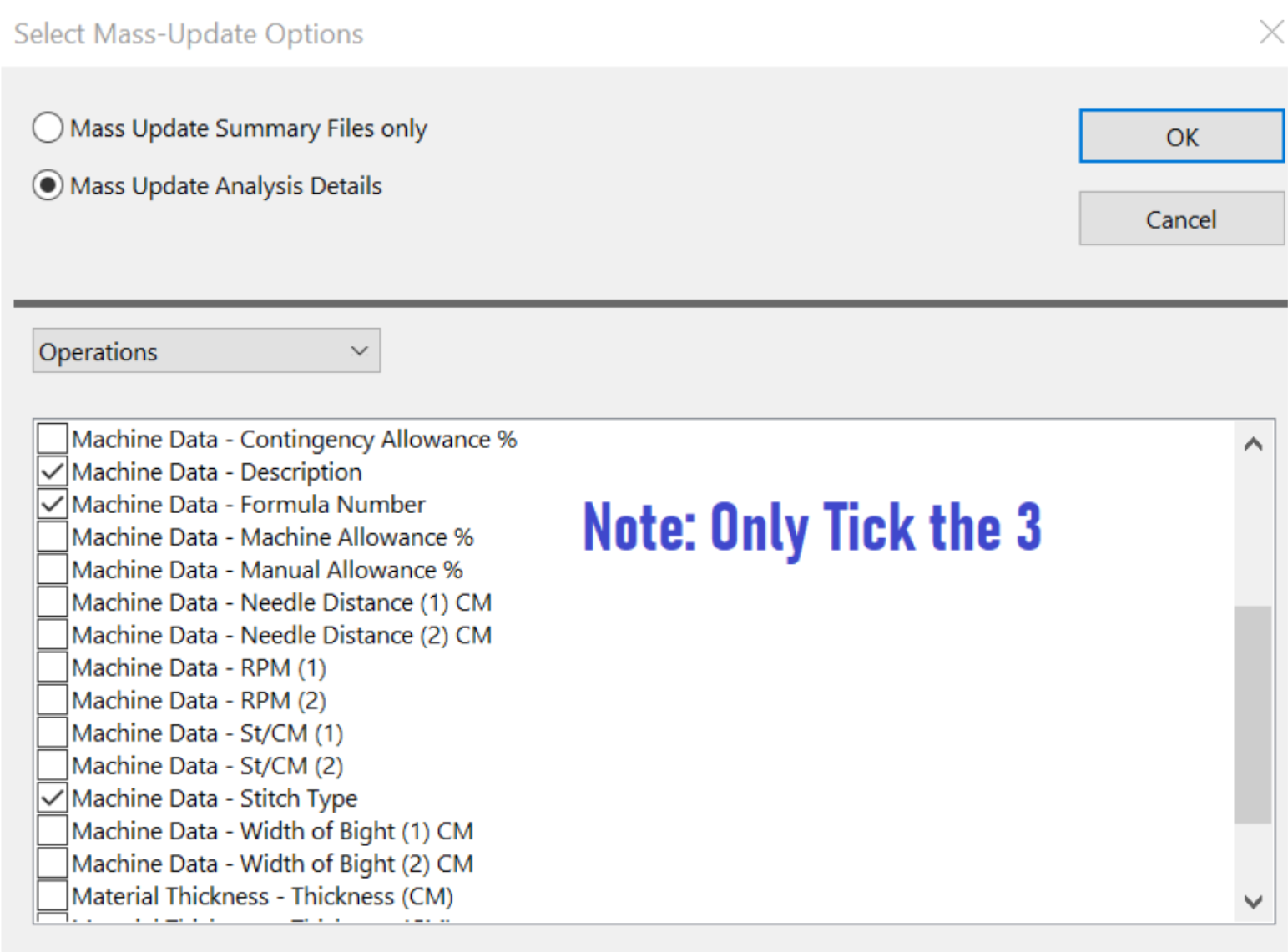
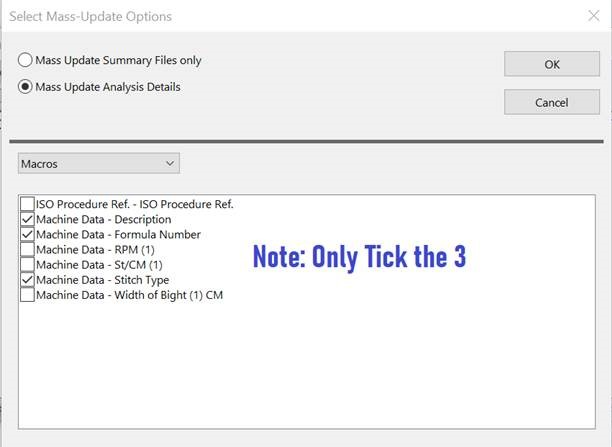
Once 'Mass Update' is selected, you will be presented with a Dialog box with the options below:
The Summary Files Only option will update any lower level data values that have changed & save the changes to the hard drive of your computer. The Mass Update Analysis Details option will enable you to change some data within any selected analyses without having to open each study individually. The next prompt advises that the 'Mass Update' may take some time, dependent upon the size of the filing system.
STYLE
FEATURE
OPERATION
MACRO
Recommendations: 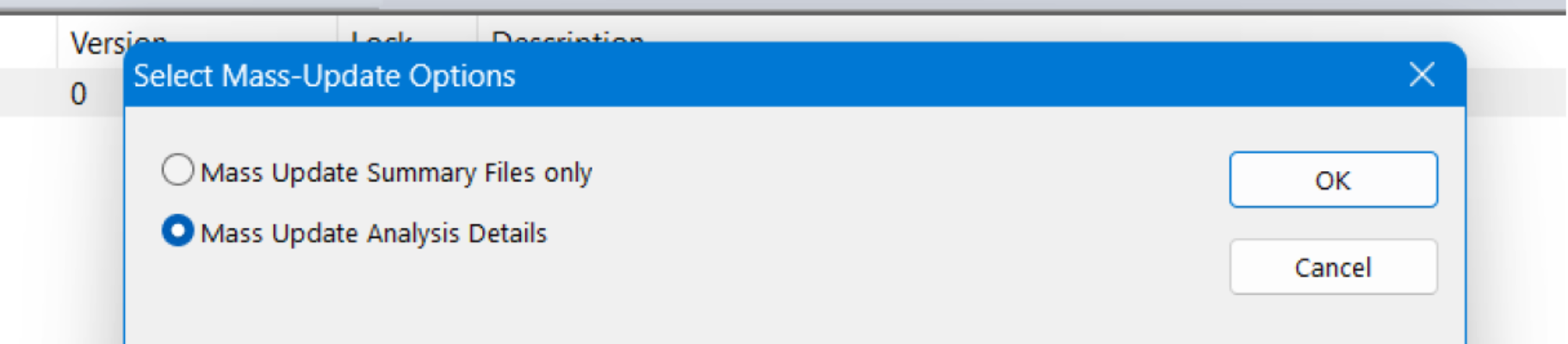
To suppress error messages on Mass Update, please go to System Security -> System Settings -> Switches and tick the option for Suppress Error Messages on Mass Update. 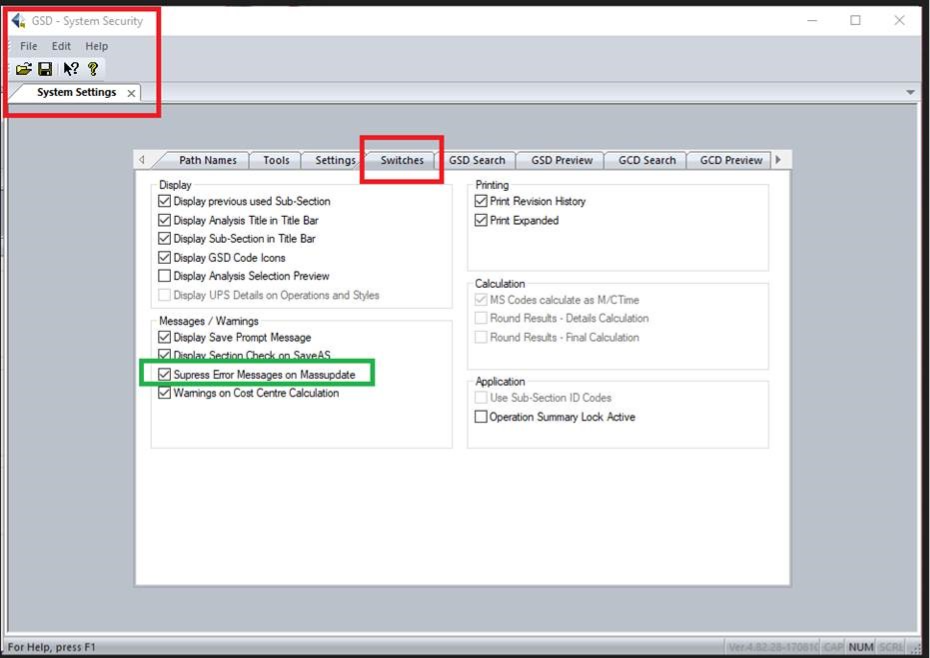
Upon completion, you will be presented with a screen showing the results of the Mass Update. 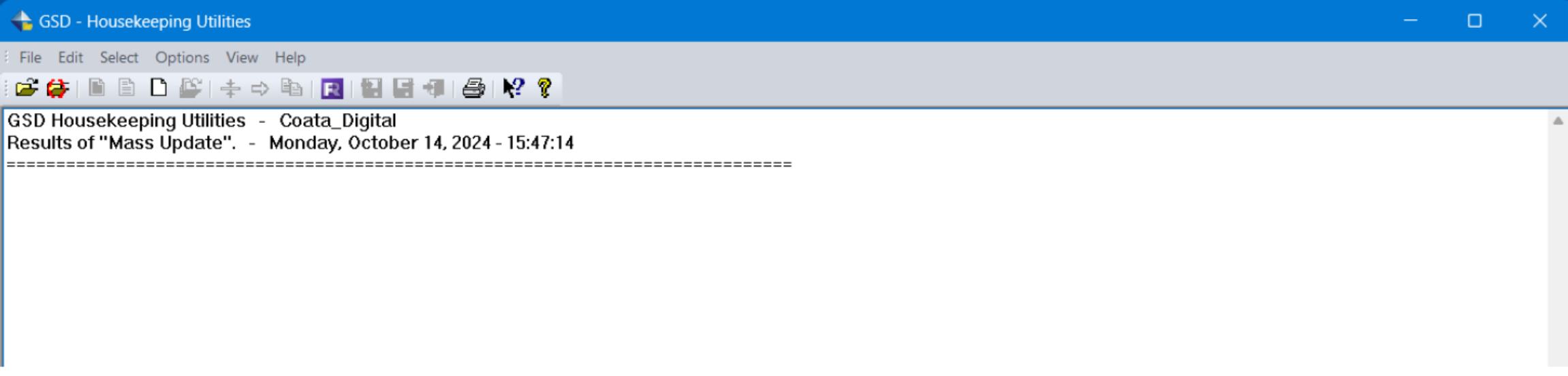
You will be able to view the Mass Update report for the last Mass Update run from View Mass Update Results
Take a backup of your database before proceeding with the mass update to ensure data security.
Schedule the update during off-hours to reduce system impact, as users will not be able to create or modify any analysis during the update.
Take a backup of your database before proceeding with the mass update to ensure data security.
Please be aware that the mass update process may take some time, depending on the size of your database. Completing this step is crucial for ensuring a smooth migration process.
Outcome:
The above steps will allow you to mass update the analyses in GSDV4 and then can be imported into GSDCost.
Further reading:
Links to related articles