
Article Public Number: KA-01452
Coats Digital Knowledge Article
Product: GSDV4
Purpose & Scope:
Brief description of how to upgrade to GSDV4 Version 4.82
Upgrading to GSD Version 4.82
Thank you for choosing to upgrade to Version 4.82. Version 4.82 contains many new features from our previous releases, the details of which are included in the release notes of the software.
GSD Version 4.82 can be installed side by side with current installations of the GSD application.
Please review our recommended steps below. If you have any queries regarding these, please do not hesitate to contact us at support@gsdhq.com for more information.
It is important to follow the instructions which are applicable to your current release of the GSD software.
If you are running Version 4.81 already:
PLEASE NOTE: Before proceeding, please ensure you make a full backup of your LIVE database, as well as at least one copy of a GSD folder from a client machine. In case of any upgrade problems, this will allow you to restore these from the backup.
1. Once a backup has been taken, at this stage we would recommend that you print at least one style, feature, operation and macro from your current system. This will allow you to review
the analyses after updating, allowing you to compare results to ensure that these are the same.
2. Download the GSD Version 4.82 installation from www.gsdhq.com/downloads/Support/V482/GSD_v482_install.zip
3. Install the application to your client machine(s). When asked for an installation path, choose a path not already in use, such as GSD_V482.
4. Run the GSD.exe file.
5. When prompted to enter your database path, select either MS Access or SQL Server as appropriate and connect to your current live database.
6. When prompted, choose your DWG and Video folders.
7. The system should then begin to run an update. This update may take some time dependent on the size of your current database.
8. Once complete, your system is then upgraded and ready for use.
If you are running any version of GSD between 4.51 and 4.80.02 (i.e. 4.51, 4.60, 4.61, 4.70, 4.71, 4.72, 4.80.01, 4.80.02):
Please note: The installation of Version 4.82 may cause the system to update your current database (dependent on what version of the system you are using currently) and you will be required
to run a full mass update (if you are on an earlier release than Version 4.81 or you have not run one on your V4.81 system), and dependent on the size of the database, this make take some time. We would recommend that you should run this upgrade at the close of business so as to minimise downtime.
IMPORTANT: It is essential to follow the steps in order, especially #8. Failure to do so could cause inconsistencies within your data.
PLEASE NOTE: Before proceeding, please ensure you make a full backup of your LIVE database, as well as at least one copy of a GSD folder from a client machine. In case of any upgrade problems, this will allow you to restore these from the backup.
1. Once a backup has been taken, at this stage we would recommend that you print at least one style, feature, operation and macro from your current system. This will allow you to review
the analyses after updating, allowing you to compare results to ensure that these are the same.
2. Download the GSD Version 4.82 installation from www.gsdhq.com/downloads/Support/V482/GSD_v482_install.zip
3. Install the application to your client machine(s). When asked for an installation path, choose a path not already in use, such as GSD_V482.
4. Run the GSD.exe file.
5. When prompted to enter your database path, select either MS Access or SQL Server as appropriate and connect to your current live database.
6. When prompted, choose your DWG and Video folders.
7. The system should then begin to run an update. This update may take some time dependent on the size of your current database.
8. Once the update as finished, you will then need to complete a full mass update on your system. To do this, you will need to log into GSD using a profile that has unrestricted access to all data and the GSD Housekeeping Utility. Once you have logged in, please follow the instructions below: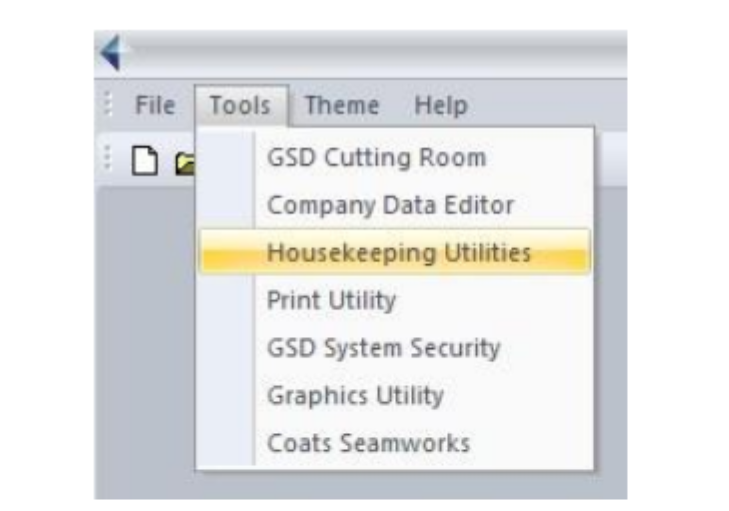
a. Select TOOLS > HOUSKEEPING UTILTIES.
b. Select OPTIONS > MASS UPDATE > ALL.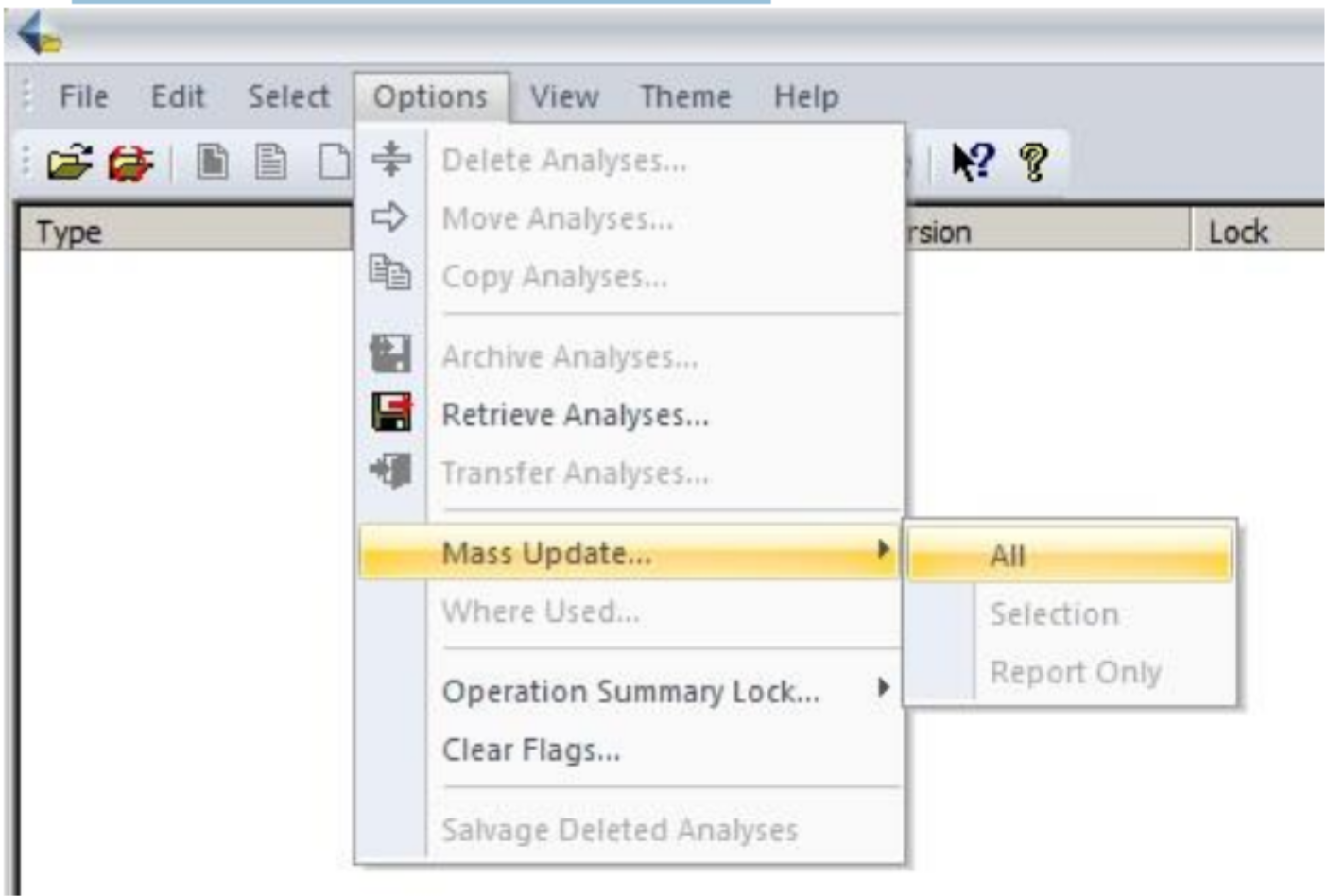
c. Select MASS UPDATE ANALYSIS DETAILS (you will prompted with a message warning regarding thread calculations). Leaving all settings as they are, then press OK.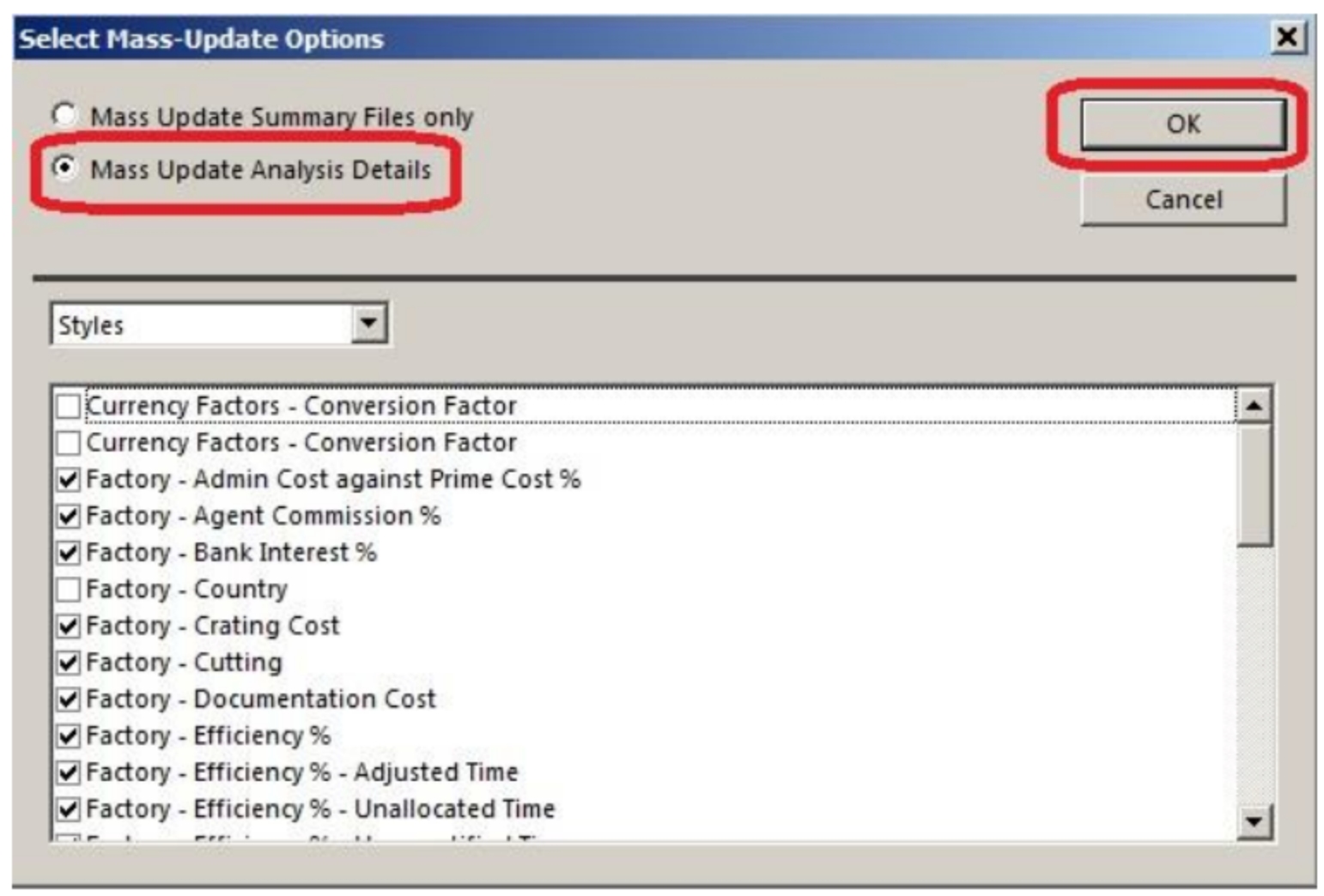
d. You’ll be warned that a mass update may take some time. Press OK to accept and continue.
e. The mass update will then run. Please note, this process make take some time depending on the amount of data you have.
9. Once complete, your system should then be ready to use
Further reading:
Links to related articles