
Article Public Number: KA-01482
Coats Digital Knowledge Article
Product: GSDV4
Purpose & Scope:
Brief description of Using Material Factors for Fabric Variation
To enhance the precision of costing, GSD has now introduced Material Factors to be applied at Style Costing.
Each Operation has a Material Factor applied corresponding to the method for this Operation. This factor does NOT modify the Operation Time Value. When this Operation is used in the Style, a different factor maybe applied, and the system will internally calculate time value corrections based on those factors.
Before the Material Factors can be applied, they must first be set-up. This is done in the Company Data Editor.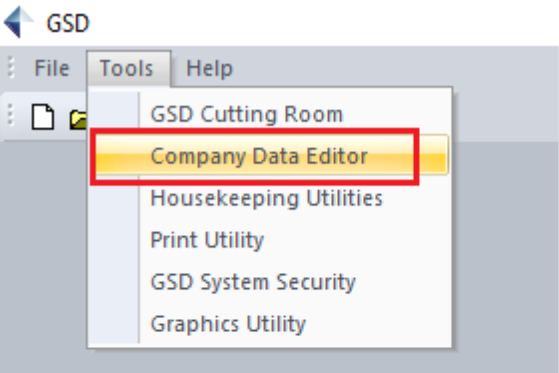
To view Material Factors, open the Material Correction Factors table, as shown on the left.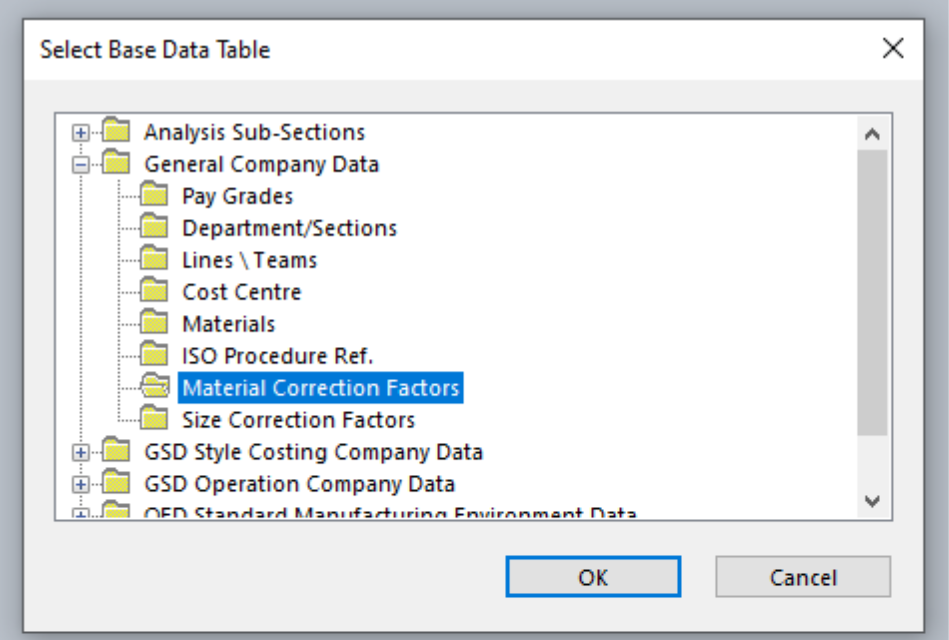
As seen below, the Material Factors are broken down into pre-assigned categories.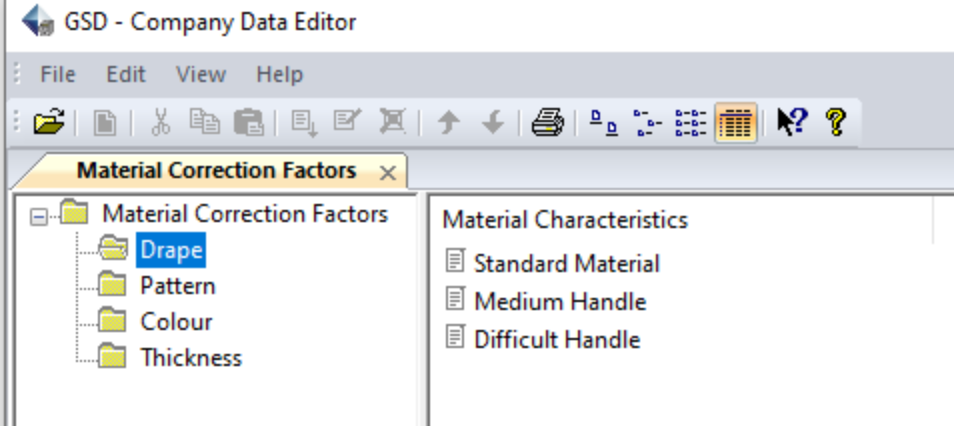
Material Factors must be coded like follows: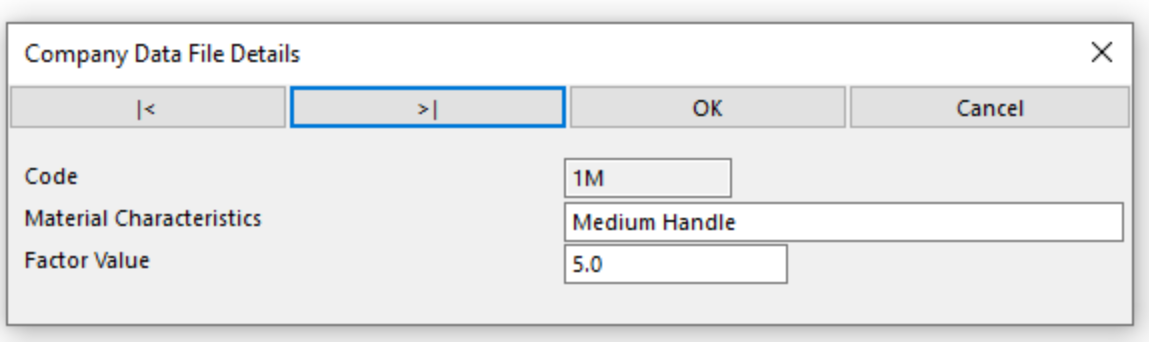
The numeric prefix is used to group the Material codes into the correct category and the single letter is the actual Material Code. The Material Characteristics (i.e. Difficult to Handle) is pure text. The Factor Value is a percentage correction to be applied to the time value. The GSD Default Value is the GSD recommended value but users may find that they can apply their own derived factor values.
The material correction factors allow you to modify the code, material characteristics and the factor values of individual material factors. These factors are used at both operation level and at style level.
Unless you specifically want to change these, we recommend for the standard default material factors to be left as their default descriptions and codes, however, you may decide to change the factor values.
At Operation level, a field Material Factors, has been added. If you know the code, it can simply be typed in here.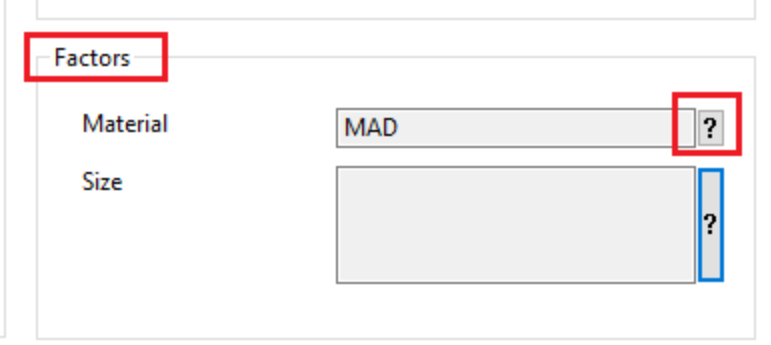
By clicking the following button [], the Material Factors window will appear. From here you can select the factors which will, in turn, create the Material Factor Code.

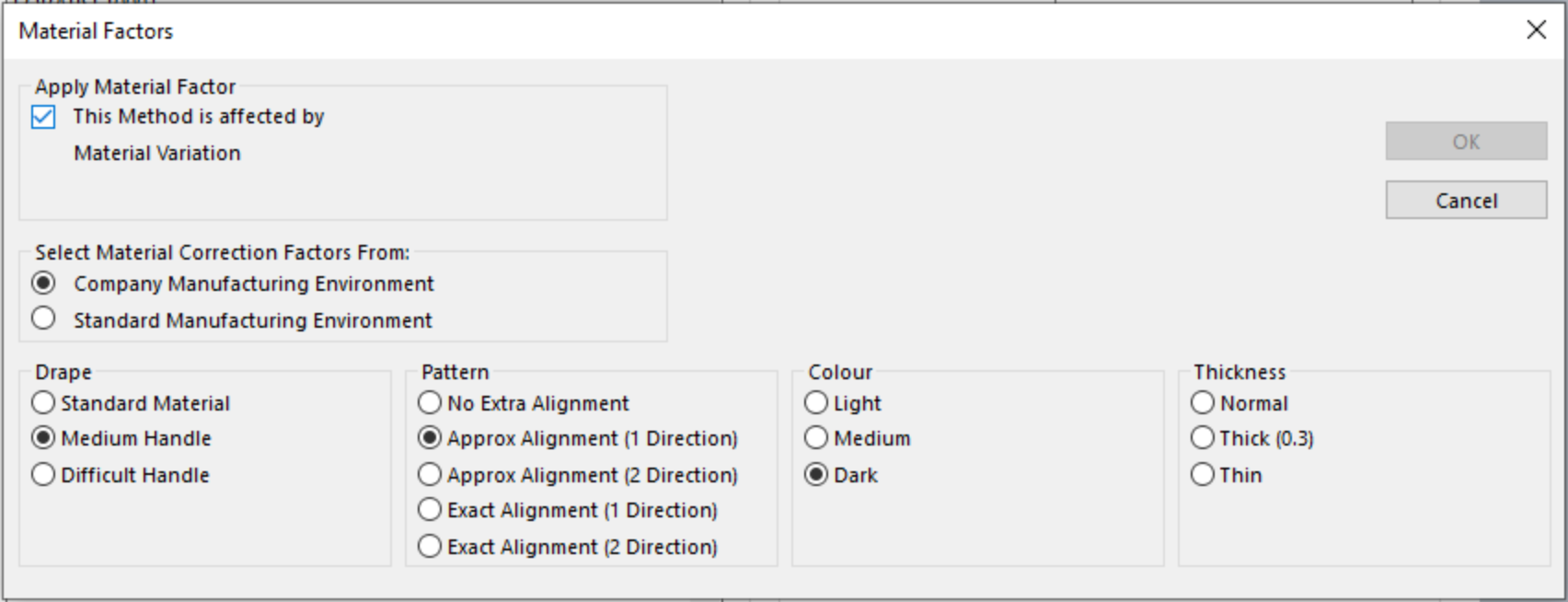
Menu options such as Pressing / Packing may not be affected by Material Variation. In this case, the Appy Material Factor tick box should be left un-ticked. A minus sign will then be present in place of the Material Factor code.
Users may add additional Factors themselves. There is a limit of ten factors in each group with a maximum of five groups. Factors must be numbered and listed correctly. Additional Factors may be added by using the Company Data Editor.
Material Factors for Fabric Variation are only available for Operations within Styles. There is not an option for this to be used within Features.
At Style Level, New Fabric Button: The New Fabric button can be used in one of two ways.
It can be used to change an individual analysis fabric, or to change all analysis fabric details. To change an individual fabric, simply click on the NEW FAB box of the analysis you want to change and then click the new fabric button. If you want to change all of the analyses, click the New Fab header field so it highlights all of the column and then press the button. Once the button has been pressed, you will get a new pop-up box as below.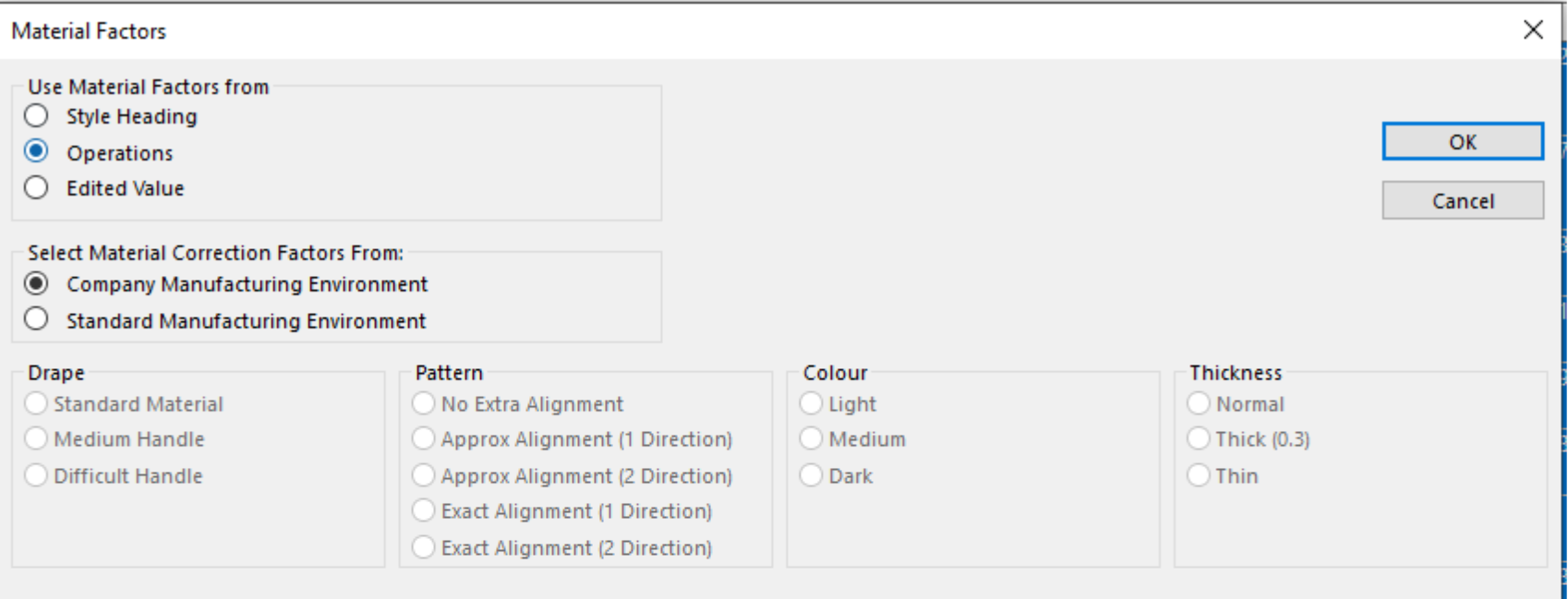
This box allows you to choose fabrics in one of three ways:
1. Via Style Heading. If you have chosen a material factor at style heading, this will individually or globally change all of the analyses to use the style heading fabric choice.
2. Via operations. This will default the fabrics to the choices made at operation level.
3. Via an Edited Value. This will allow you to choose an edited value using the options at the base of the pop-up box.