
Purpose
This article explains how to create a User Defined Field (UDF) in VisionPLM and add it to a product screen so that users can enter and view additional information against a product.
Creating a User Defined Field (UDF)
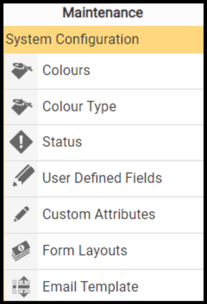
- Navigate to Maintenance.
- Under System Configuration, select User Defined Fields.
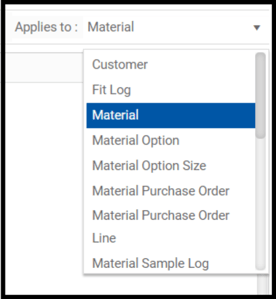
- Use the Applies To drop-down list to select the object that the UDF will be associated with, such as:
- Product
- Purchase Order
- Other available object types
- Click the Insert icon from the toolbar. Screenshot: Insert icon
- Enter the required details for the new UDF:
- Name
- Description
- Type

- Once all details have been entered, click the Save icon to create the UDF.
Adding a UDF to a Product Screen
After creating the UDF, it must be added to the relevant product screen before it becomes visible to users.
- Open a product within VisionPLM.
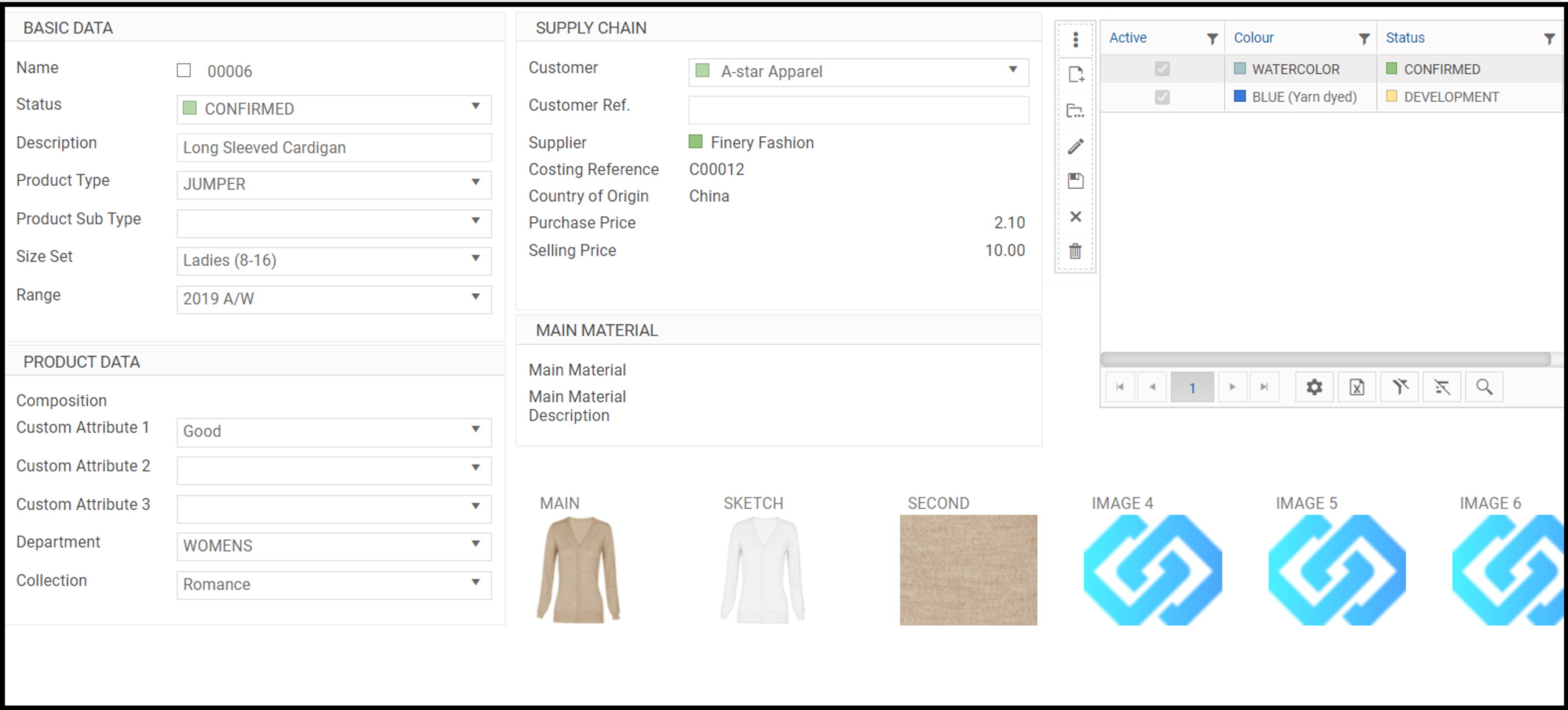
- Identify the module where you would like the UDF to be displayed. Examples of product modules include:
- Basic Data
- Product Data
- Supply Chain
- Main Material
- Select the Settings cog in the top-right corner of the product screen and choose Advanced.
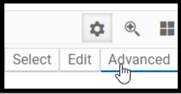
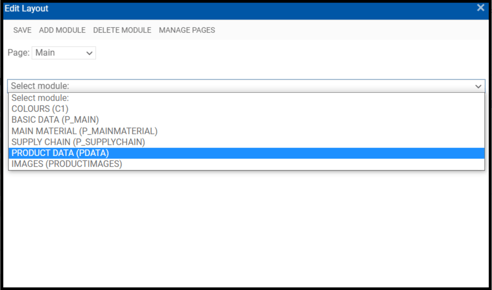
- Select the module where the UDF should be displayed. For example, if you have created a Product UDF, you may wish to add it to the Product Data module.
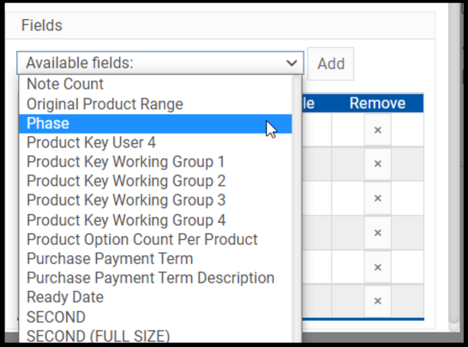
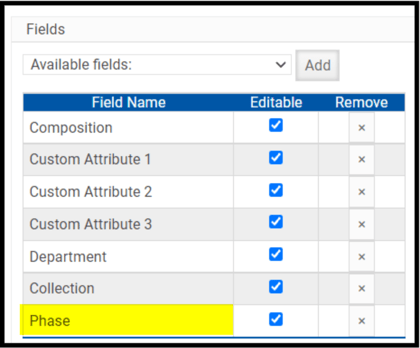
- Locate and select the required UDF from the list of available fields. In this example, the Phase UDF has been selected.
- Click Add.
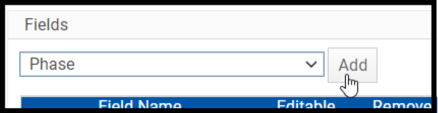
- The selected UDF will appear in the list of displayed fields, confirming that it has been added successfully.
- Click Save.
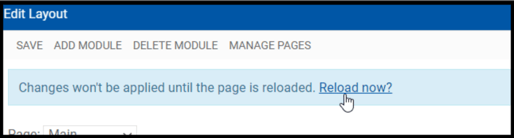
- When prompted, select Reload Now to refresh the page and apply the changes.
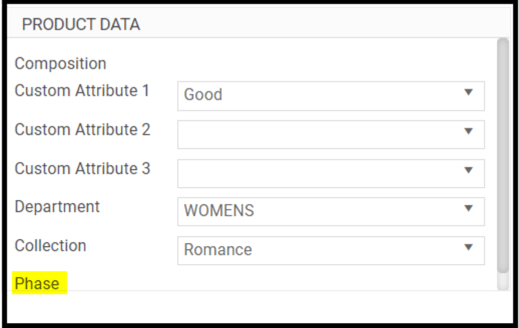
- Once the page has reloaded, verify that the UDF is displayed in the selected location on the product screen.
Note
Changes made to screen layouts are not visible until the page has been reloaded. If the UDF does not appear immediately after saving, select Reload Now when prompted and verify that the field has been added to the correct module.