
Introduction
VisionPLM uses a licence (.lic) file to control system functionality and user limits. When a new licence file is provided by the Support Desk, it must be imported into VisionPLM before any changes take effect.
This article explains how to upload a new licence file in VisionPLM, whether your current licence has already expired or is due to expire soon.
Prerequisites
Before updating the licence:
- Ensure you have received the new licence (.lic) file from the Support Desk.
- Save the licence file to a local location on your computer.
- Log in using an Administrator account, or an account with Administrator privileges.
- Ensure all users are logged out of VisionPLM before performing the update.
Updating an Expired Licence
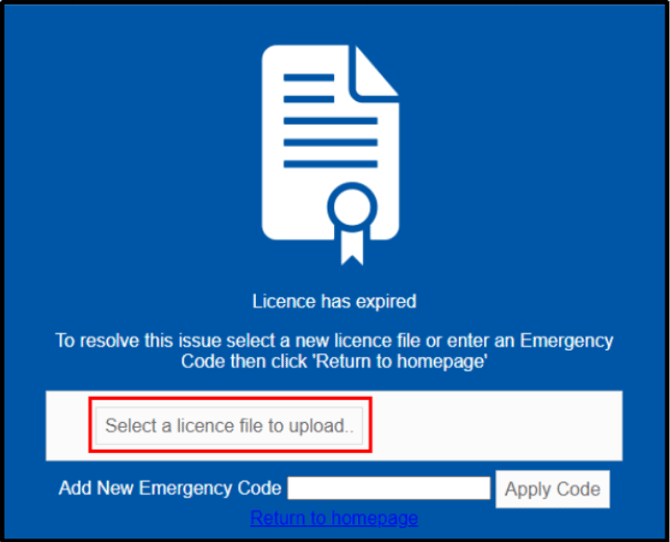
If the licence has already expired, you will be prompted to upload a new licence file when logging in to VisionPLM.
Steps
- Click Select a licence file to upload.
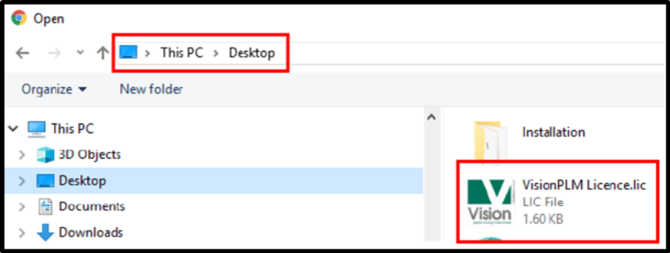
- Browse to the location where the new licence file has been saved.
- Select the licence (.lic) file.
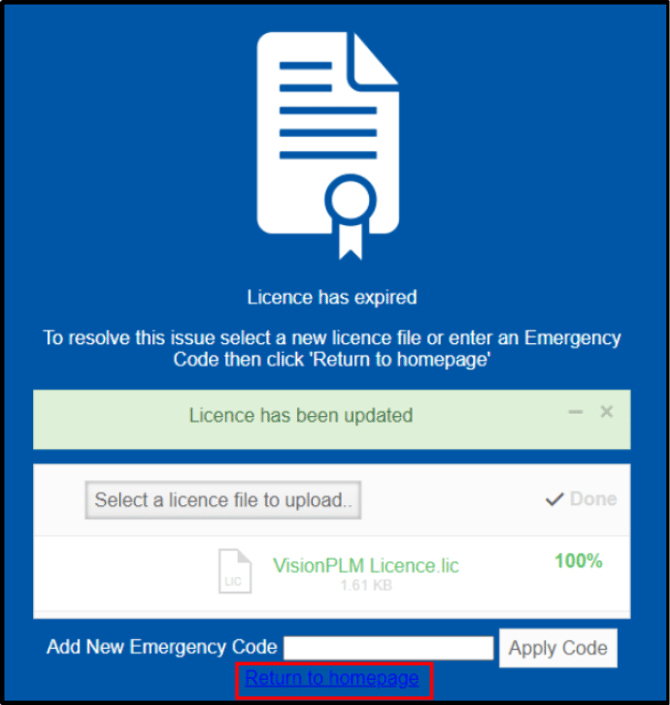
- The licence will be uploaded and applied automatically.
- A confirmation message will appear indicating that the licence has been successfully applied.
- Click Return to homepage to return to VisionPLM and continue working.
Updating a Licence Before Expiry
Administrators may receive a warning message up to 31 days before the licence expires. If you have received a replacement licence file, you can upload it before the current licence expires.

Steps
- Open the Administration area:
- If the Admin icon is visible on the toolbar, select it.
- If the icon is not visible, select the hamburger menu and choose Administration from the menu list.
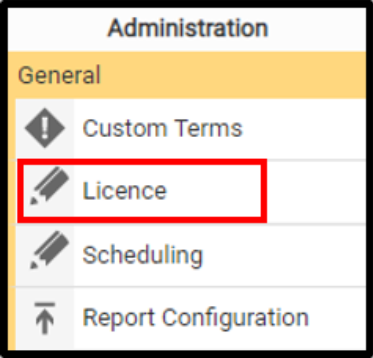
- In the Administration area, select Licence from the list of available functions.
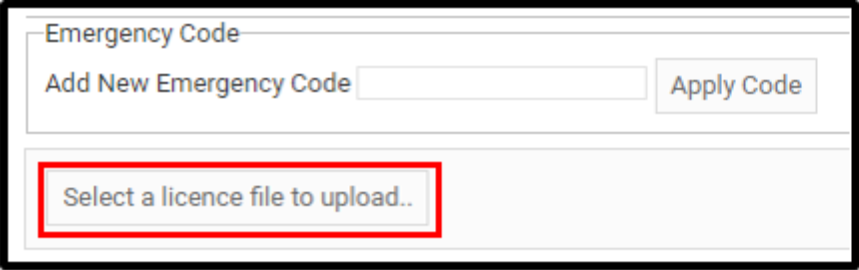
- Scroll to the bottom of the licence functions panel and select Select a licence file to upload.
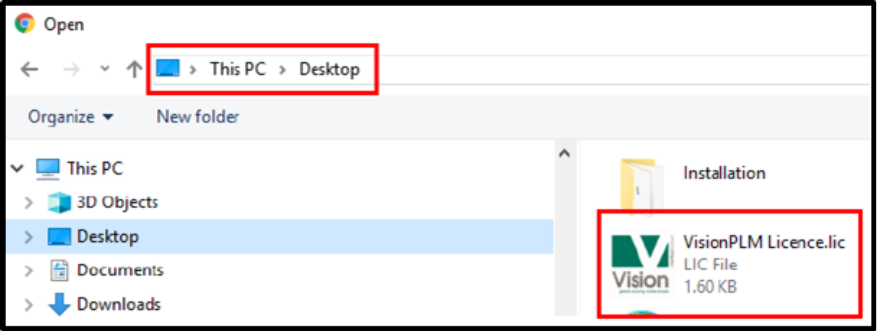
- Browse to the location where the new licence file has been saved.
- Select the licence (.lic) file.
- The file will be uploaded to VisionPLM.
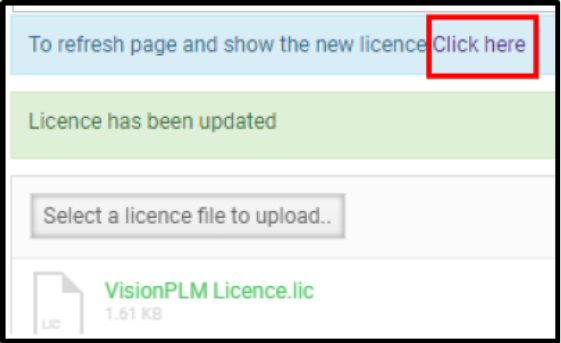
- A confirmation message will appear indicating that the licence has been successfully uploaded.
- Select Click here to refresh VisionPLM and return to the home page.
Expected Result
After completing the licence update:
- The new licence file has been successfully uploaded.
- Any licence expiry warnings are cleared.
- Newly licensed functionality becomes available.
- Users can continue working in VisionPLM without interruption.
Additional Information
The licence update process should take only a few minutes to complete.
If you experience any issues whilst updating the licence file, please contact the Support Desk for assistance.