Purpose & Scope:
There are currently 7 sections to the User Details screen. This article will take you through each section and what they mean
Instructions:
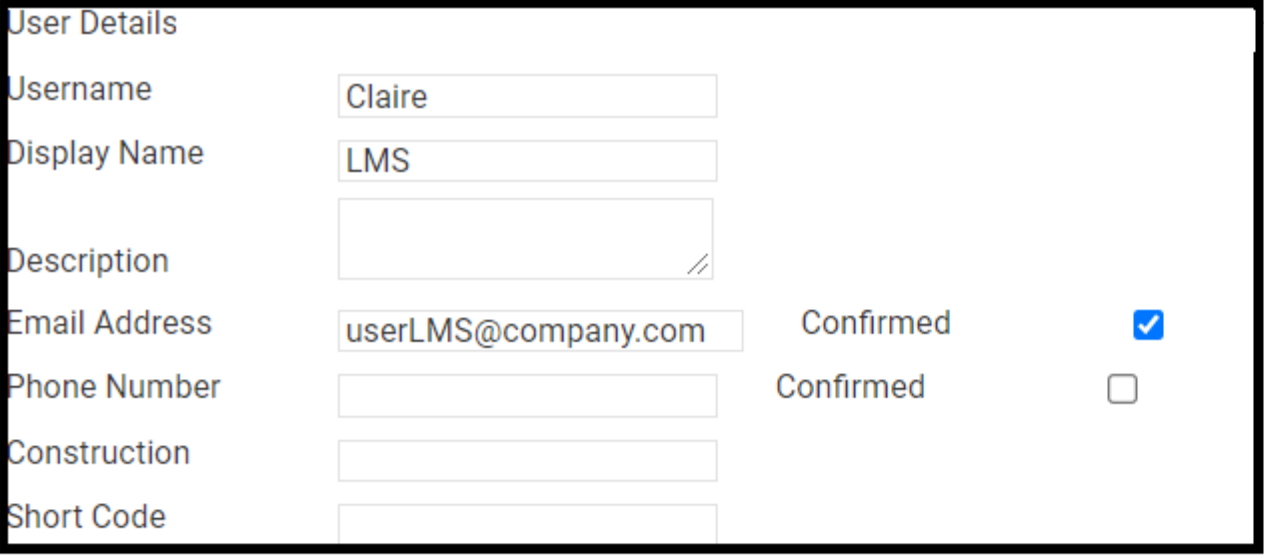
User Details
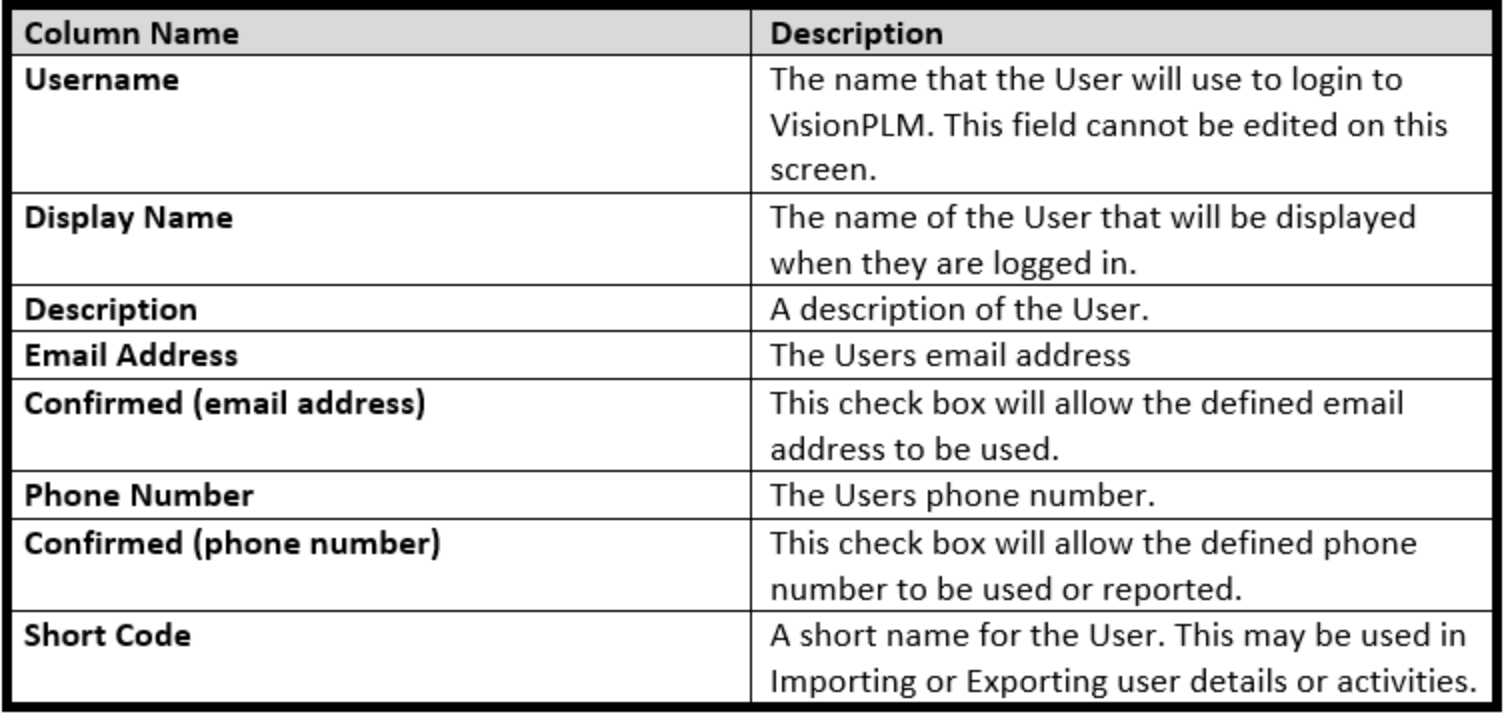
The User Details section has the following fields, some of which are visible on the main Users screen:
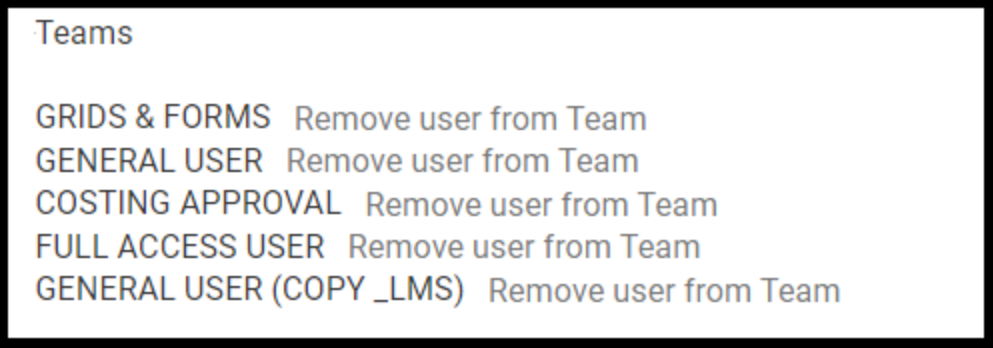
Teams
The Teams section will detail which Teams the User is a member of, an Administrator is also able to remove Users from Teams in this section as well:
Security:
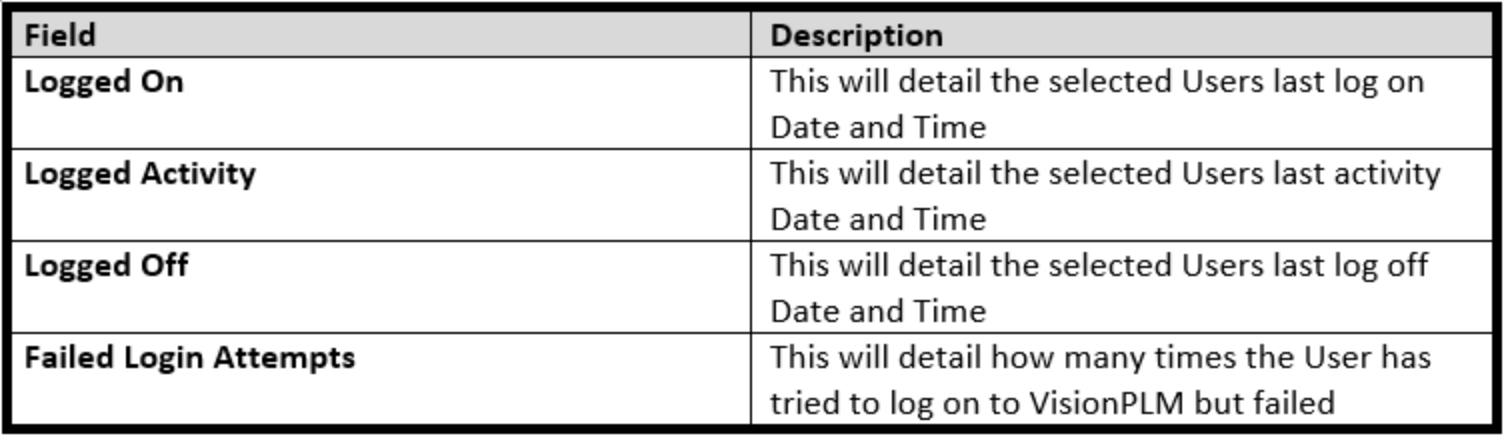
The Security Section has the following fields:
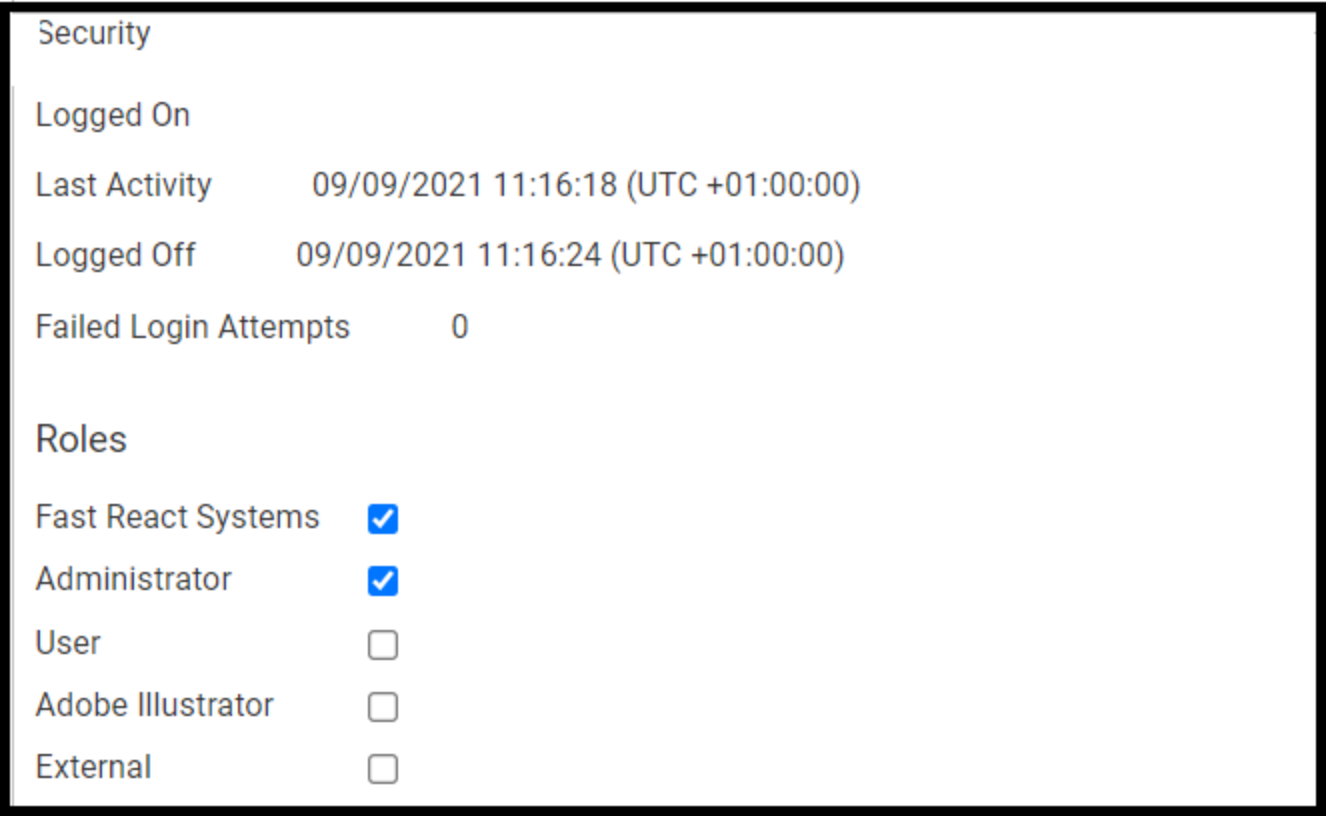
Roles
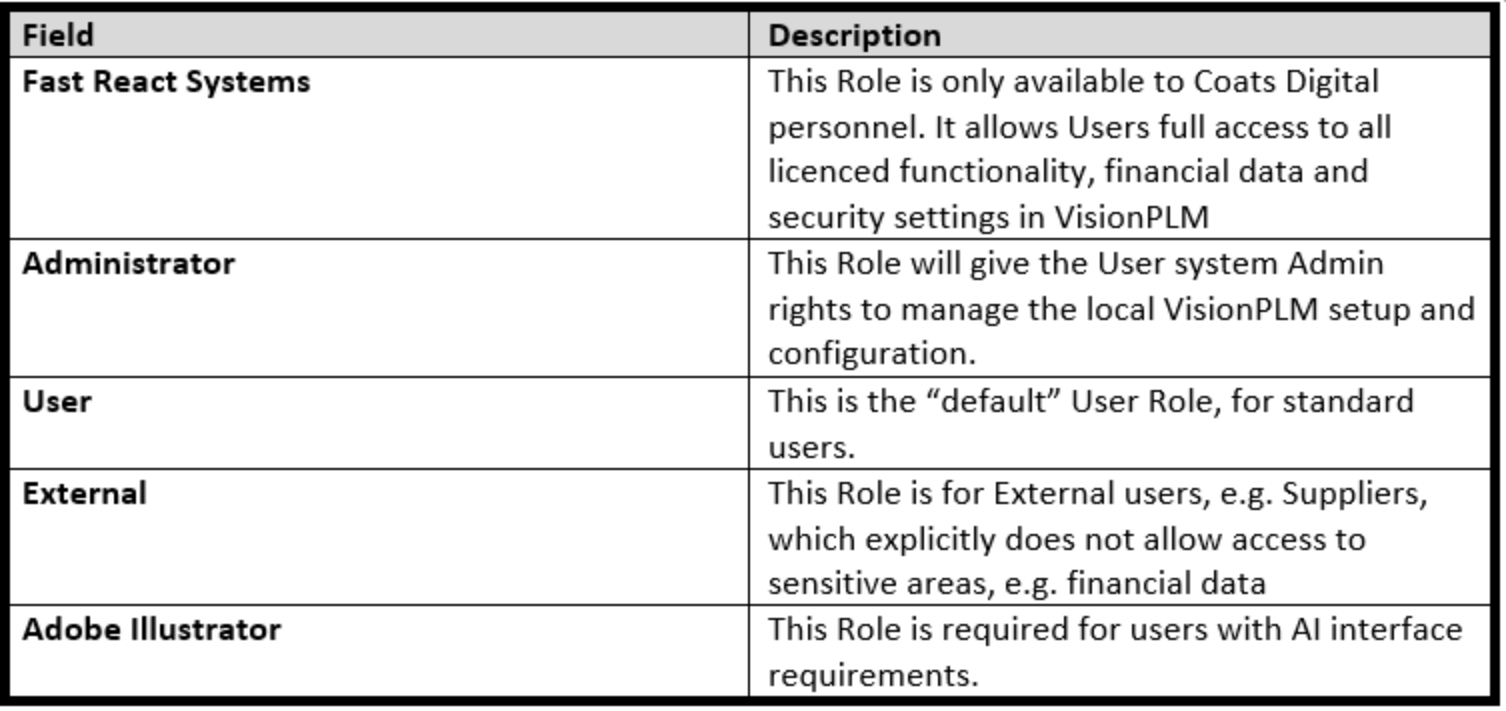
Roles are the security level to which the selected user has been assigned. Users within each Role are viewed in a separate section:
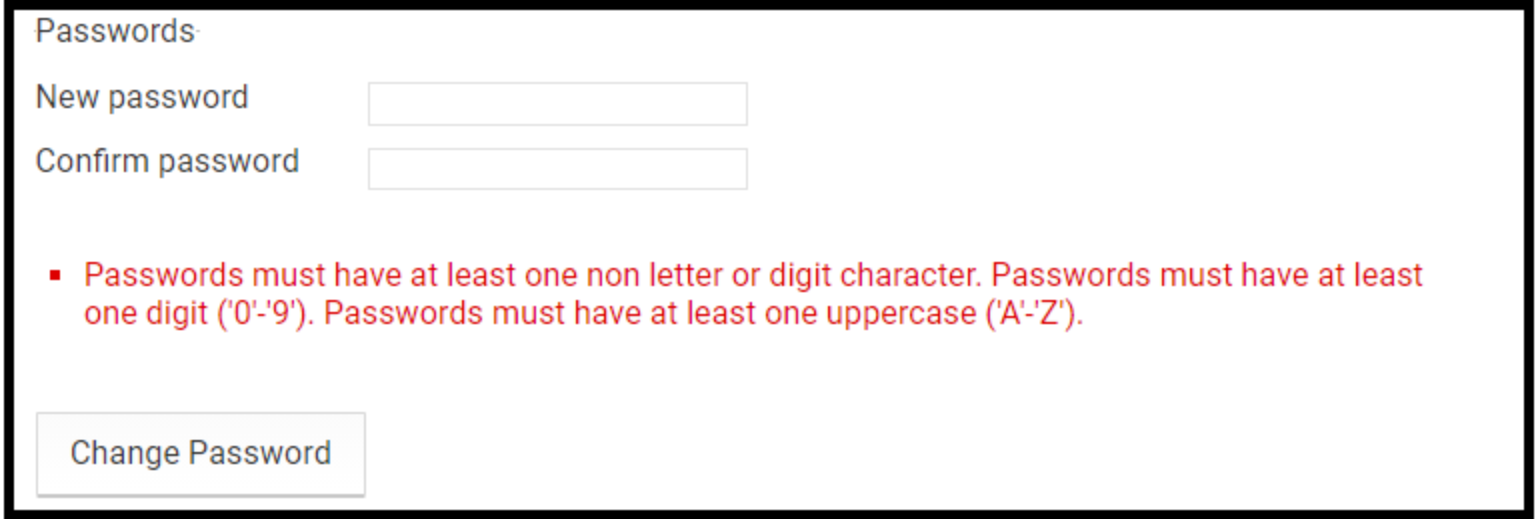
Passwords
The Passwords section has the following fields, allowing you to change a Password if needed. You will not be able o view existing Passwords as these are sensitive and will be starred out. The Password used must be at least 6 characters long, have at least one numerical character, at least one capital letter and at lease 1 non numerical or alphabetical letter. For example, P@ssword123
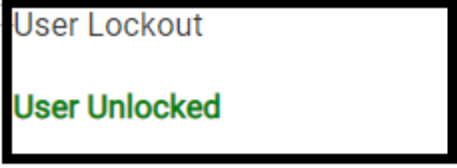
User Lockout
This is quite simply a label that will identify whether or not a User is locked out of the system. Users can be locked out if they try to log in too many times with either the incorrect User Name or Password. An Admin User can clear this lock or the User can wait 5 minutes for the system to self clear it.