
Purpose & Scope:
Costings are one of, if not the most important aspect of VisionPLM, they contain the financial data of the products they are assigned against and if they are not used properly then they have the potential to cause serious ramifications within the system
Solution:
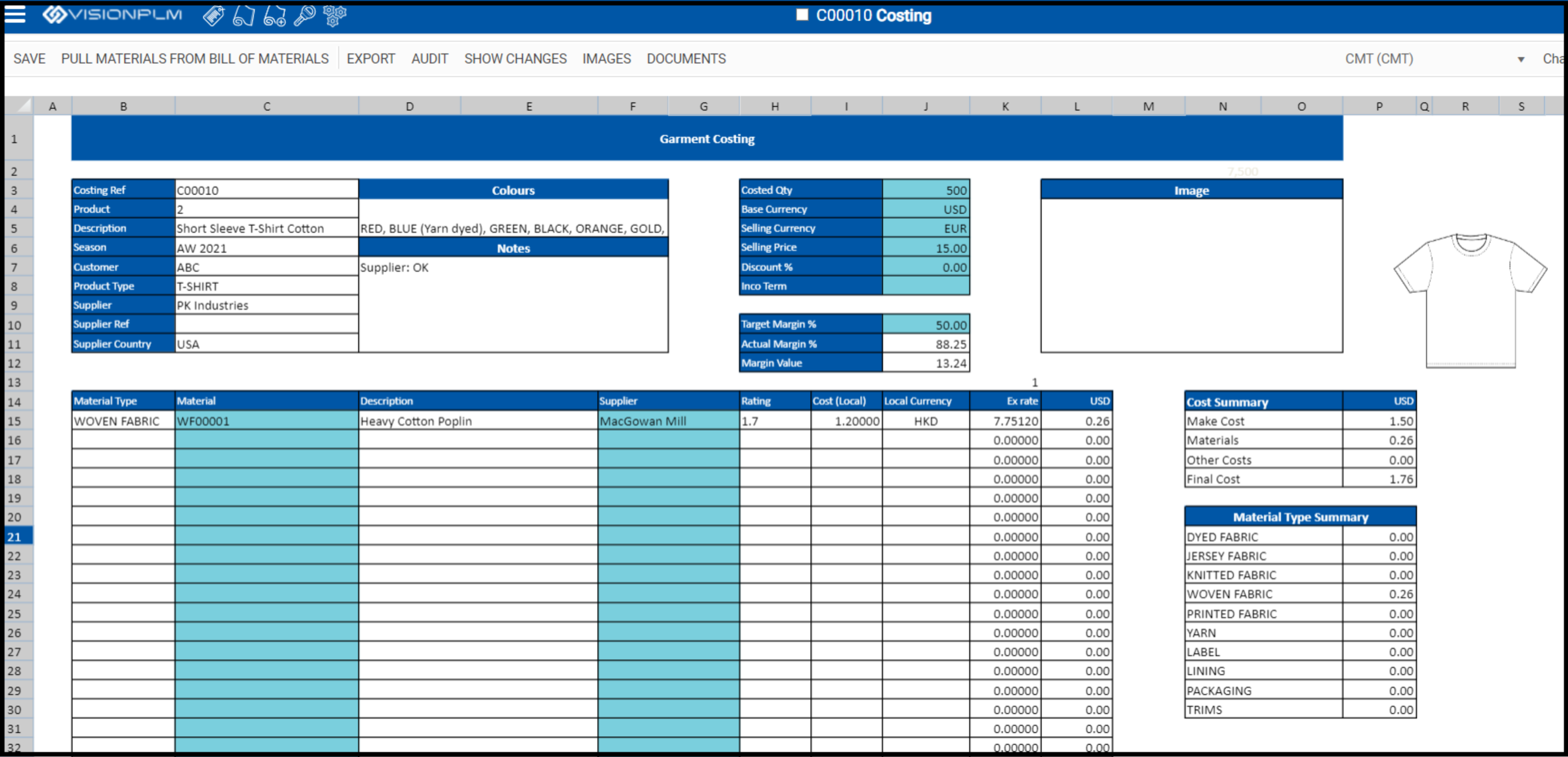
The Costing Sheet screen is where the numbers that make up a Costing are entered. Each Team is allocated one or more Templates that are used to control:
- The data you can see
- The data you can change
What do I see?
What you are seeing on the screen looks like a spreadsheet and behaves like one (formulas do get calculated), but this is not ‘Excel on the web’ – it just looks and feels like it.
Automatic Data
Some cells are automatically assigned a value when the Costing Sheet is created, depending on how the Costing Template has been configured. Examples of such fields are the Product Name, Product Description, Product Image and Customer Name. These are pulled through onto the Costing Sheet from the Product automatically on Costing Sheet creation.
Opening a saved Costing
When a previously saved costing is opened all the ‘Saved’ values (with the exception of the Product Image – this always shows the latest version) are retrieved for the Costing Sheet. If the Product Name or Description has been changed since the Costing has been created a message will be displayed to indicate that this is the case.
You can continue to work with the ‘Saved’ values if you so choose, but optionally you can click the ‘Bring up to Date’ button which will retrieve the latest Product information and add it to the Costing Sheet. You must then use the Save button to store the updated values.
Materials and Operations
Materials and Operations can be added to the Costing by ‘double clicking’ the cell that contains the Material or Operation Name, this will display a pop-up window that shows a list of Materials or Operations. The pop-up grid shown can be filtered and sorted, in just the same way as any other grid, double-clicking a grid row will add the selected Material or Operation row to the Cost Sheet cells.
Bill of Materials
If you have a ‘Bill of Materials’ enabled the Costing Sheet values (the Materials) can be ‘Pushed’ to the Bill of Materials, using the ‘Add to BOM’ feature. Equally, if enabled a BOM can be pulled into the Costing.
Export
The Export option can be used to export the Costing contents to an Excel file and downloaded. The values exported are the current Saved values, if you have made any changes to the sheet and not saved the Costing Sheet then these values will not be exported.
Audit
All changes to the Costing Sheet are recorded. The Audit button shows the changes that have been made to the Costing Sheet.
Push to BOM
The Push to BOM functionality is designed so that users can create a Costing, Pick Materials, Usages and other BOM details against it and then can have all that data in the sheet sent to the BOM.
How it works
User creates the costing User inputs the information on the spreadsheet Push to BOM is clicked after information is saved and then resolves any incomplete rows (e.g. New Material 01 does not have a supplier set in the sheet).
Once these have been pushed, the BOM will be updated with these new values.