
Purpose & Scope:
Grids in VisionPLM are one of the main ways you will enter data into the application. Some special areas have their own forms but the vast majority will have one or more grids waiting for you to interact with.
Solution:
Grids are operated through the column headers and the Grid Sidebar. The Grid Sidebar lets you manipulate and edit data, whereas the column headers let you rearrange data with filters and sorts.
The Grid Sidebar icons let you do the following:
Insert a new record Copy an existing record Edit an existing record (You can also double click a row to do this!) Rename an existing record Save your changes Undo all your changes Delete an existing record All of these operations are driven from your grid selection.
All of our grids are paged, meaning you will only be seeing a subsection of your data at any given time. You can navigate between the pages using the buttons found at the bottom.
Filtering and sorting are applied by interacting with the column headers. Left-clicking on a column header will sort the data by that header. It will apply an ascending sort on that column. Clicking again will change that sort to descending, and clicking it a third time will remove it.
You can stack sorts on top of each other by clicking more than one column.
To remove all of the sorts acting on the grid, you can press the green button found at the bottom of the grid. It will only glow green if you have a column sorted:
Grids can also be customised to rearrange columns and adjust their individual widths. This allows you to tailor your grids to show the data you find most important:
Columns can be dragged and dropped into different positions. Using your left mouse button, click the column you want to move and hold. Whilst holding, move the column to the desired position on the grid:
To resize a column, simply hover the mouse cursor between two columns until it changes to the resize icon. Then simply left click and hold to drag the left-hand column to the size you want.
Once you have changed the Grid to be structured how you like it, you can then save those preferences in the Grid Settings menu. To access that menu, you need to hit the cog icon found at the bottom of the grid.
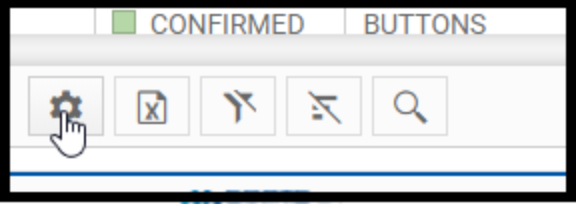
From here you can save your preferences by hitting the Save Layout button:
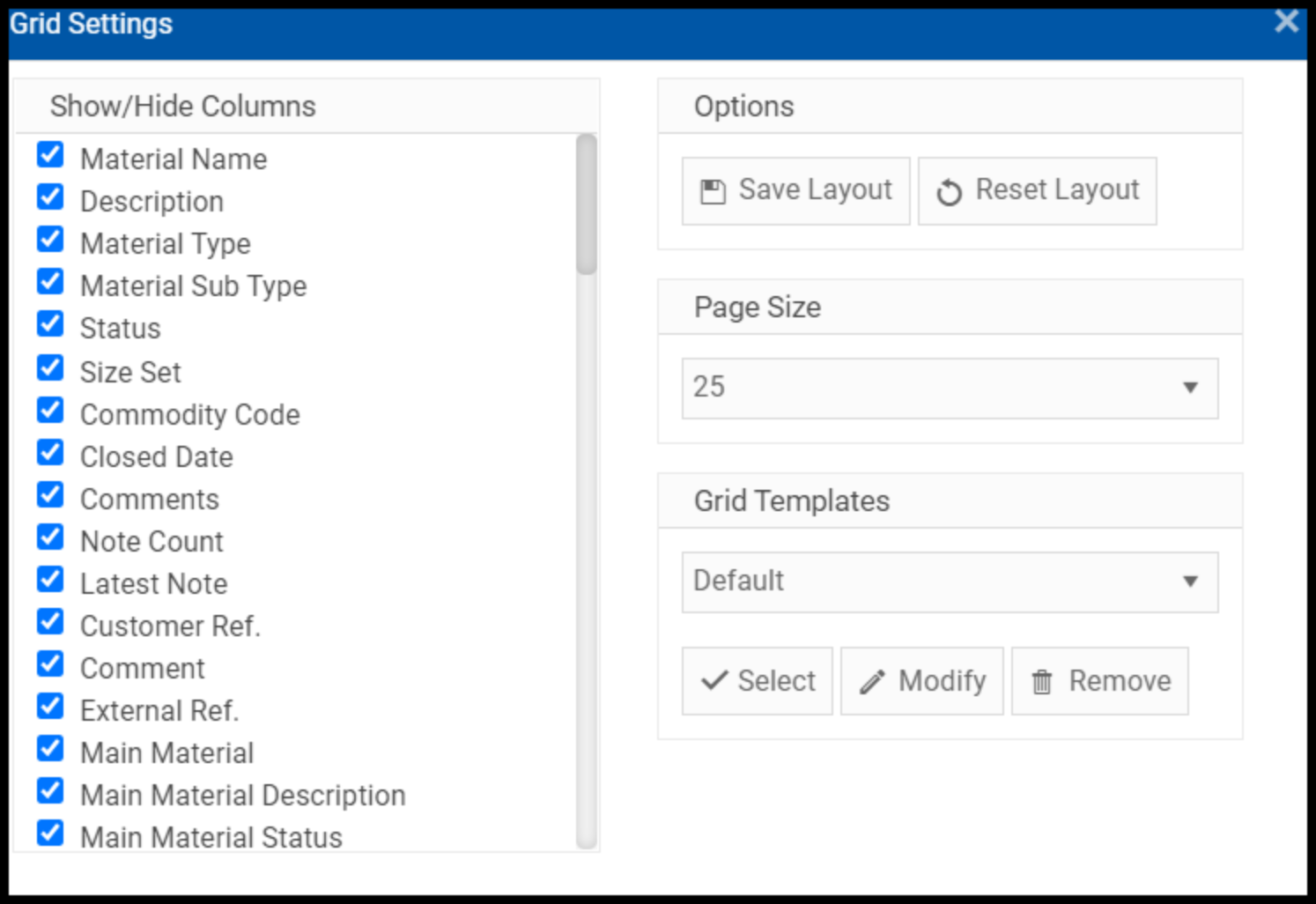
Here you can also hide columns that you do not want to see, and you can adjust how many records record per page in the grid.