Article Public Number: KA-01290
Coats Digital Knowledge Article
Production Setup
Product: FastReactPlan
Log into FastReactPlan and go to Setup > Configure > Production.
Start up
Build up curves
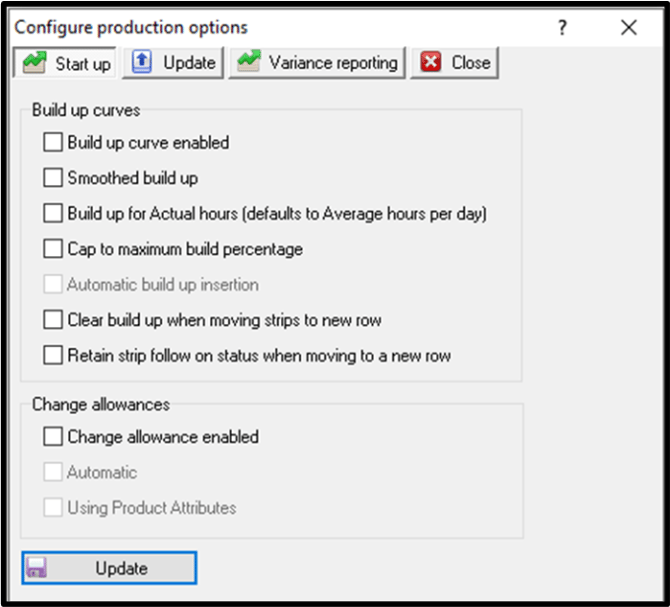
Build up curve enabled
When enabled, FastReactPlan allows the configuration of a number of build up allowances to link to Orders on the planning board.
Smoothed build up
When enabled, a smooth build up curve is used. This is only relevant when the build up period is more than one day (see Period (days) below).
Example: With an efficiency of 20% on day 2 and 40% on day 4 (period = 2 days):
- With smoothing: Efficiency is 30% on day 3.
- Without smoothing: Efficiency remains at 20% until day 4.
Note: Smoothing gives more accurate results, but makes it harder to verify that the results are correct.
Cap to maximum build percentage
When enabled, this option allows the planner to cap the build up at the maximum build percentage defined in the Build up curve dialog.
Automatic build up insertion
When enabled, you can set up a predefined matrix of build up curves. These curves are inserted automatically between strips on the planning board, based on the product types of the relevant strips.
Examples:
- T-Shirt to Jacket: May require a Type 1 build up curve (50%–70%–90%).
- Jacket to Trouser: May require a Type 2 build up curve (70%–75%–85%–90%).
Clear build up when moving strips to a new row
When enabled, this option resets the build up for the moving strip. The build up must then start again from the beginning.
Retain strip follow on status when moving to a new row
By default, when a strip with a follow on is moved to another row, it loses its follow on status. Enable this option to retain that status.
Period (days)
A time period can be specified for each step of the build up curve. Enter the time increment, in working days, between successive steps.
Change allowances
This section configures how FastReactPlan uses change time, such as machine downtime between different products.
Change allowance enabled
When enabled, this option allows the configuration of a number of change time allowances to link to Orders on the planning board. Capacity on the planning resources is blocked for the specified change time.
Automatic
When enabled, a predefined change time allowance is attached automatically to an Order when it is loaded onto the planning board. A Change matrix determines which change time to use.
Using Product Attributes
When enabled, a predefined change time allowance defined on the Product is attached to an Order when it is loaded onto the planning board.
Editorial note: The final sentence in the source text for this option is incomplete: “A Change matrix is used to determine which change…”
Update
This page controls manual production updates and how they are applied. Imported production updates can be configured similarly in the Import configuration section.
Options
There are two methods for recording production updates:
- Incremental (default): The quantity made on the specified date is added to the previous total. If the same quantity is accidentally entered twice, this method can double book entries.
- Cumulative: The total quantity made to date is entered every time. The same quantity can be entered more than once without double booking, because the total quantity is always taken. However, this method can be more difficult to understand.
Important: Only planned operations can receive incremental updates. All non-planned operations are entered as cumulative figures for each Order.
For planned operations, the following cumulative methods may apply.
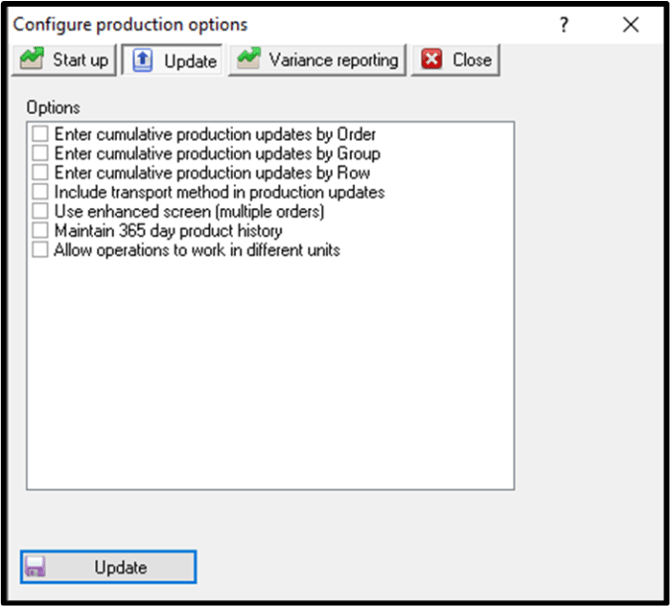
Enter cumulative production updates by Order
When enabled, production figures should contain the cumulative production progress for each Order.
Enter cumulative production updates by Group
When enabled, production figures should contain the cumulative production progress for each Order within each planned Group.
Example: If an Order is split across two planning Groups, enter the cumulative figure for each Group along with a Group reference. Total Order progress is the sum of each Group’s cumulative progress.
Enter cumulative production updates by Row
When enabled, production figures should contain the cumulative production progress for each Order on each planned row.
Example: If an Order is split across two or more planning rows, enter the cumulative figure for each row along with a row reference. Total Order progress is the sum of each row’s cumulative progress.
Include transport method in production updates
When enabled, FastReactPlan allows you to select a transport method when updating production on the planned operation. Only valid transport methods for the Group/Row are selectable.
Example: If you need to air ship a small quantity of a large strip, there is no need to split that quantity into a separate strip.
Maintain 365 day product history
When enabled, FastReactPlan keeps a history of each product showing:
- Where it was previously made.
- How much was made.
- The defined efficiency at that time.
This information becomes available when taking Orders from the Load Lists, helping you plan products in the most appropriate places.
Note: This feature adds a small processing overhead to production updates. Enable it only if you need the information it provides.
Allow operations to work in different units
This option allows operations to work in different units.
Example: In a typical setup, operations may be measured in pieces, while the Finishing operation needs to be measured in kg.
Important: This option must also be selected for the Finishing operation in the Operations dialog.
When enabled, a new column called Factor appears in the Product Add/Amend dialog.
Variance reporting
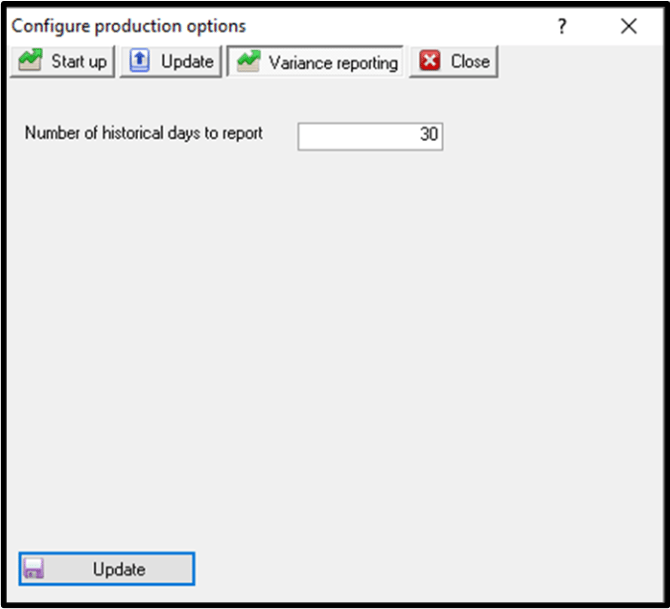
Number of historical days to report
Normal reports allow a small historical period to be included, because they generally look forward in time. Variance reporting, by definition, looks backwards.
Use this field to specify how many days of history to include in variance reports.