
Create a new status in VisionPLM
Use Maintenance > Status to create a status for a specific area of VisionPLM and set its display order and colour.
Create a status- Go to Maintenance > Status.
- Open the APPLIES TO drop-down list in the top-right corner and select the area where you want to use the new status.
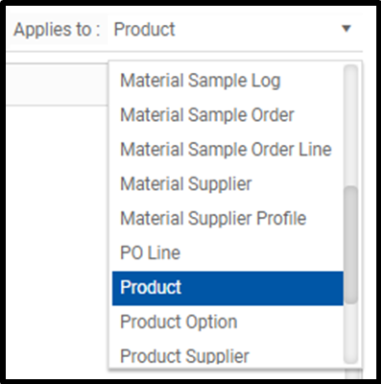
- Click the INSERT icon to add a new status.

- Enter the status details in the Name, Description, Sequence, and Status Colour columns. See the field descriptions below for guidance.
- Click the SAVE icon to save the new status.

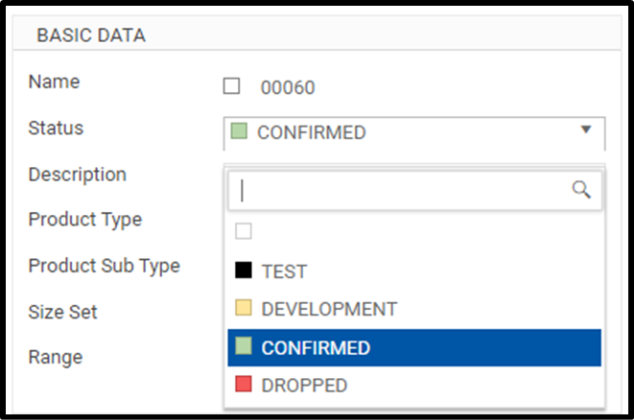
The new status appears in the status list for the selected area. Its position in the list is determined by the Sequence value.
| Field | Description |
|---|---|
| Name | Enter the name of the status. |
| Description | Enter a description explaining what the status means or when it should be used. |
| Sequence | Enter a number to determine the status’s position in the list. |
| Status Colour | Select the colour used to display the status. |