
Solution:
Adding Customers
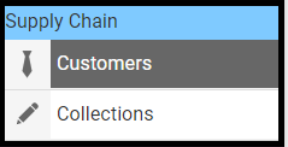
Go to the Maintenance area of VisionPLM and select Customers which is under the Supply Chain section:
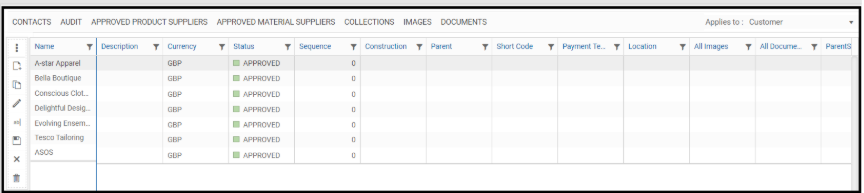
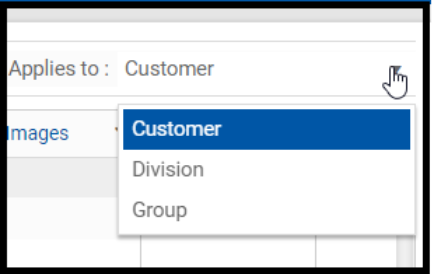
On the far right of the screen, (below the User Name and Search function button), you'll see a drop-down list of what the form that you are looking at “applies to”. Make sure this is set to CUSTOMER, if it's not, then select this option from the drop-down list:
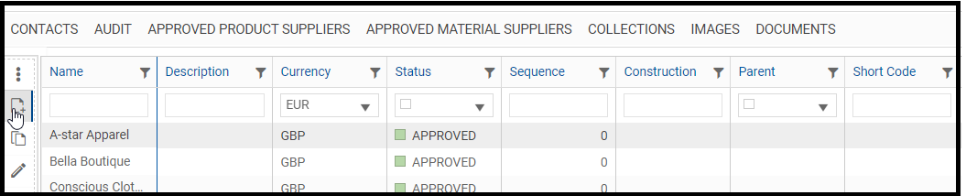
To add a new Customer, click on the INSERT button to the left of the Customer list
This will result in a new blank line appearing at the top of the Customer List. It is in here that you will enter the New Customer details, as per your Companies requirements, for example, entering financial data where required:
Once all the Customer data has been entered then click on the SAVE button and the new Customer will now be entered on your VisionPLM system and available to use.