
Purpose & Scope
Use this article when purchase order (PO) line totals in VisionPLM appear inconsistent with the expected price totals and a decimal-place formatting issue is suspected in the associated product costing.
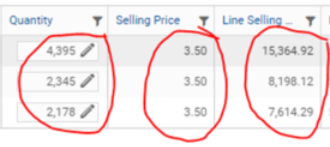
Solution
Review the costing associated with the affected product in Excel, update the relevant cell to display two decimal places, and re-upload the costing to VisionPLM. Then verify the PO line totals.
Important: Changing decimal-place formatting in Excel changes how a value is displayed, not its underlying value. This procedure should therefore be treated as a formatting check, not a guaranteed fix for calculation errors.
Instructions- Identify the product used on the affected PO line in VisionPLM.
- Open the costing associated with that product, then open it in Excel.
- Locate the cell containing the total that appears incorrect.
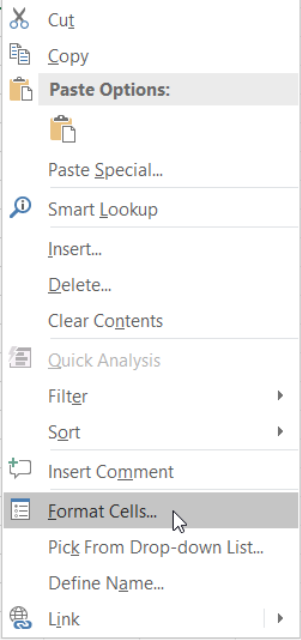
- Right-click the cell and select Format Cells.
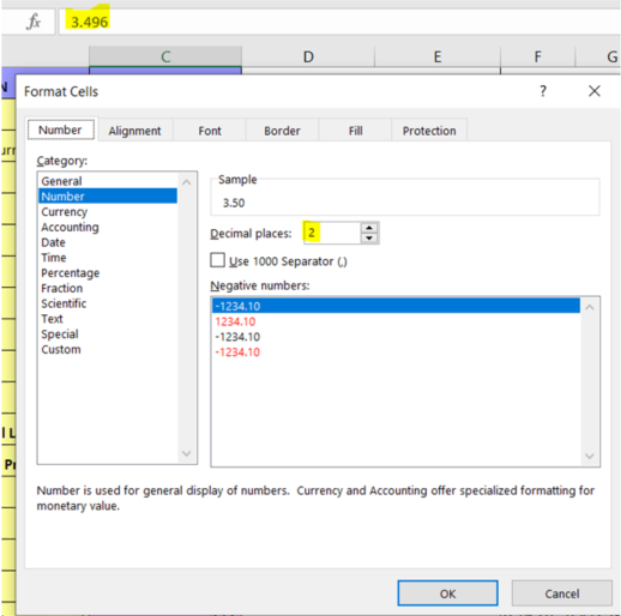
- In the number-format settings, set Decimal places to 2, then select OK. Example: A value of 3.496 is displayed as 3.50 when formatted to two decimal places. The underlying value remains unchanged.
- Save the costing and re-upload it to VisionPLM.
- Review the affected PO line and confirm whether its total now matches the expected amount.
Outcome
The selected costing cell displays its value to two decimal places. After re-uploading, verify the totals in VisionPLM before treating the issue as resolved.
If the totals remain incorrect, contact support with the affected PO reference, product details, costing file, and screenshots showing the expected and actual totals.