
Purpose & Scope:
In this dialogue, the VisionPLM Administrator can assign various levels of access to the selected Team. This allows the Teams to have selective access or viewing/editing rights to the modules with VisionPLM.
Instructions:
Team Details
This section of the dialogue details the basic Team Details:
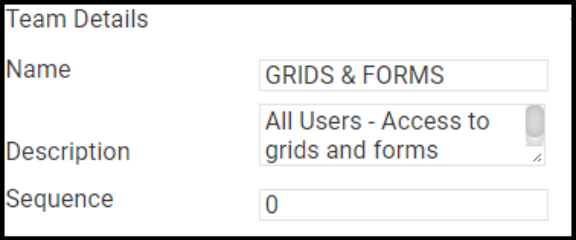

Note: The below permission settings will all relate to the Grids & Forms Team
Users in Team
This will be a list of all the Users associated with the selected Team:
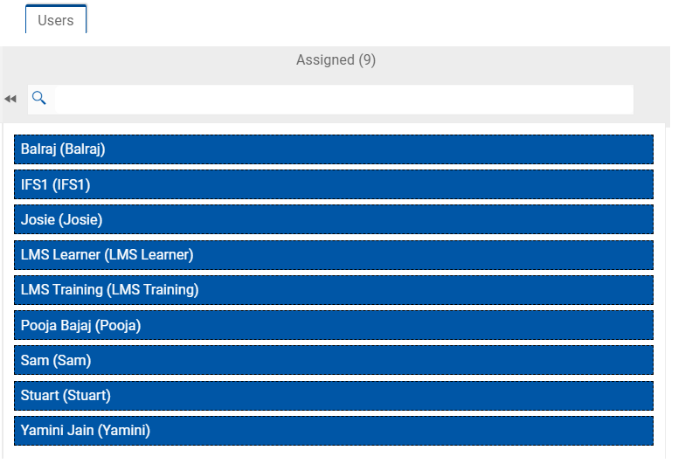
Users can be a member of multiple Teams.
Permissions
Note: If a User is a member of multiple Teams then that User will always take the Access settings from the Team with the highest permission settings.
Access
In this section of the Permissions dialogue, the Administrator can define which modules in VisionPLM the Team, and by extension, the Users that are in that Team can see or access.
Access Levels
There are 4 types of Access Levels:
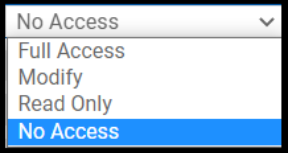
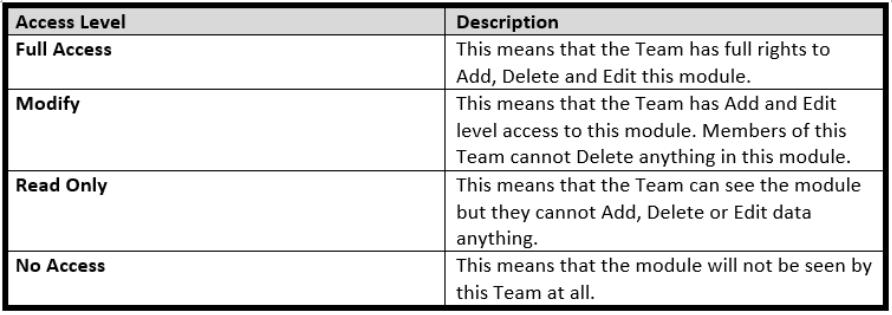
Allow Offset Change
This option, when enabled, allows the Team to change Offsets within VisionPLM
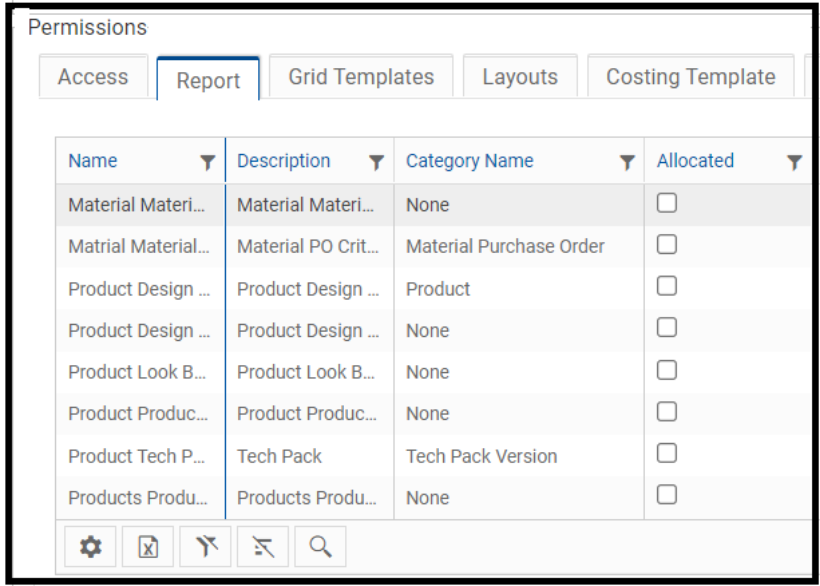
Report
Grid Templates
This tab of the Permissions section allows the Administrator to define the Grid Layouts that the selected Team can view:
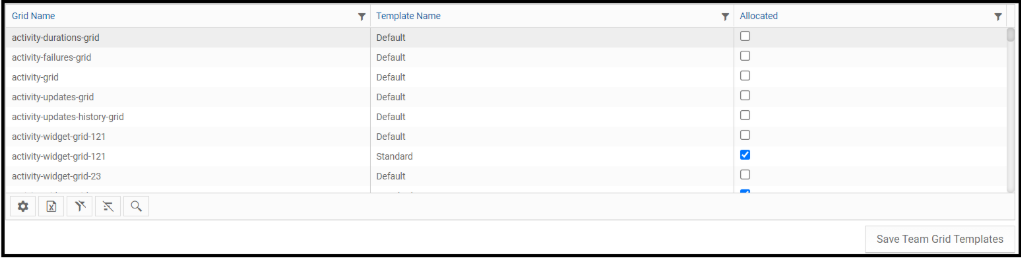
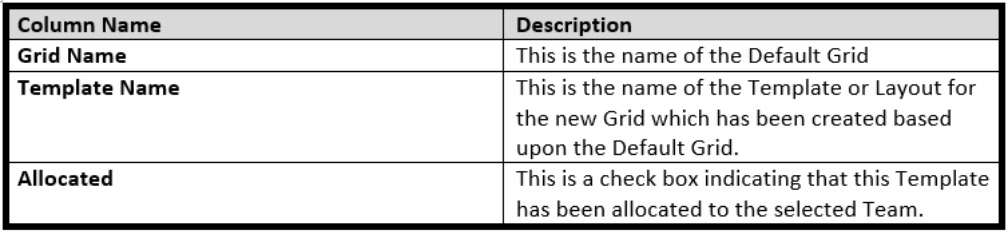
So, using the above image, this Team can view the activity-widget-grid-121 for the Standard Template. This is identified by the tick in the Allocated column against this Grid Name.
The Team cannot, however, can't view the activity-widget-grid-23 Gid on the Default Template as this Grid has not been Allocated to the Team, (there is no tick in the Allocated box).
Layouts
The Layouts relate to the Forms associated with the selected Team. By default each Team will have access to the Default Layout, access rights permitting, however, specific Layouts can be defined and allocated in this area:
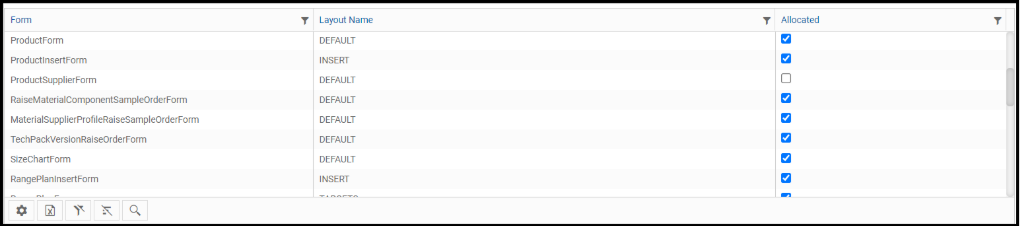
 So, using the above image, this Team can view the Layout on the Product Form (ProductForm) for the Default Layout. This is identified by the tick in the Allocated column against this Form.
The Team cannot, however, view the ProductSupplierForm as this Form has not been Allocated to the Team, (there is no tick in the Allocated box).
Costing Template
The Costing Template relates to the Costing Templates associated with the selected Team. By default each Team will have access to the Default Costing Template, access rights permitting, however spesific Costing Templates can be defined and allocated in this area:
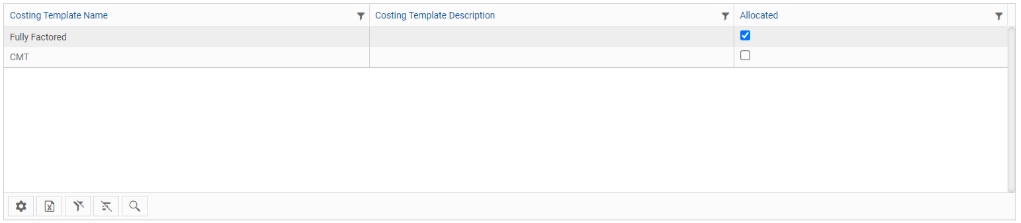
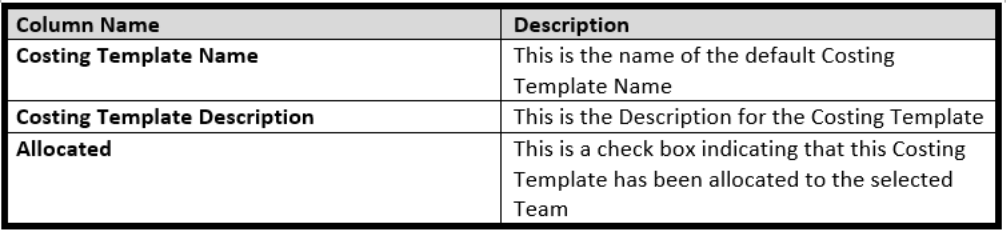
So, using the above image, this Team can view the Costing Template on the Fully Factored costing. This is identified by the tick in the Allocated column against this Costing Template Name.
The Team cannot, however, view the CMT Template as this Costing Template has not been Allocated to the Team, (there is no tick in the Allocated box).