
Article Public Number: KA-01444
Coats Digital Knowledge Article
Product: VisionPLM
If a user has forgotten their password to log into VisionPLM, they can click on Forgotten Password.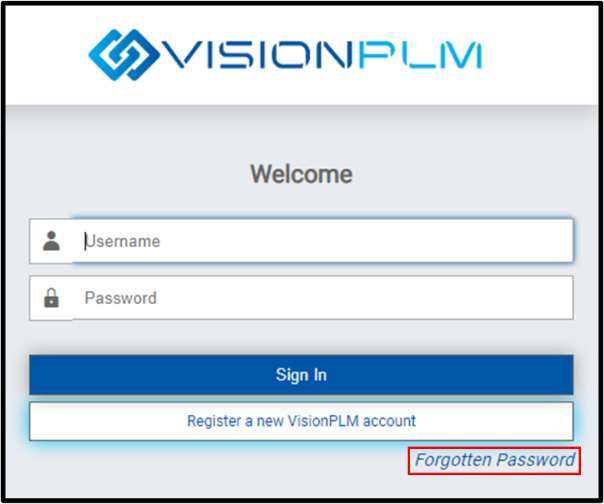
Clicking on Forgotten Password asks you to enter either your username or email.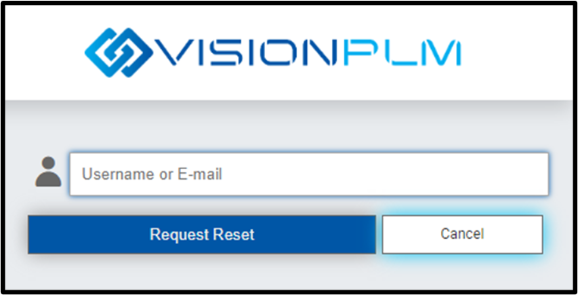
Once you have entered your username or email, click on the Request Reset button.
IMPORTANT
This will then send an email to the system administrator(s).
It can take some time for the system administrator(s) to receive the email in their inbox.
The email will have a link in which the system admin can click, which will take them to VisionPLM to change the user password.
Once you have logged in, you can click on your name in the top-right corner and click on the settings.
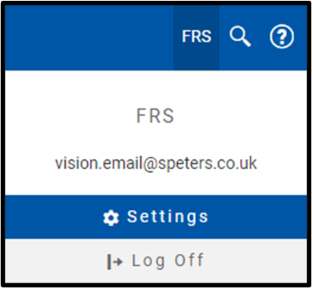
Clicking on Settings will take you to User Settings, and at the bottom, there will be a button that says Change Password.
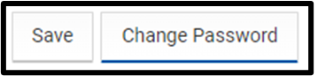
The Change Password button will take you to Manage Account and allow you to change your password from the password that the stystem admin set.