Article Public Number: KA-01280
Coats Digital Knowledge Article
Product: VisionPLM
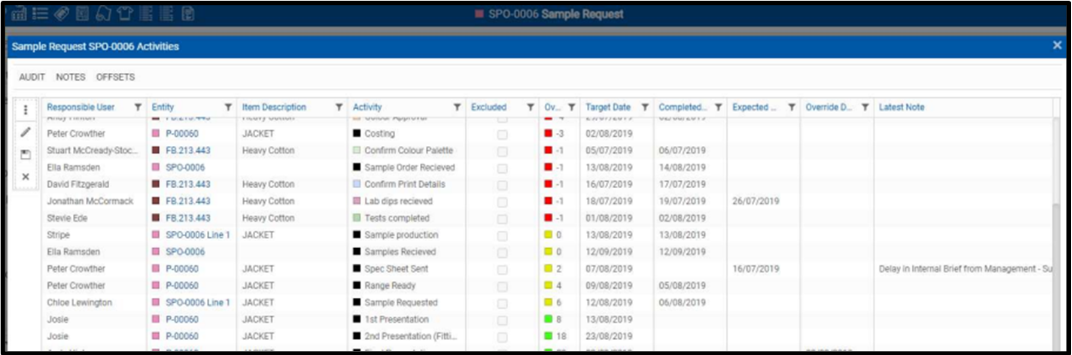
Remote Activities allows you to send an Excel spreadsheet to each Supplier that contains Critical Path activities and their target dates. The Supplier can then fill in the completed date within the file and email it back to the User. This will be Saved into the Users file browser and uploaded into VisionPLM which will display a list of the Supplier’s updates. Each of these can be verified by the User and then imported into VisionPLM to update the Critical Path.
Remote Activities available
Remote PO Activities
Remote MPO Activities
Remote SPO Activities
Remote MSPO Activities
Remote Costings
Remote Open Costings
Remote Material Supplier Profiles
Remote Fit Logs
Setting up a package
Navigate to the relevant Remote Tool in the Side Menu Bar.
Within here, click ‘New’ to create a new package and enter a Package Name. We suggest creating a package for each Supplier, so enter the Supplier Name as the package name. You can choose either to use the Primary Email or a Custom Email. If Primary Email is selected, VisionPLM will send the package to the ‘Primary’ contact email address that has been set in the Supplier’s record. If Custom Email is selected, an email address will need to be entered into the text box adjacent to it. A Return Email address needs to be defined; this is the address that will appear in the ‘Return to’ field on the Remote Activities file.
In the Filters tab, select the Supplier that you would like to send the Remote Activities file. One Package = One Supplier.
Select the Order Status that you would like to filter into the file. The status that you select will be included in the Remote Activities, for instance – you would want to receive updates on all orders with a status of ‘RAISED’.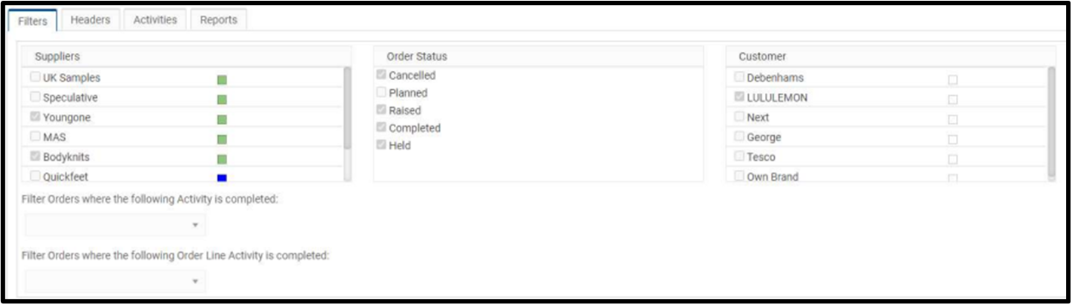
In the Headers tab, select the information that you would like to send to the Supplier with the activities and their target/completed dates. The headers can be pulled from various areas within VisionPLM including Purchase Order/Sample Order, Line and Product.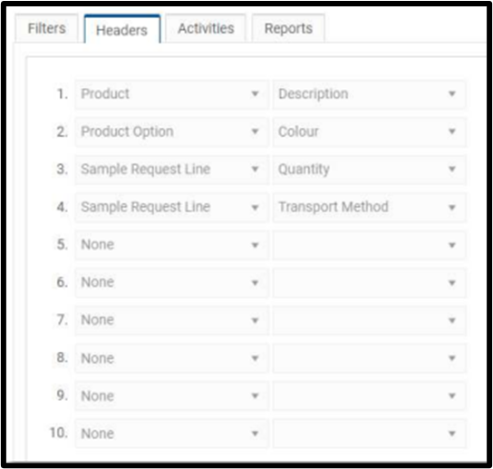
In the Activities tab, enter the weeks prior/weeks ahead that you would like to send to the Supplier. Activities whose target dates fall between these two variables will be sent in the Remote Activities file.
The activities you would like the Supplier to see/complete can then be added to the package by double-clicking them within the Available Activities list.
This list is grouped by the entity, so it is easy to select the required activity. These will then appear on the right under Selected Activities. You can then tick the activities that you want the Supplier to edit in the resulting Remote Activities file.
Activities can be removed again by clicking the cross to the left of the activity.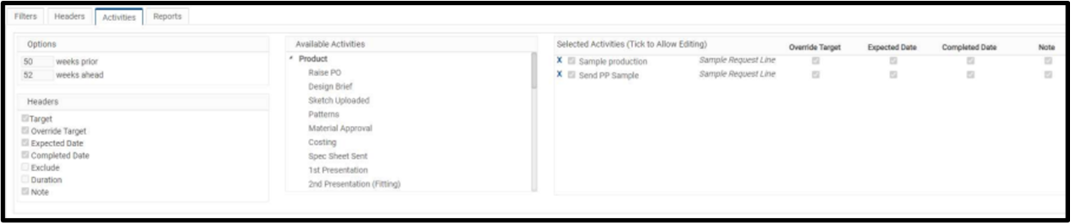
Reports can be added to the package in the Reports tab.
Tick in the required format option for the report.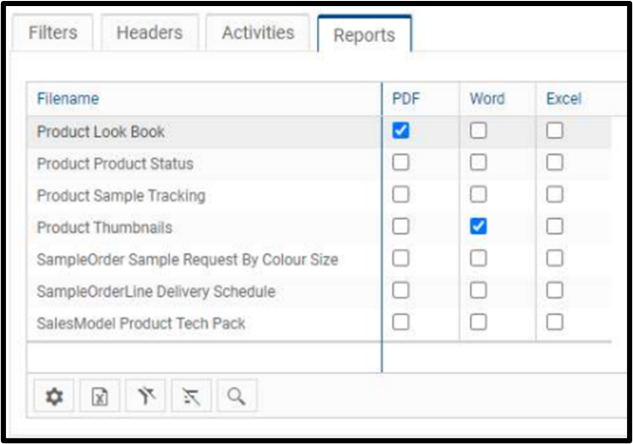
By selecting reports to be sent alongside the package, they will be sent/exported within a zip file.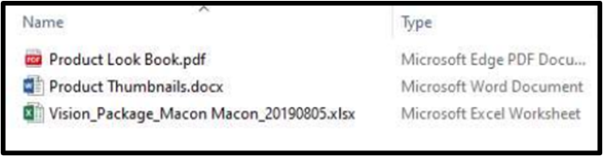
Ensure you click 'Save' at the top of the screen in order to save the package.
Sending the Package
Click SEND PACKAGE (found at the menu bar at the top of the screen) to email the Package out to each Supplier. This will bring up the ‘Email’ window and allow the user to compile the email.
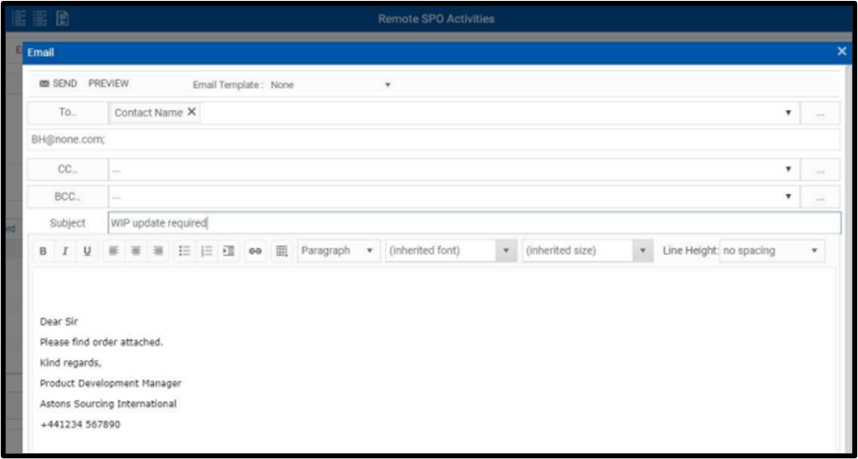
Exporting the package
Alternatively, the package can be downloaded, click EXPORT PACKAGE (found just below the green menu bar at the top of the screen) to export the Remote Activities file.
The Remote Activities file
VisionPLM will generate an Excel file that will have up to three tabs; a cover page followed by an entity and an order progress page.
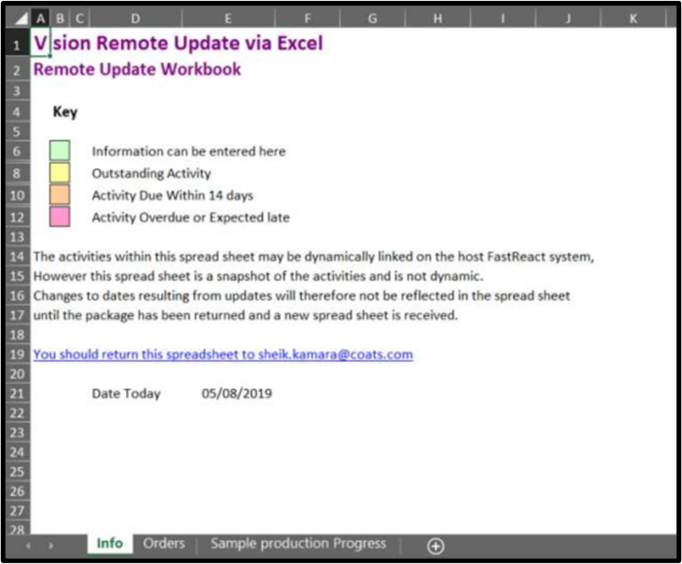
The Cover Tab explains to the Supplier how the package works, with a key of the colours used in the following tabs.
Any headers you have selected will appear in the first series of columns. Following that, each activity will be shown with its Target, ‘Done’ and ‘Expected’ dates, as well as a ‘Notes’ field.
Any dates that you want the Supplier to complete will appear highlighted in green. All other fields are read-only.
The Supplier will complete all cells highlighted in green with their completed/ expected dates, along with an explanation if necessary, save it and email it back to the User.
Quantitive Updates
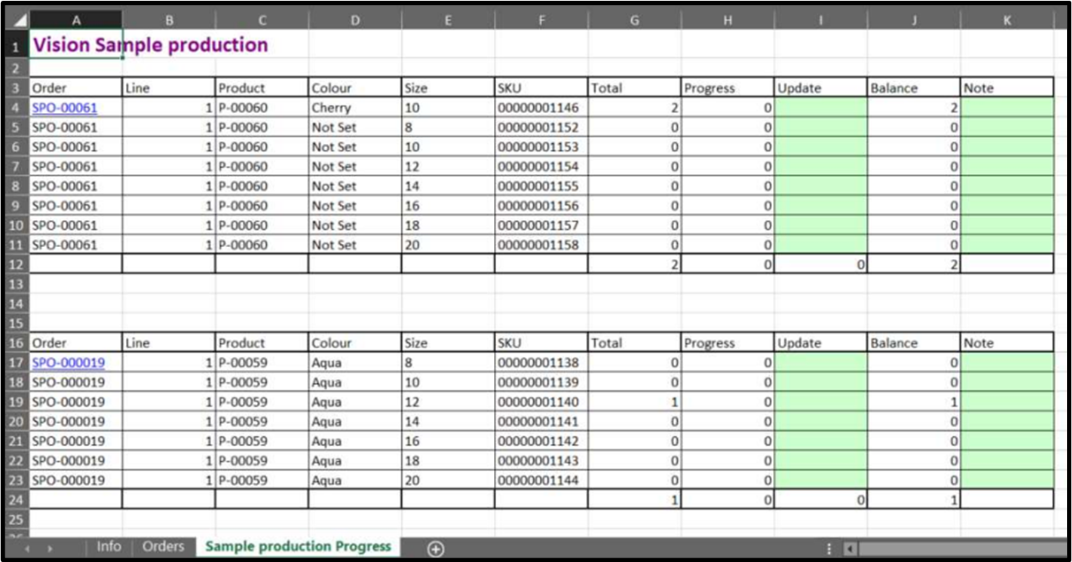
Quantity progress can be tracked on the Order Line where the Critical Path step is enabled as quantitative update activity.
This is displayed within the Remote Package for the Supplier to add their progress update against each Order Line SKU level. By Clicking on the link in the ‘Progress’ column, the Supplier will be taken to the ‘Production Progress Tab’ within the package where they can enter the quantity update.

Importing the file back into VisionPLM
Once the User has received the updated Package back from the Supplier, the User will navigate to Tools and select Remote Activities.
Click IMPORT PACKAGE in the top menu bar. This will bring up the file browser so the user can locate the file that the Supplier sent back to you.
Click Open. All changes made to the file will be shown on the screen for you to verify highlighted in green so that they are easily spotted.
If the Supplier has made an update that you are not satisfied with, the Include tick box can be un-ticked. This will exclude that particular update from the import.
Once you are happy with the updates, click IMPORT. This will import all changes made into VisionPLM. VisionPLM will display ‘Package Imported Successfully’ when this has been completed.
You will then be able to see the update that has been made against the relevant activities.