
Article Public Number: KA-01358
Coats Digital Knowledge Article
Product: VisionPLM
Grid Settings in VisionPLM allows you to change the layout of columns on the grid and also show/hide columns on the grid. To access grid settings you need to click on the cog icon at the bottom.
Clicking on the cog will open a popup window for Grid Settings you'll see that there are four sections in Grid Settings.
- Show/Hide Columns
- Options
- Page Size
- Grid Templates
- In the Show/Hide Columns section, there'll be a list of columns that are against the grid.
- From here you can show and hide columns on the grid.
- If a column has a tick in this section it means that the column will show on the grid.
- If a column does not have a tick then that means the column is hidden from the grid and the grid settings of users that don't have admin rights.
- ADMIN - Users with admin rights can show and hide columns but if they would like to save the changes they can click on MODIFY which will open a popup window that will allow them to update the selected grid template globally.
- Users without admin rights can show and hide columns and click SAVE LAYOUT to save the layout but it is only user-specific.
- In this section, there are two options SAVE LAYOUT and RESET LAYOUT.
- SAVE LAYOUT - This allows users to save the layout for the grid.
- RESET LAYOUT - This'll set the layout of the template back to the global layout for the grid. How to use the Grid Templates section in Grid Settings From the Grid Templates section you can:
- Select a different template.
- Modify and create new templates.
- Remove templates.
- Click on MODIFY.
- Under Create New Template.
- Enter a name into the New Template Name.
- Click the Add button and a new template will be created.
- Click on MODIFY.
- Under Update Existing Template.
- Next to Existing Template, there's a dropdown.
- Click on the dropdown and select the template that you want to modify.
- Once selected click the Update button and the selected template will be modified.
- Select the template that you want to Remove.
- Click on the Remove button and the Template will be removed.
- Refresh the page for the changes to apply
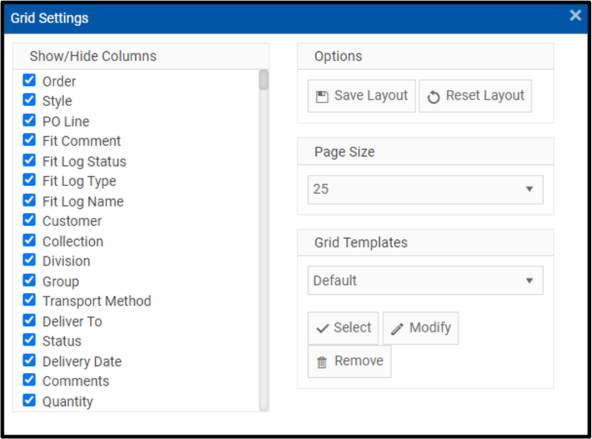
In this Knowledge Article, we'll go through each section that is in grid settings and give a brief overview of them.
Show/Hide Columns
This allows you to show and hide columns on the grid.
Options
In the Options section, you have a Save Layout and Reset Layout button.
Save Layout
If a user has changed the layout of the columns of a grid they can click on Save Layout to save it. The saved layout will only be visible to the user and no one else. Reset Layout
Reset Layout resets the layout to the global layout that a user with admin rights would have set.
Page Size
This dropdown can be used to increase the number of lines you see on a grid.
Grid Templates
This section allows you to change the template of the grid but also Modify and Remove templates which are only available to users with admin rights.
Next, this knowledge article will show you how to use each section in Grid Settings correctly.
How to use the Show/Hide Columns section in Grid Settings
How to use the Options section in Grid Settings
How to create a new template
How to modify a current template
How to remove a template