
Purpose & Scope:
All forms in VisionPLM are configured in essentially the same way. Initially, these forms will be set up and configured during the installation of your VisionPLM system, however, your VisionPLM Admin will be given the skills to amend or even create new Forms during Training.
Instructions:
The Form
The below example will use the Material Purchase Order form to show you the process of adding fields to Forms:
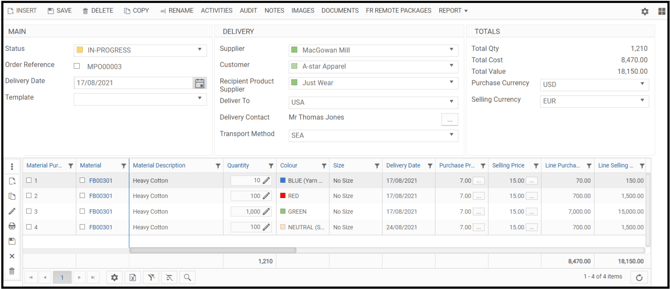
In this example we will use the MPO form and add two fields to the MAIN widget, a “widget” is just another name for a module or area of VisionPLM which is seen on the Form. For example the Main widget is this:
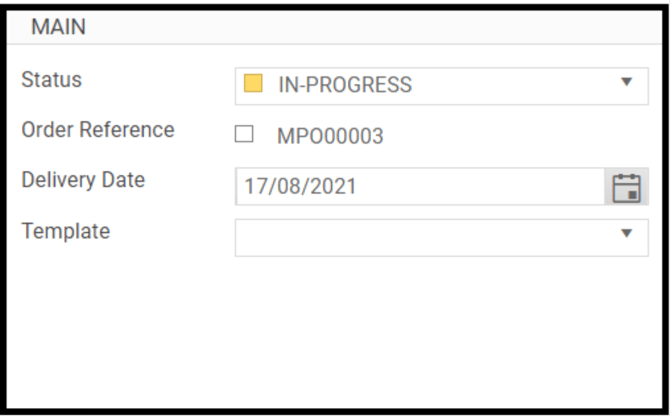
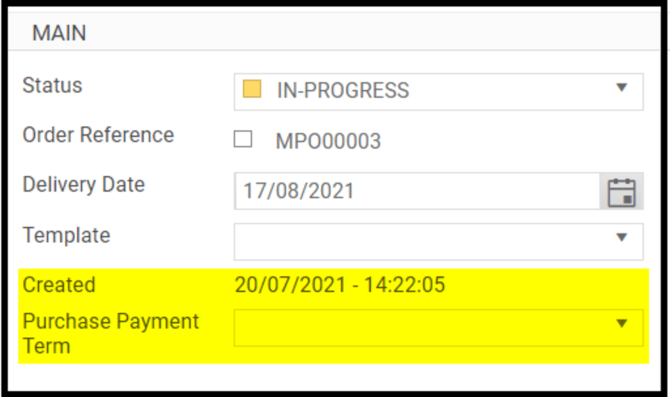
What we are going to do is add the following fields to the widget on the Form:
- Created
- Purchase Payment Term
Adding the Fields
Step 1:
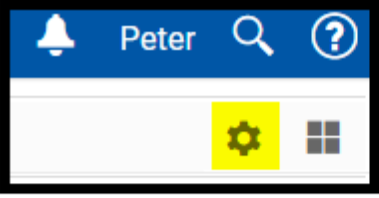
On the Form, you wish to add Fields too, select the cog icon. This is located in the top right of the screen below your login name:
Step 2:
You will see a selection of options:

The option we want is the Advanced one, click on this.
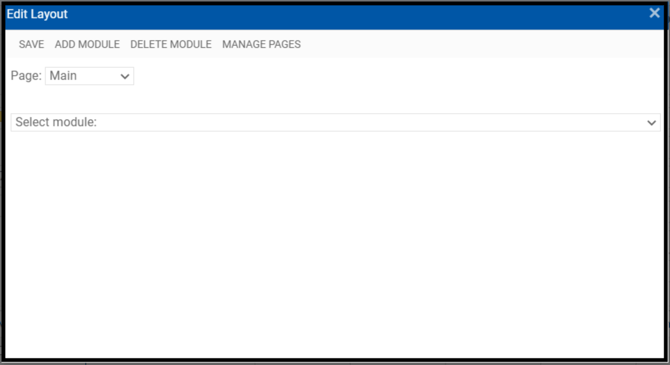
This will display the Edit Layout section:
Step 3:
Click on the Select module drop-down:

Step 4:
This will display a list of available Modules, (widgets), for you to choose from. Select the MAIN (MAIN) module:
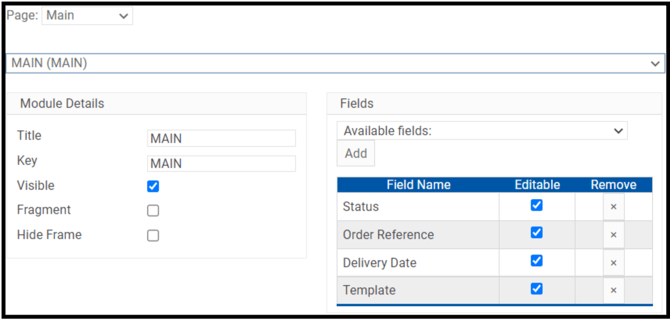
The Edit Layout dialogue will now appear. This is the Dialogue where you will add the fields to the MAIN widget on the Form.
Step 5:
Locate the Available fields drop down on the Fields section of this dialogue and click on it to see all the fields available to the MAIN widget:
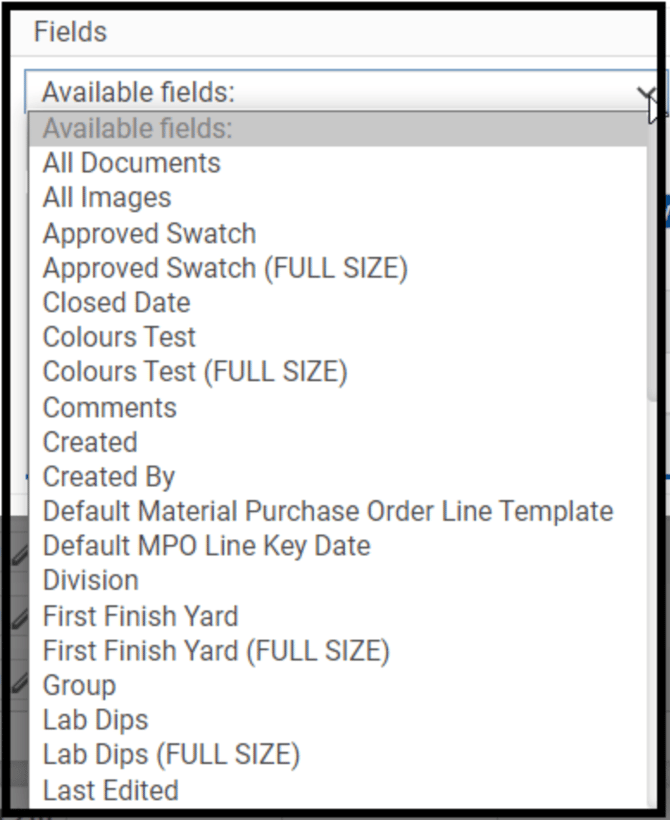
Step 6:
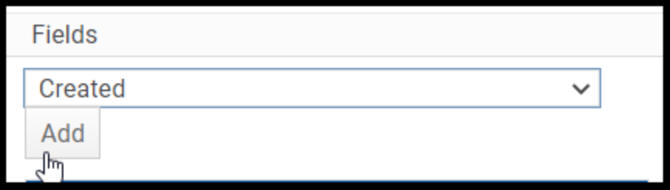
Select the Created field and click Add:
Step 7:
Do Step 5 and Step 6 again for the Purchase Payment Term field.
You will now have a list of Field names on the MAIN widget, with the two new fields added to it:
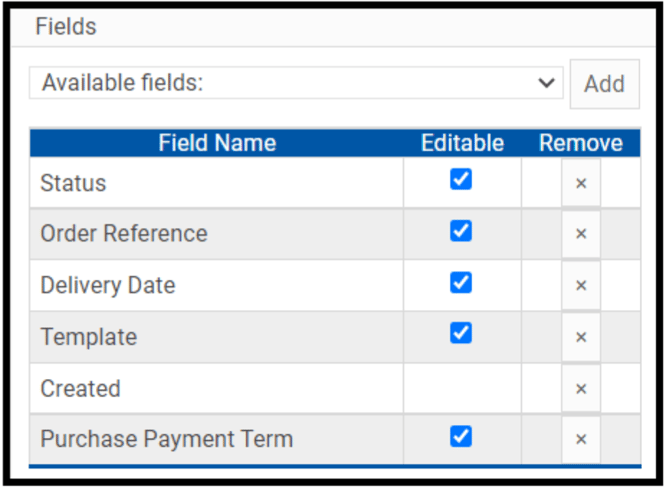
A tick in the Editable check box means this field can be edited on the widget/Form
The Remove "x", if clicked will remove the field from the widget/Form
Step 8:
Save the changes by clicking on the Save button:
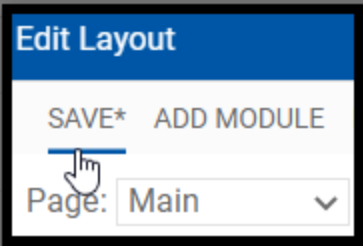
Step 8:
You will now be told that:
1. Changes won't be applied until the page is reloaded
2. Changes have been saved
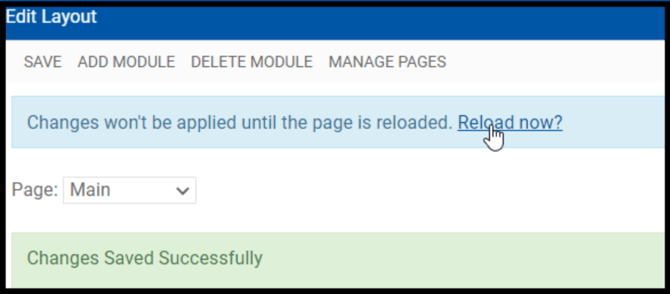
Click the Reload now? button.
The newly added fields are now on the MAIN widget on the Form:
Outcome
Adding Fields to any From follows the same scenario as above.
One important point to make, however, is to check that you are adding the Fields to the correct Form Layout, as defined under the Available Layouts dropdown in Step 2.