Purpose & Scope:
From time to time it may become necessary to alter the Size Ratio on a Product within VisionPLM. This may be for a variety of reasons:
- seasonal size changes
- a better understanding of sizes required, etc
VisionPLM allows the user to control this quite easily and the following instructions will explain the process.
Instructions:
Background - Size Sets
Before jumping in and explaining how to do this in VisionPLM, a bit of background information may be useful.
Size Sets
When setting up Size Sets the Admin user can also define a default Ratio that each size within the Size Set will have. So, under the Sizes set up within the System - Maintenance section of VisionPLM, each Size within the selected Size Set will have a ratio set against it:
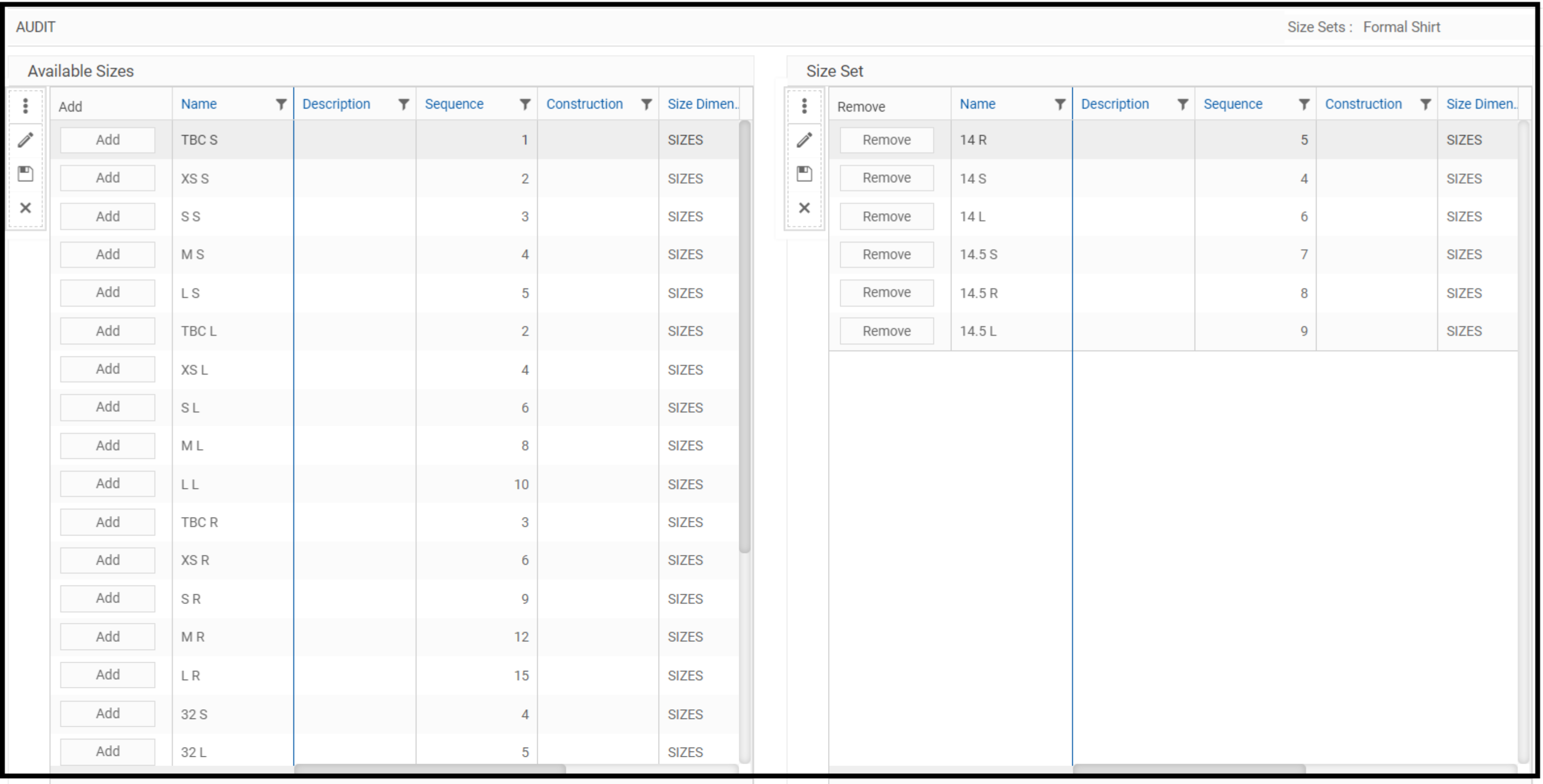
1. The selected Size Set
2. The Size set data, this will include all the individual sizes for that Size Set
3. The default Ratio values for each individual Size with the Size Set
So this is where the Admin would add Sizes to existing Size Sets and apply default values to them.
What does this mean to the Standard User?
Quite simply, what adding Ratios to the Size within the Size Set allows is for the standard user to apply a Quantity to a PO Line and have this total Quantity ratio across all the Sizes within the Product on the PO Line.
Sizes are applied to a Size Set, a Size Set is applied to a Product and a Product is applied to a PO Line.
For example, If a Product has a Size Set called Jumper, which has Sizes S, M, L, XL and these Sizes will each have a ratio against them. So in this example, the ratios are:
S = 1
M = 1
L = 1
M = 1
When this Size Set is applied to a Product, it is these Ratios that are applied.
Subsequently changing the Ratios in the Size Set will NOT affect the Product or PO Line ratios.
So, how do we change the ratios on a Product?
Changing the Default Size Ratio on a Product
Let's work through an example:
So, we have now got to the stage where one of our products has been sold last season based on the Default Size Set Ratio of 1 for each size. This Product was sold in four Colours, what we would call 'options', these colours Brown, Black, Grey and Green, are listed against the Product:
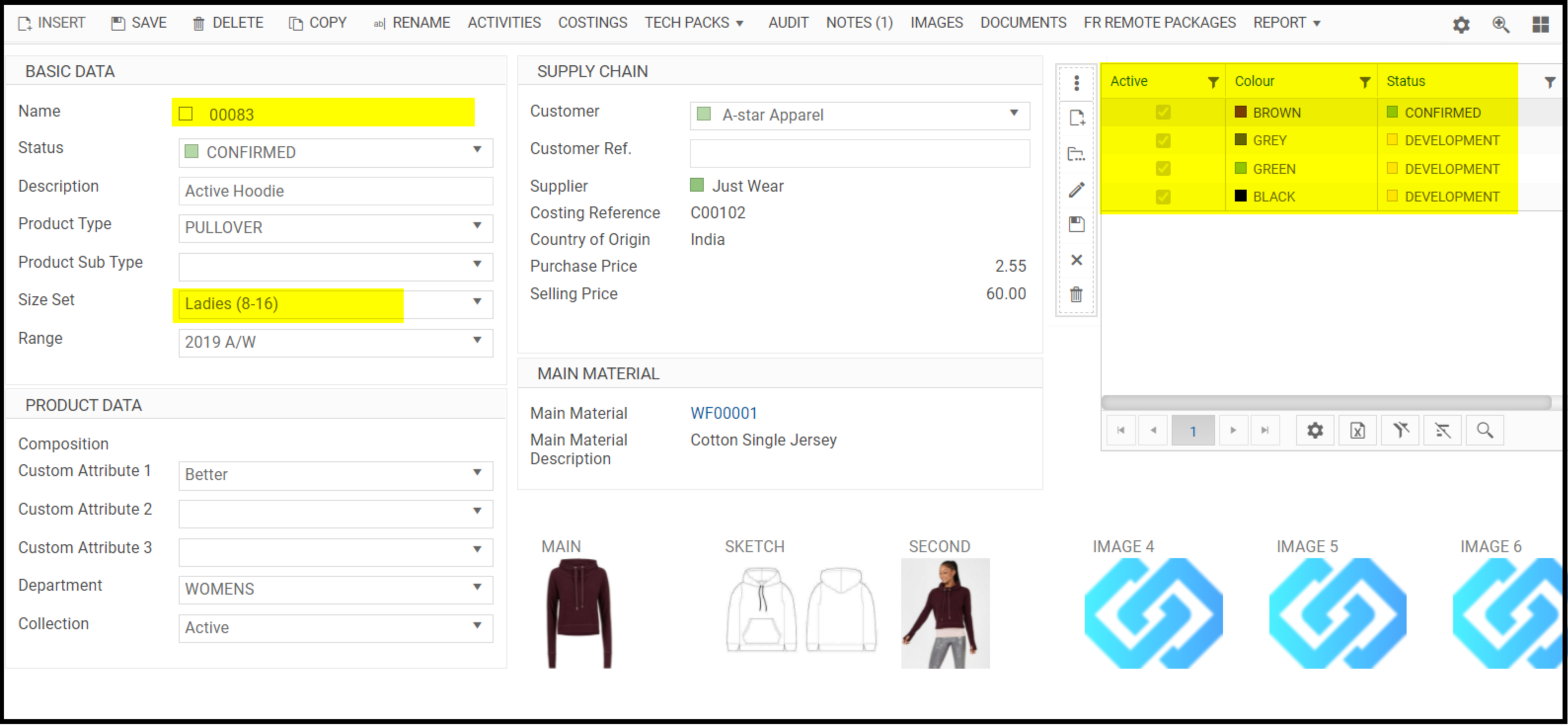
1. The Product Name
2. The Size Set on the Product
3. The Colours available on this Product
It is through these Colours when the Standard User will be able to redefine the Ratio in which each size is split. This is by Colour.
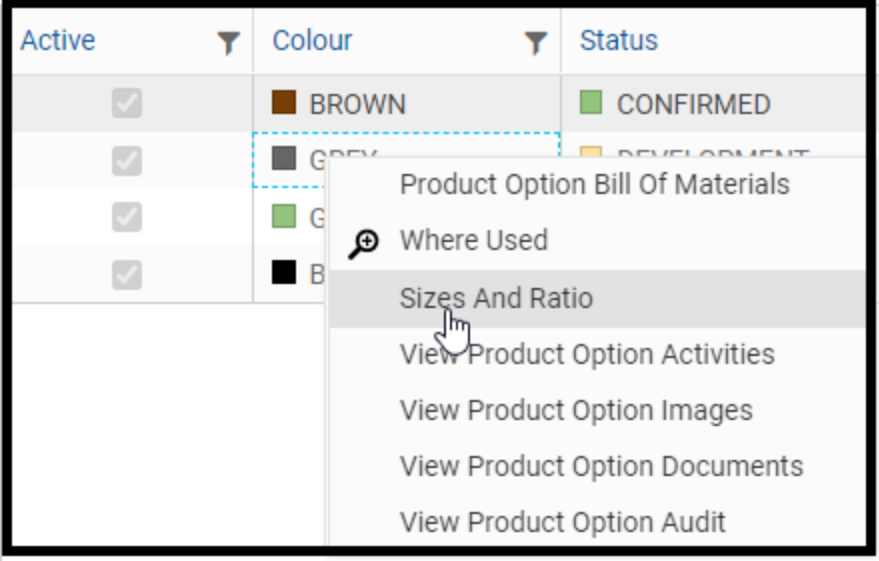
Right-click on a Colour that you wish to adjust the Ratio on, in this example I'll use the Grey colour, and select the Size And Ratio option:
In the resultant dialogue, the User can change the Size Ratio for THIS Colour on THIS Product:
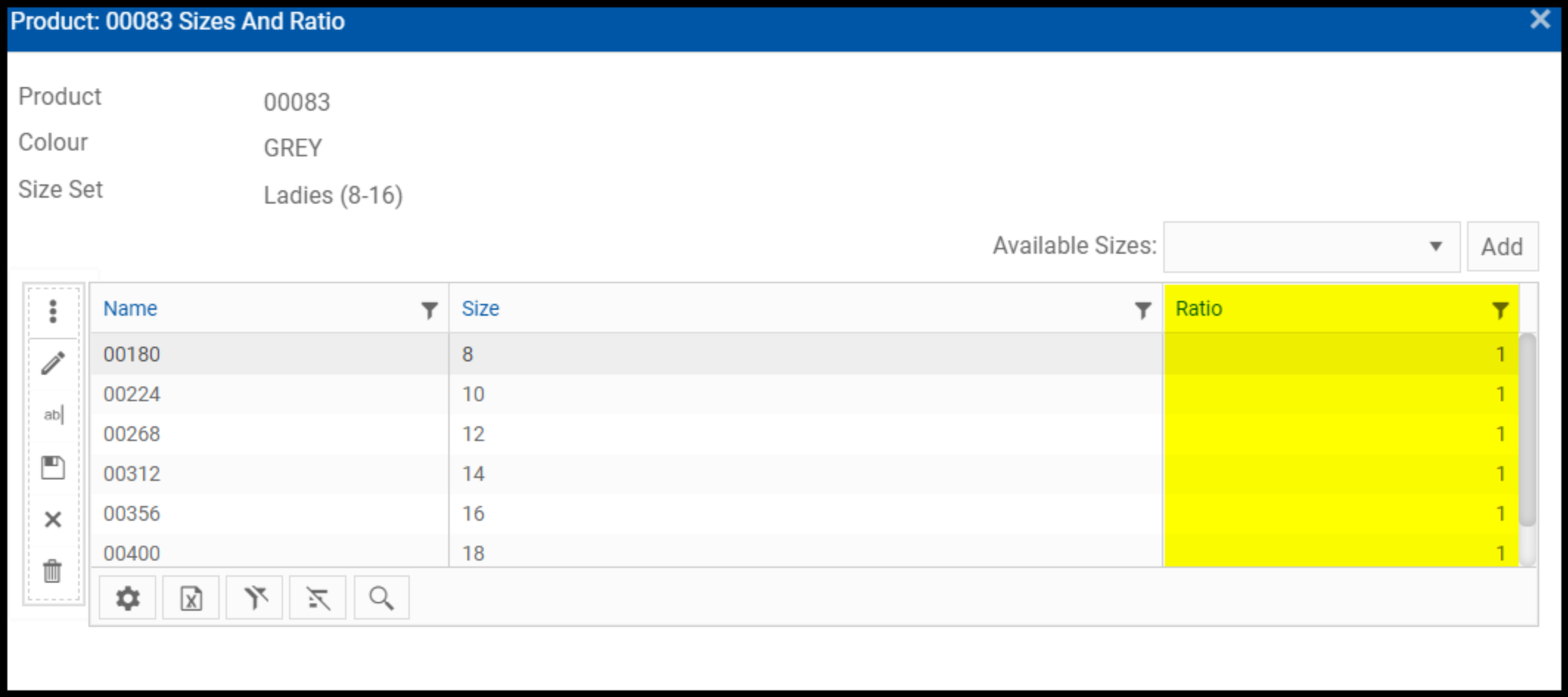
In the above image, the sizes have a ratio of 1.
What does this mean?
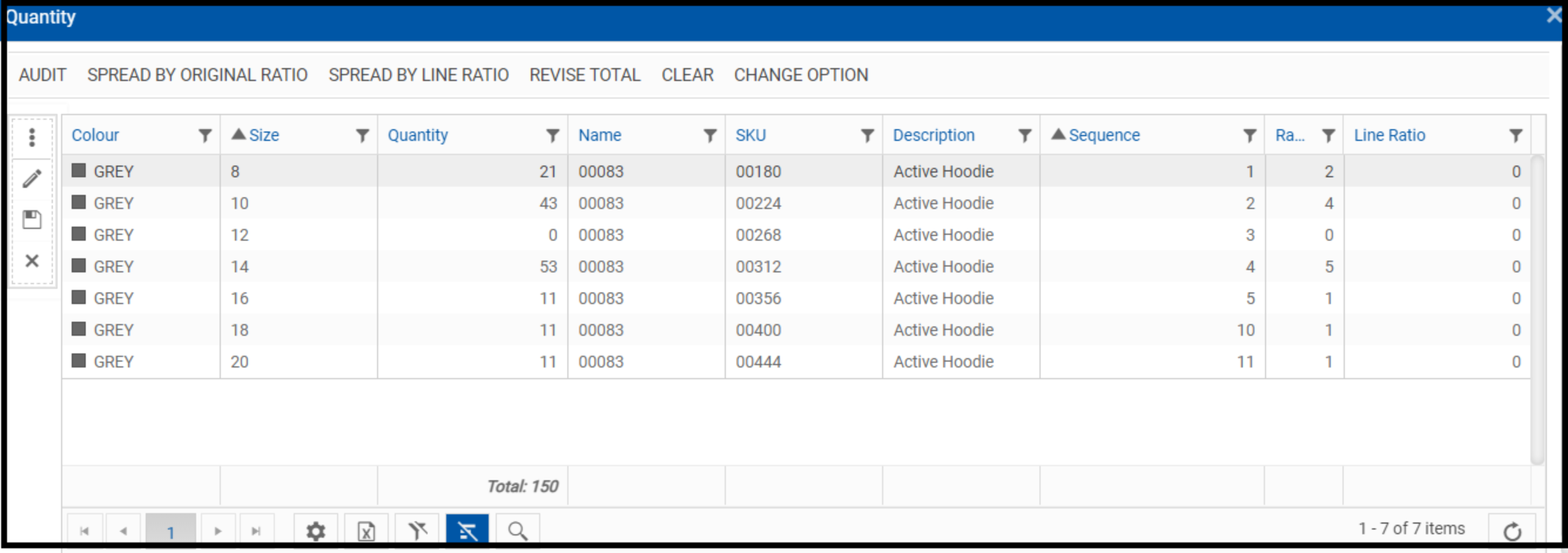
This means that if a PO was raised for this product in Grey for a quantity of 150, VisionPLM would automatically split the Total Quantity of 100 across these sizes giving a quantity of 25 in each.
So now we need to revise the Ratios for the Grey Colour as some of these sizes did not previously sell well. To do this, simply double-click in the Ratio field against the Size you wish to change the Ratio on. The Size Line will now be editable:

Change the Ratio to your new Ratio for this Colour Size and do the same for all other affected sizes in the Grey Colour:
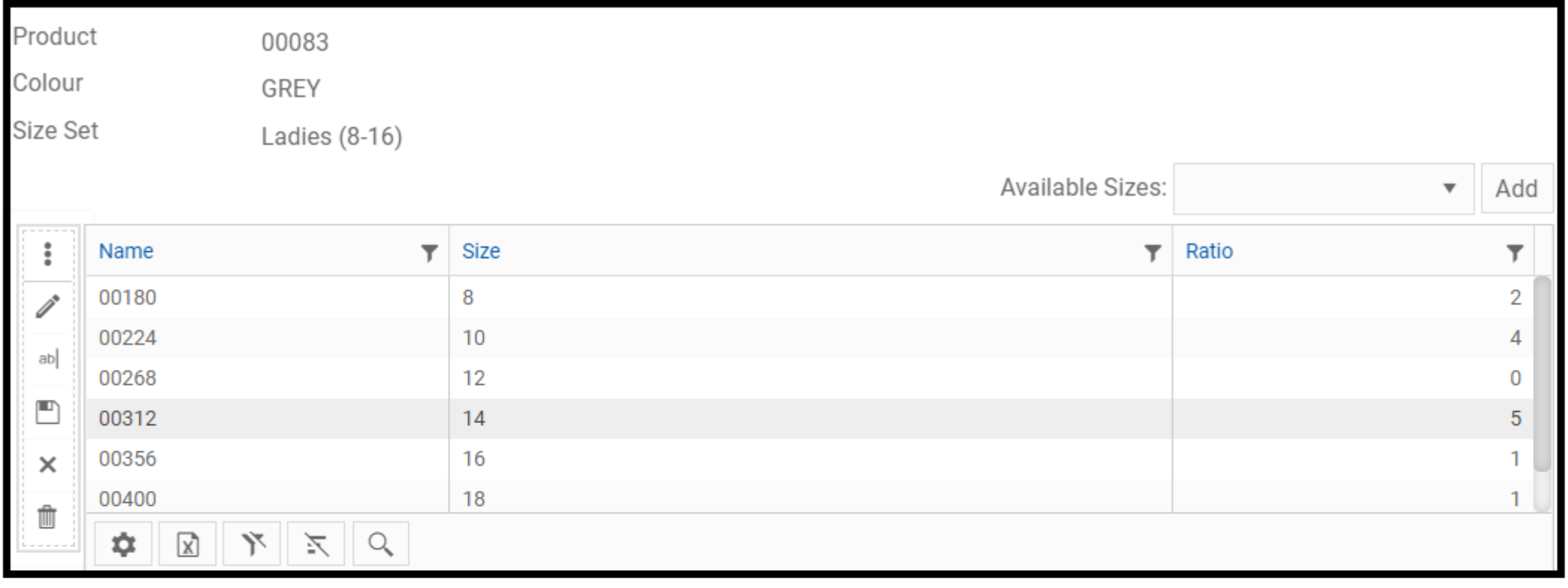
Now, if a PO was raised for this Product in Grey for a quantity of 150, VisionPLM would automatically split the Total Quantity of 150 across these four sizes for that Colour.
What will this show on my PO Line?
So let's test this by Raising a PO. Using the same Product in the above example, we can Raise Order from the Product Manager:
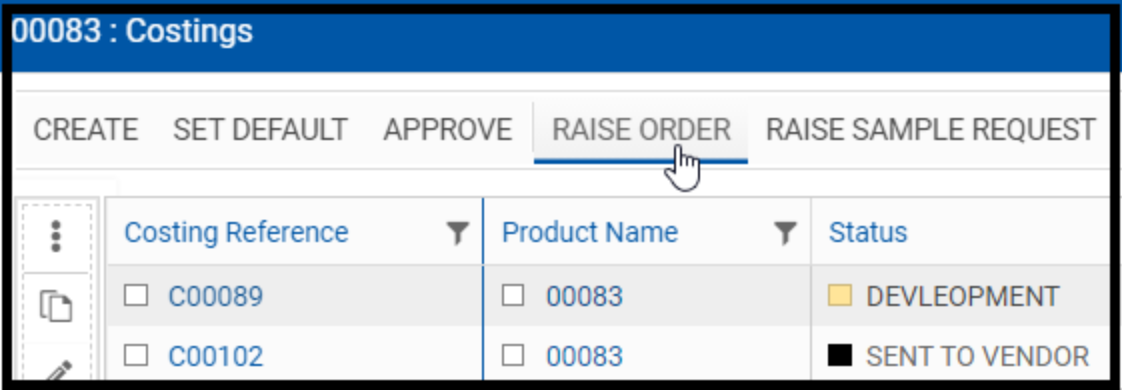
As usual, before Raising an Order, make sure the Costing is Approved and Default, click on the Raise Order button. In this example, I've set two colours to be raised on the PO:
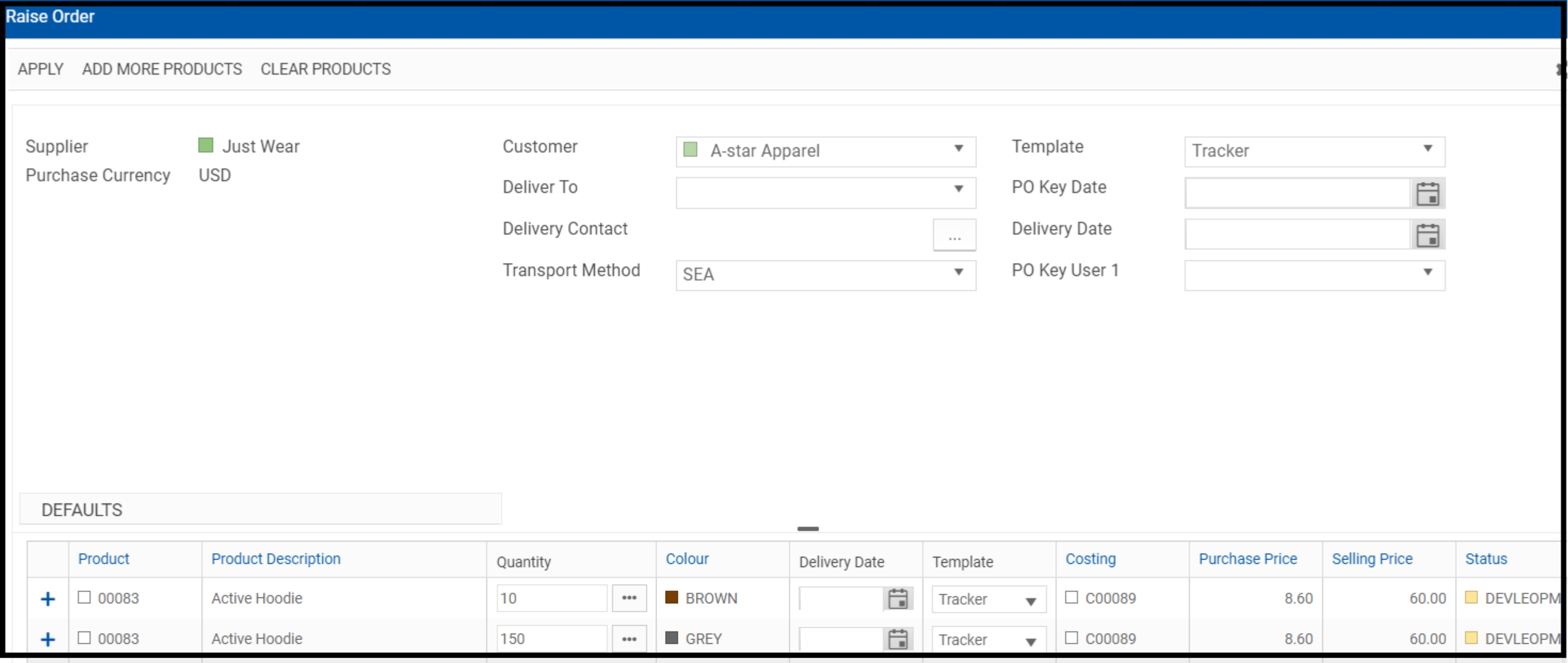
We can now see that the Ratios have been amended accordingly: