Article Public Number: KA-01174
Coats Digital Knowledge Article
Product: VisionPLM
VisionPLM offers the ability to store images and documents against a given entity for example Products, Purchase Orders, Materials etc. and can also upload documents such as word, pdf and excel file types plus many more.
Images
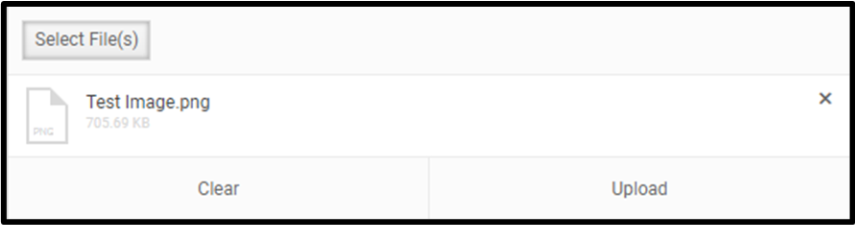
When you click on Images this will open a window before you can upload an image you'll need to make sure that you select what the image type is if you don't do this then the Select File(s) button will be greyed out. Clicking on the Select File(s) button will open up File Explorer from here you can select the image and when an image has been chosen an upload button will appear. Clicking on the upload button will start uploading the image to VisionPLM and will give you a percentage of how far away the image is from finishing uploading once the percentage is at 100% it will turn green and say DONE showing that the image has been successfully uploaded to VisionPLM. You'll also see a grid that has five columns these are:
Modified Date
This will show you the date and time that the image was last modified.
Modified By
This will show the name of the user that modified the image.
File Name
This will be the name that the image file was given.
Download
This allows you to download the image.
Note
This allows you to enter a note against the image which can be useful if you want to give a description of the image or instructions to be carried out. In the Image window, there is an Annotate Image function that allows you to add annotations to the image you have selected.
Documents
The Documents window does not differ too much from the Image window the only difference is that the Image window has an Annotate Image function.