
Purpose
Use this article to download and prepare a Product Option Size import template for importing user-defined field (UDF) values into VisionPLM. After importing, check the values against the relevant entries in the product’s Sizes and Ratio dialog.
Before you beginHave the following information available:
- The Product Name for each product you want to include.
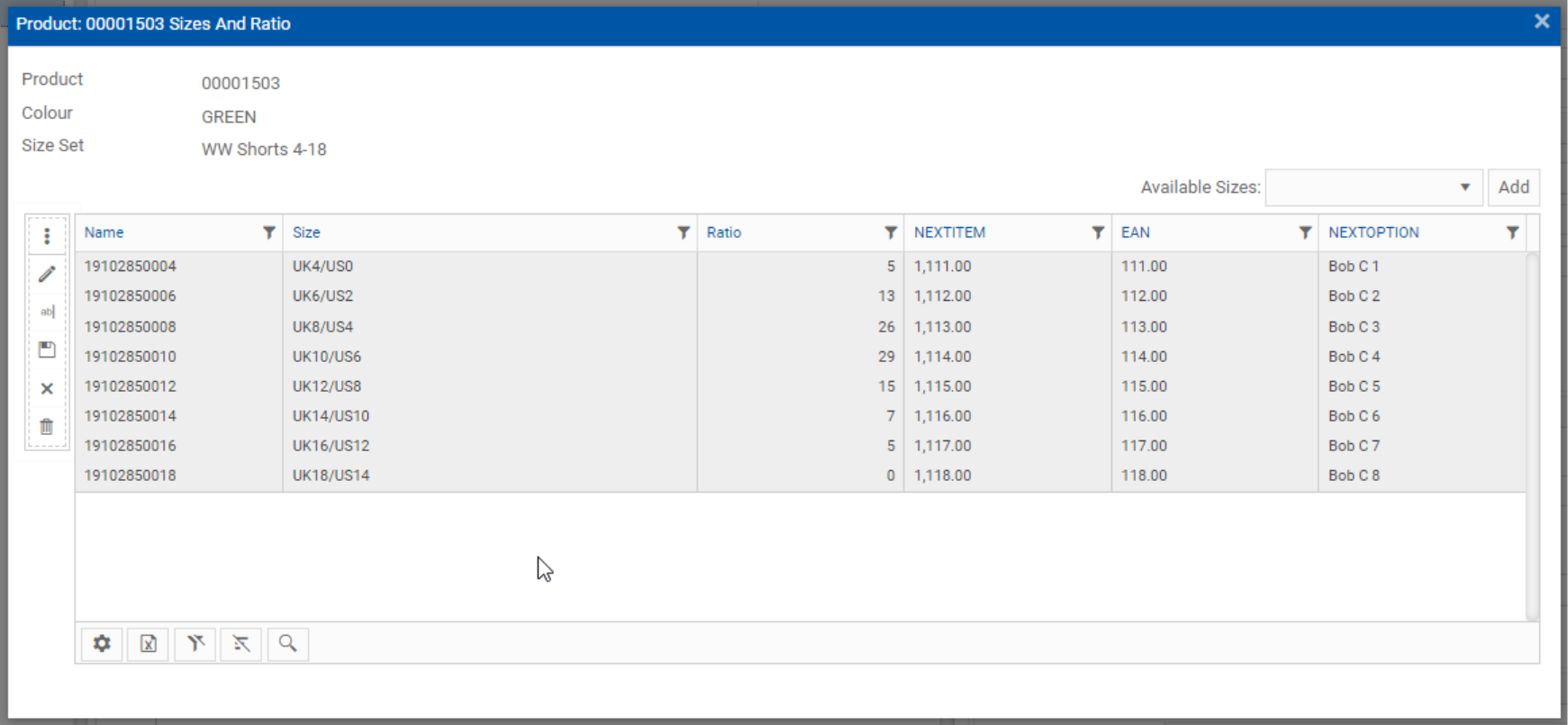
- The Product Option Size Name, taken from the product’s Sizes and Ratio dialog.
- The UDF values you want to import and the corresponding column names and data types shown in the import definition.
Important: Use the Product Option Size Name, not the displayed size label. In the source example, the Name is 19102850004, while the corresponding size label is UK4/US0.
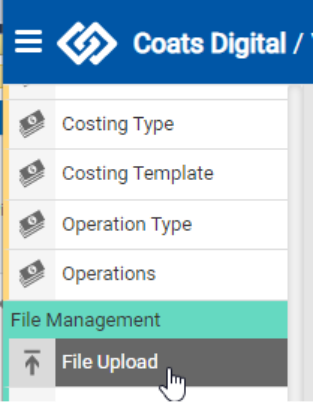
- In VisionPLM, open Maintenance.
- Under File Management, select File Upload.
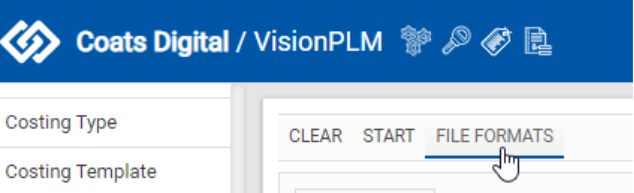
- Select FILE FORMATS to view the supported import file types.
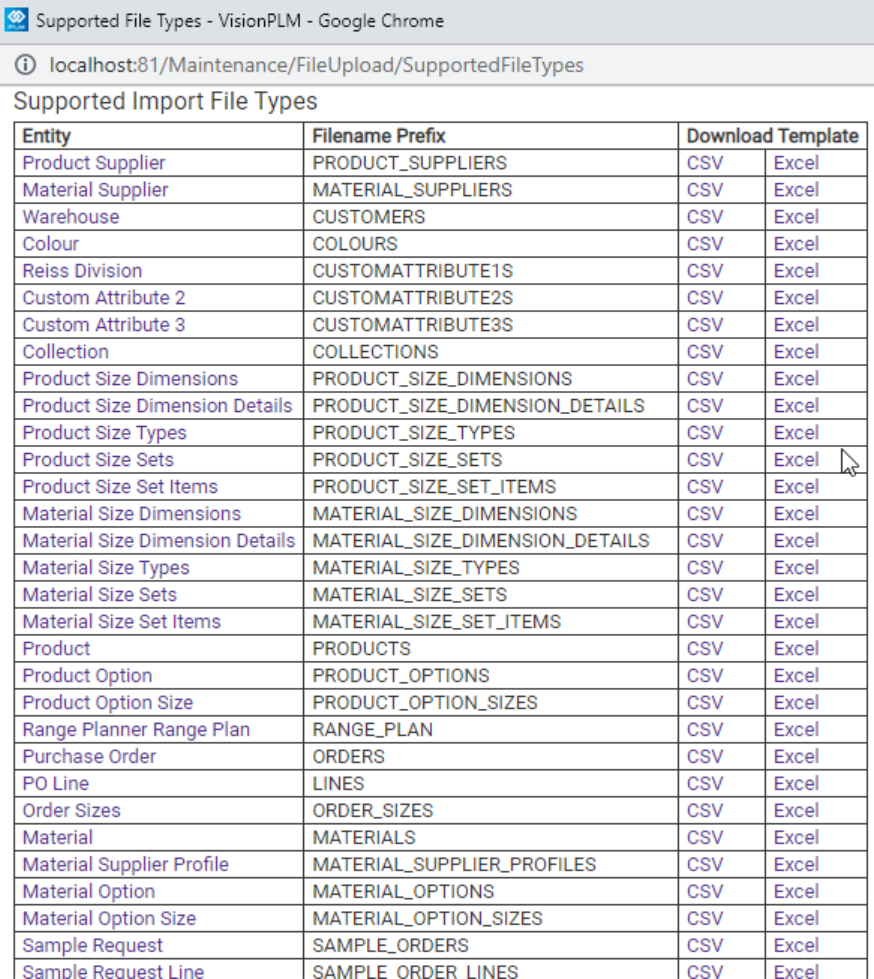
- Locate Product Option Size. Its filename prefix is PRODUCT_OPTION_SIZES.

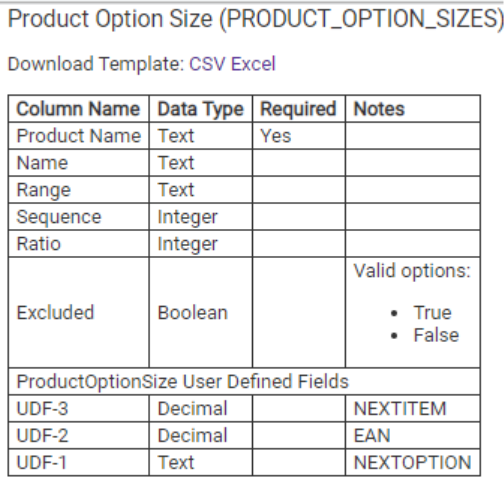
- Download the CSV or Excel template.

The downloaded template contains prepopulated column headers.
Prepare the import file- Open the downloaded template.
- Enter the product and Product Option Size details for each row you want to import.
- Populate the UDF columns you want to import, using the column names and data types shown in the import definition.
- Check the values against the relevant product’s Sizes and Ratio dialog, then save the file in your chosen template format.
Fields used for this import
| Column | What to enter |
|---|---|
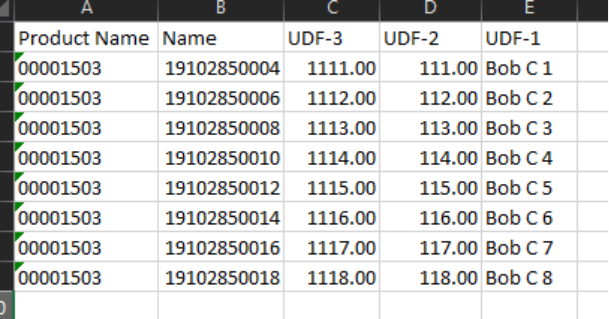
| Product Name | The product name as recorded in VisionPLM. The source example uses 00001503. |
| Name | The Product Option Size Name from the Sizes and Ratio dialog, for example 19102850004. |
| UDF columns | The values to import into the corresponding Product Option Size UDFs. Use the headers provided in the template. |
The source example uses Product Name, Name, UDF-3, UDF-2, and UDF-1. It omits Range, Sequence, Ratio, and Excluded.
Example import data
| Product Name | Name | UDF-3 | UDF-2 | UDF-1 |
|---|---|---|---|---|
| 00001503 | 19102850004 | 1111.00 | 111.00 | Bob C 1 |
| 00001503 | 19102850006 | 1112.00 | 112.00 | Bob C 2 |
| 00001503 | 19102850008 | 1113.00 | 113.00 | Bob C 3 |
These are example values from the original article. Replace them with your own data.
In the example import definition, UDF-3 and UDF-2 are decimal fields, while UDF-1 is a text field. Check your own import definition rather than assuming these mappings apply to your environment.
File preparation tip: Preserve leading zeros in product names, such as 00001503, when editing and saving the file in a spreadsheet application.
Draft limitation: The original article does not describe how to select, upload, or process the completed file. Add the verified import procedure here before publishing this article as an end-to-end guide.
After the import has completed:
- Open the relevant product in VisionPLM.
- Open its Sizes and Ratio dialog.
- Locate the Product Option Size entries using the Name values from your import file.
- Compare the displayed UDF values with the values in the file.
Expected result: The imported UDF values are displayed against the corresponding Product Option Size entries.