
Article Public Number: KA-01433
Coats Digital Knowledge Article
Product: VisionPLM
Purpose & Scope:
VisionPLM supports both Bulk MRP and Sample MRP:
- Bulk MRP works with Purchase Orders and Material Purchase Orders
- Sample MRP works with Sample Requests and Material Sample Orders.
- Next 7 Days – will only show Material rows where Demand occurs within the next 7 days of “today” – if there isn’t any Demand within the next 7 days then nothing is shown. The time periods displayed are in days.
- Next 14 Days – will only show Material rows where Demand occurs within the next 14 days of “today” – if there isn’t any Demand within the next 14 days then nothing is shown. The time periods displayed are in days.
- Next 7 Weeks – will only show Material rows where Demand occurs within the next 7 weeks of the week that “today” falls in – if there isn’t any Demand within the next 7 weeks then nothing is shown. The time periods displayed are in weeks.
- Next 14 Weeks – will only show Material rows where Demand occurs within the next 14 weeks of the week that “today” falls in – if there isn’t any Demand within the next 14 weeks then nothing is shown. The time periods displayed are in weeks.
- All for Next 7 Days – will show all Material rows regardless of whether the Demand falls within the next 7 days or not. The demand/supply values will be displayed in the Future column if they don’t fall within the next 7 days. The time periods displayed are in days.
- All for Next 14 Days – will show all Material rows regardless of whether the Demand falls within the next 14 days or not. The demand/supply values will be displayed in the Future column if they don’t fall within the next 14 days. The time periods displayed are in days.
- All for Next 7 Weeks – will show all Material rows regardless of whether the Demand falls within the next 7
- All for Next 14 Weeks - will show all Material rows regardless of whether the Demand falls within the next 14 weeks or not. The demand/supply values will be displayed in the Future column if they don’t fall within the next 14 weeks. The time periods displayed are in weeks.
- Sample Request Line 1 uses All Entities Product – UNC and has a quantity of 2 against Product size 28” Short (29”) for Product colour Black.
- The location of the Product Supplier on the Demand Order is Istanbul.
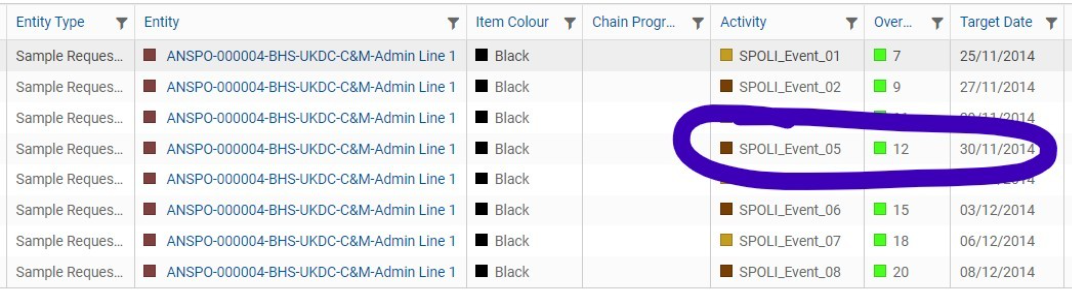
- The target date for the consumption activity on the Line is 30/11/2014
- Material = CP_Material_01B_(Sizes)
- Product colour Black = Material colour Black.
- Product size 28” Short (29”) = Material size 05” and Material rating 1.
- All selected must be for the same Supplier.
- All selected must be for the same Purchase Payment Terms.
- All selected must be for the same Purchase Currency.
- Purchase Orders
- Purchase Order Lines
- Sample Requests
- Sample Request Lines
- Material Purchase Orders
- Material Purchase Order Lines
- Material Sample Orders
- Material Sample Order Lines
Generally, a system will only have one type of MRP enabled – either Bulk or Sample. Both work in the same way, so going forwards this document will refer to Purchase Orders / Sample Requests as Demand Orders, and Material Purchase Orders / Material Sample Orders as Supply Orders.
From various bits of information – the Materials with the selected colours, sizes and ratings in the Bill of Materials on a Product, the quantity of each Product size ordered for a colour on the Demand Order Line(s), the target date of the Demand Order Line consumption activity and the location of the Product Supplier on the Demand Order (and if Unit of Measure is enabled then that too – going forwards Unit of Measure will be referred to as UoM), are used to calculate the Material demand for the Demand Order Line(s).
This document will give a basic overview, with examples, of how it works and how the demand and supply are calculated.
This document does not cover Opening Stock or Reservations or cover calculation of Demand / Supply when using Unit of Measure.
Setup for MRP
Whichever MRP you are using needs to be enabled in the licence and you need to set the Purchase Order / Sample Request Consumption Activity in Admin Settings. This activity is one of the corresponding Line activities that are enabled for quantitative updates (By Size). The consumption activity cannot be the same activity as the activity set as the Line receipt activity. For the examples in this document, the Sample Request Consumption Activity is set as SPOLI_Event_05.
Bill of Materials
For Material demand to be generated the Product on the Demand Order Line needs to have a Bill of Materials that contains Materials with the colours and sizes/ratings mapped, e.g. as shown in the image below. Going forwards in this document Bill of Materials will be referred to as BoM.

Raising a Demand Order
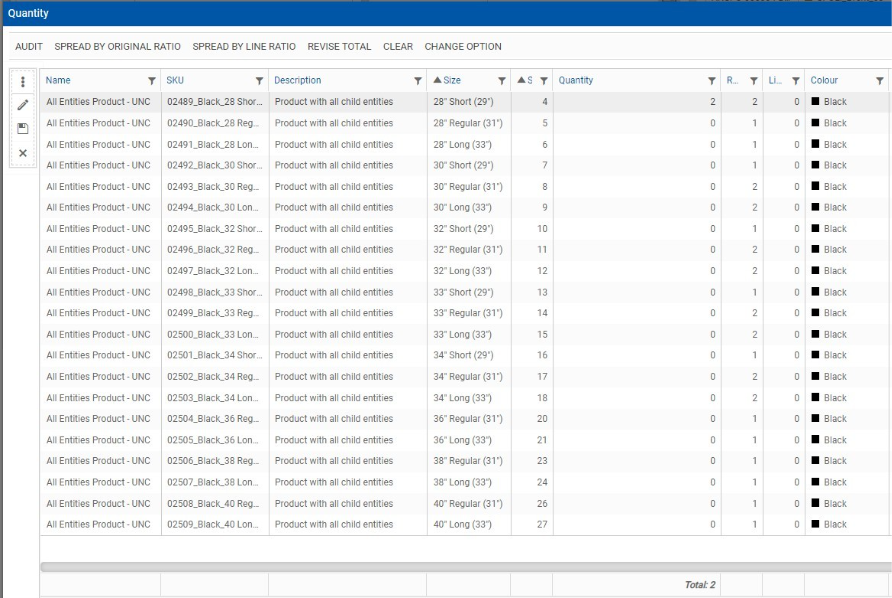
When you raise a Demand Order with an Order Line for a Product, that has a BoM, you will set quantities against the sizes you want for the colour you want, e.g. in the image below a quantity of 2 is set against size 28” Short (29”) for colour Black – remember that you can have as many sizes per Line as you want but only one colour per Line.
The template on the Demand Order Line also needs to contain the consumption activity that was set in Admin Settings, along with a key date/delivery date (depending on what the template is linked to). This is necessary so that a Target Date is generated for the consumption activity (shown in the image below) – this is used by MRP to calculate when the Materials are needed.
MRP Screen
The MRP screen is where you will view details about your MRP, for example, Demand Supply, when things are needed and also raise Orders for Materials.
MRP Screen Grids
Unlike most grids in VisionPLM, the grids in the MRP screens cannot have the columns hidden, rearranged or resized – this is due to the way that the data is displayed between the multiple grids. When you expand a Material row it will display the Requirements and Supply grids when the Details View tab is selected, and the time periods shown in those grids need to align with each other, as well as with the time periods on the Material Row it is associated with. You can filter and sort on any of the columns that are not time period columns.
Recalculating MRP
For the system to calculate MRP values (for Demand and Supply) you need to go to the MRP screen and click the recalculate button and confirm the recalculation – bear in mind that the system does not auto-update MRP when you create/change Order Lines for either Demand or Supply Orders, or change Materials/ratings/sizes etc in the BoM. Depending on how many Demand and Supply Orders there are this might take a while.
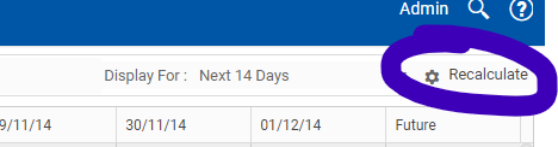
Once MRP has been recalculated you can refresh the screen using one of the refresh prompts and then start viewing the values.
Display For
The Display For drop-down allows you to view the data in different ways for different time periods.
weeks or not. The demand/supply values will be displayed in the Future column if they don’t fall within the next 7 weeks. The time periods displayed are in weeks.
Material Rows
For each Material that has an MRP requirement, there is a Material row that shows various bits of relevant information – Material name, colour, size, location of the demand, Opening Stock and the Material total in each time period.
If the same Material / Colour / Size combination is required in different locations then there will be a row for that Material/Colour/Size combination per location, e.g., if the Material is required in Istanbul and in Chennai, then there will be an Istanbul row and a Chennai row.
Calculation and Display of Demand for a Demand Order Line
Demand for a Material is calculated for each required Size of Colour of Material in each location that it is required. If UoM is enabled then the UoM selected in the BoM and Demand Order Line is also used in the calculation – when UoM is not enabled then it automatically uses the UoM of Piece in the calculation, i.e. 1 quantity/rating = 1 piece.
In the examples below we are looking at the demand for individual Demand Order Lines as well as the overall demand for a particular Material row – the individual Order Lines can be viewed by clicking the down arrow to the left of the Material Name on a Material row.
Examples:
If we take our example BoM for All Entities Product – UNC, and our Sample Request Line 1 from above, we can calculate our demand for one of the Materials, and the time period in which the Material is required.
For this example we will use the following values:
From the BoM for All Entities Product – UNC we will use the following values:
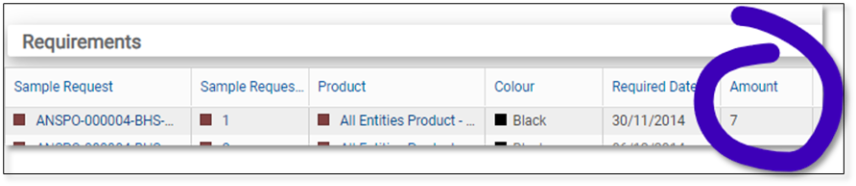
From this we can calculate that the Demand for CP_Material_01B_(Sizes) for Size 05” in Black in Location Istanbul for this Demand Order Line is 2, which is shown in the Amount field for the Order Line (ringed in purple in the image below).
This is Rating in BoM multiplied by the Quantity for the Product Size on the Demand Order Line: (Rating: 1 * Quantity: 2 = Demand: 2).
As the target date for the consumption activity is 30/11/2014 we can also see that the demand for this Demand Order Line falls in the week of 24/11 – 30/11, as the MRP screen is set to display in weeks (outlined in green in the image below) – if the MRP screen is displaying in days then it would fall in the day of 30/11/14.
We can also see that this particular demand for this Material/Colour/Size/Location combination falls into the
24/11 – 30/11 period on the Material row – in this example, this is easy to see as we only have the one Demand Order Line, but if we had multiple the values in the Material row are the sum of all demands in the time period for that Material minus the sum of all valid Supply in that time period – so, in essence, our Material total. As we currently have no Stock for the Material and no incoming Supply Orders then the value in the time period shows as -2. It will also be highlighted in red as the overall Material total is going down in this time period. The red downward arrow denotes that our Material total is going down rather than up. If you highlight the red arrow with your mouse cursor you will be able to see the amount it is going down by in that time period – this may not match the value showing in the cell, e.g., the total in the cell could be -7 but the value when highlighting the arrow could be -5. You will see those subsequent time periods in the Material row show as -2, which is because we have not yet met all of the demand.

If the quantity for Size 28” Short (29”) for the colour Black were updated to 10 then it would be Rating: 1 * Quantity: 10 = Demand: 10.
Now if we update the Demand Order Line to have quantities against multiple Product sizes that have the same Material size mapped to them in the BoM then we need to take that into account too.
Now we have a quantity of 2 against Product size 28” Short (29”) and a quantity of 5 against Product size 28” Regular (31”) – remember both will be for Product colour Black.
In the BoM both those Product sizes have the same Material size of 05” mapped to them and both have a rating of 1, so now we have (Rating: 1 * Quantity: 2 = Demand: 2) + (Rating: 1 * Quantity: 5 = Demand: 5) = Total demand of 7 (as shown in the image below).
Now what would happen if those Product sizes in the BoM had different ratings for the same Material colour / size combination?
In the BoM if we change it so that Product size 28” Short (29”) is mapped to Material size 05” with a Material rating 1 and Product 28” Regular (31”) is mapped to Material size 05” with a Material rating 2, then our Demand changes to 12 (as shown in the image below): (Rating: 1 * Quantity: 2 = Demand: 2) + (Rating: 2 * Quantity: 5 = Demand: 10) = Total demand of 12 (as shown in the image below).

If a Product size is mapped to a different Material size for the same Material colour in the BoM, then that Material colour/size combination will have a different demand, and therefore a separate row in the MRP screen, e.g., in the BoM for All Entities Product – UNC the Product size 40” Regular (31”) is mapped to CP_Material_01B_(Sizes) size 06” with a rating of 1. If a quantity is added to the same Demand Order Line for Product size 40” Regular (31”), then a CP_Material_01B_(Sizes) row is displayed for size 06” colour Black in location Istanbul.
Now, what if we have multiple Demand Order Lines for the same Material / Colour / Size / Location combination?
In the example image below you can see that we have three Demand Order Lines, each with a demand amount, and with that demand falling in different time periods.
Demand Order Line 1 has a demand of 12 falling in 24/11 – 30/11, which in the Material row gives us a total of -12 in 24/11 – 30/11. Demand Order Line 2 has a demand of 5 falling in 01/12 – 07/12, which in the Material row gives us a total of -17 in 01/12 – 07/12, as this is the sum of all demand and supply at this point, and as we have no supply we only have demand. Demand Order Line 3 has a demand of 2, however, the demand falls outside of the time period we are viewing so we can see in the Future column on the Material row that we have a total of -19.

Raising Material Orders from the MRP screen
Supply Orders can be raised from the MRP screen for a Material by selecting the required Material and clicking ‘Raise Order’. This will open the Material Costing / Material Supplier Profile dialogue and display the available Material Costings / MSP for the selected Material. The functionality for raising an Order at this point is the same as if you were raising an Order from Material Manager or the Material form.
If raising a Material Purchase Order (from Bulk MRP) don’t forget that the Material Costing / MSP needs to be approved before you can raise an Order for it.
If you want to raise an Order from multiple Material Costings / MSP at the same time, don’t forget the following rules apply:
Raising an Order from here does not automatically populate the Deliver To value to the location where the Material is required, so you will need to make sure that you select the correct Deliver To value, or when you recalculate the MRP it will not count as Supply for the Material row you raised the Order for.
Material Orders that are created in the Material Order area or raised from Material Costings / Material Supplier Profiles in Material Manager or Material form also count as Supply Orders if they have the correct values.
Calculation and Display of Supply for a Supply Order Line
Supply of a Material is calculated for each required Size of Colour of Material in each location that it is required. If UoM is enabled then the UoM selected in the BoM and Supply Order Line is also used in the calculation – when UoM is not enabled then it automatically uses the UoM of Piece in the calculation, i.e. 1 quantity/rating = 1 piece.
For a Material Order Line to count as a Supply Order Line for a Material Demand, the Deliver To location for the Material Order Line must be the same as the location of the Material Demand – if the Deliver To on the Material Order Line does not match the Material Demand location then it will not be counted as a Supply for that Demand, e.g., if the demand is in Istanbul but the Material Order Line Deliver To is Chennai then it won’t count as Supply for that Demand. The Supply Order Line also needs to have a Critical Path template that contains the Receipt activity.
The Supply quantity from a Supply Order Line is shown in the Amount field in the Supply grid, as shown in the image below. When the Supply is due to be available is displayed in the relevant Day / Week bucket – this is the target date of the receipt activity of the Supply Order Line – you can see this date in the Supplied Date field.

It is worth remembering that even though a Material Order Line has an overall quantity, not all of that may be supply for the Material Demand – it will be the quantity of the required size from the Order Line that is used, for example the Line quantity may be 20 but the quantity of the required Material size is only 10, so the Supply amount is 10 and not 20.
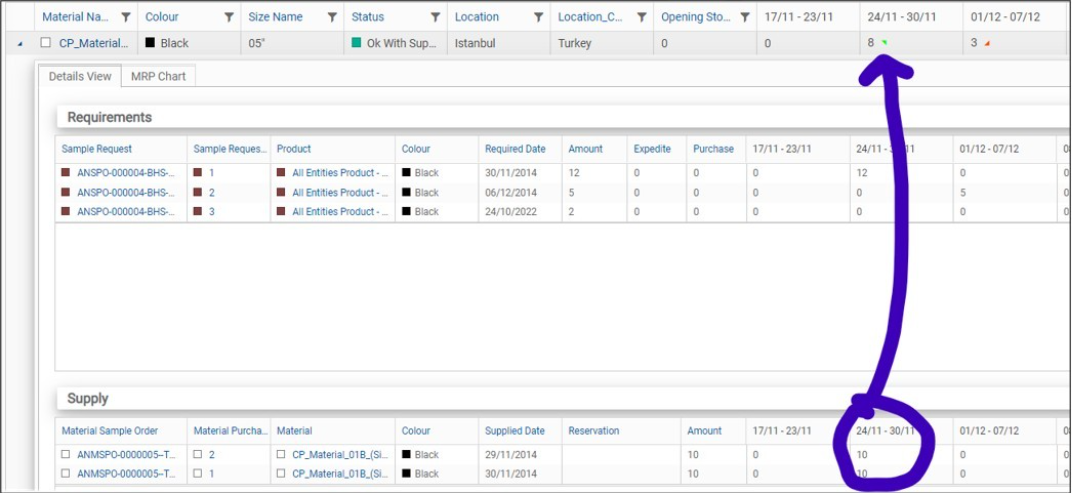
We can see that this particular supply for this Material/Colour/Size/Location combination falls into the 24/11 –
30/11 period on the Material row – in this example we have two Material Supply Order Lines, so in the Material row the sum of all demands in the time period for that Material minus the sum of all valid Supply in that time period are shown – so in essence, our Material total. As we currently have a Demand of 12, no Stock for the Material and an incoming Supply total of 20 then the value in the time period shows as 8 (20 Supply – 12 Demand = 8 total). It will also be highlighted in green as the overall Material total is going up in this time period.
The green upwards arrow denotes that our Material total is going up rather than down. If you highlight the green arrow with your mouse cursor you will be able to see the amount it is going up by in that time period – this may not match the value showing in the cell, e.g., the total in the cell could be 8 but the value when highlighting the arrow could be 2.
Purchase value in the Requirements grid
The Purchase value against a Demand Order Line in the Requirements grid shows how much of the
Material/Colour/Size/Location combination that you still need to purchase to meet the demand of the Demand Order Line. If you have no Opening Stock, and you have no Supply Order Lines, then the Purchase value will be for the full Demand amount.
If you have any Opening Stock, and/or any valid Supply Order Lines, then the Purchase value will change, e.g., you have a demand of 100, no Opening Stock and a valid Supply Order Line for 60 so the Purchase value will now be 40. We can see this calculation as “Demand – (Opening Stock + Supply Order Line(s) Quantity) = Purchase”.
Once enough Material has been purchased to supply the demand the Purchase value will be zero.
Expedite value in the Requirements grid
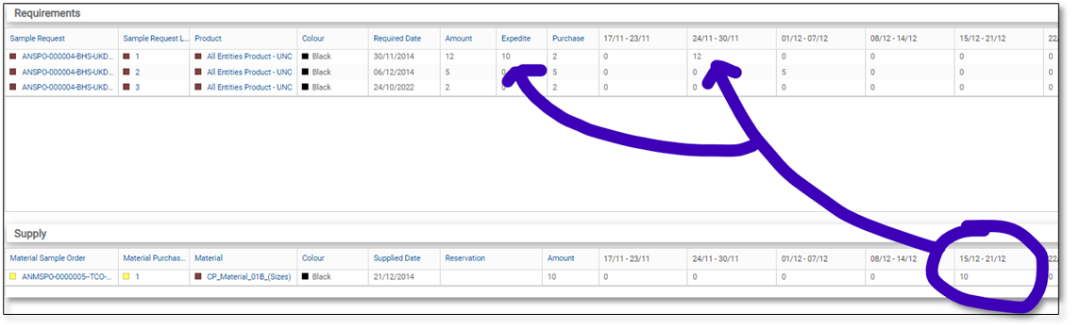
The Expedite value against a Demand Order Line in the Requirements grid shows how many of the purchased Material / Colour / Size / Location combinations from the Supply Order Line(s) will arrive later than the Required date – in the image below you can see that the supply of 10 will arrive in the week 15/12 – 21-12 but is required in the week 24/11 – 30/11, so this gives us an Expedite value of 10.
MRP Status
Each Material row in the MRP screen will have a status – this status will depend on whether supply still needs to be purchased if there is supply on the way that will fulfil the demand and will be on time and on whether there is supply on the way but it won’t arrive on time to meet the demand. These statuses are explained below.
Purchase
When the status shows as Purchase, this means that there is still supply required to be purchased to meet the demand. You do not have enough supply between Opening Stock and Supply Order Lines to meet the demand.
If the Material row status is set to Purchase, then the swatch for the Material will show as a dark red/brown colour – this denotes an MRP Purchase Issue. MRP Purchase Issues will also display against applicable Products, Demand Orders and Demand Order Lines.
Expedite
When the status shows as Expedite, this means that there is enough supply purchased to meet the demand for the Material, however, some / all of the Supply Order Line(s) will not arrive on time to meet the required date.
If the Material row status is set to Expedite, then the swatch for the Material will show as yellow – this denotes an MRP Expedite Issue. MRP Expedite Issues will also display against applicable Products, Supply Orders and Supply Order Lines.
OK with Supply
When the status shows as Ok with Supply, this means that there is enough supply purchased to meet the demand for the Material and that the Supply Order Line(s) will arrive on time to meet the required date.
MRP Demand Window from entities
The MRP Demand Window can be accessed from Products, Materials, Demand Orders, Demand Order
Lines, Supply Orders and Supply Order Lines, and will display relevant MRP information. The window will filter what information is displayed based on the entity it is accessed from, and whether it is accessed from the Expedite or Purchase field – this will be explained for each entity below.
You can also raise new Supply Orders from the MRP Demand Window. This functions the same as raising an Order from the MRP screen.
MRP Fields in Products
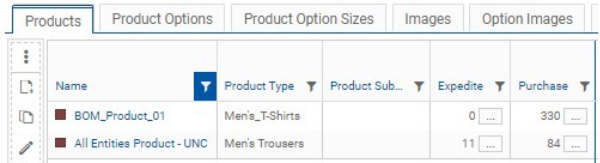
From Product Manager and the Product form you will be able to see the Purchase and Expedite values for each Product – in Product Manager, this is in the form of two columns, and in the form of an MRP fragment, which will also have a link to the MRP screen. These fields show the total Purchase and Expedite values for the Products across all Demand Orders and Supply Orders.
Expedite
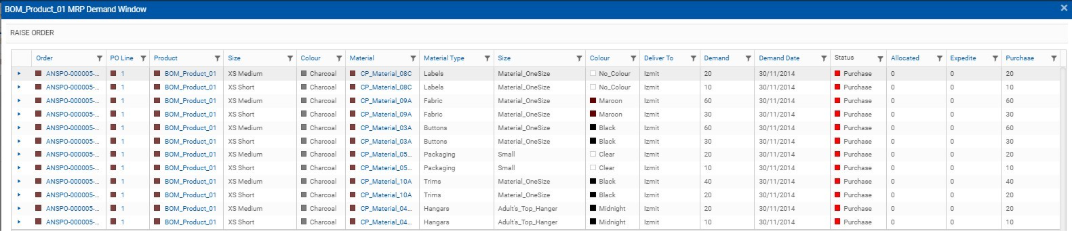
When opened from the Expedite field for a Product, the MRP Demand Window will display any Expedite requirements for any of the Materials required by the Product. Each Material Demand row can be expanded to see details of the Supply Orders valid for that row.
If a Material Demand does not have an Expedite value then it will not be displayed in the dialogue. If there are no Expedite values for the Product then the dialogue will be empty.

Purchase
When opened from the Purchase field for a Product, the MRP Demand Window will display any outstanding Purchase requirements for any of the Materials required by the Product. Each Material Demand row can be expanded to see details of the Supply Orders valid for that row.
If a Material Demand has been fully purchased then it will not display an entry for it in the dialogue. If there are no Purchase values for the Product then the dialogue will be empty.
MRP Fields in Materials
From Material Manager and the Material form, you will be able to see the Purchase and Expedite values for each Material – in Material Manager this is in the form of two columns, and in the form of an MRP fragment, which will also have a link to the MRP screen. These fields show the total Purchase and Expedite values for the Materials across all Demand Orders and Supply Orders.
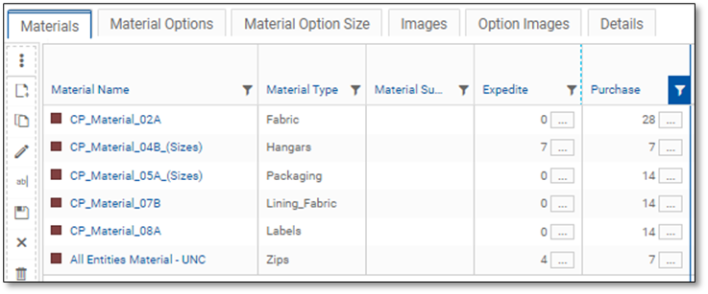
Expedite
When opened from the Expedite field for a Material, the MRP Demand Window will display any Expedite requirements for the Materials required by any Demand Order. Each Material Demand row can be expanded to see details of the Supply Orders for the selected Material valid for that row.
If a Material Demand does not have an Expedite value then it will not be displayed in the dialogue. If there are no Expedite values for the Material then the dialogue will be empty.

Purchase
When opened from the Purchase field for a Material, the MRP Demand Window will display any outstanding Purchase requirements for the Material for any Demand Orders. Each Material Demand row can be expanded to see details of the Supply Orders for the selected Material valid for that row.
If a Material Demand has been fully purchased then it will not display an entry for it in the dialogue. If there are no Purchase values for the Material then the dialogue will be empty.

MRP Fields in Demand Orders
From the Demand Order grid, Demand Order form, Demand Order Line widget and Demand Order Lines grid you will be able to see the Expedite and Purchase values associated with the Demand Orders / Demand Order Lines.
From the Demand Order Lines, you will see the Expedite and Purchase values for each individual Demand Order Line, but from the Demand Order, you will see the total Expedite and Purchase values for all Demand Order Lines on the Demand Order – as shown in the example image below.
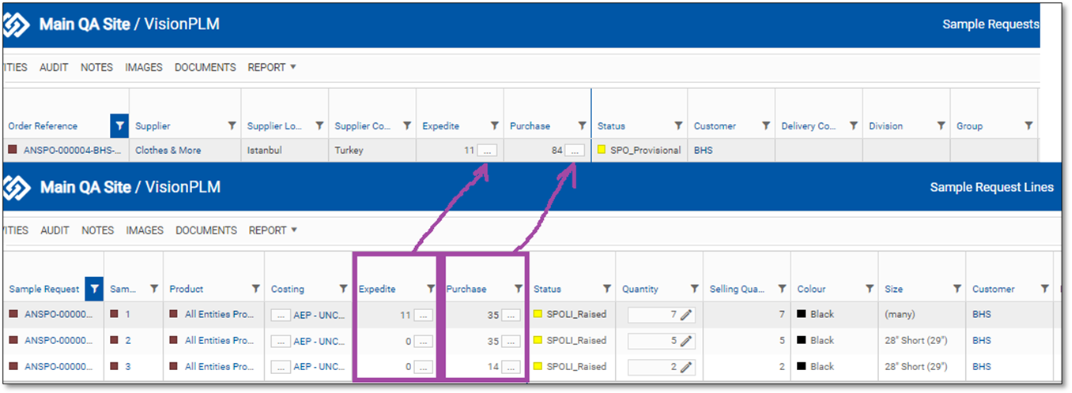
Expedite
When opened from the Expedite field for a Demand Order Line, the MRP Demand Window will display any Expedite requirements for the Materials required by that Demand Order Line. Each Material Demand row can be expanded to see details of the Supply Orders valid for that row.
If a Material Demand does not have an Expedite value then it will not be displayed in the dialogue. If there are no Expedite values for the Material(s) used by the Product on the Demand Order Line then the dialogue will be empty.

When opened from the Expedite field for a Demand Order, the MRP Demand Window will display any Expedite requirements for the Materials required by all Demand Order Lines on the Demand Order. Each Material Demand row can be expanded to see details of the Supply Orders valid for that row.
If a Material Demand does not have an Expedite value then it will not be displayed in the dialogue. If there are no Expedite values for the Material(s) used by the Product(s) on the Demand Order Line(s) on the Demand Order then the dialogue will be empty.
Purchase
When opened from the Purchase field for a Demand Order Line, the MRP Demand Window will display any outstanding Purchase requirements for any of the Materials required by that Demand Order Line. Each Material Demand row can be expanded to see details of the Supply Orders valid for that row.
If a Material Demand has been fully purchased then it will not display an entry for it in the dialogue. If there are no Purchase values for the Demand Order Line then the dialogue will be empty.
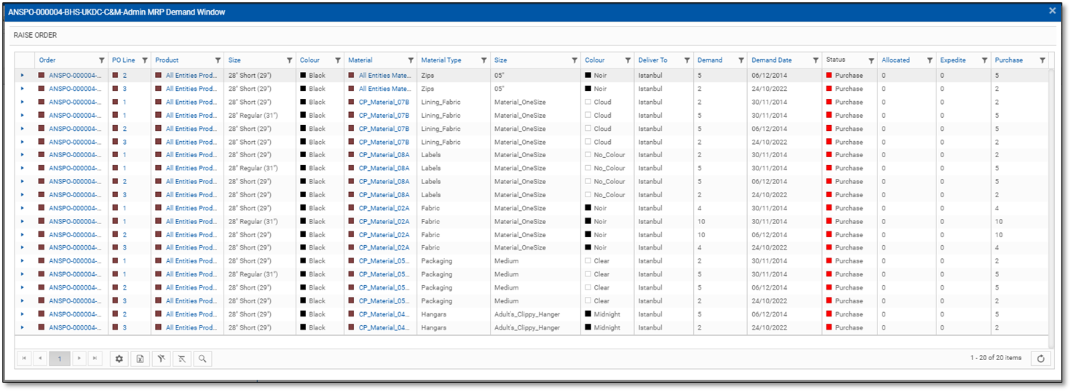
When opened for the Purchase field for a Demand Order, the MRP Demand Window will display any outstanding Purchase requirements for any of the Materials required by any of the Demand Order Lines on the Demand Order. Each Material Demand row can be expanded to see the details of the Supply Orders valid for that row.
If a Material Demand has been fully purchased then it will not display an entry for it in the dialogue. If there are no Purchase values for any of the Demand Order Lines on the Demand Order then the dialogue will be empty.
MRP Fields in Supply Orders
From the Supply Order grid, Supply Order form, Supply Order Line widget and Supply Order Lines grid you will be able to see the Expedite values associated with the Supply Orders/Supply Order Lines. The Purchase field is not available from Supply Orders or Supply Order Lines.
From the Supply Order Lines, you will see the Expedite values for each individual Supply Order Line, but from the Supply Order, you will see the total Expedite values for all Supply Order Lines on the Supply Order – as shown in the example image below.
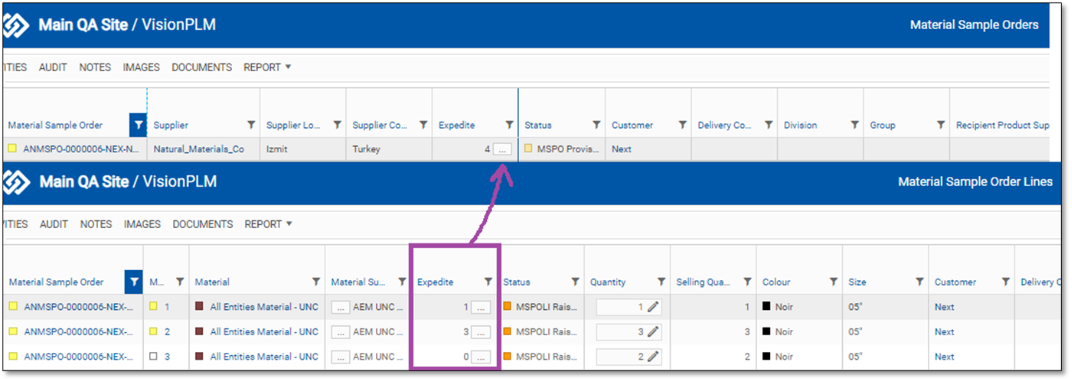
Expedite
When opened from the Expedite field for a Supply Order Line, the MRP Demand Window will display any
Expedite requirements for the Materials on by the Demand Order Lines, where the same Material is on the Supply Order Line. Each Material Demand row can be expanded to see details of the Supply Orders valid for that row.
If a Material Demand does not have an Expedite value then it will not be displayed in the dialogue. If there are no Expedite values for the Supply Order Lines then the dialogue will be empty.

When opened from the Expedite field for a Supply Order, the MRP Demand Window will display any Expedite requirements for the Materials required by all Demand Order Line, where the same Material is on any of the Supply Order Lines on the Supply Order. Each Material Demand row can be expanded to see details of the Supply Orders valid for that row.
If a Material Demand does not have an Expedite value then it will not be displayed in the dialogue. If there are no Expedite values for any of the Supply Order Lines on the Supply Order then the dialogue will be empty.
Opt out of MRP setting
There are some additional settings in VisionPLM that allow you to exclude certain Demand and Supply Orders and Order Lines from the MRP calculations based on their Status, as well as excluding Materials from the Bill of Materials from generating Demand based on the Bill of Materials Item Category set against them. This setting is called ‘Opt out of MRP’
These options are configured in the Maintenance area in the Status and Bill of Materials Items Categories screens.
Status
The ‘Opt out of MRP’ option is available for the following entities:
If a status for one of these Order or Order Line types is set to an opted-out status the Orders / Orders Lines will not generate Demand or Supply in MRP.
Bill of Materials Item Categories
The ‘Opt out of MRP’ setting can be enabled for any Bill of Materials Item Category. If any Materials in the Bill of Materials has an opted-out Bill of Materials Item Category set against it, then the Material will not generate Demand in MRP for any Demand Order Lines that have been raised for the Product the Bill of Materials is associated with.
If the Material is in use on another Bill of Materials, where the Bill of Materials Item Category set against it is not set to ‘Opt out of MRP’ then it will still generate Demand in MRP for any Demand Order Lines that have been raised for the Product the Bill of Materials is associated with. Orders.
Generally, a system will only have one type of MRP enabled – either Bulk or Sample. Both work in the same way, so going forwards this document will refer to Purchase Orders / Sample Requests as Demand Orders, and Material Purchase Orders / Material Sample Orders as Supply Orders.
From various bits of information – the Materials with the selected colours, sizes and ratings in the Bill of Materials on a Product, the quantity of each Product size ordered for a colour on the Demand Order Line(s), the target date of the Demand Order Line consumption activity and the location of the Product Supplier on the Demand Order (and if Unit of Measure is enabled then that too – going forwards Unit of Measure will be referred to as UoM), are used to calculate the Material demand for the Demand Order Line(s).
This document will give a basic overview, with examples, of how it works and how the demand and supply are
calculated. This document does not cover Opening Stock or Reservations or cover calculation of Demand/Supply when using Unit of Measure.
Further reading:
Links to related articles