Article Public Number: KA-01505
Coats Digital Knowledge Article
Product: VisionPLM
This knowledge article will give you some useful tips on the super search functionality and a general overview of this functionality in VisionPLM.
In VisionPLM release 2.18.0000, the super search functionality had some changes that made it a more powerful search tool than it was previously. Also, the location of the super search has been changed, and it is now permanently a search bar at the top of the VisionPLM page.
When you click on the search bar for super search, you'll see that a drop-down appears below the search bar where you can filter out what areas you are wanting to search for, allowing you to narrow down the search results.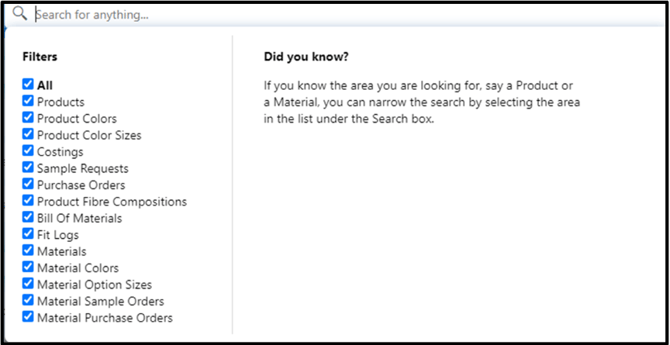 When using the super search, you should first untick the areas that you don't want to include in the search. Next, you can start typing in characters but be aware that the super search isn't intended to be used for searching for multiple characters.
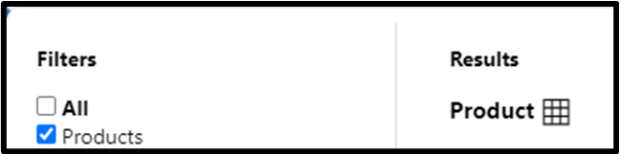
As when you start typing more than three characters, you'll get results that match what has been entered. You can then click on the grid icon, which will open a grid with the results that match what you entered. You can then do a further detailed search by filtering the grid.