Article Public Number: KA-01370
Coats Digital Knowledge Article
Product: VisionPLM
There are two ways to change a user's password in VisionPLM but both options mentioned below will require a VisionPLM user with admin rights to be available to do them. IMPORTANT NOTE:Your local support desk will not be able to change or reset a user's password for data security reasons.
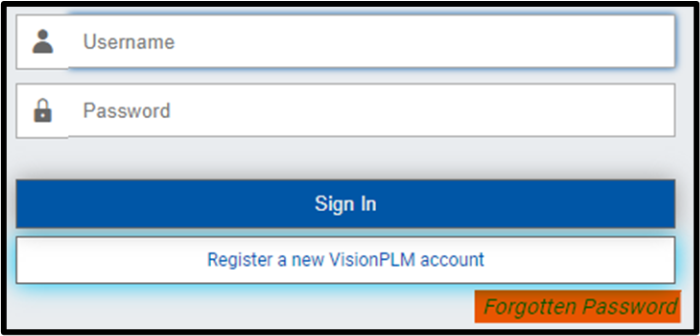
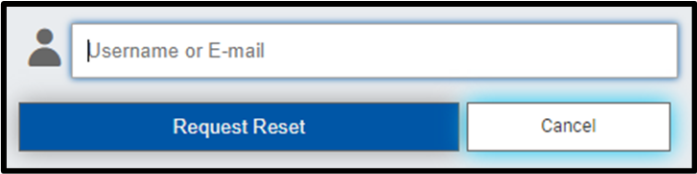
Option1: This option is if a user has forgotten their password to log in. In the login screen of VisionPLM a user can click on Forgotten Password. Enter your username or email and click the Request Reset button which should send a request to a user that has admin rights to reset your password.
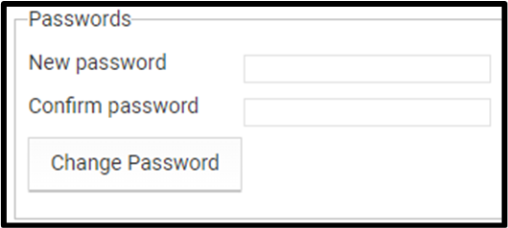
Option2: Only a user with admin rights will be able to do this but they'll need to go to Maintenance > Users. Select the user who wants their password to be changed. In the top left, there will be a section in the top right to change a password. Enter a new password and click on Change Password once this is done it will say that the password has been changed successfully.