
Article Public Number: KA-01492
Coats Digital Knowledge
Article Product: VisionPLM
To add Payment Terms into VisionPLM, you'll need to go to Admin > Financials > Payment Terms.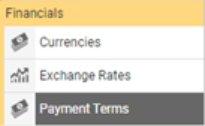
When in Payment Terms, you'll need to click on the 'Insert' icon to add a new line. You can then start filling in the new line with the necessary information and then click the 'Save' icon. The 'Name' column is an essential field for Payment Terms, so remember to always enter a name.
You'll see that in Payment Terms there are two columns that you can tick called:
- Allow as Purchase Payment Term
- Allow as Selling Payment Term
- If Allow as Purchase Payment Term is ticked, then it'll be shown in Product Suppliers.
- If Allow as Selling Payment Term is ticked, then it'll be shown in Customers.

Depending on which option you tick will then show as an option to select in the Payment Terms column of Product Suppliers or Customers in Maintenance.
IMPORTANT
If you've never used payment terms before and want to start using them, be aware that Payment Terms are linked with Costings so always test on UAT before adding anything to LIVE.