
Article Public Number: KA-01074
Coats Digital Knowledge Article
Product: VisionPLM
Purpose & Scope:
Scheduling within VisionPLM is the ability to run specific tasks automatically once, twice or at a fixed interval during selected days of the week. This has the advantage of freeing both human and computer resources from repetitive tasks and/or postponing them so they run out of working hours.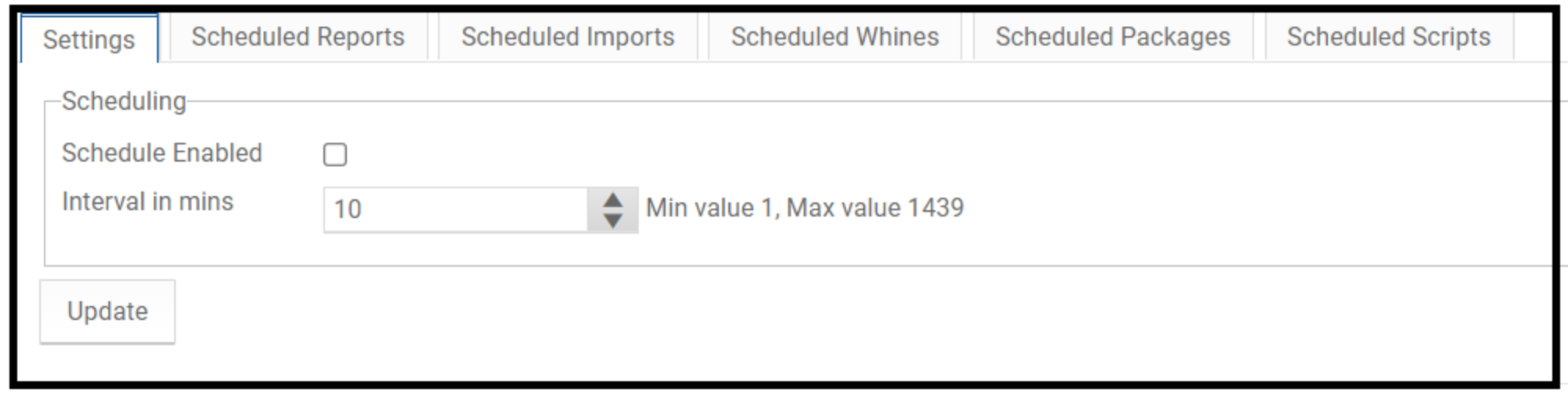
The VisionPLM Scheduler is started by ticking the Enabled button within the Scheduling Settings.
The interval in which the system checks to see if the running of a scheduled task is required can be changed via Interval in the mins’ box. This generally need not be changed unless you are looking to run a Task more than once every 10 mins.
Scheduling a New Task
The general principle to scheduling a task is the same regardless of the task to be run. The specifics of scheduling a report or Import are covered later.
To create a new scheduled task press insert on the grid relating to the task you run and enter a name and description of the task. Tick Enabled if you want the task to be scheduled.
Tick the days of the week you wish the task to run. Note that if you are using a demo system that is date locked, the locked day of the week is ignored for the purposes of scheduling.
The time of day you wish the task to run can be set in two ways:
- You can tell a task to run at a fixed time once or twice a day by adding a time in Time 1 and/or Time 2.
- You can tell a task to run every few minutes between a start time and an end time during the selected days. This can be done via setting a number of minutes in the Frequency column and start and end time in Start Time and End Time columns respectively.
If you wish a task to run all day you need to specify a start and end time they will default to 00:00 and 23:59 respectively. Both these methods can be used in conjunction with each other.
A task can be set to run only once and not repeated by ticking the Run Once.
You can request an email notification upon completion of a task by adding your email address (or several by separating each address with a semicolon (;)) to the Email Address column and Setting the condition in which you would like a notification in the Send Email column either ‘On error only’ or ‘Always’.
Note that if several tasks are scheduled to run at the same time they will be run one after the other in order of the Sequence column.
A history of all scheduled tasks run can be accessed via the Log button at the top of the screen.
Scheduling Reports
In addition to the above, the scheduling of a report requires the selecting of an existing schedulable report and the format you wish it to be exported to. The above example schedules a ‘Product_Export’ report to run every Sunday Morning at 00:01 and send an email only if it errors.
Not all reports can be scheduled so your system administrator may need to configure them to work with the scheduler.
Scheduling Imports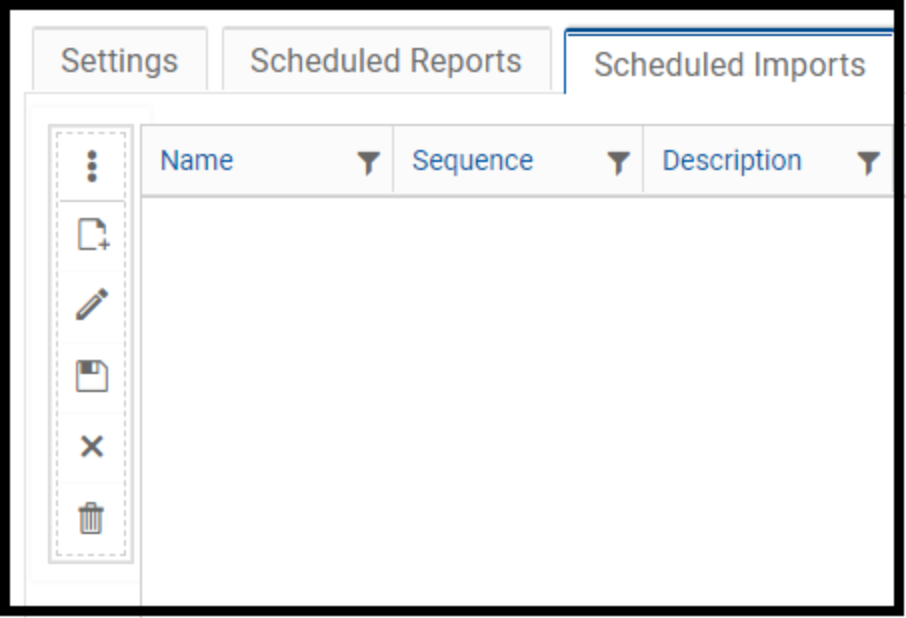
Import scheduling requires no additional information to create and automatically import any files placed in the import folder at the time the task is run. The above example schedules an import to be run every hour on Monday to Friday between 09:00 and 17:00 but never send an email.
The import folder must be configured by your system administrator prior to setup.